Copy Trading
Strategy editor
How to build and tune a strategy in TradeLabs Companion: signal source, brokers, sizing, risk, protections, and notifications, tab by tab.
The strategy editor is a full page, one per strategy, where you decide what a strategy listens to, where it trades, how big, and what guardrails run before each order. Open it from the Strategies page by clicking a strategy.
Strategies are cloud-only, so you need to be signed in for edits to save. Changes save as you type; there is no separate save button.
This page explains each setting. For ready values per instrument, start from a strategy template.
Every strategy is the same shape: a signal comes in, your sections decide what to do with it, and the order goes out to your brokers.
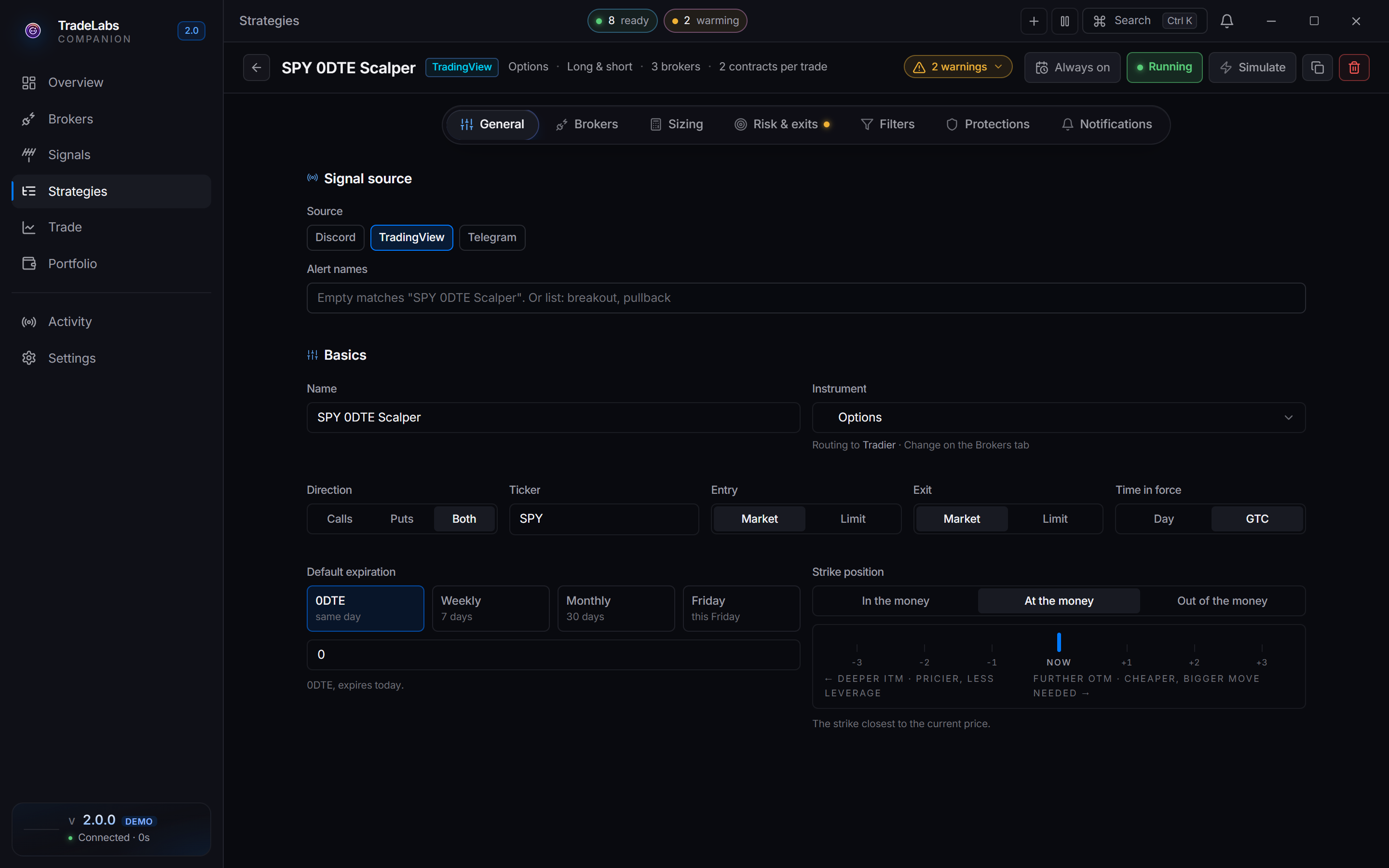
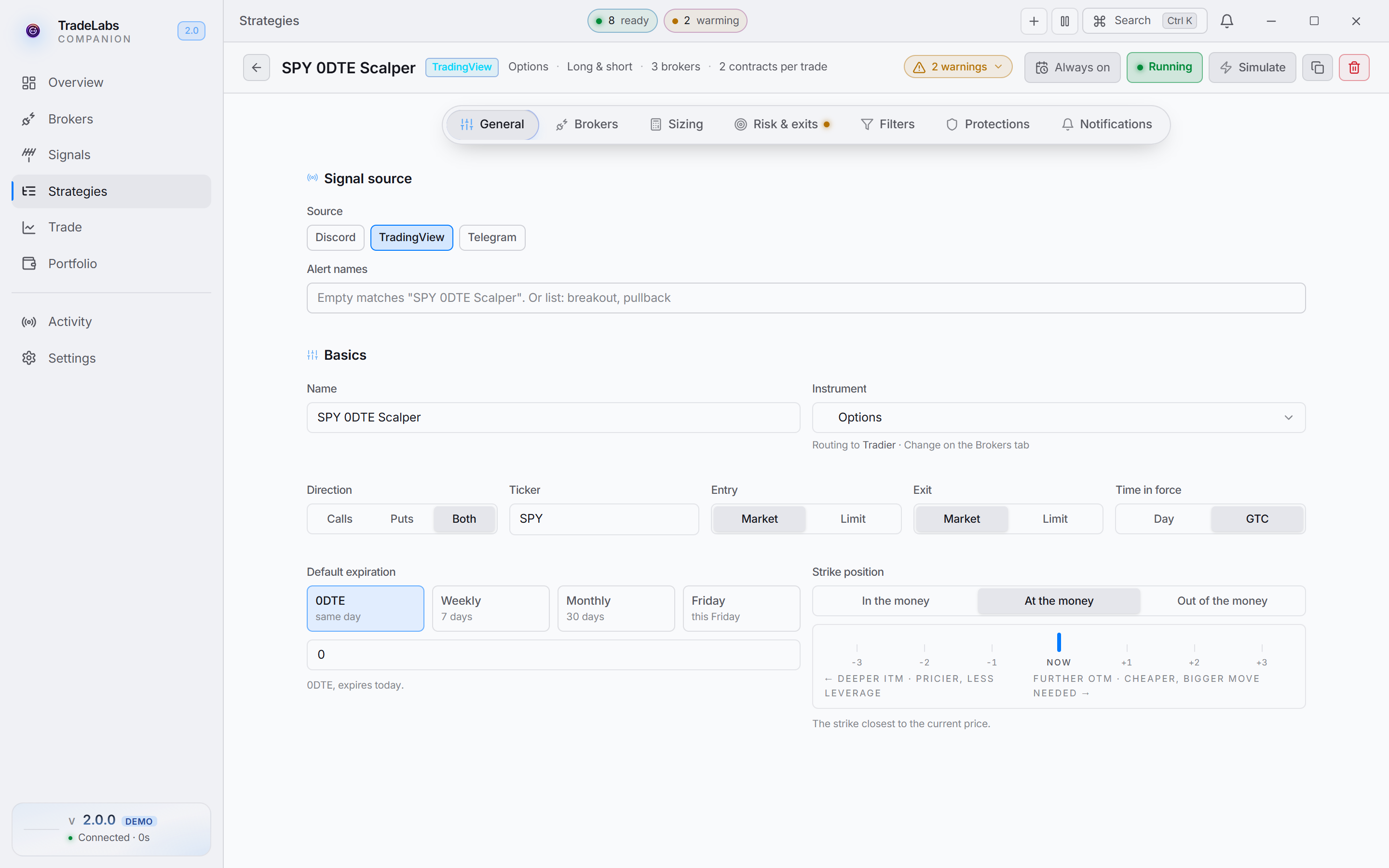 The editor header carries the name, meta chips, readiness, and the action cluster
The header
Across the top row you get, left to right:
- A back arrow (All strategies) to return to the list.
- The strategy name. Click it to rename inline. Enter commits, Escape reverts.
- A source badge, plus instrument, direction, broker count, and size chips.
- A readiness pill that opens a list of errors, warnings, and tips. Click an item to jump to the field it points at.
On the right side is the action cluster:
- Schedule to set market-hours or custom run windows.
- A run toggle that reads Running or Paused.
- Simulate to fire a test signal at the strategy.
- Duplicate (copy icon) and Delete (trash icon).
RSA strategies also show a retrigger control here.
Turning on an RSA serverside strategy while the U.S. market is closed prompts you first. You can turn it on anyway, schedule it for market hours, or cancel.
Which tabs you see


- General — source, instrument, direction, ticker.
- Brokers — which accounts this strategy fires into.
- Sizing — how big each trade is.
- Risk & exits — stop loss, take profit, trailing.
- Protections — the guardrails to set before going live.
Every strategy shows General, Brokers, Sizing, Filters, Protections, and Notifications. The rest depend on the instrument and the source:
| Tab | Shows up for |
|---|---|
| AI | Discord and Telegram sources. Hidden on TradingView, and on RSA unless you point it at Discord |
| Risk & exits | Stocks, options, spreads, futures, crypto, prediction markets |
| Exits | Memecoins — a percent-only exits tab of its own |
Two exceptions to “every strategy”: Filters is hidden on RSA, and RSA replaces Risk & exits with a note pointing at the per-broker holdings page.
General
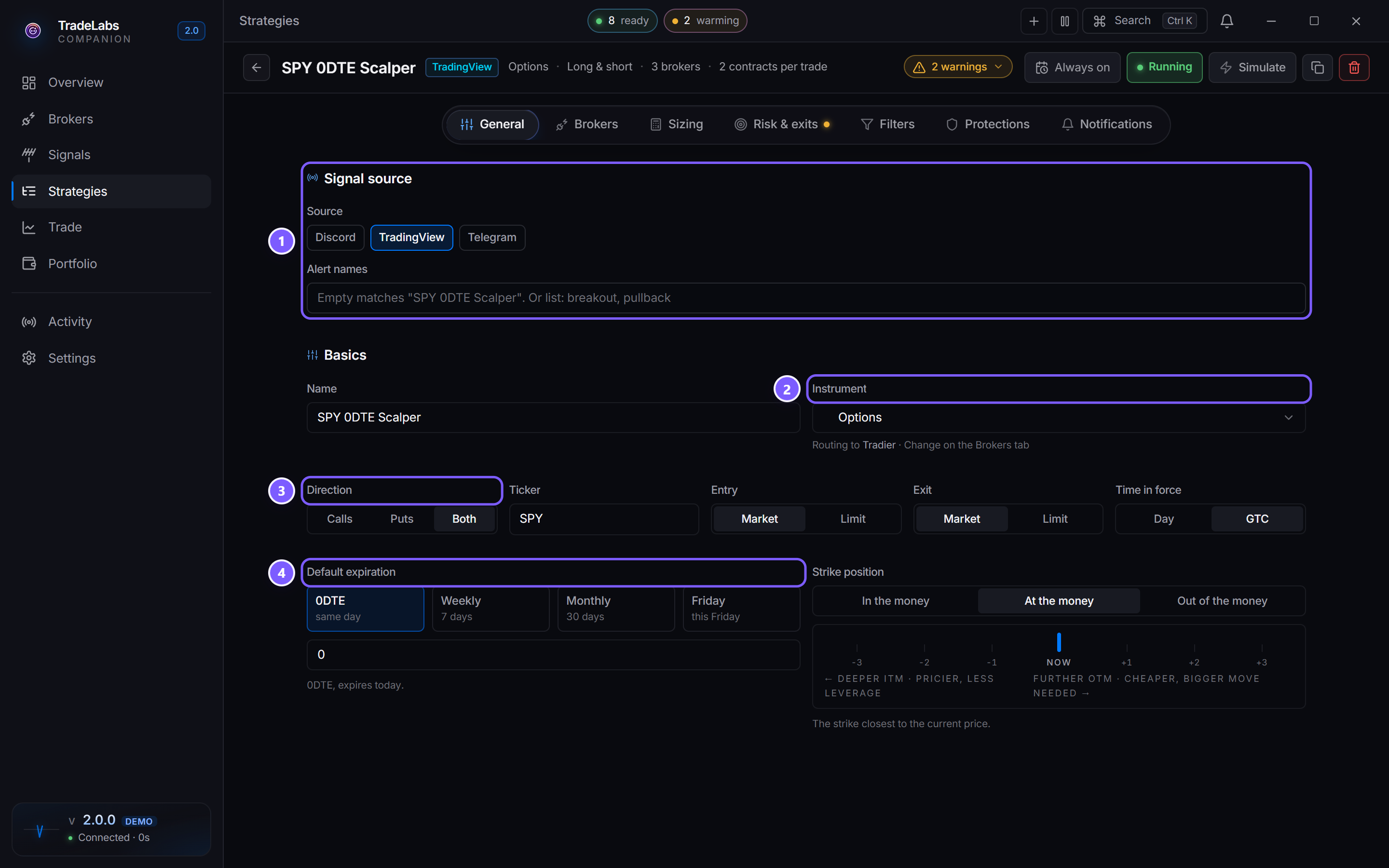
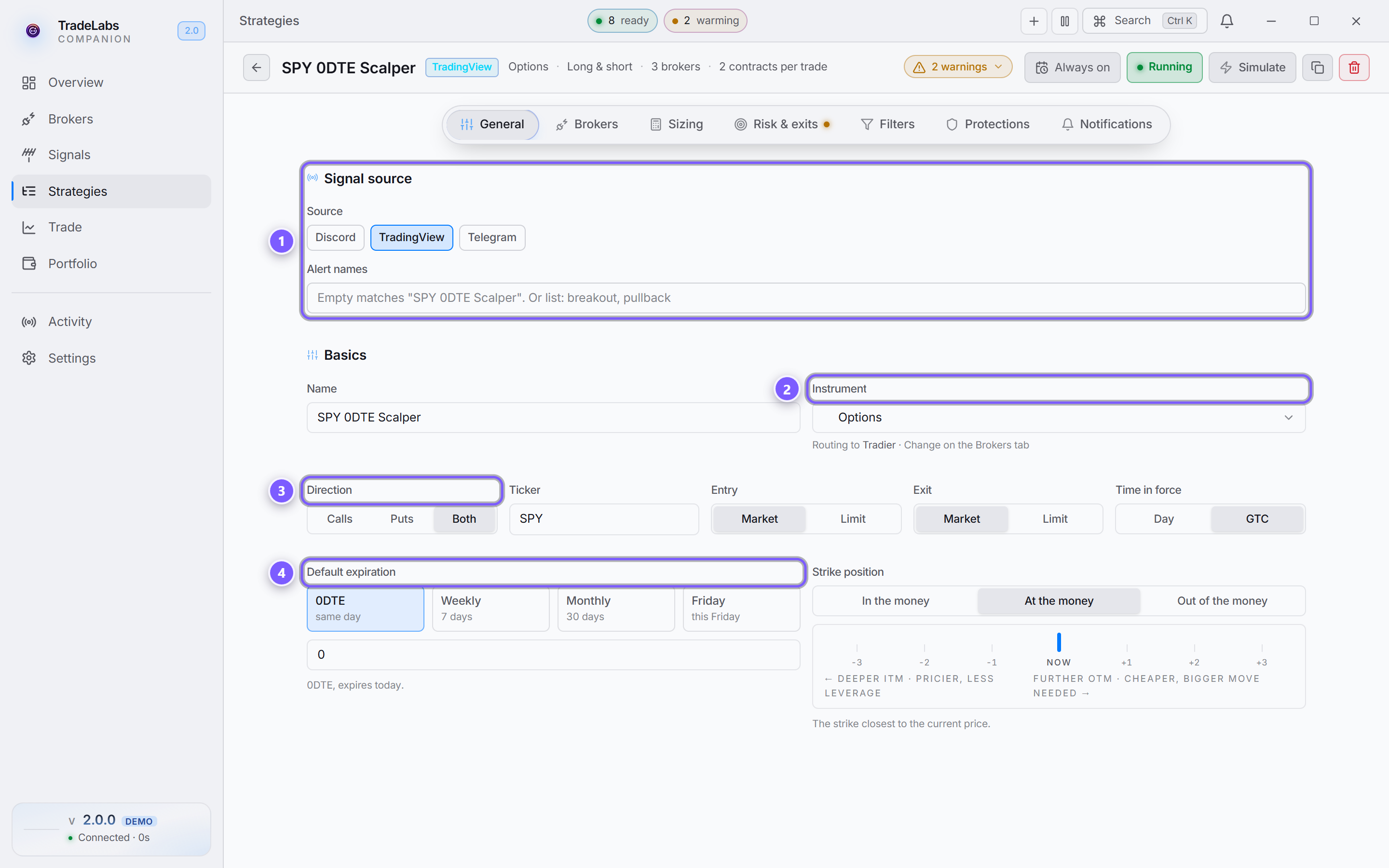
- Signal source — where your calls come from.
- Instrument — decides the fields and brokers you see.
- Direction, ticker, and order type — what to trade.
- Default expiration — options only: which expiry a bare call maps to.
The General tab holds the signal source and the basics, in that order.
Signal source
Pick where the strategy listens with the Source chips: Discord, TradingView, or Telegram. Some instruments narrow the list. Memecoins offer Discord or Telegram, and RSA offers Serverside (its detection feed, and the default) or Discord. TradingView only appears for stocks, options, and spreads.
- Discord — pick a Channel.
- Telegram — pick from Chats, or type a chat ID, name, or
@handleinto the box beside it. Both controls edit the same value. - TradingView — list Alert names. Leave it empty and the strategy matches alerts named after itself.
Discord and Telegram both offer an optional Exit channel (Exit chat on Telegram), for callers who post entries in one room and exits in another, and Inherit trade details from message, which uses what the message says instead of the strategy defaults.
A split exit channel is only ever acted on by AI selling on the AI tab. With that off, the strategy reads the exit room and does nothing.
Basics
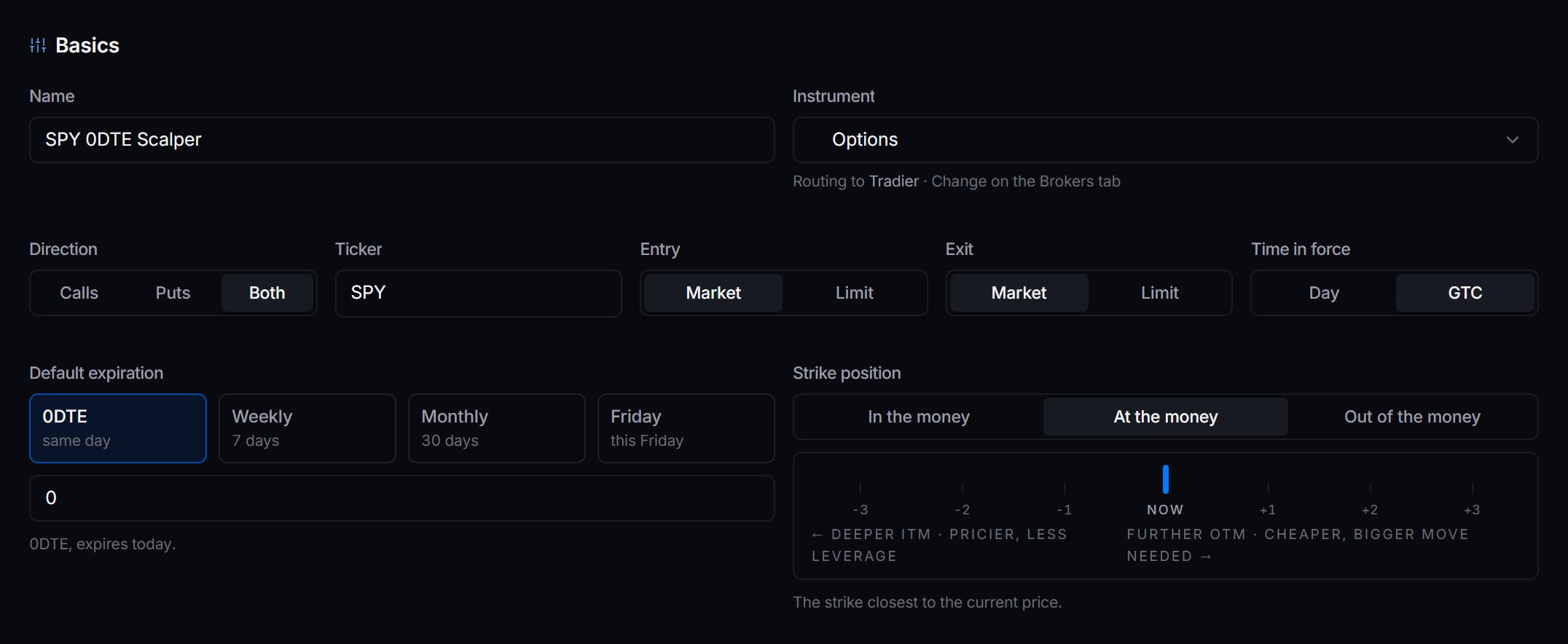
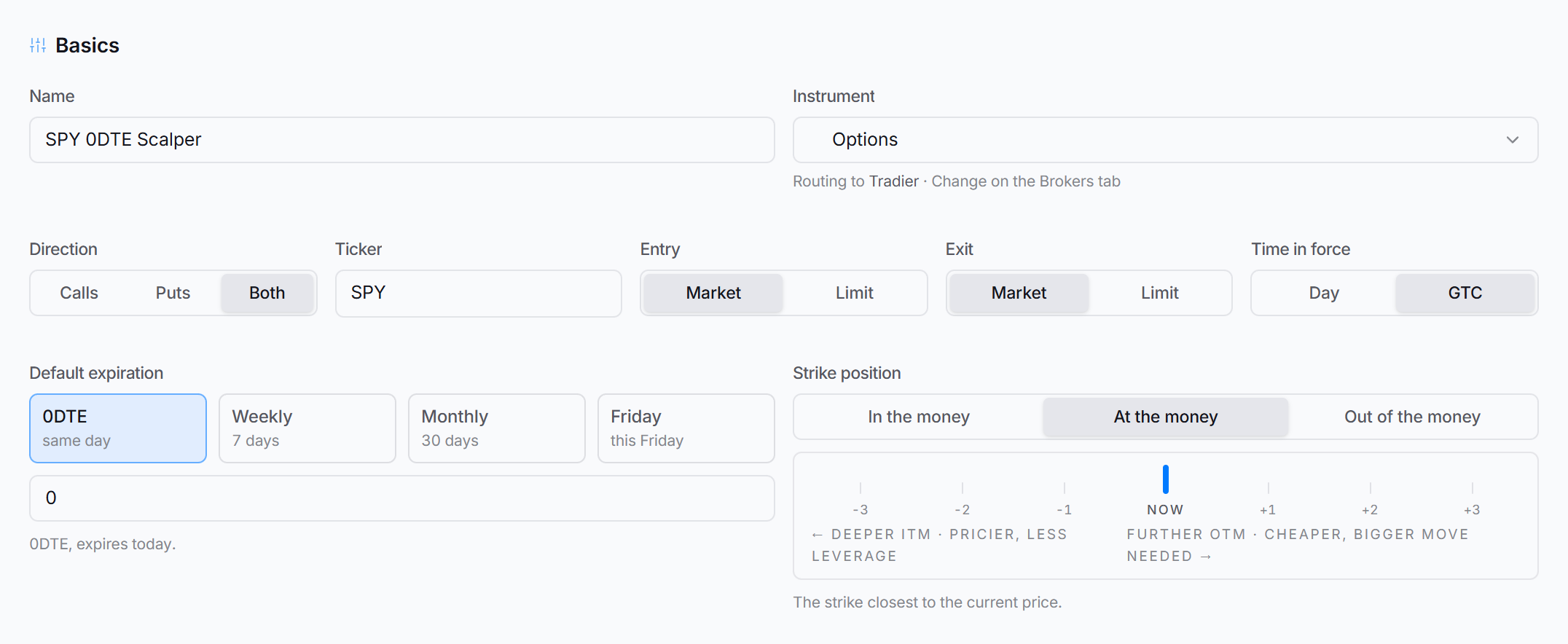 Basics on an options strategy: identity, then order routing, then the options group.
Under Identity set the Name and Instrument. Under Order routing you get Direction, Ticker, Entry, Exit, and Time in force.
Direction is relabelled per instrument: Calls / Puts / Both on options, Yes / No / Both on prediction markets, Long / Short / Both everywhere else. On spreads, Long only skips sell-to-open spreads.
Entry and Exit are Market or Limit. Limit is only offered on the brokers that have a limit code path — Tradier, IBKR, Schwab and Robinhood; everywhere else the control locks to a Market tile. Robinhood options are the reverse: they are limit-only, so Market is hidden there instead.
Choosing Limit reveals an Entry limit price (or Exit limit price) side of Bid, Mid, or Ask. Options fed by Discord or Telegram on Tradier, IBKR, Schwab or Robinhood get a fourth choice, From alert, which posts at the price the caller wrote. On IBKR that choice is entry-only.
A limit exit that never fills leaves the position open. The bot does not fall back to a market order, so you would need to close it yourself.
Options and spreads add an Options group with Default expiration (or Spread expiration) and Strike position (In the money / At the money / Out of the money). Futures show a Contract picker instead — Current, Next, Third, or Pin a specific month from the live IBKR chain.
Two fields appear only on certain broker and instrument pairs:
- Allow extended hours — Tradier stocks, and IBKR and Schwab stocks and options. Schwab needs a Limit order to accept one.
- Short locate % — DAS Trader (STG) on stocks and RSA.
Brokers
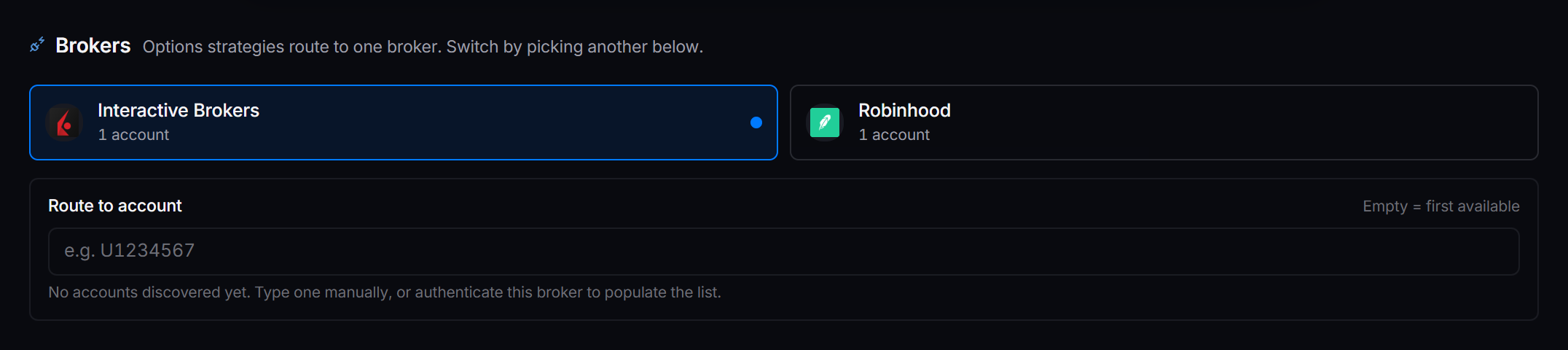
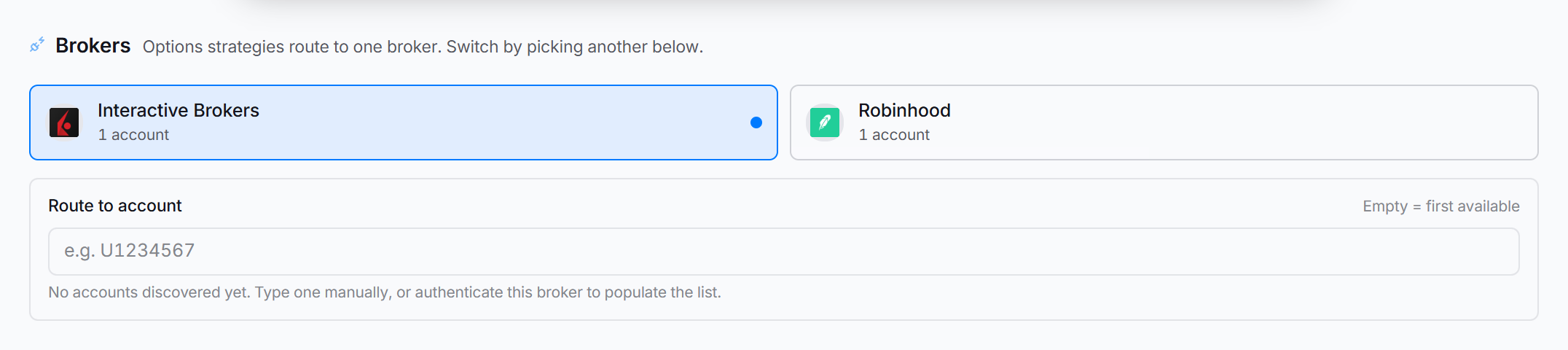
Pick which broker or brokers the strategy trades through. Single-broker instruments route to one; RSA fans out to every broker you check. The grid shows each eligible broker with its account count. If a broker supports routing to a specific account, a Route to account picker appears below the grid; leave it empty and the strategy uses the first available account.
If nothing is eligible you see No eligible broker configured with a note on which brokers that instrument needs. Add accounts on the Brokers page.
Sizing


For most instruments, pick How to pick the trade size: Fixed size or Match by keyword. Then set the Default quantity and its unit (Shares or Contracts, Dollars, or Percent). Percent sizing adds a Percent sizing basis choice of Available Funds or Net Liquidation.
Match by keyword keeps the quantity box as the fallback — renamed Default size (no keyword match) — and adds the rules table beneath it.
RSA sizing is simpler: Per-broker size is either Fixed · 1 share or Follow signal.
Memecoins hide the unit picker and add the swap controls here. On Solana: Slippage tolerance, Dynamic slippage, Priority fee, Routing method (Auto, Jupiter, Raydium), Dip-buy mode with its Dip % and Dip timer, and Retry on RPC timeout.
On Robinhood Chain the size is Buy size, an amount of ETH per wallet. The tab adds Slippage tolerance and Also buy coins paired with USDG or stock tokens, with Max extra cost and Use USDG or stock tokens already in the wallet once it is on. See Robinhood Chain for how paired coins work.
AI
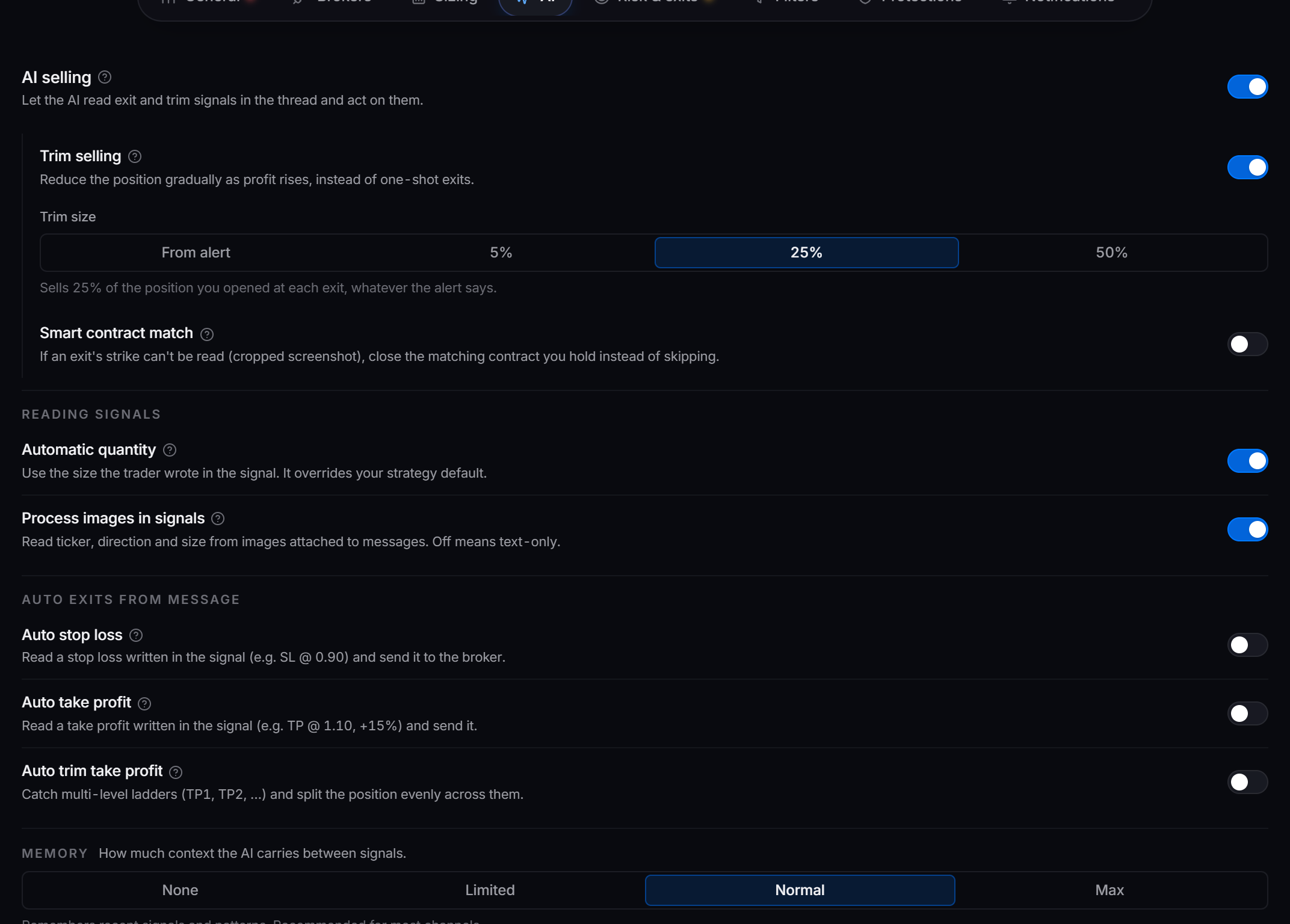
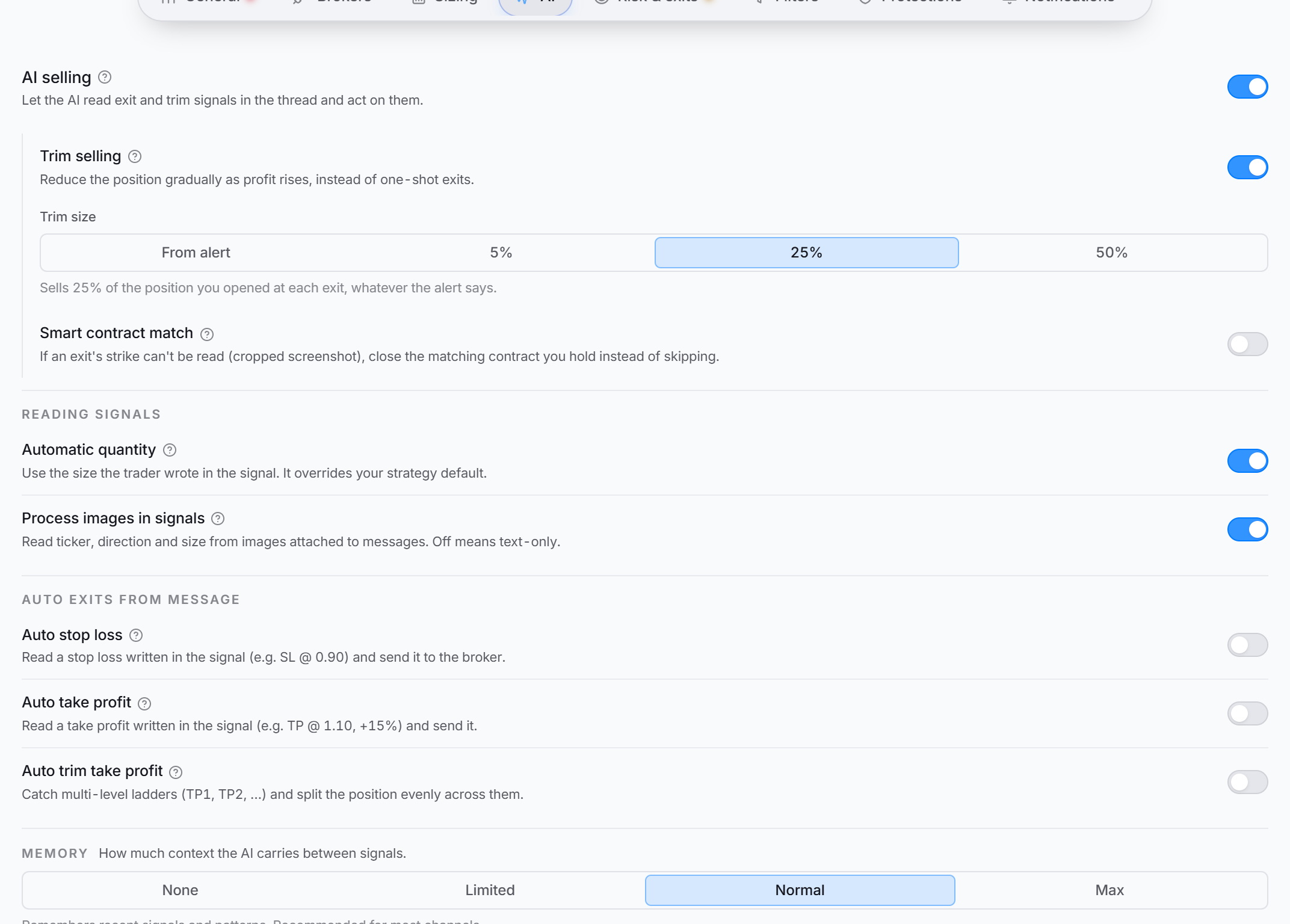 The AI tab. Turning on AI selling reveals the rows that depend on it; the rest are grouped under Reading signals, Auto exits from message, and Memory.
Available for Discord and Telegram signals; hidden on TradingView, which carries no conversation to read. All of it is optional.
AI selling is the headline switch — let the model read exits and trims out of the thread and act on them. Turning it on reveals Trim selling (with a Trim size of From alert, 5%, 25% or 50%), Smart contract match and its tie-break for when more than one held contract matches, and, on a strategy with a split exit channel, Also take exits from the entry channel.
Under Reading signals: Automatic quantity and Process images in signals.
Under Auto exits from message: Auto stop loss, Auto take profit, and Auto trim take profit. Turning any of them on reveals Wait for levels posted separately — a number of seconds an entry missing its levels will wait for a follow-up message before firing with whatever arrived.
Memory is a four-way choice of None, Limited, Normal, or Max, controlling how much prior conversation the model sees on each parse.
Memecoins get a trimmed version of this tab: AI selling, trim selling, image processing and memory. The memecoin parser emits no quantity, strike or levels, so those rows are hidden rather than left wired to nothing.
Risk & exits


Set Stop loss, Take profit, and Trailing stop as a percent or a dollar amount. Leave a field empty to skip it. Crypto and prediction markets have no trailing stop, so that box does not appear for them.
Once a take profit is set, a Take-profit behavior panel lets you choose Close all or Sell in stages. Sell in stages opens a ladder editor where each level is a gain and a share of the original position.
Once a trailing stop is set, a Trailing-stop behavior panel offers a mode:
| Mode | What it does |
|---|---|
| Standard | The trail arms as soon as the position opens. |
| Arm at profit | The trail stays off until profit reaches your threshold. |
| Breakeven flip | At its threshold, the stop jumps to your entry price. |
| Replace take profit | Only offered when a take profit is set. The take-profit leg is dropped, and that price becomes the point the trail arms at. |
| Partial TP | Trims a slice at the target and leaves the rest trailing. |
The distance the stop sits behind the peak is the number in the Trailing stop box above — the panel shows it read-only.
Filters
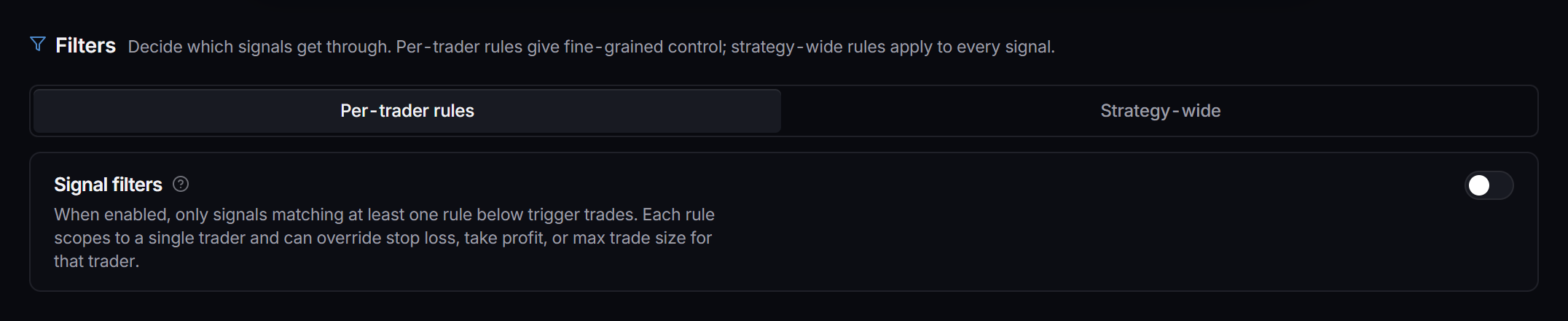
 The Filters tab opens on Per-trader rules. Strategy-wide is the second sub-tab.
Two views. Per-trader rules apply rules keyed to a trader. Strategy-wide applies to every signal: a Keyword filter mode (Blacklist or Whitelist), How to match keywords (Exact word or Loose), and the Keyword whitelist and Keyword blacklist lists.
Protections
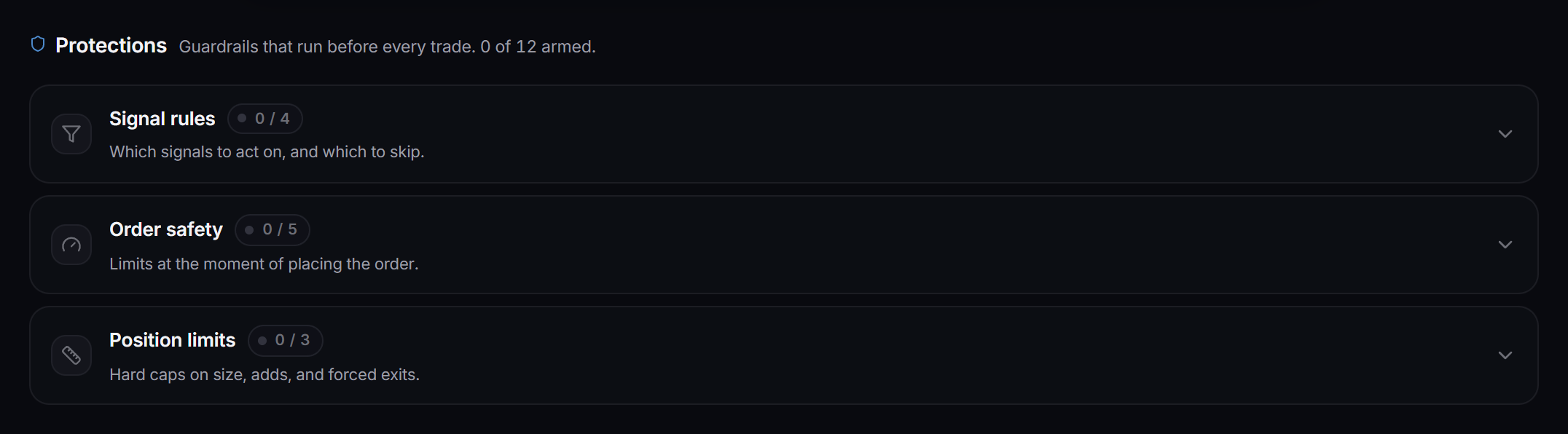
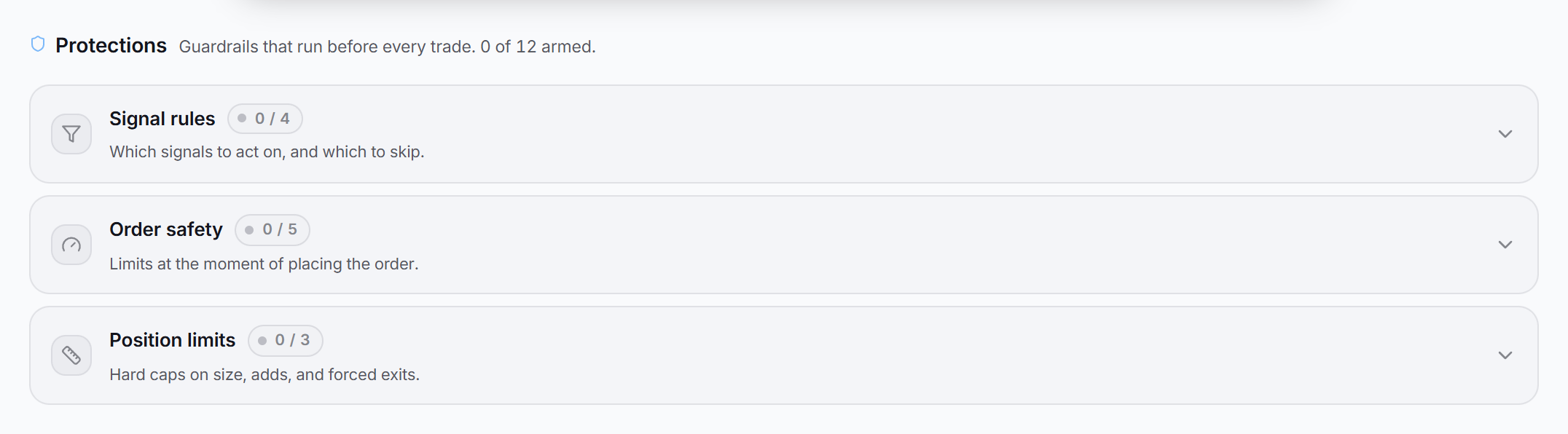
Guardrails that run before every trade, grouped into Signal rules, Order safety, and Position limits. The section header counts how many of the applicable ones are armed, and each group carries chips summarising what is on. Which rows appear depends on the instrument and broker; the common ones are:
- Duplicate protection and Avoid stacking the same ticker under Signal rules.
- Slippage cap, Cancellation timer, and Entry delay under Order safety.
- Maximum trade value, Double-down protection, and Block-exit threshold under Position limits.
Others surface only where they mean something: Smart price override and Smart expiration detection on the option brokers, Buy limit offset and Sell limit offset once you pick a Limit order, Wait for the break on Interactive Brokers stocks, options and futures, and the two 0DTE rules on options and spreads. See Wait for the break.
RSA strategies use this tab for Process sell signals and Minimum profit.
Process sell signals must stay on for RSA to honor close and sell-to-close alerts. With it off, those alerts are dropped.
Exits
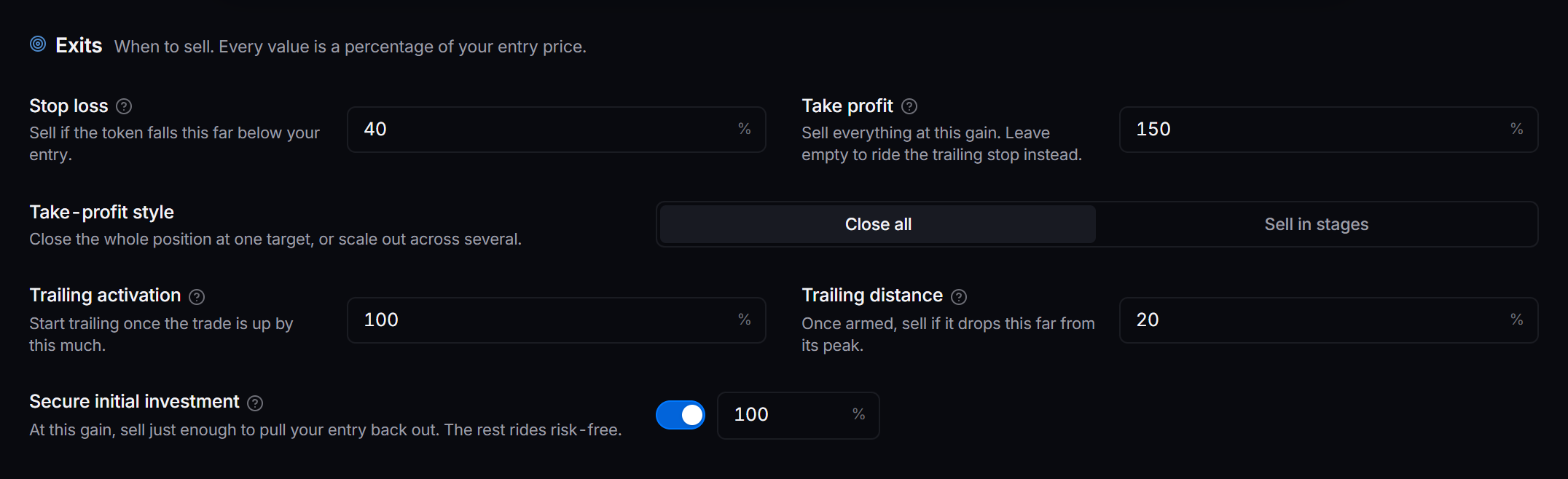
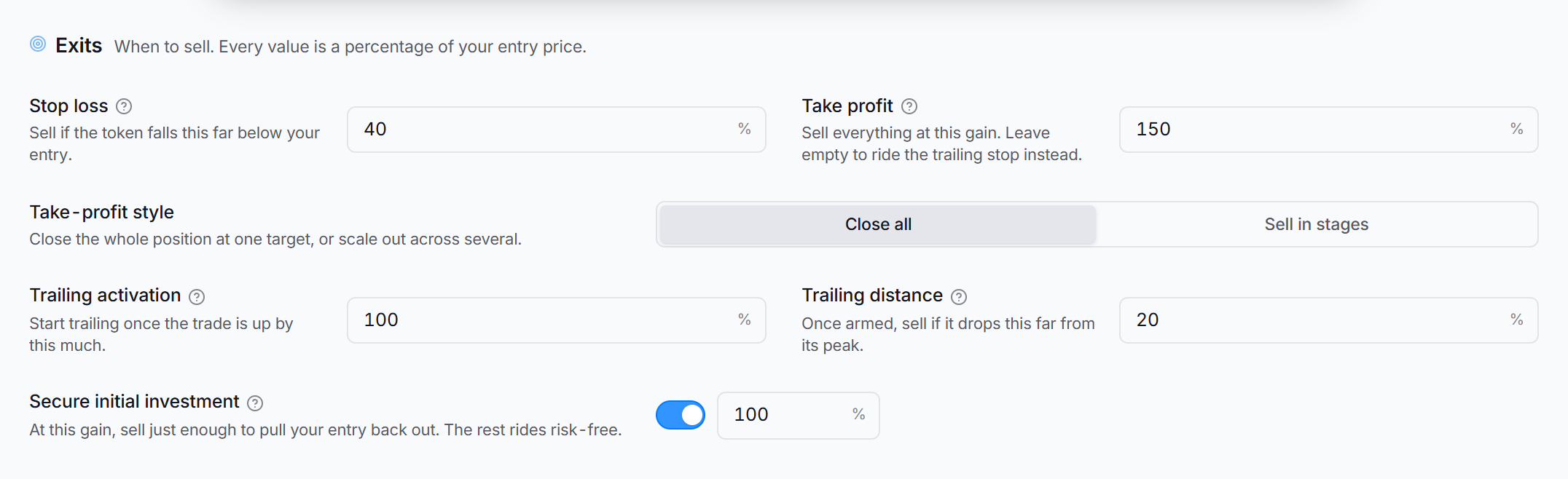 The memecoin Exits tab. Every value is a percentage of your entry price.
Memecoins swap the Risk & exits tab for an Exits tab of their own, because on-chain swaps have no broker-side bracket to hang a dollar stop on. Every value here is a percentage of your entry price.
The line at the top draws your exits on one gain line: the stop loss on the left, your entry, then each exit that sells on the way up. It changes as you edit.
The Protect card:
- Stop loss: sell everything at this loss.
- Trailing stop: turn it on and set how far below the peak it sells. Start trailing at is the gain where trailing starts.
The Take profit card:
- Sell: At one target sells everything at Take profit at. In stages sells a share of the position at each gain you add. The bar shows how much keeps riding.
- Secure initial investment: at the gain you set, sell just enough to take back what you paid. The rest rides.
Robinhood Chain strategies also get Move stop to entry in the Protect card. When the trade is up by the gain you set, the stop moves to your entry price. See how the exits work together.
See Memecoins for the rest of the memecoin setup.
Notifications
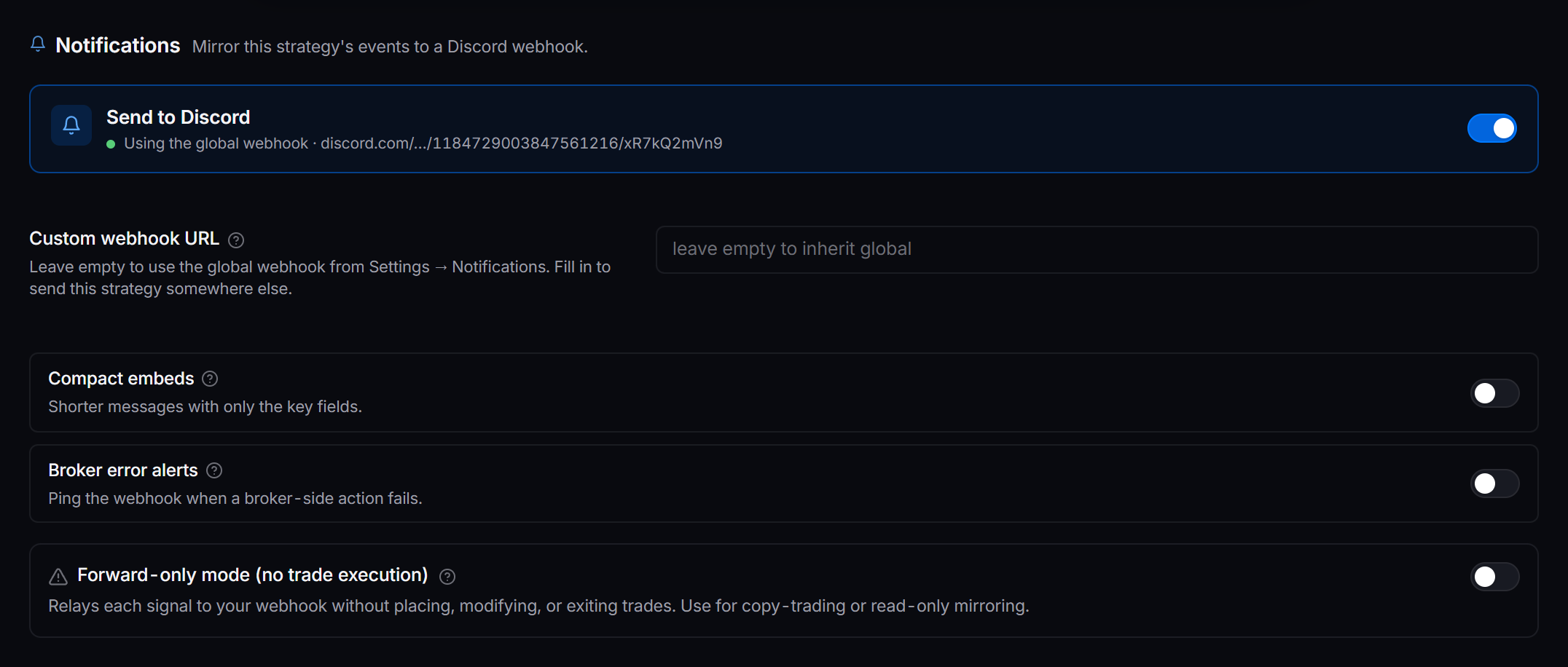
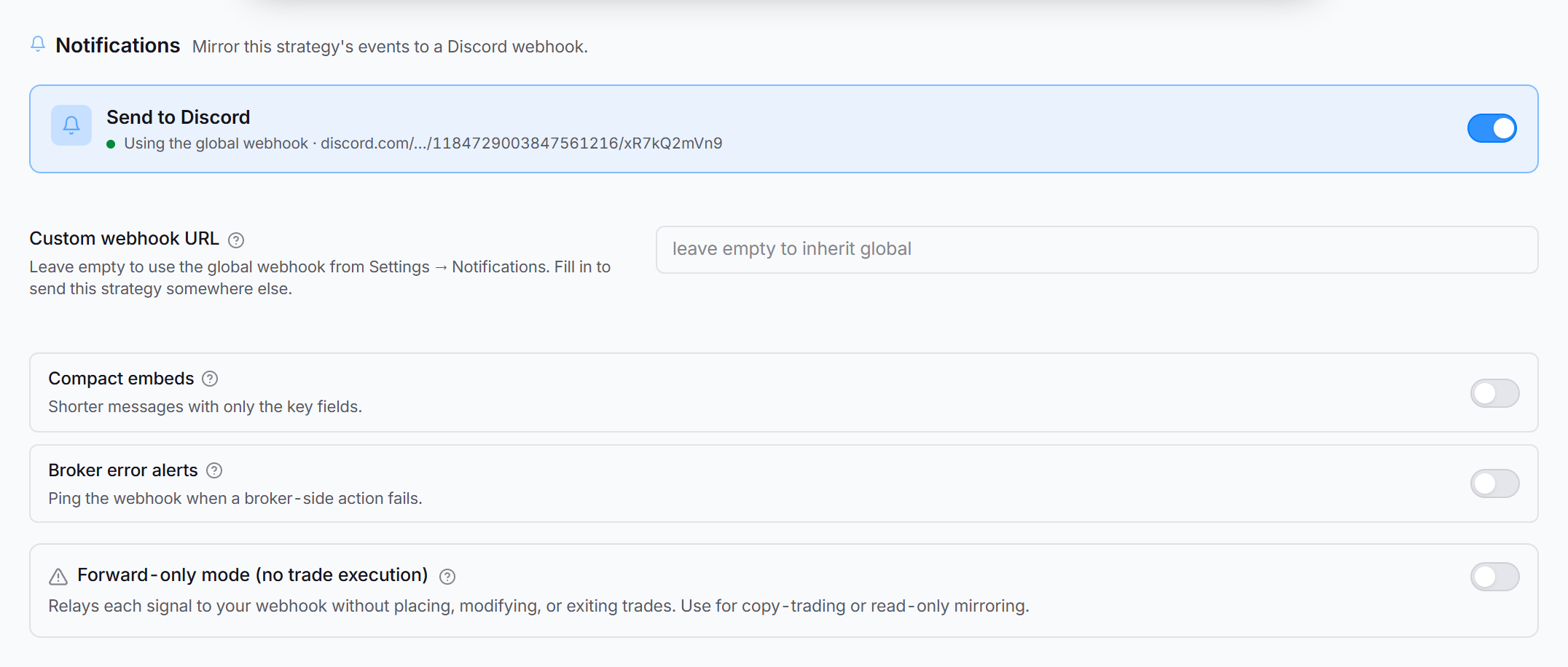 The Notifications tab with Send to Discord on. The subtitle resolves to where messages actually land.
Mirror this strategy’s events to a Discord webhook. The tab opens with a master switch, Send to Discord; the rest appears once it is on.
Set a Custom webhook URL to send this strategy somewhere specific, or leave it empty to inherit the global webhook from Settings. Compact embeds and Broker error alerts tune what gets sent.
Forward-only mode, at the bottom of this tab on everything except RSA, relays every signal to your webhook and places no orders at all — no entries, no stops, no exits. It is for read-only mirroring. A strategy that has gone quiet is worth checking here first.