Reference
Create a Discord Webhook
Create a Discord webhook and connect it to TradeLabs so trade alerts post to your Discord channel.
A Discord webhook lets TradeLabs post trade alerts straight into a channel on your server. You create the webhook in Discord, then paste its URL into the dashboard.
Create the webhook in Discord
-
Open your server’s Server Settings and go to the Integrations tab. If you don’t have a server yet, create one first.
-
Click Create Webhook.
-
Pick the channel the webhook should post to from the channel dropdown. You can also rename the webhook and change its avatar, which helps when you run more than one.
-
Click Copy Webhook URL.
Open Server Settings, go to Integrations, pick a channel, and copy the webhook URL.
Connect it to TradeLabs
Open the Cloud Dashboard and go to the Profile page. The webhook lives in the Notifications panel.
-
Paste the URL you copied into the Trade alert webhook field.
-
Turn on the Webhook enabled toggle.
-
Click Test and confirm the message lands in your Discord channel.
-
Click Save.
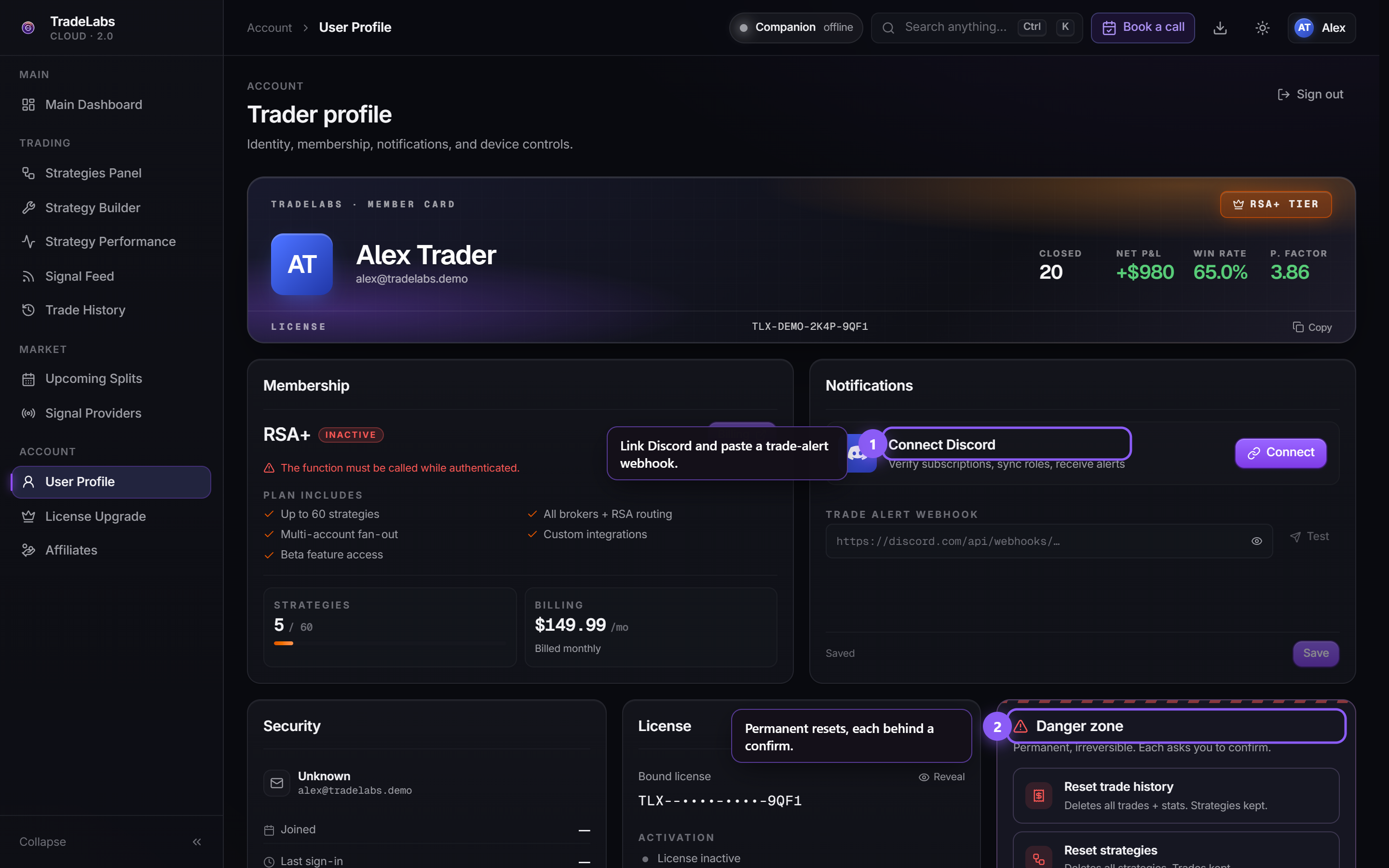 The Notifications panel on the Profile page holds Connect Discord and the trade alert webhook field.
Two extra toggles sit under the field. Compact format posts a shorter alert, and Broker error alerts sends a message when a broker fails a trade.
If the test fails, check that the URL is complete and that the webhook still exists in Discord. Deleting the webhook in Discord breaks the connection until you paste a new one.