Brokers
Polymarket
Connect a Polymarket wallet to bet on real-world events: what it supports, how to prepare your keys, how to connect it in the app, and how to fix common problems.
Polymarket is a prediction market that runs on Polygon and settles in USDC. You bet on real-world events, and TradeLabs connects to it with a wallet rather than a username and password.
| What it trades | Supported |
|---|---|
| Prediction markets (settled in USDC) | Yes |
| RSA, stocks, options, spreads | No |
Polymarket is one wallet per person in the app. You connect it with a private key, not a login, so there is no 2FA and no captcha.
Before you start
- A funded Polygon wallet holding USDC on the Polygon network.
- The private key for that wallet’s EOA (externally owned account). This is the Polygon key the app signs orders with.
- Optionally, a separate funder wallet that holds your USDC, if you keep your trading key and your balance in different wallets.
- The TradeLabs Companion installed and running.
Your private key controls the funds in that wallet. Use a wallet you have set aside for this, keep only what you plan to trade in it, and never paste a key you use for anything valuable. The app stores the key encrypted through your operating system keychain.
Connect it in the app
- Open the Brokers page, find the Polymarket card, and click Add account.
- Fill in the connect form, then click Save account. Your key is encrypted on your device.
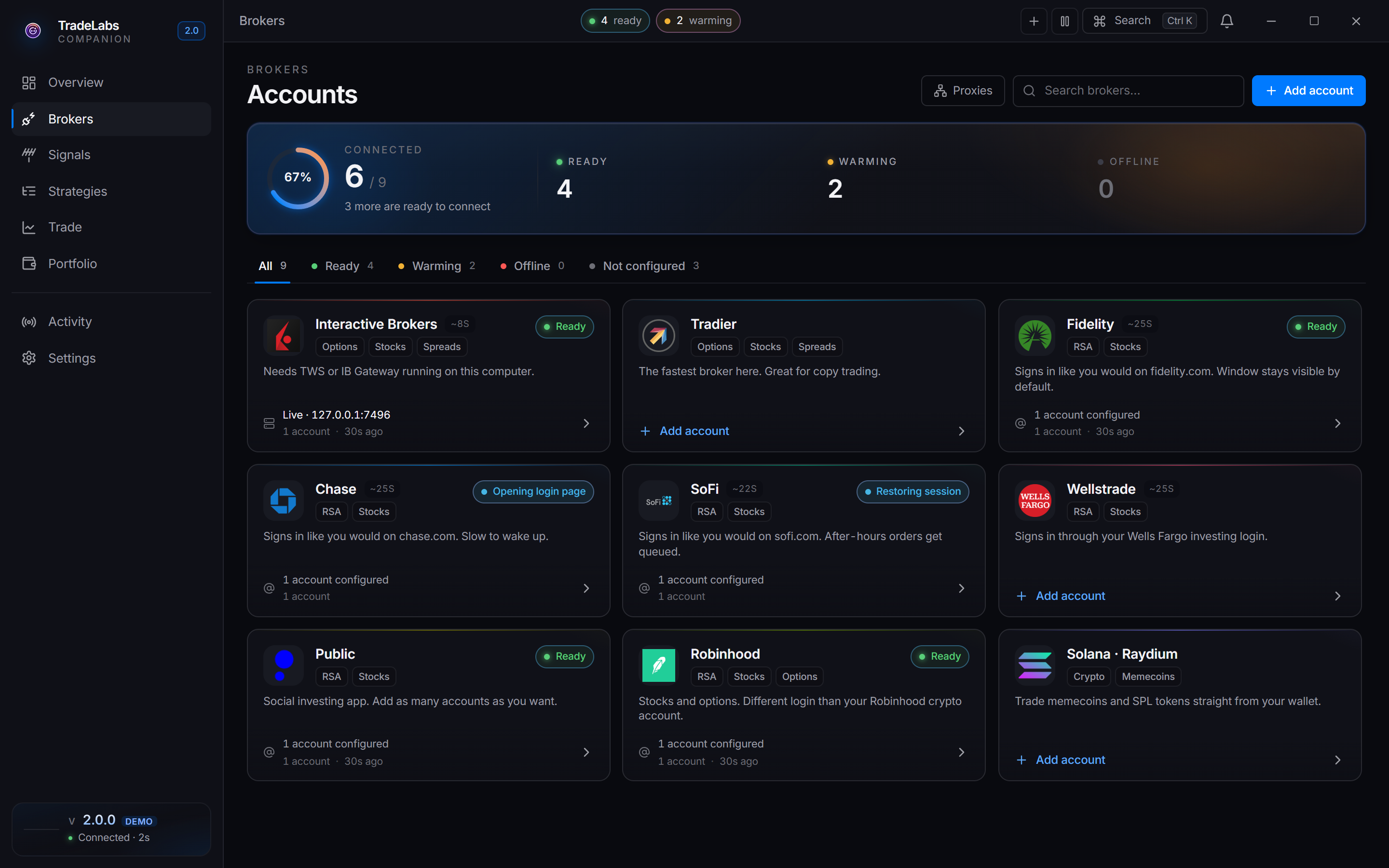
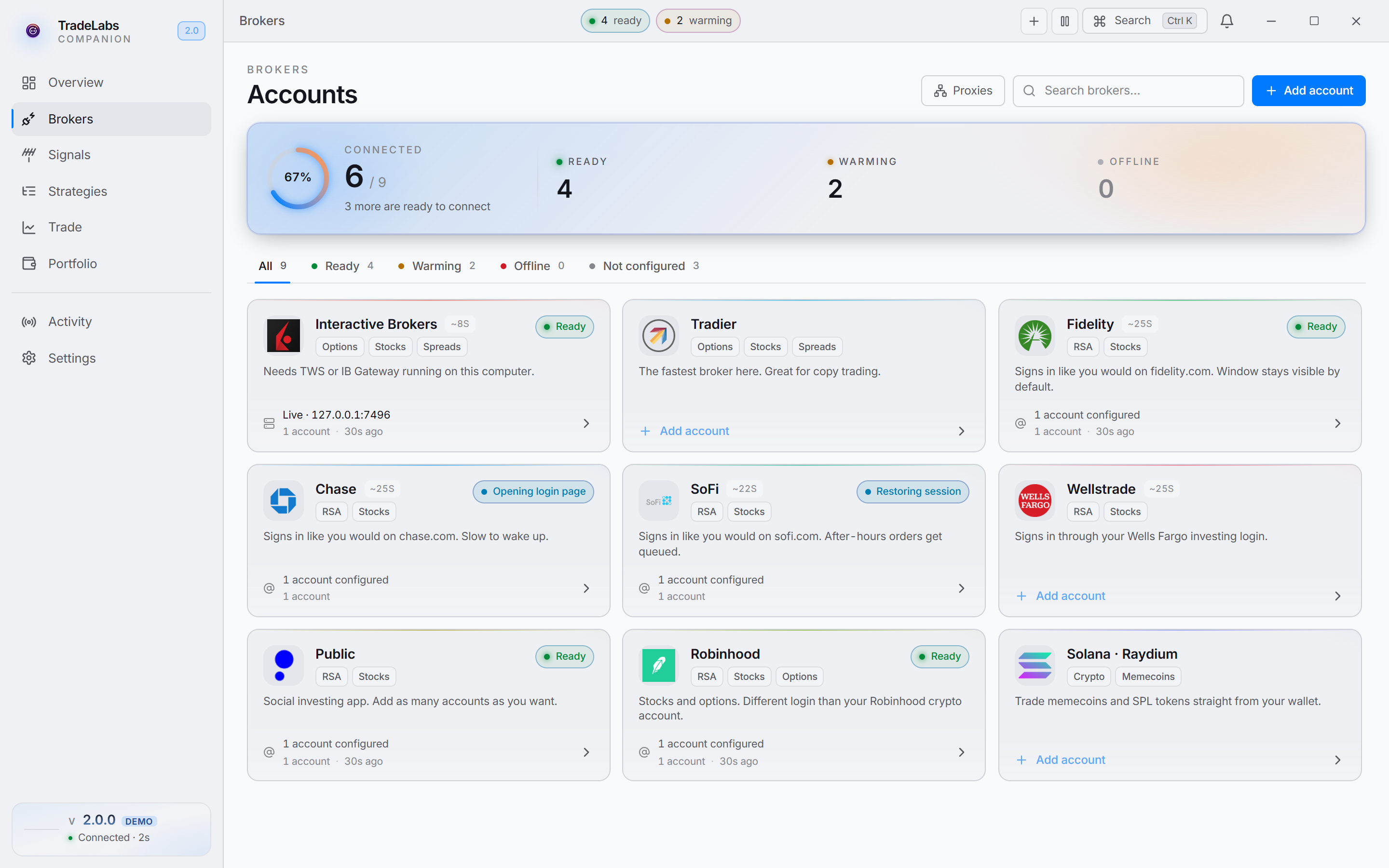 Click a broker card, then Add account, to open the connect form
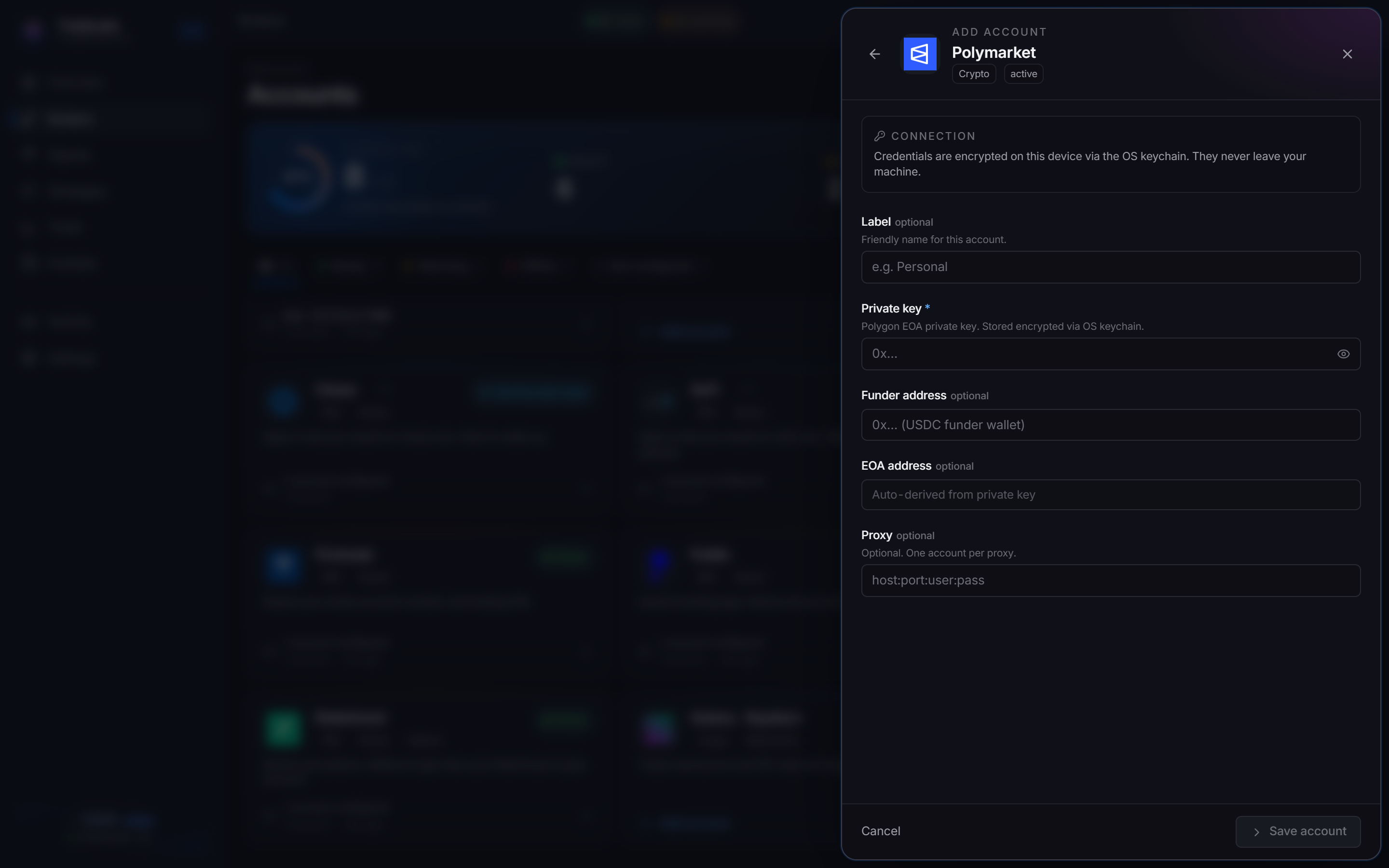
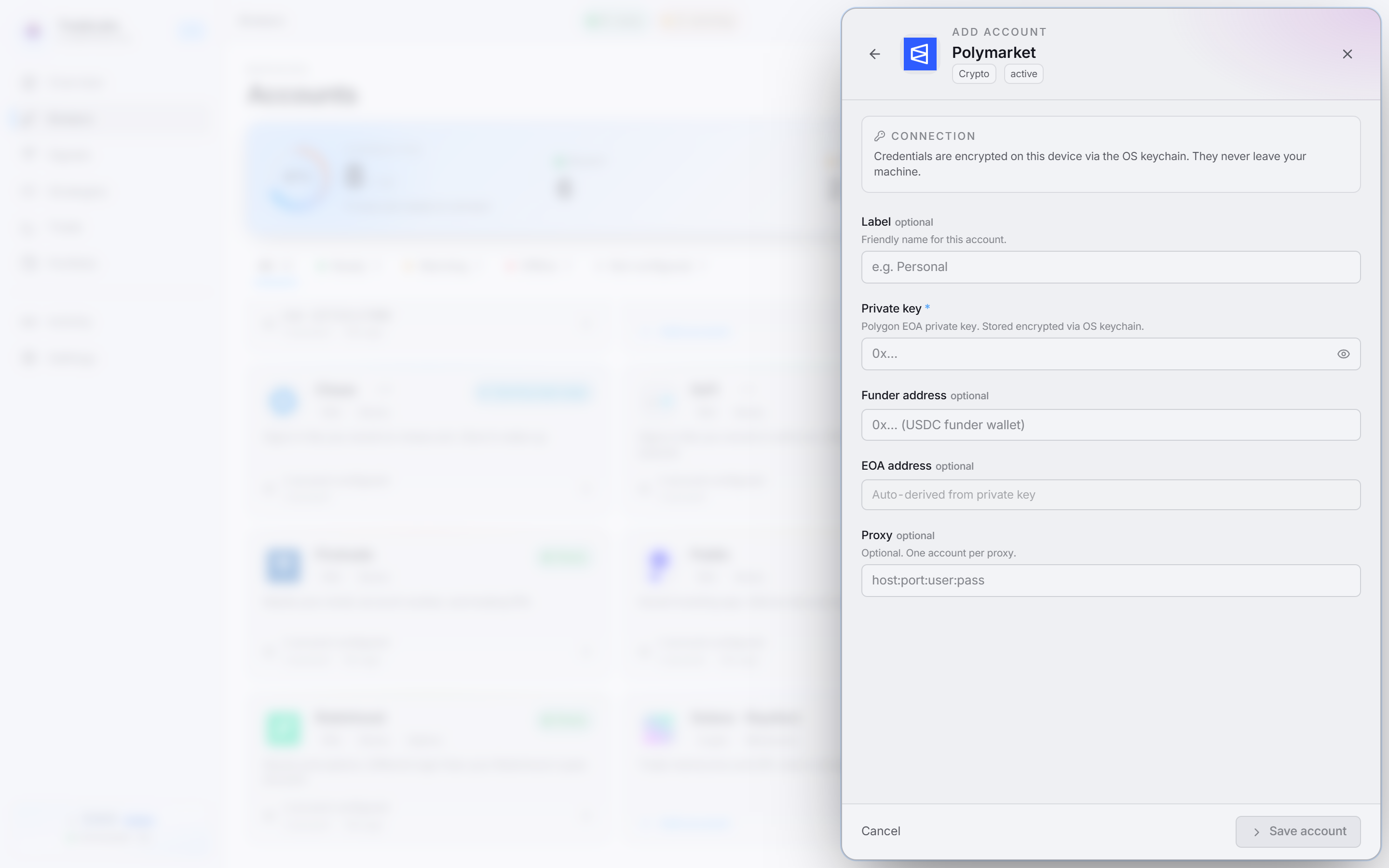 Paste your Polygon wallet private key; the funder and EOA addresses are optional and derive from the key
The connect form has these fields:
- Private key — the Polygon EOA private key, pasted in (starts with
0x). Stored encrypted via your OS keychain. - Funder address — optional. The USDC funder wallet, if your balance lives in a wallet separate from your trading key. Leave it blank to use the trading wallet itself.
- EOA address — read-only. The app derives this from your private key and fills it in for you, so you can copy it.
- Click Sign in on the account row. There is no code to enter and no captcha. The app checks the wallet and the row switches to a signed-in state.
When it connects you see a Polymarket signed in confirmation.
If you route through a proxy, set the proxy on the account when you add it. Polymarket does not require one.
Fixing common problems
- Sign-in fails: confirm the private key is correct and complete (a full
0xkey, no spaces). A wrong or truncated key cannot sign orders. - EOA address looks wrong: the read-only address is derived straight from the private key. If it is not the wallet you expect, you pasted the wrong key.
- Trades do not fill: check that the wallet (or the funder wallet, if you set one) holds enough USDC on the Polygon network, and that USDC is on Polygon rather than another chain.
- Balance is in another wallet: put that wallet in the Funder address field so the app knows where the USDC lives.