Brokers
Robinhood Crypto
Connect Robinhood Crypto with an API key and public key: what it trades, how to create the keys in Robinhood Developer, and how to fix common connection problems.
Robinhood Crypto is Robinhood’s crypto trading account, and it uses a different API from your Robinhood stock account. TradeLabs connects to it with an API key and a public key you create in Robinhood’s developer settings, so it trades crypto without touching your stock login.
| What it trades | Supported |
|---|---|
| Crypto | Yes |
| Stocks, options, spreads | No |
| RSA (reverse split arbitrage) | No |
This is a separate connection from the Robinhood stocks broker. The keys here do not work for stocks, and your stock login does not work for crypto. If you want both, connect each one on its own card.
Before you start
- A Robinhood account with crypto trading enabled.
- An API key and public key created in Robinhood’s developer settings. These are what the app connects with, not your Robinhood password.
- The TradeLabs Companion installed and running.
To create the keys, sign in to Robinhood, open the developer settings for crypto, and generate a new API credential. Robinhood gives you an API key and expects a Base64 ed25519 public key. Copy both somewhere safe before you leave the page, because the key material is only shown once.
Robinhood Crypto is one connection per person, so you cannot add a second account on this card.
Connect it in the app
- Open the Brokers page, find the Robinhood Crypto card, and click Add account.
- Fill in the connect form, then click Save account. Your credentials are encrypted on your device.
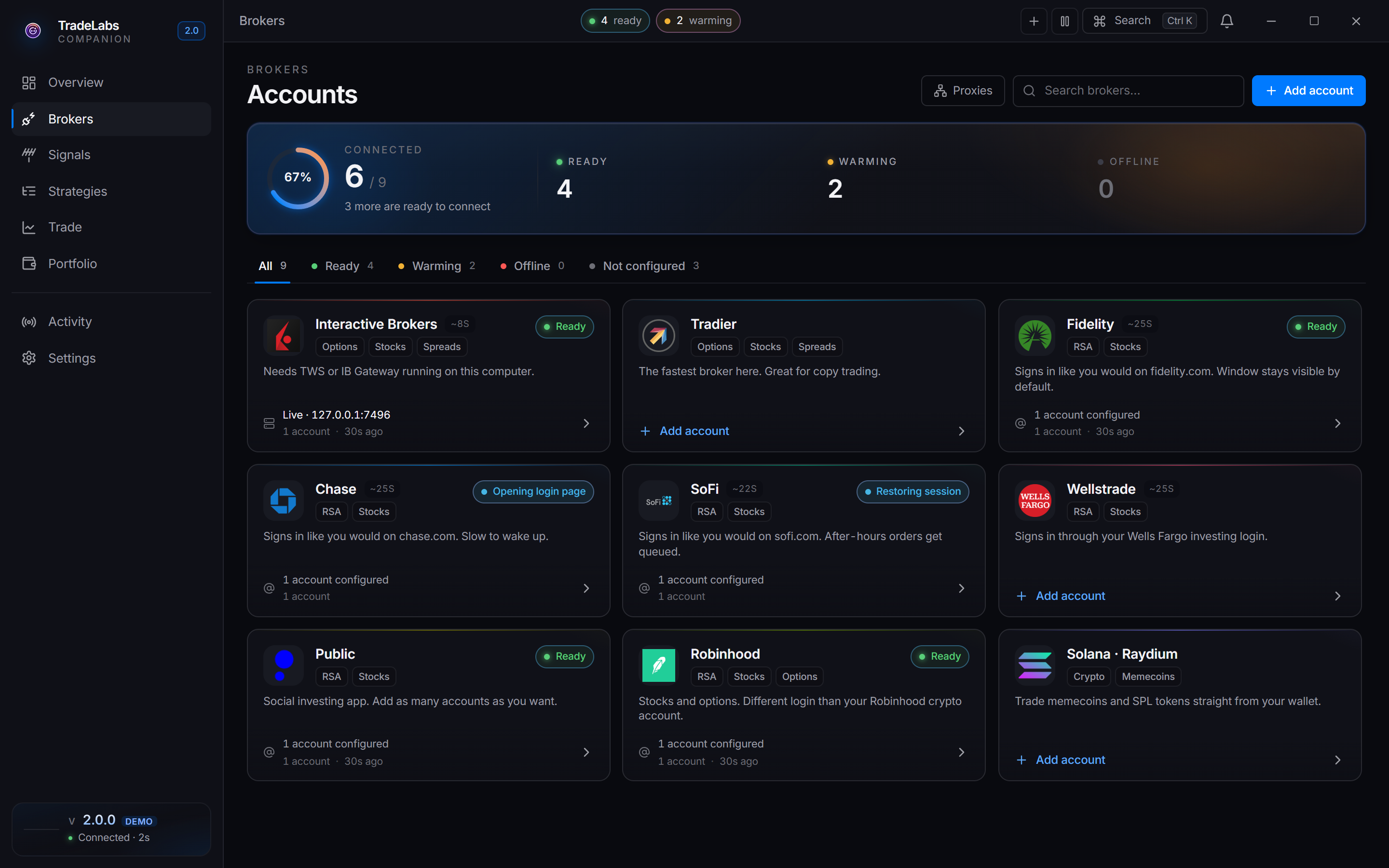
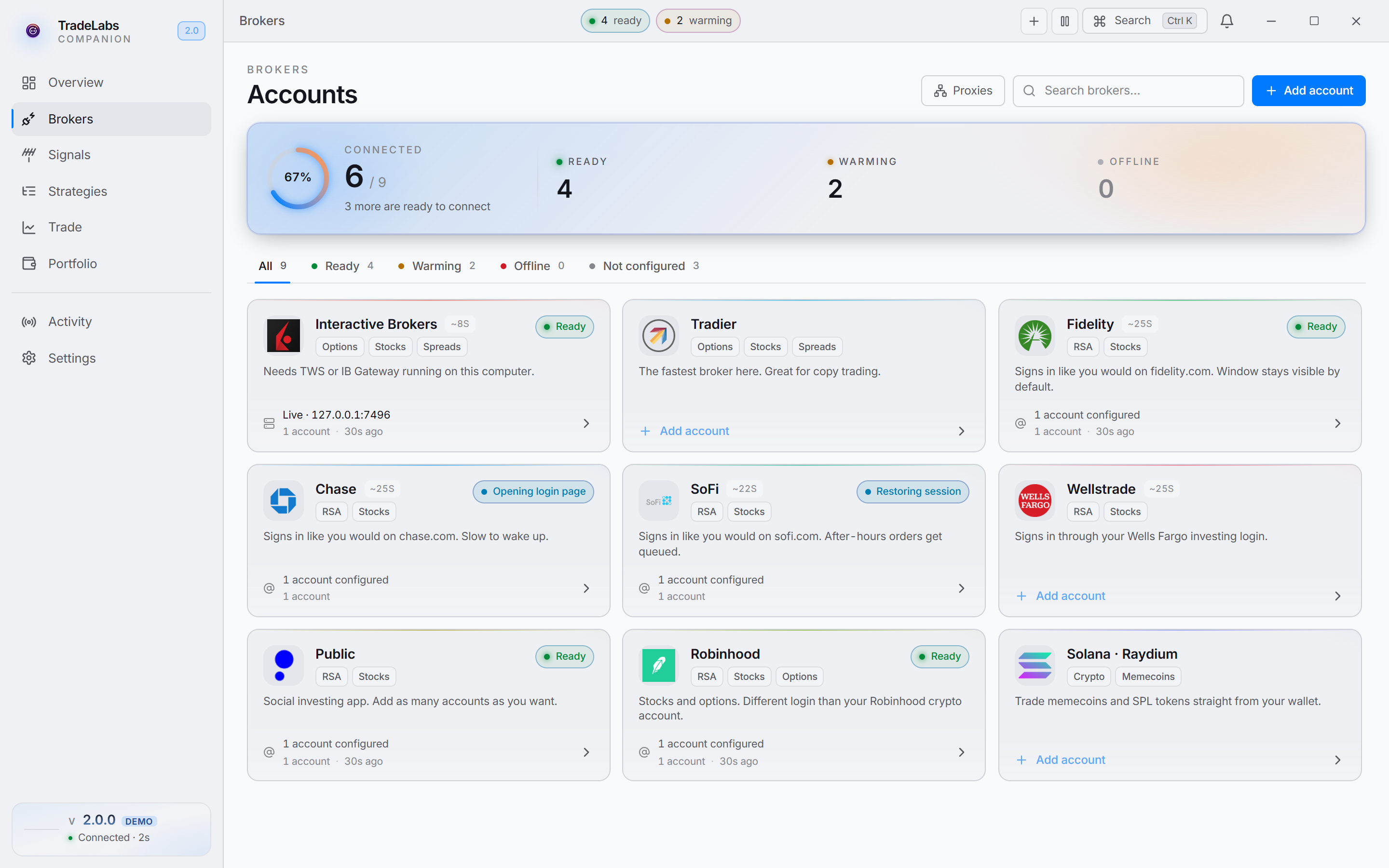 Click a broker card, then Add account, to open the connect form
The connect form asks for:
- API key from your Robinhood Developer settings.
- Public key, the Base64 ed25519 public key that pairs with it.
- Click Sign in on the account row. If Robinhood asks for a verification code, the row shows an Enter verification code prompt: type the code and click Submit.
When sign-in succeeds you see a Robinhood Crypto signed in confirmation and the row switches to a signed-in state.
Writing tickers in alerts
TradeLabs matches the coin against the pairs Robinhood actually offers, so the common ways of writing a pair all work. For Bitcoin, any of these trade BTC-USD:
| You write | Traded as |
|---|---|
BTC-USD | BTC-USD |
BTCUSD | BTC-USD |
BTC/USD, BTC:USD, BTC_USD | BTC-USD |
BTCUSDT | BTC-USD (USDT is treated as USD) |
BTC | BTC-USD |
If a coin is not offered on Robinhood, there is no pair to match and the trade is skipped.
Which coins you can trade
Robinhood decides which coins are available, and it changes the list over time.
- Not every coin in the Robinhood app can be traded through the API. Some coins are app-only, and an alert for one of those is skipped.
- Some coins are restricted by state. New York and Texas residents in particular cannot trade some coins, such as USDC and some meme coins.
Check Robinhood’s coin availability page for the current list in your state before you point a strategy at a coin.
Fill quality
Robinhood Crypto is commission-free, and the cost shows up in the price instead: fills can land noticeably away from the quoted price. Be careful with strategies that aim for small, tight moves. A target of a fraction of a percent can be eaten by the spread alone.
Fixing common problems
- Sign-in fails: confirm you pasted the API key and Public key in full, with no trailing spaces, and that the key pair is still active in Robinhood’s developer settings.
- Keys rejected right after creating them: new credentials can take a short while to become active on Robinhood’s side. Wait a few minutes and try Sign in again.
- Wrong account keys: these keys are for crypto only. If you pasted keys or a login meant for Robinhood stocks, sign-in fails. Use the crypto developer credentials here.
- Connection stops working later: if you regenerated or revoked the API credential in Robinhood, the old keys stop working. Create a new pair, then use the row’s menu to Edit credentials and paste the new API key and Public key.