Using the App
Settings
Configure the app: your AI key, notifications, look and feel, accessibility, and account tools. One tab per section.
The Settings page holds everything you configure about the app, organized into tabs down the side. Press Ctrl/⌘ + F while on the Settings page and type a setting’s name to jump straight to it. (Ctrl/⌘ + K opens the global command palette, which jumps you to a whole settings tab.)
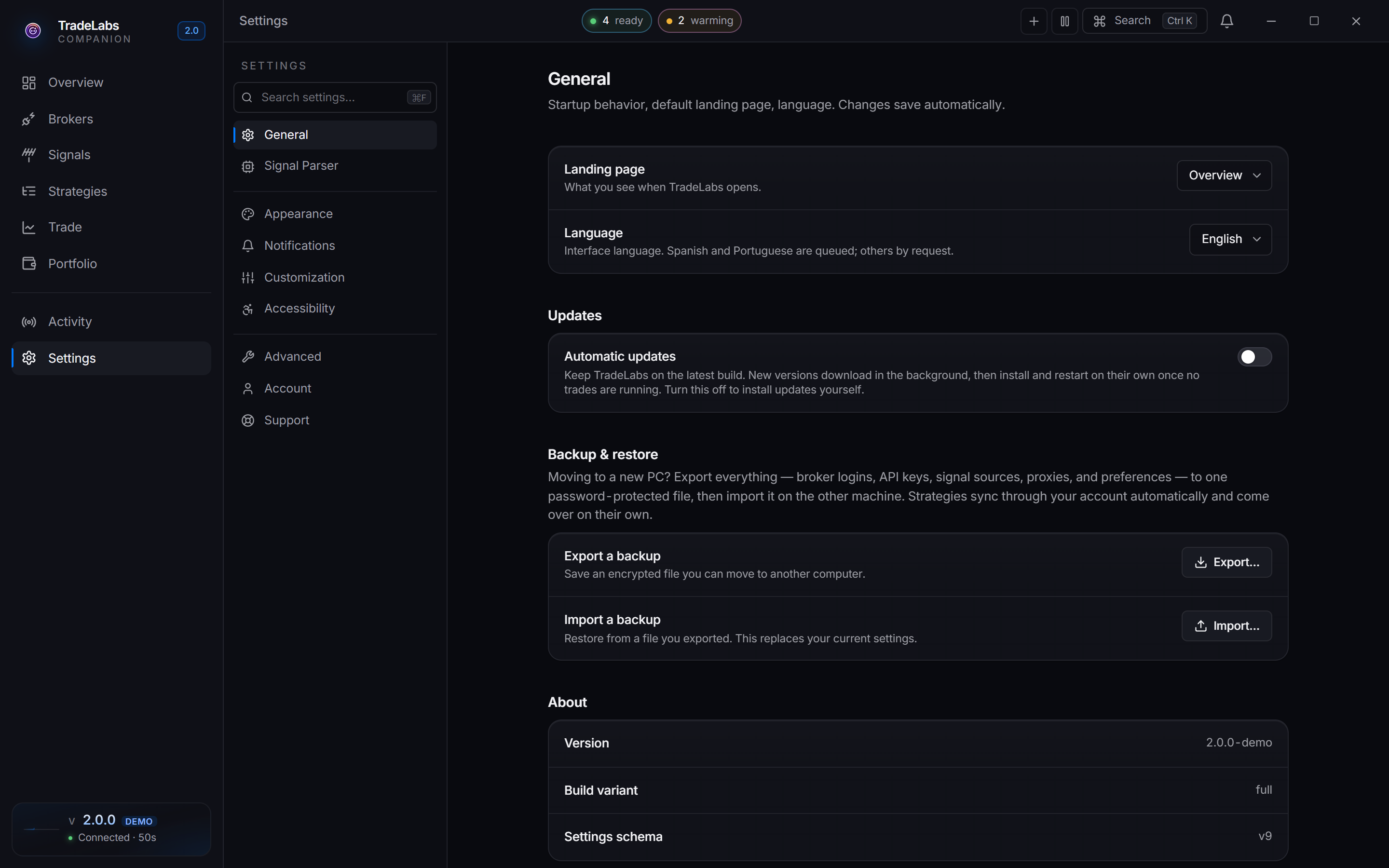
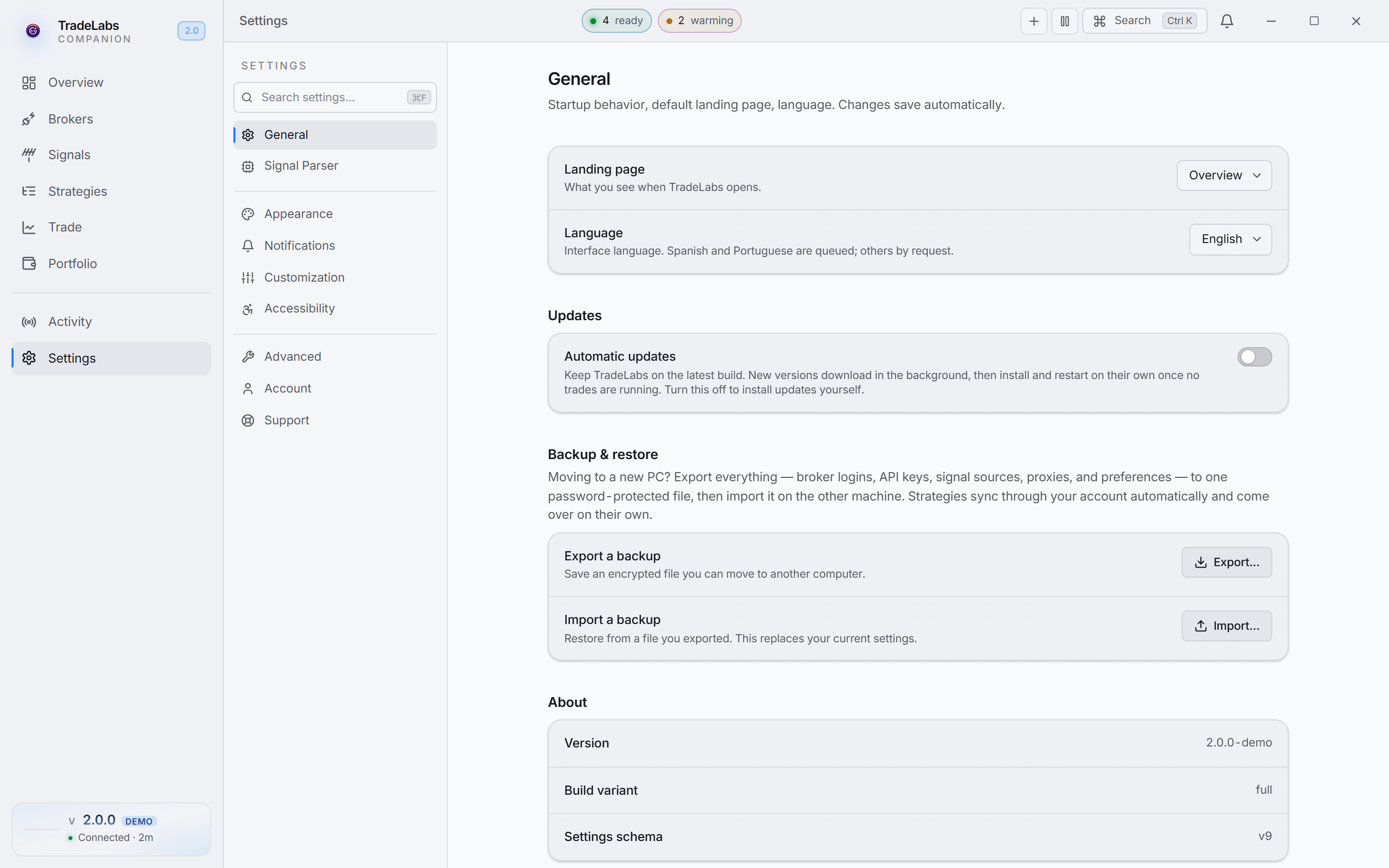 The Settings page and its tabs
General
Startup behavior and app-wide preferences:
- Landing page: which page opens when TradeLabs starts (Overview, Strategies, Trade, Portfolio, or Brokers).
- Language: interface language.
- Automatic updates: let new versions download in the background and install on their own once no trades are running. Turn it off to install updates yourself.
- Backup & restore: export everything (broker logins, API keys, signal sources, proxies, and preferences) to one password-protected file, then import it on another computer. Strategies sync through your account, so they come over on their own.
- About: your version, build variant, and settings schema, handy when contacting support.
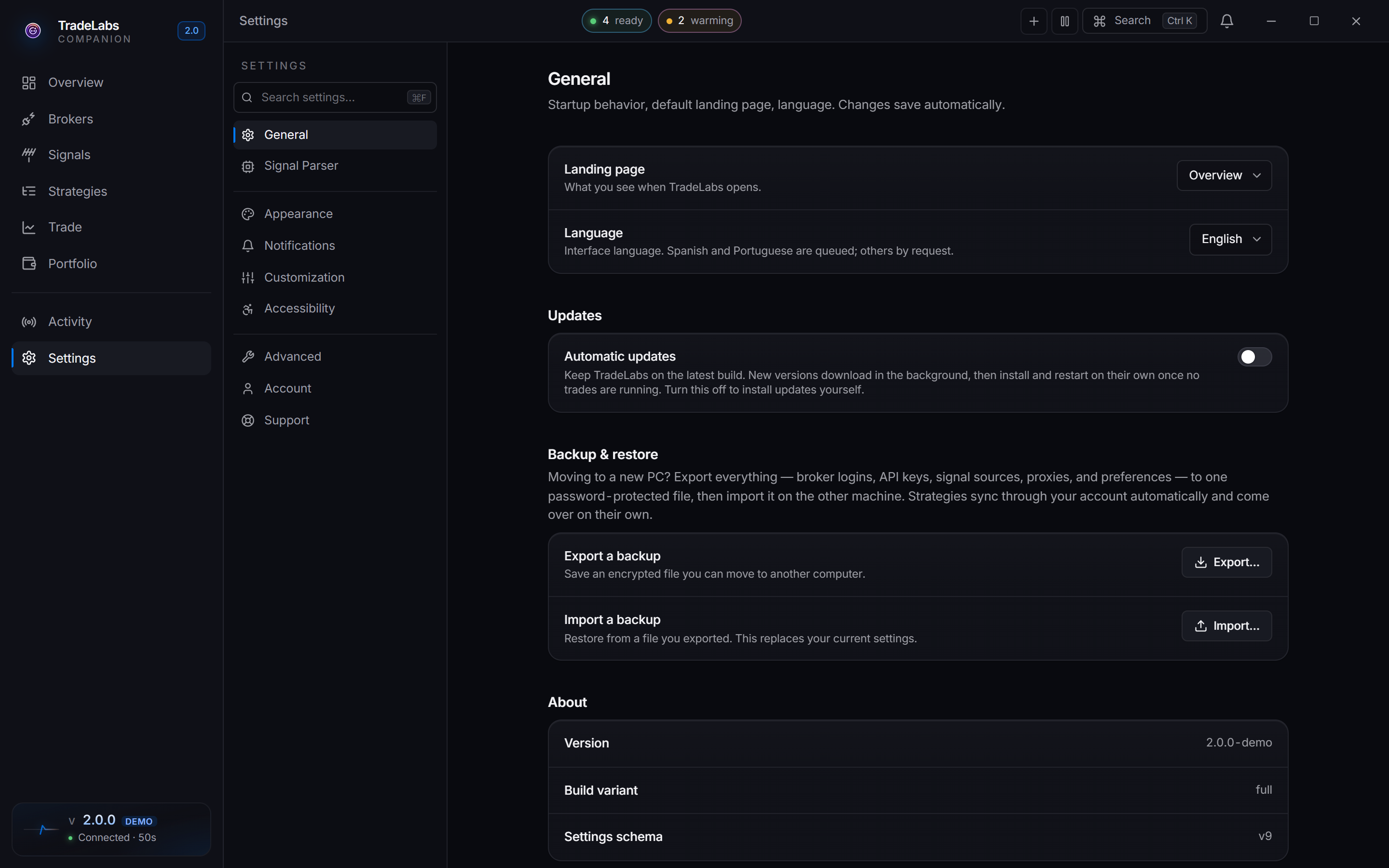
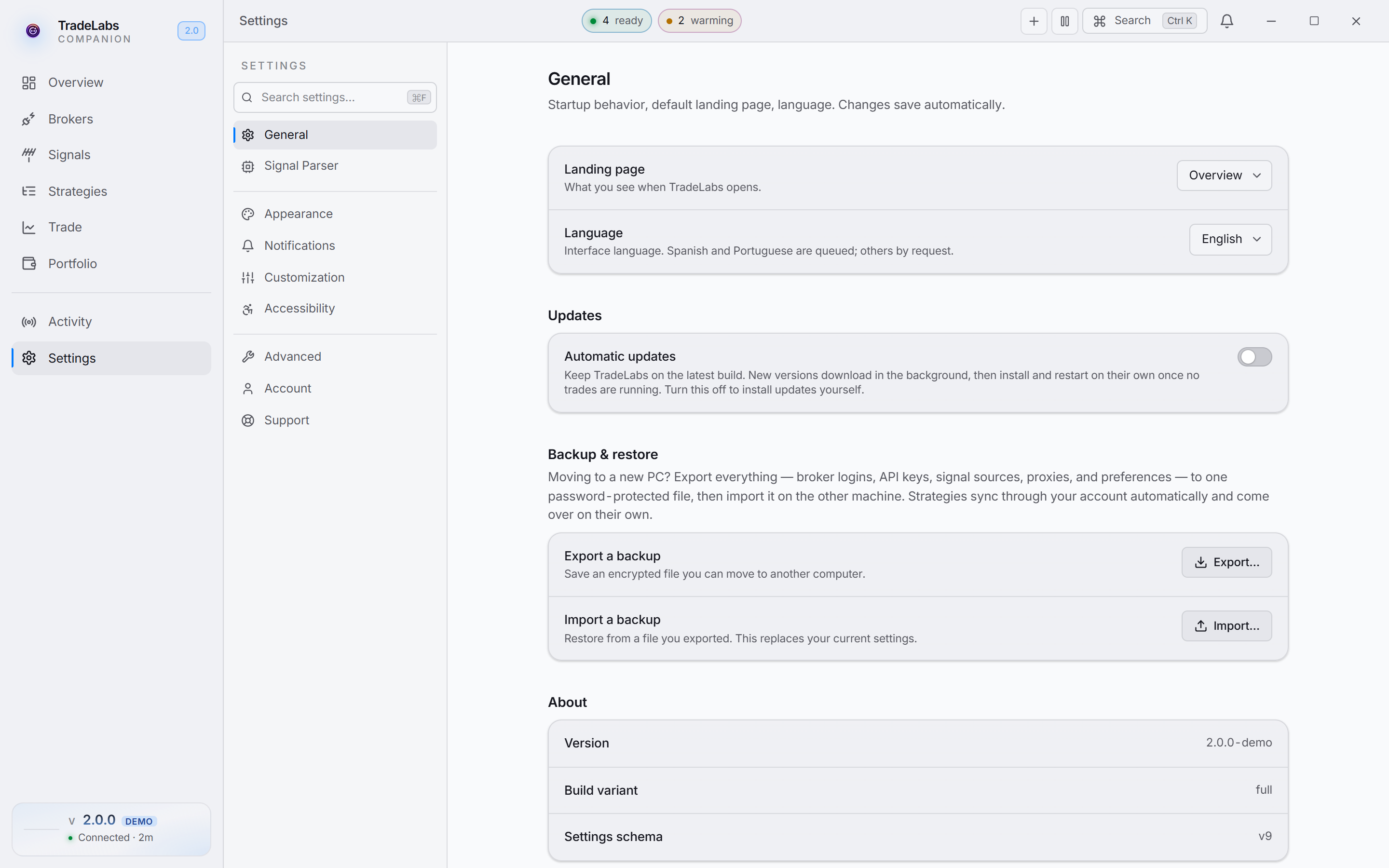 General
Signal Parser
Where your AI key lives. Discord and Telegram messages are read by AI, and this tab sets that up. Choose a Provider (OpenAI or Google Gemini), paste your API key (OpenAI keys start with sk-, Gemini keys start with AIza), Save, then use Test to confirm the key works. Pick a Model last (gpt-4o-mini is the recommended default for OpenAI).
Your key is stored on your device and only sent to the provider’s own API. Leave it empty and Discord and Telegram cannot read messages.
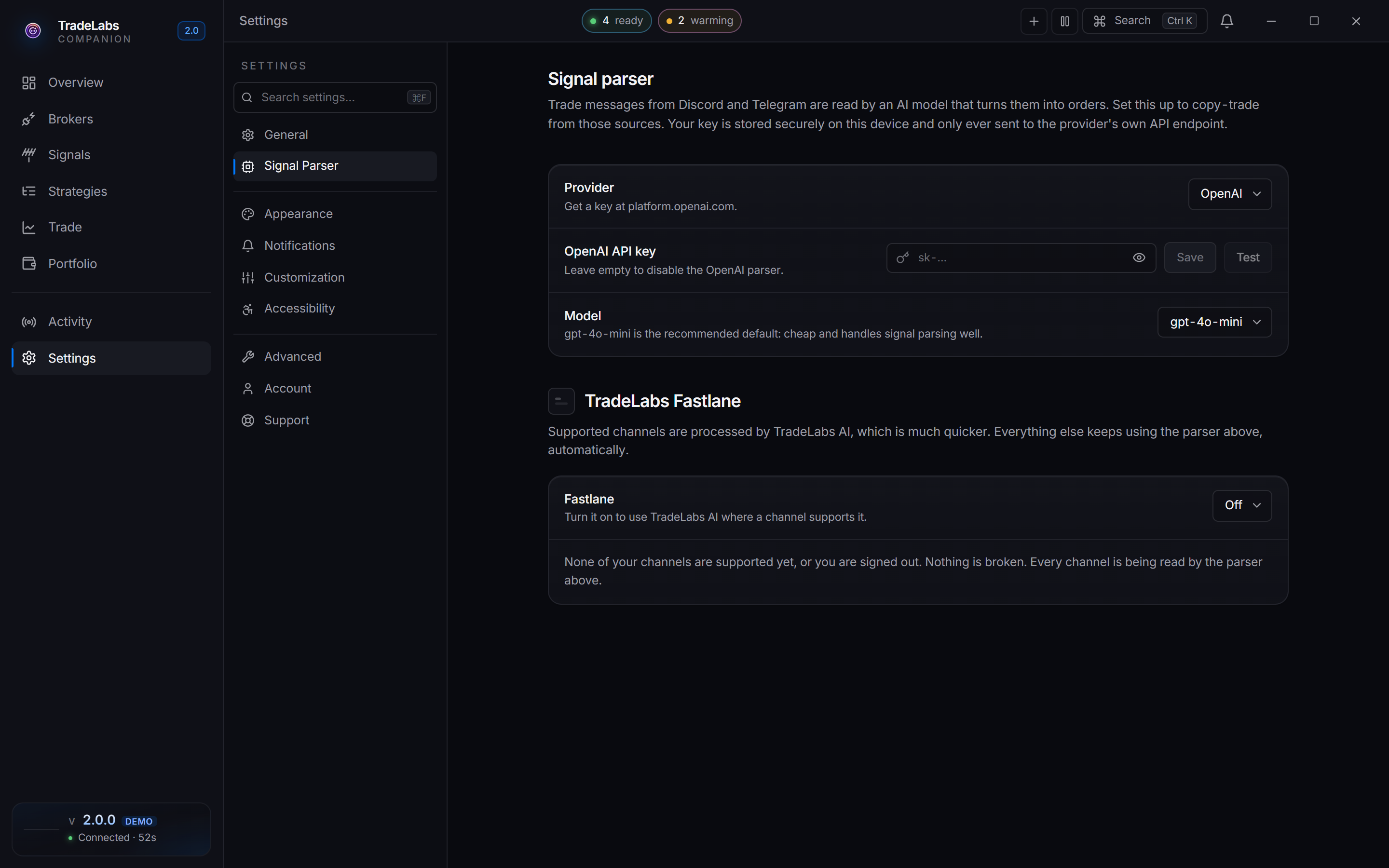
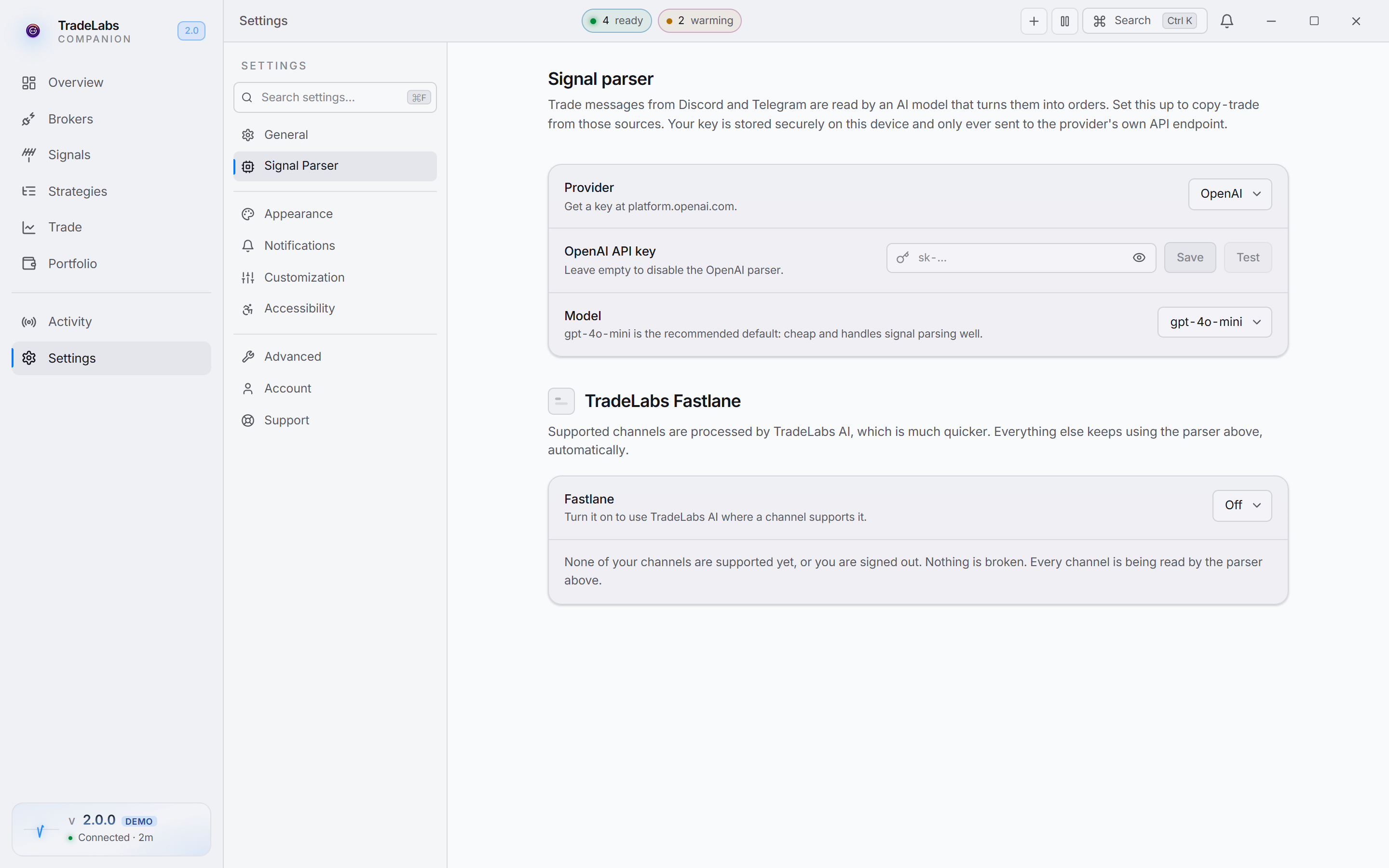 Signal Parser
Step-by-step for getting a key: Create an AI key.
Appearance
Control how the app looks: Theme (Dark, Light, System, or Auto, which switches to light at 7am and back to dark at 8pm your local time), Density, Motion, Corner radius, Font size, and an Accent color (nine swatches plus a custom color picker).
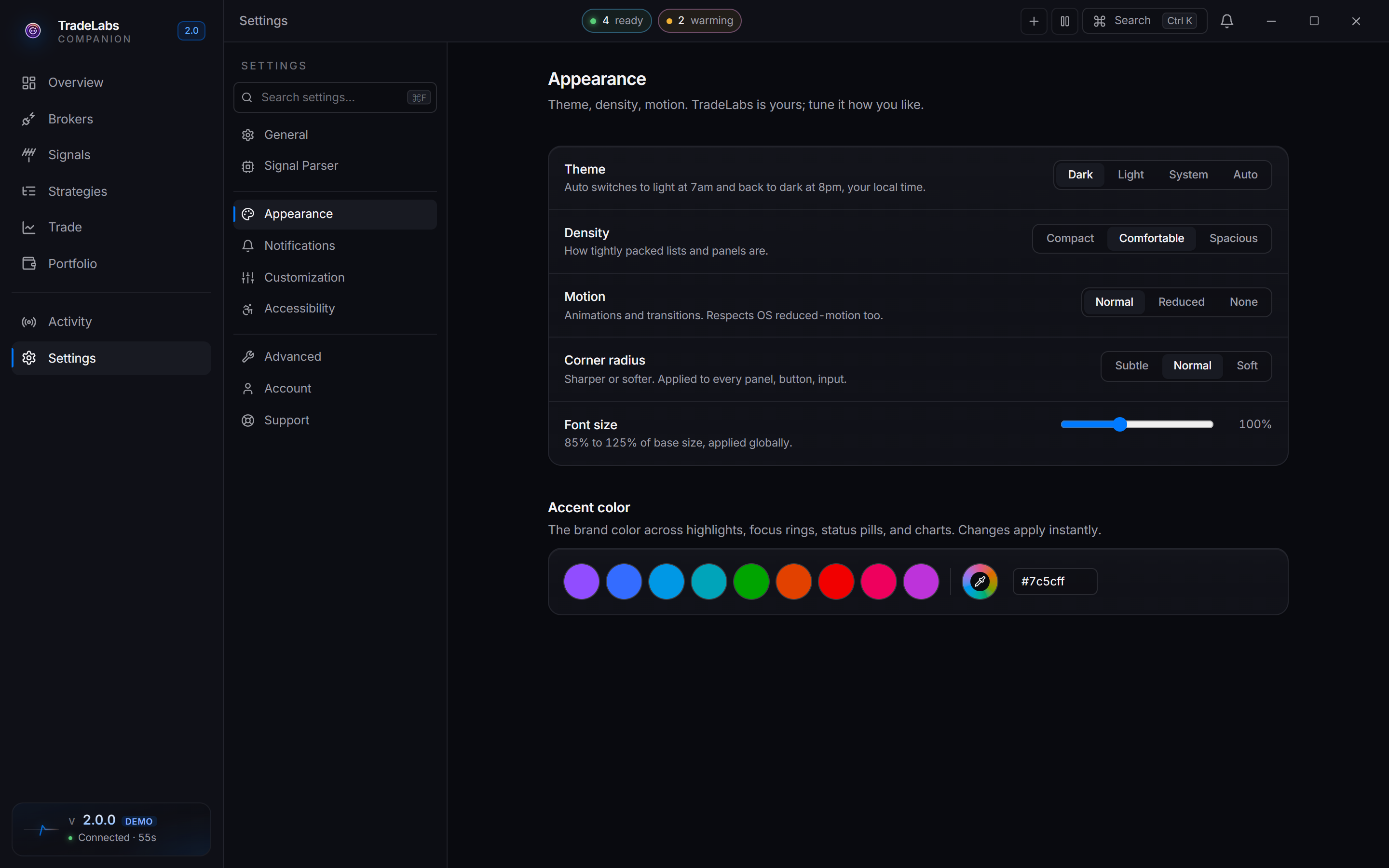
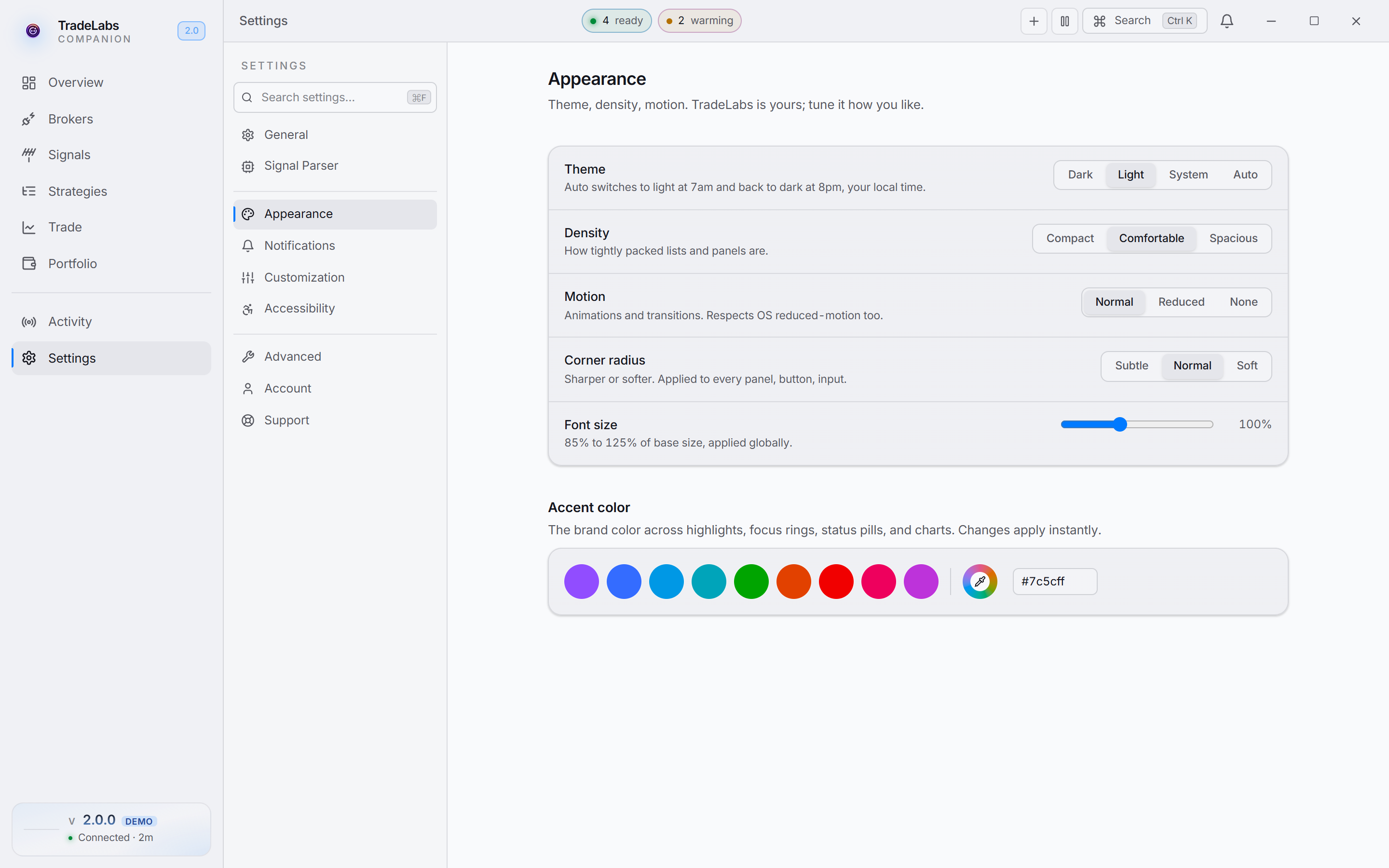 Appearance
Notifications
In-app alerts, the bell-icon center, and an optional Discord webhook for remote alerts. Three parts:
- In-app: toggle Toasts (bottom-right pop-ups for trade outcomes and settings writes) and Sound (a soft chime on each notable event).
- Discord webhook: paste a Webhook URL to mirror events to a Discord channel, then Send test to confirm it works. Leave it empty to disable the mirror. Trade fills and failures are posted directly by each broker, so they are not mirrored here and you never get duplicates.
- What sends a notification: click a pill to toggle it. Filled pills fire a toast (and the webhook, if set); empty pills stay silent. Events are grouped into Signals (off by default, noisy but useful for debugging), Brokers (session expiry), and System (breakage and lifecycle, on by default). Each group has Enable all / Disable all.
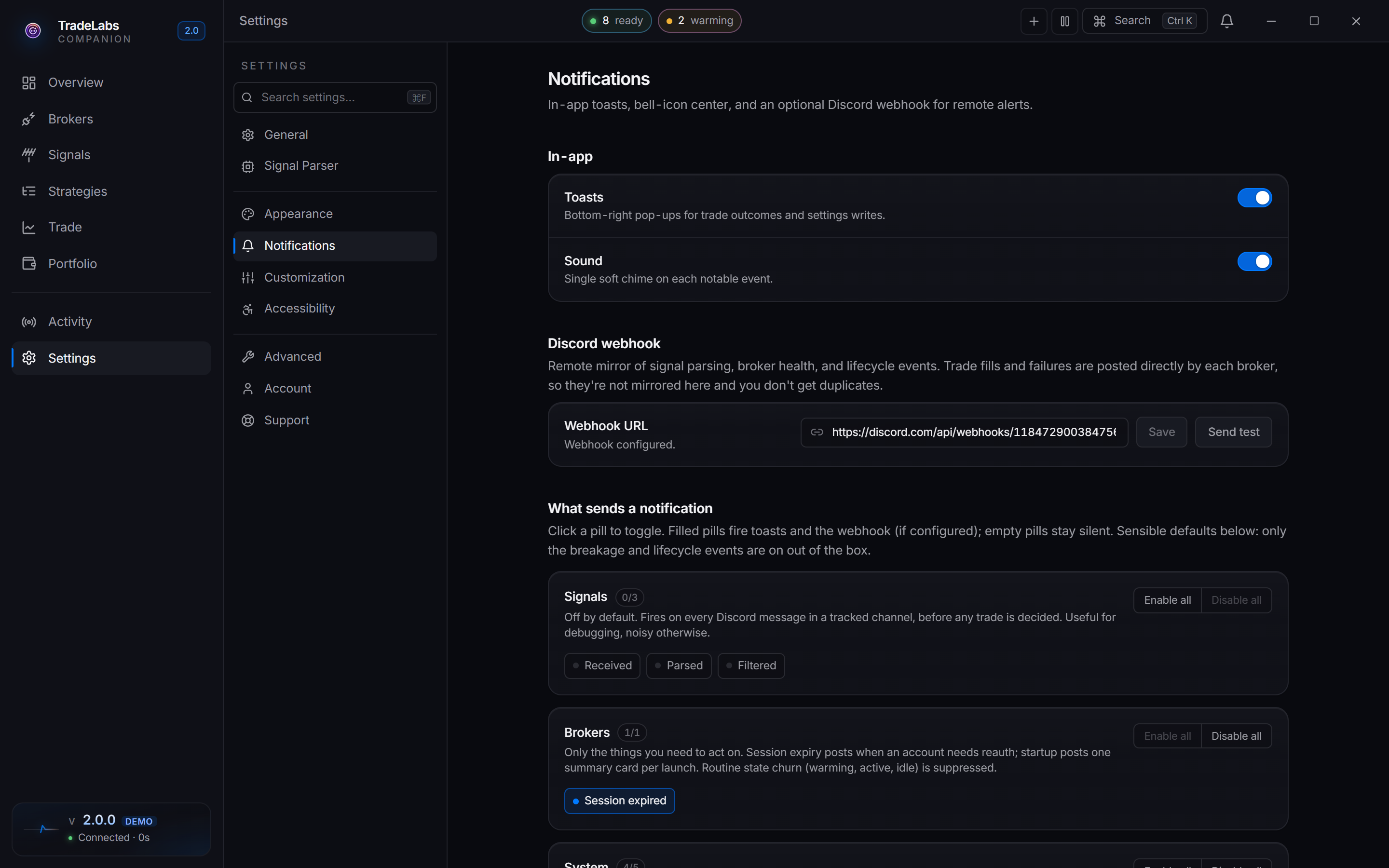
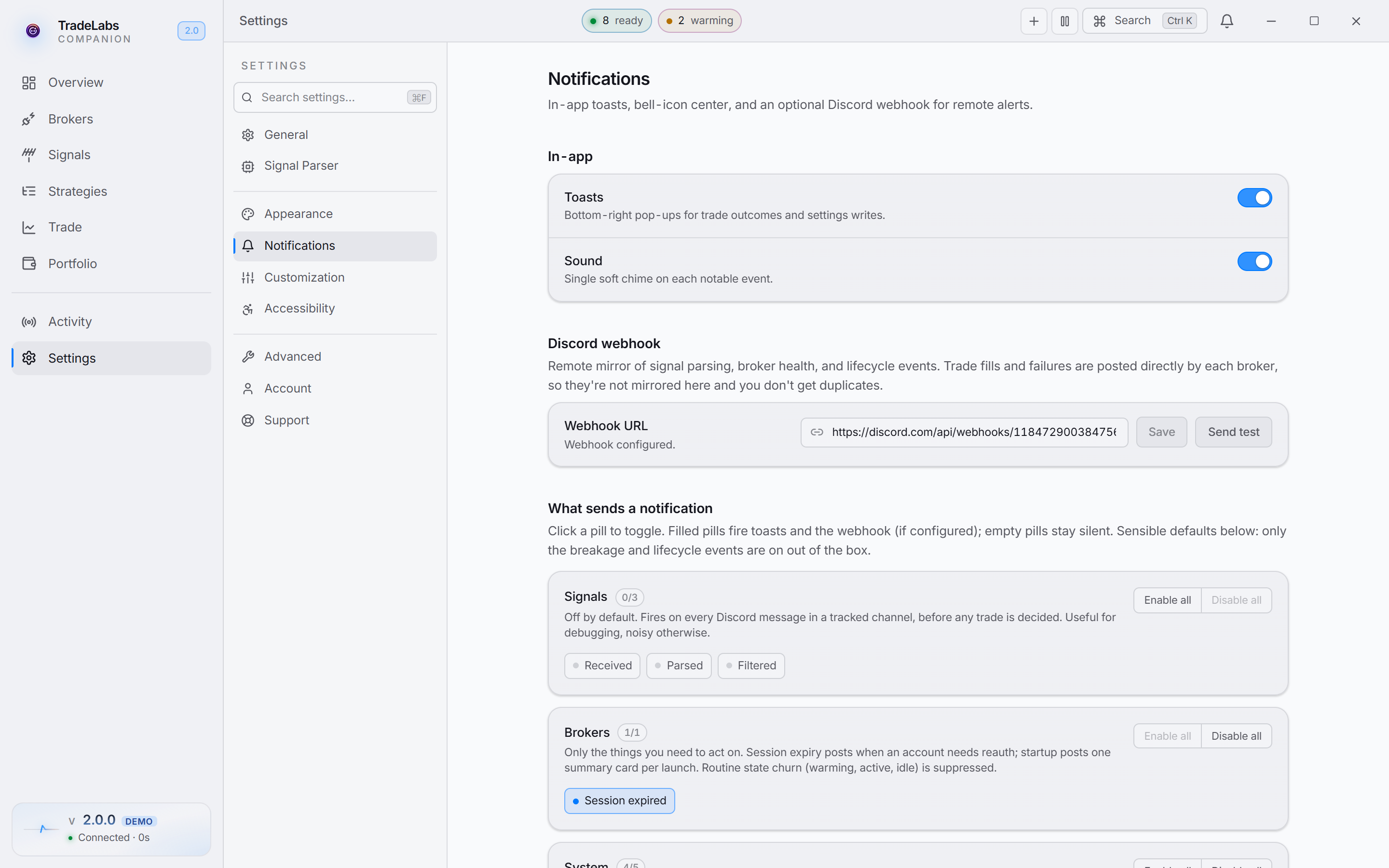 Notifications
Customization
Three sections:
- Overview widgets: drag a card by its handle to reorder it, move it between columns, or toggle its visibility. Changes apply live.
- Pinned palette commands: pinned commands surface in their own group at the top of the command palette and as icon buttons in the topbar.
- Keyboard shortcuts: click a shortcut to remap it, then press a new combination. Press ? anywhere in the app to see every shortcut, including the ones for the page you are on.
Accessibility
Contrast and color options: High contrast (thicker borders, whiter text, stronger separation) and Color-blind safe (status dots get shape cues in addition to color). Density, motion, and text size live on the Appearance tab.
Advanced
Migration, diagnostics, and destructive actions:
- Import from a previous install: bring your brokers, strategies, OpenAI key, and Discord webhook over from an older TradeLabs Companion on the same computer. Safe to run any time; it only fills in things you have not already set up.
- Diagnostics: open the activity-files folder, or re-run the onboarding wizard.
- Danger zone: Reset settings to defaults, which clears your theme, strategies, broker accounts, and signal sources. This cannot be undone.
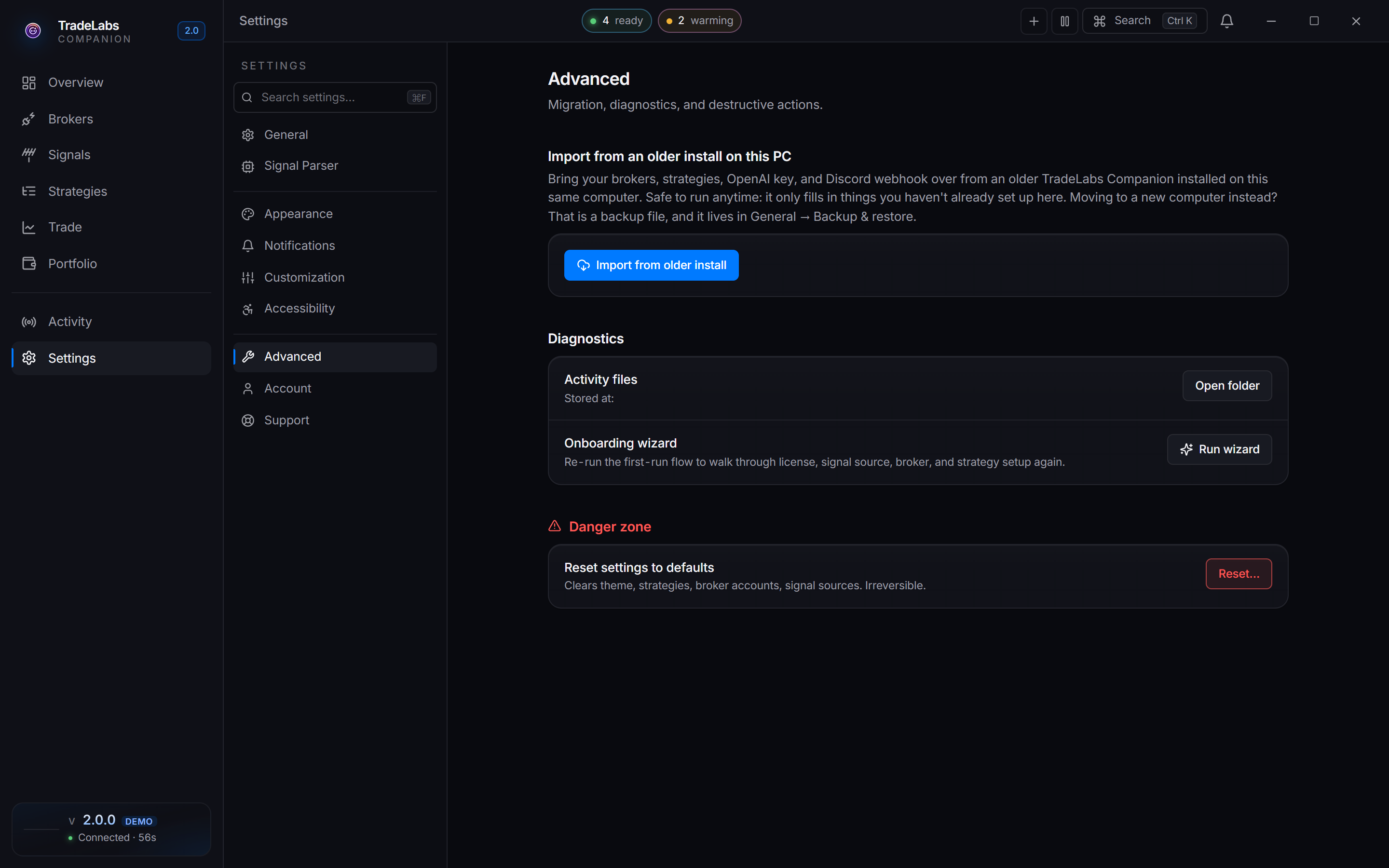
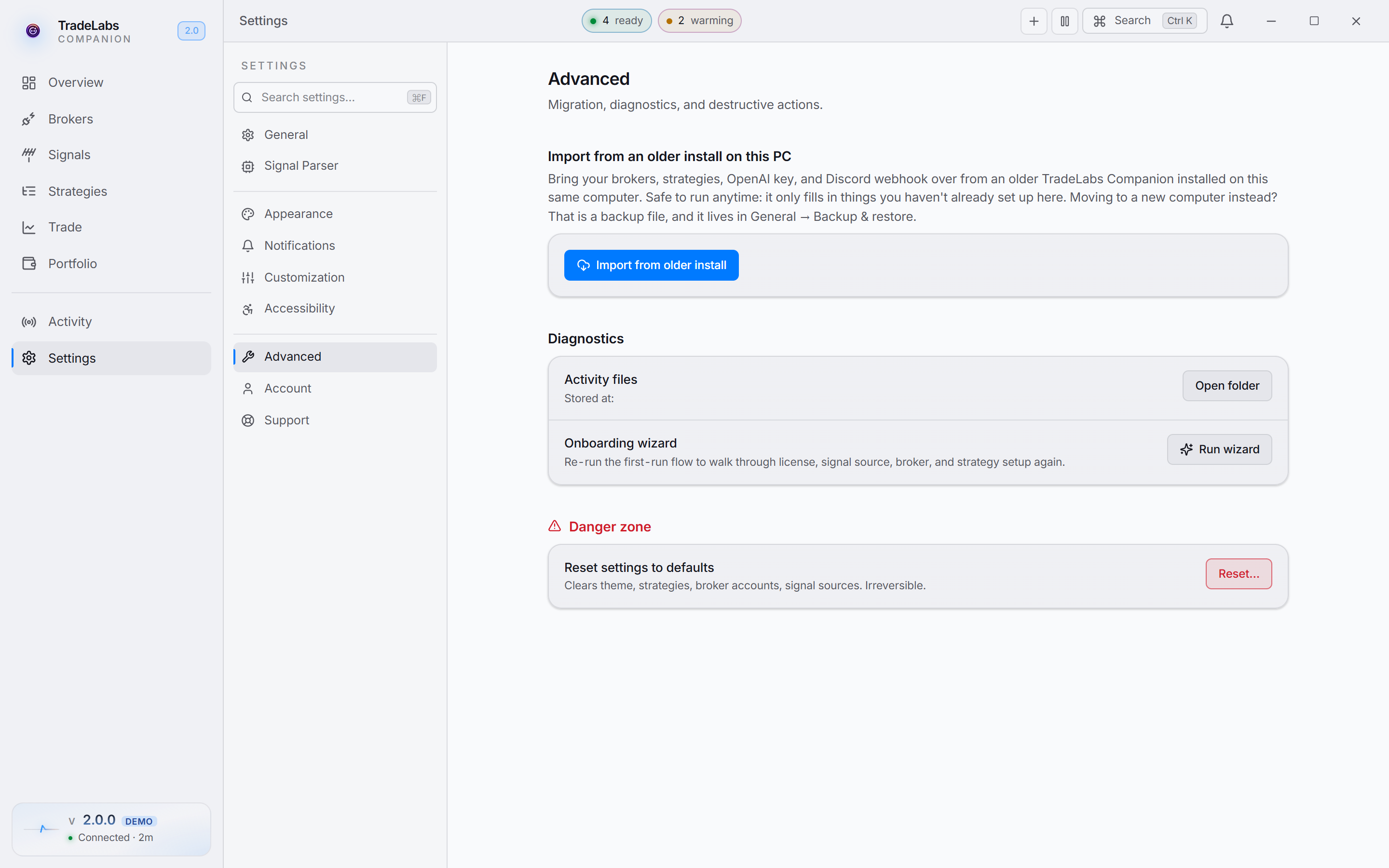 Advanced
Reset settings to defaults is irreversible. Only use it if you want a clean slate.
Account
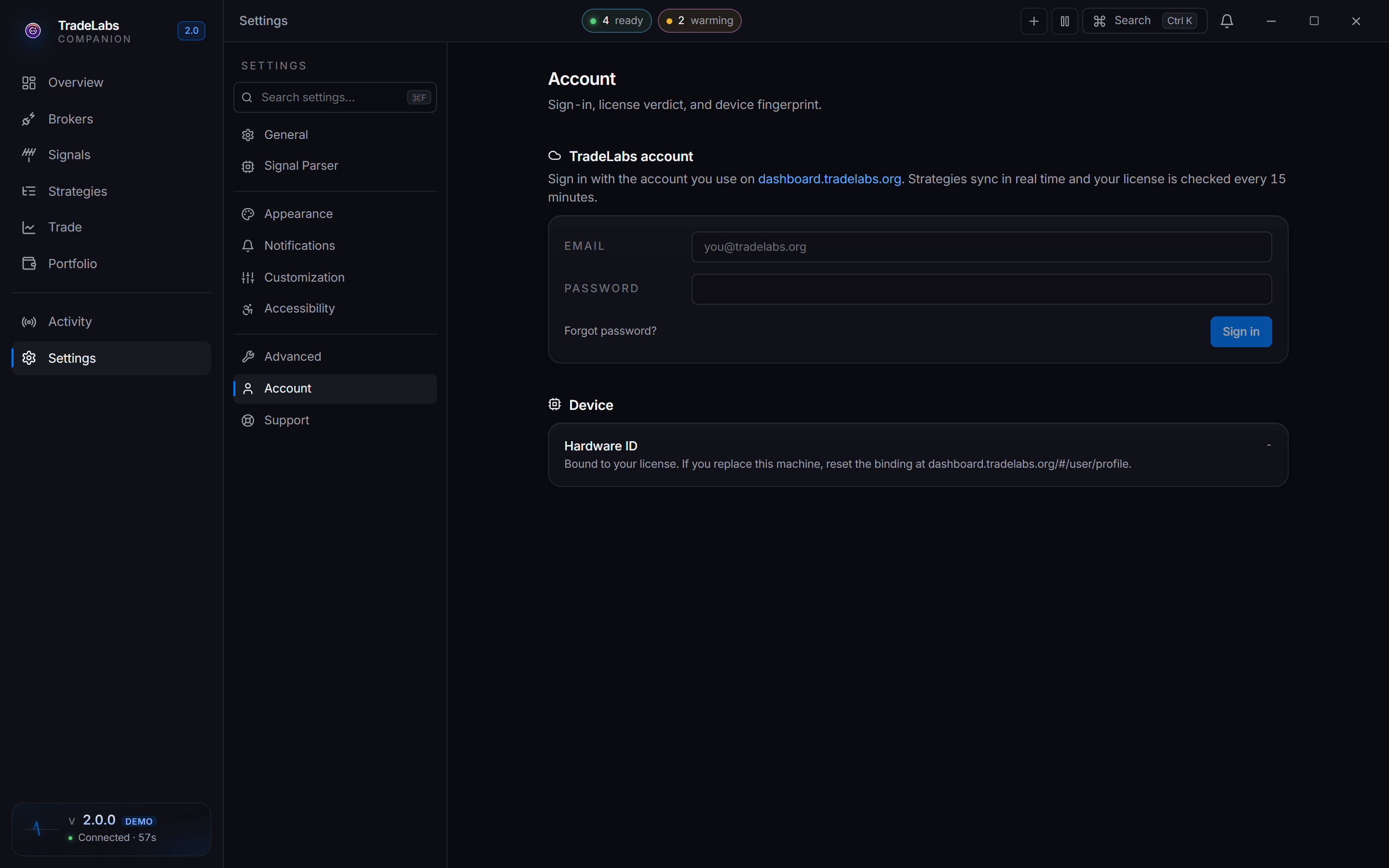
Sign in with the account you use on dashboard.tradelabs.org. This tab shows your TradeLabs account (email, tier, live license verdict, and sign out), cloud sync status, and your Hardware ID, which support may ask for if your license needs to be re-bound to this machine.
 Account
Support
Read the guides, then send a day of activity if you need a hand. Recent activity lists your daily activity files; Send attaches one to a support ticket, with an optional note describing what went wrong.