Using the App
Portfolio
See every open position across all your brokers in one place: stocks, memecoins, fractional cleanup, and a risk view, plus export and a one-click sell-everything.
The Portfolio page pulls live positions from every broker you have connected and shows them in one place. Open it from the left rail. The header shows your total value and a positions count, with a colored pip that goes green when every configured broker is signed in and red when one is offline.
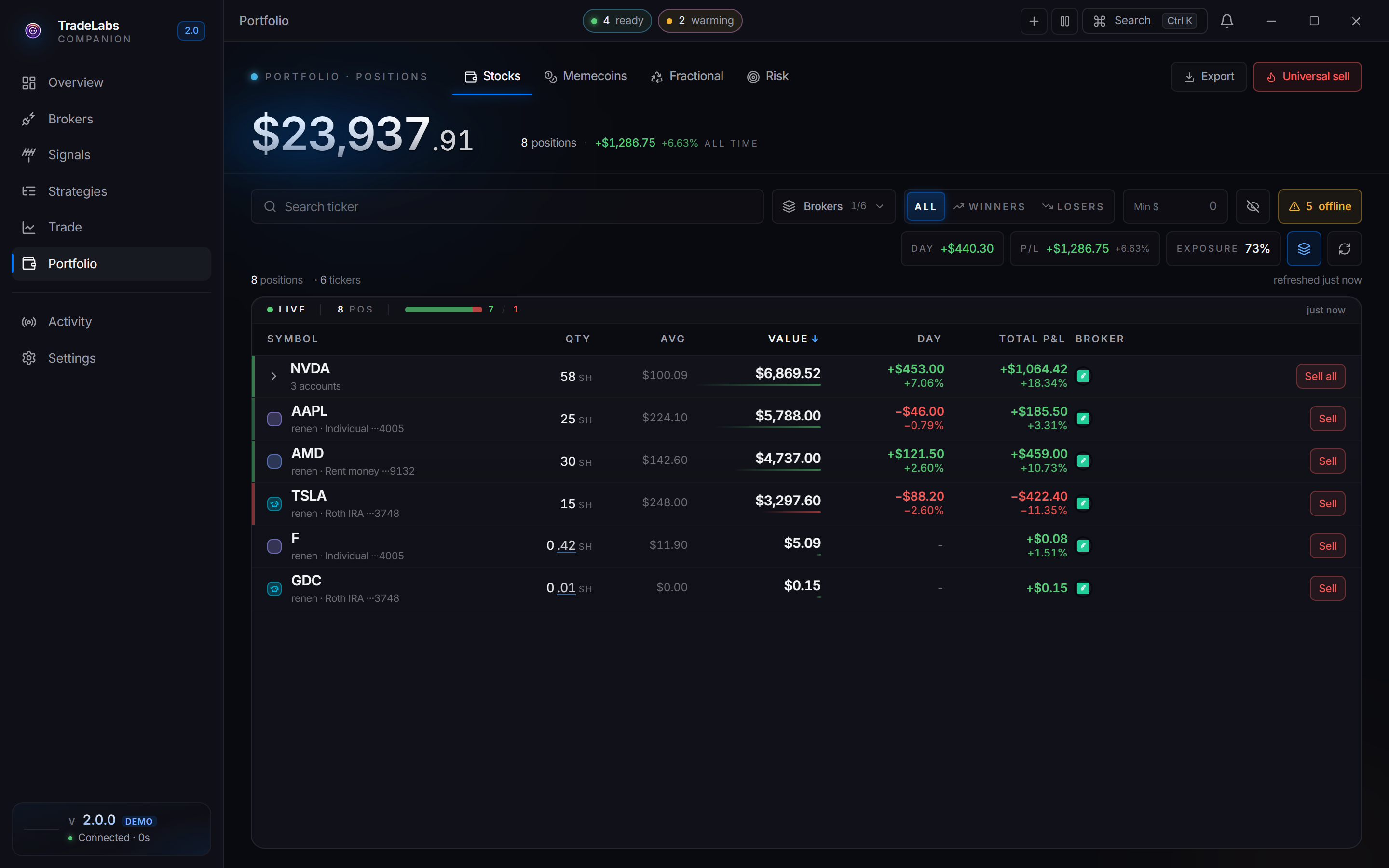
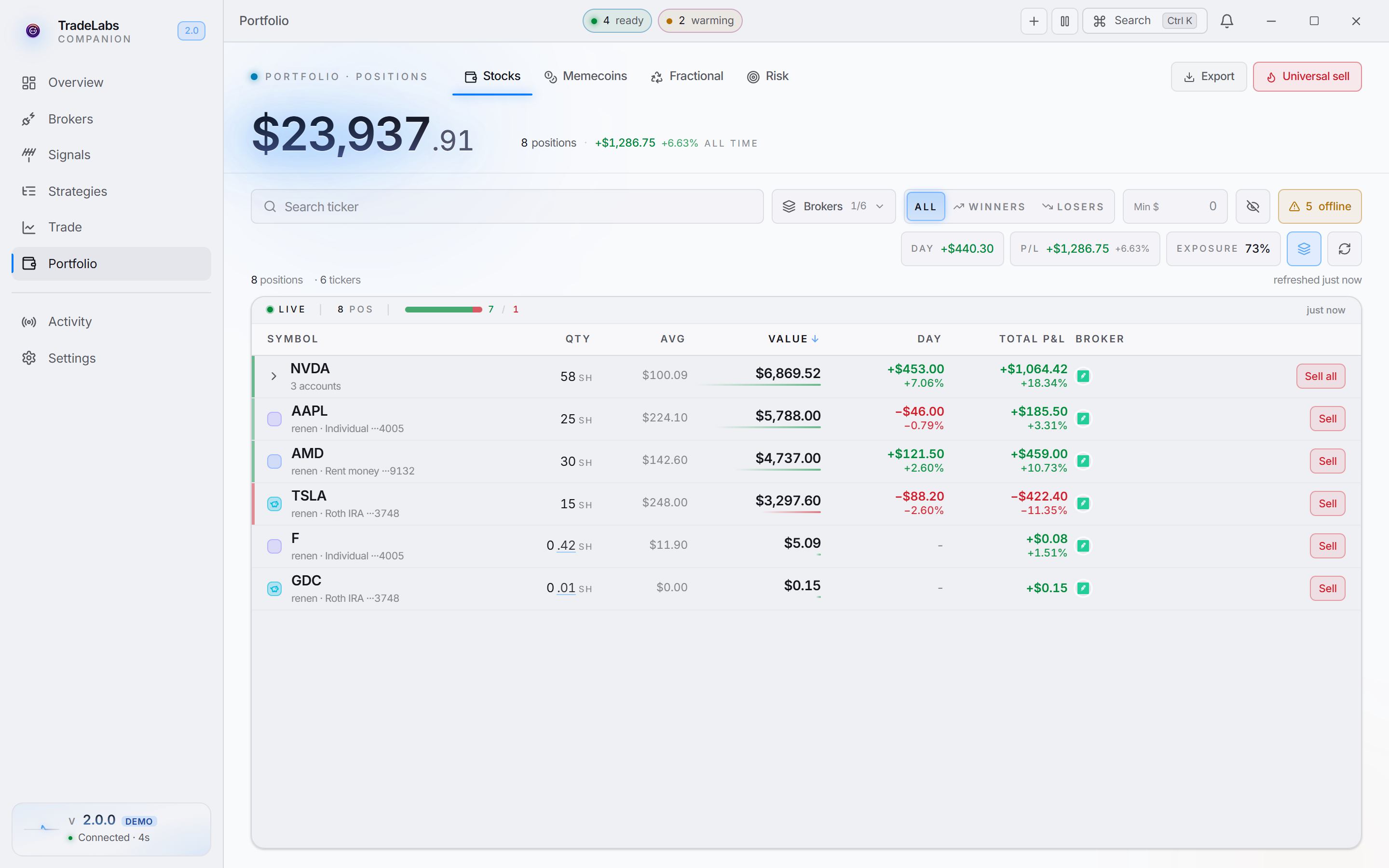 Total value, tabs, and per-position table on one screen
Tabs
The page splits into tabs across the top. Which ones you see depends on your build and plan.
| Tab | What it shows |
|---|---|
| Stocks | Every stock and option position across your brokers, in one sortable table |
| Memecoins | Holdings from crypto brokers (Solana, Robinhood Chain, Polymarket, Robinhood Crypto) as cards |
| Fractional | Leftover fractional shares and the cleanup tool that sells them |
| Risk | Concentration, broker exposure, cash buffer, and a risk score |
Stocks
The Stocks tab is the main table. It fetches once when you open the page and then holds that snapshot until you refresh, so brokers are not hammered in the background.
Controls above the table:
- Search ticker filters rows as you type.
- Brokers opens a popover to filter by broker. Each broker shows its live count, position count, and value.
- All, Winners, and Losers filter by profit and loss.
- Min $ hides positions worth less than the amount you enter.
- The layers button groups the same ticker held across brokers into one row. Click a grouped row to expand it. Grouping is on by default.
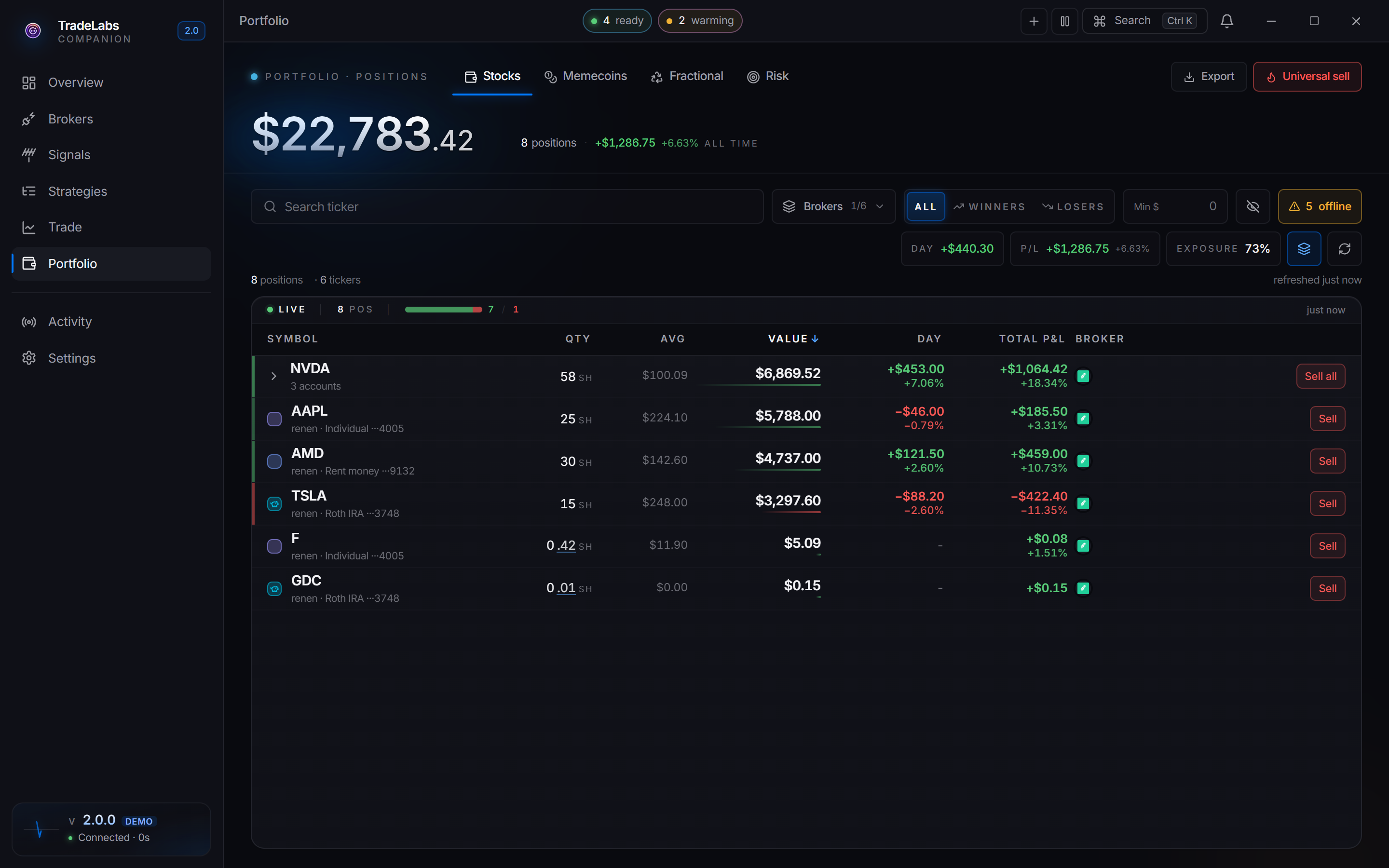
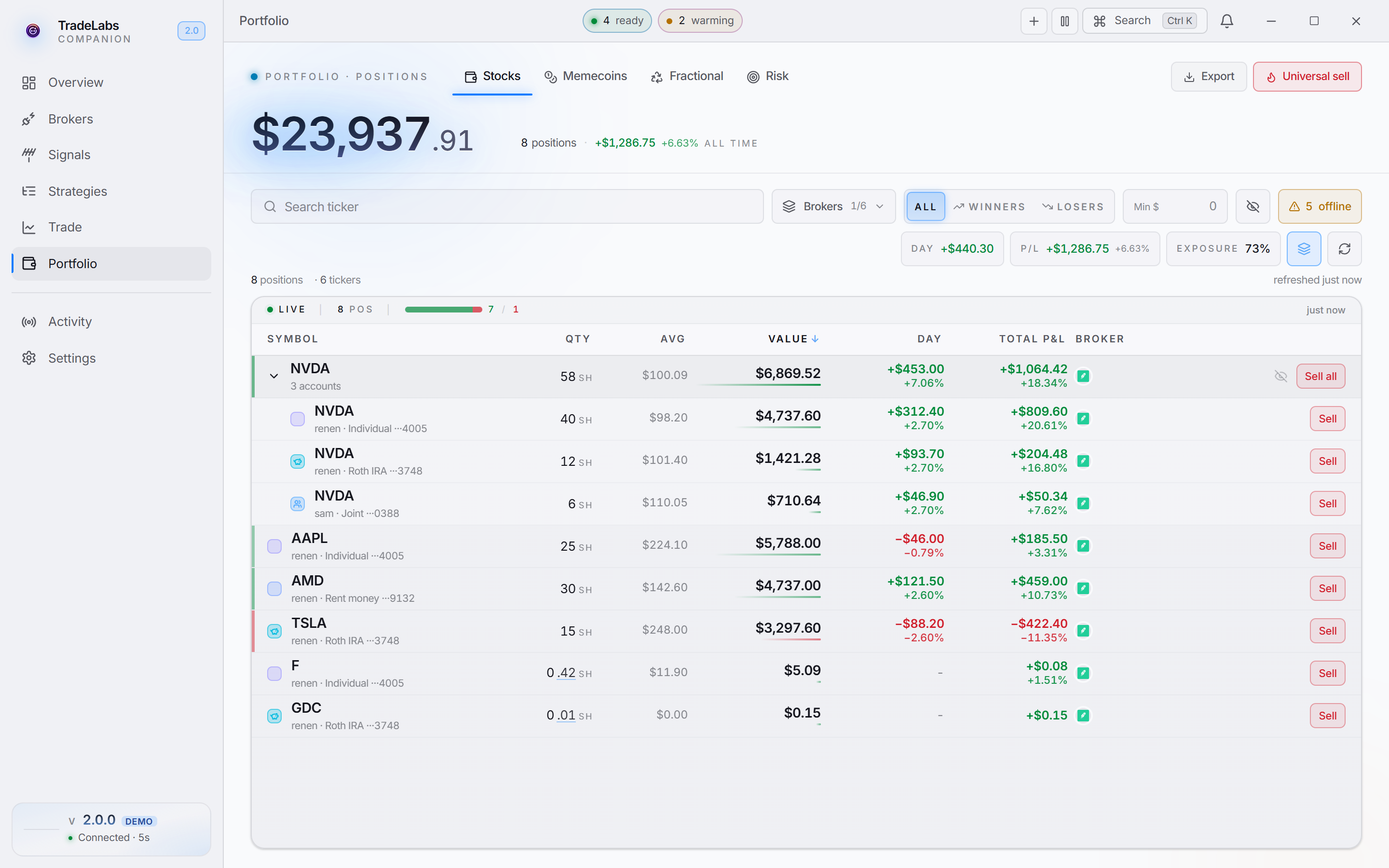 A grouped ticker expanded. Each leg names the account holding it, rather than repeating the broker.
- Refresh forces a fresh fetch from every broker. You can also press r.
The table sorts by Symbol, Qty, Avg, Value, Total P&L, and Broker. A Day column appears only when a broker reports intraday change. On the right, Day, P/L, and Exposure summary pills track the whole book.
If a broker is slow or its session expired, you will see a small offline pill or a “needs a fresh sign-in” banner naming the broker. Click the pill to retry just that broker, or sign in again on the Brokers page.
Export
Click Export in the header to download a CSV of every position. The file includes broker, account, login, ticker, quantity, average cost, market value, currency, and profit or loss. It saves straight to your computer.
Universal sell
Universal sell is the red button in the header. It sends a market sell to every broker currently holding one of your open positions.
Universal sell places real market orders across every broker at once and cannot be undone. The app asks you to confirm with Sell everything first, and tells you how many positions it is about to sell.
When it finishes you get a toast. If every order goes through you see Universal sell complete. If some fail, the toast names the tickers that failed so you can check them.
Memecoins
The Memecoins tab reads holdings from crypto brokers and shows each as a card with quantity, value, and profit or loss. Because these tokens produce a lot of tiny balances, Hide dust is on by default and hides anything worth less than a dollar. Turn it off to see everything. Refresh re-fetches the crypto brokers.
If no crypto broker is connected, the tab tells you to add Solana, Polymarket, or Robinhood Crypto on the Brokers page.
Robinhood Chain on the Positions page
The Positions page, also in the left rail, has a Memecoins tab for Robinhood Chain positions.
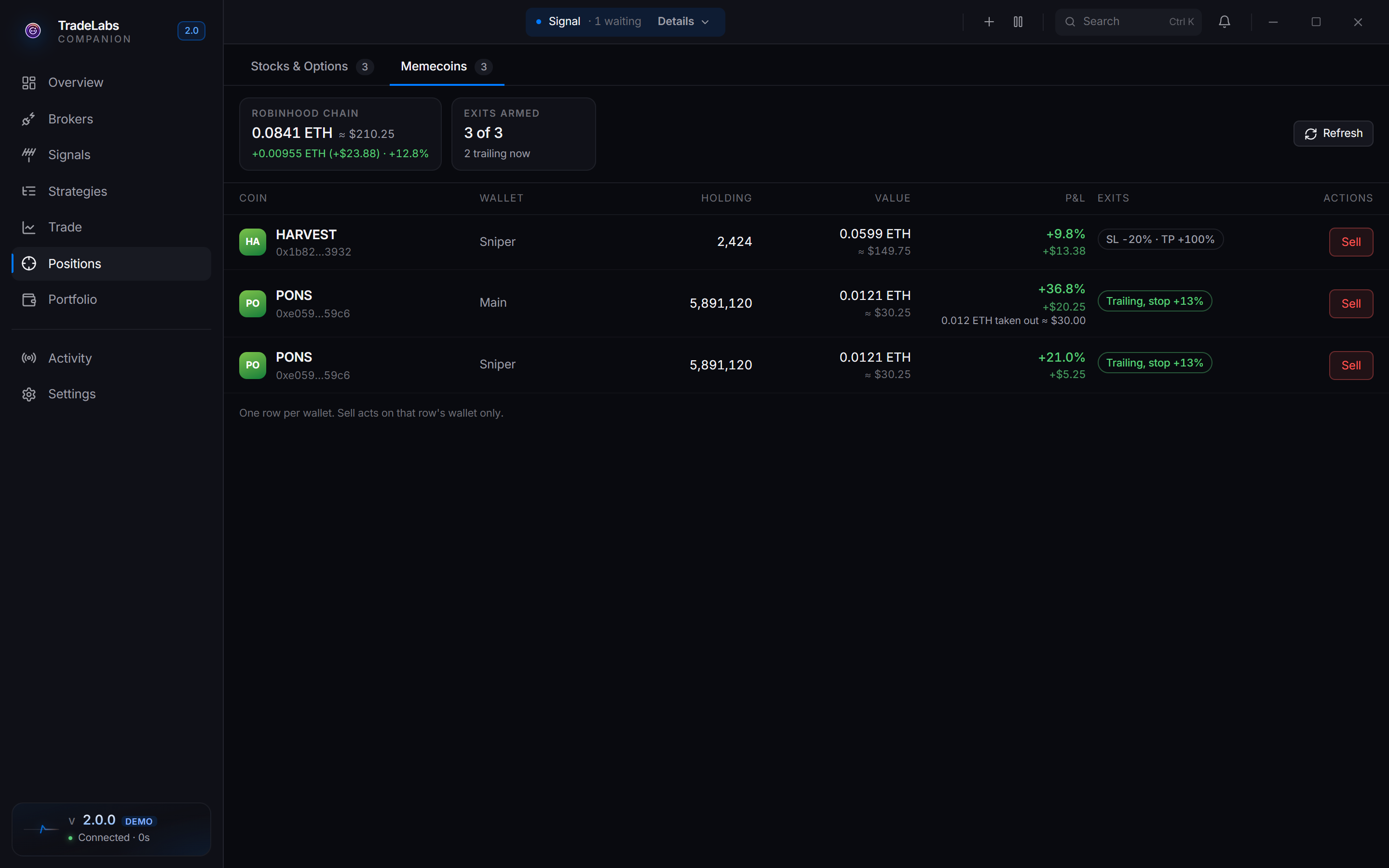
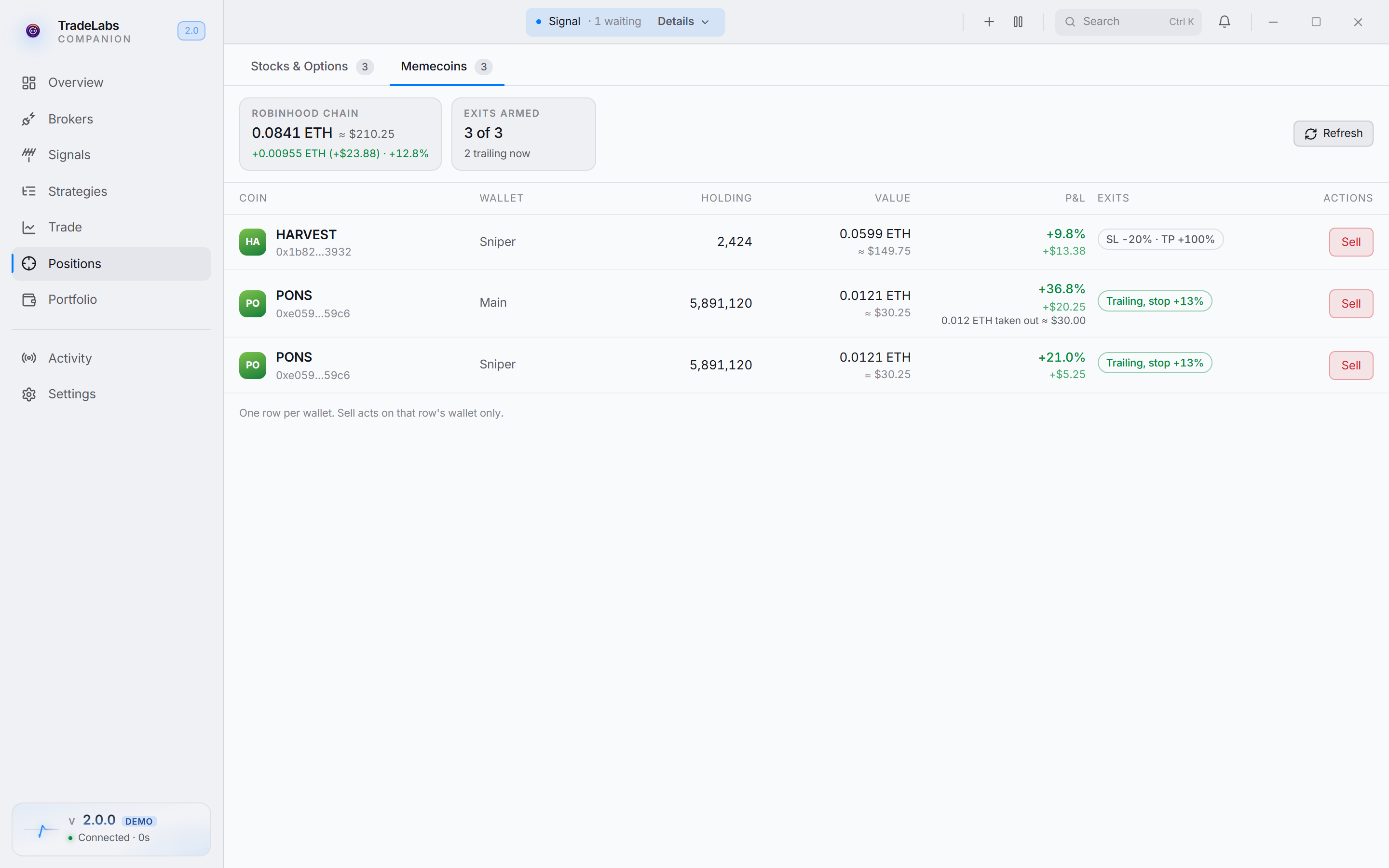 One row per wallet, with value, P&L, exits, and a Sell button for that wallet.
- The Robinhood Chain card at the top shows the total value in ETH, about how much that is in dollars, and the total P&L.
- Exits armed counts the positions with exits set, and how many are trailing now.
- The table has one row per wallet: Coin, Wallet, Holding, Value, P&L, Exits, and Actions.
- P&L counts what earlier sells already took out. A row that sold part of its position shows the ETH taken out under the P&L.
- Exits shows the stop loss and take profit, or the trailing stop level when the trail is armed.
- Sell acts only on that row’s wallet.
See Robinhood Chain for how exits and sells work.
Fractional
Fractional shares are the sub-one-share leftovers that RSA trades can leave behind. The Fractional tab lists them and gives you a tool to clear them out.
Three tiles across the top summarize the batch:
- Eligible now counts the positions that pass every cleanup rule.
- Estimated proceeds is what selling them right now would return.
- Loss harvest is the realized losses you would capture.
-
Set your schedule and safety caps in the schedule popover on the control strip. When enabled, cleanup shows a Scheduled badge and runs on your chosen frequency during market hours.
-
Filter and browse the list with All, Profitable, Losers, Consolidating, and Recently opened, plus search and sort. Positions inside Public’s round-up window are tagged Consolidating and skipped, because they round up into a whole share on their own.
-
Click Preview to open a review dialog. It breaks the batch down per broker and shows a sample of the positions. Nothing sells until you confirm.
-
Click Run cleanup in the dialog to sell, or use Run now on the control strip to run the whole eligible batch immediately.
You can also tick individual positions and use Sell selected in the bar that appears at the bottom, or the Eligible, Losers, and Consolidating bulk-select shortcuts.
Cleanup places market sell orders, so it only runs during market hours. Off hours, Run now tells you the market is closed. When it is scheduled, a line tells you exactly when the next run fires.
Risk
The Risk tab reads your open positions and turns them into a read on how exposed you are. It needs live positions, so refresh the Stocks tab first if it looks empty.
Three cards head the page:
- Risk score out of 100, lower is safer, labeled Balanced, Watchful, Concentrated, or High exposure.
- Top concentration names the single position that is the largest share of your invested capital.
- Cash buffer shows your cash on hand as a share of the total.
Below that: a Concentration breakdown by name, Broker exposure as a donut, Top winners and Top losers, an Asset mix of stocks versus crypto, and a Cash buffer panel. If any weight looks dangerous, a warning banner explains it in plain English before you scroll.