Brokers
Webull
Connect Webull with one developer API key that covers every account, use it as an RSA fan-out target, and fix common connection problems.
Webull connects through its official developer API, not your Webull email and password. You generate an App key and App secret once on Webull’s developer portal, and that one pair connects every account under your Webull login. All of them are discovered and traded automatically from a single connection.
| What it trades | Supported |
|---|---|
| RSA (reverse split arbitrage) | Yes |
| Stocks | Manual orders only, from the Trade page. An automated Stocks strategy routes to Tradier, IBKR, Robinhood, or STG / DAS instead. |
| Options, spreads, crypto | No |
Because Webull uses a stable API connection instead of a browser, there is no captcha and no verification code to enter when you connect. You add one key pair and TradeLabs finds all your Webull accounts.
Before you start
- A funded Webull brokerage account under your own name.
- An App key and App secret from Webull’s developer portal.
- The TradeLabs Companion installed and running.
Generate your API key
Sign in to Webull and open the developer portal (from your account icon, look for Developer Tool). Generate an App key and App secret. When the portal asks for a region, pick the market your accounts trade in, United States for US accounts. Approval is usually instant.
The App secret may be shown only once. Copy both the App key and the App secret somewhere safe before you leave the page. If you lose the secret, you have to generate a new pair.
Connect it in the app
- Open the Brokers page, find the Webull card, and click Add account.
- Fill in the connect form: an optional Label, your App key, your App secret, and the Region (United States or Hong Kong). Then click Save account. Your credentials are encrypted on your device.
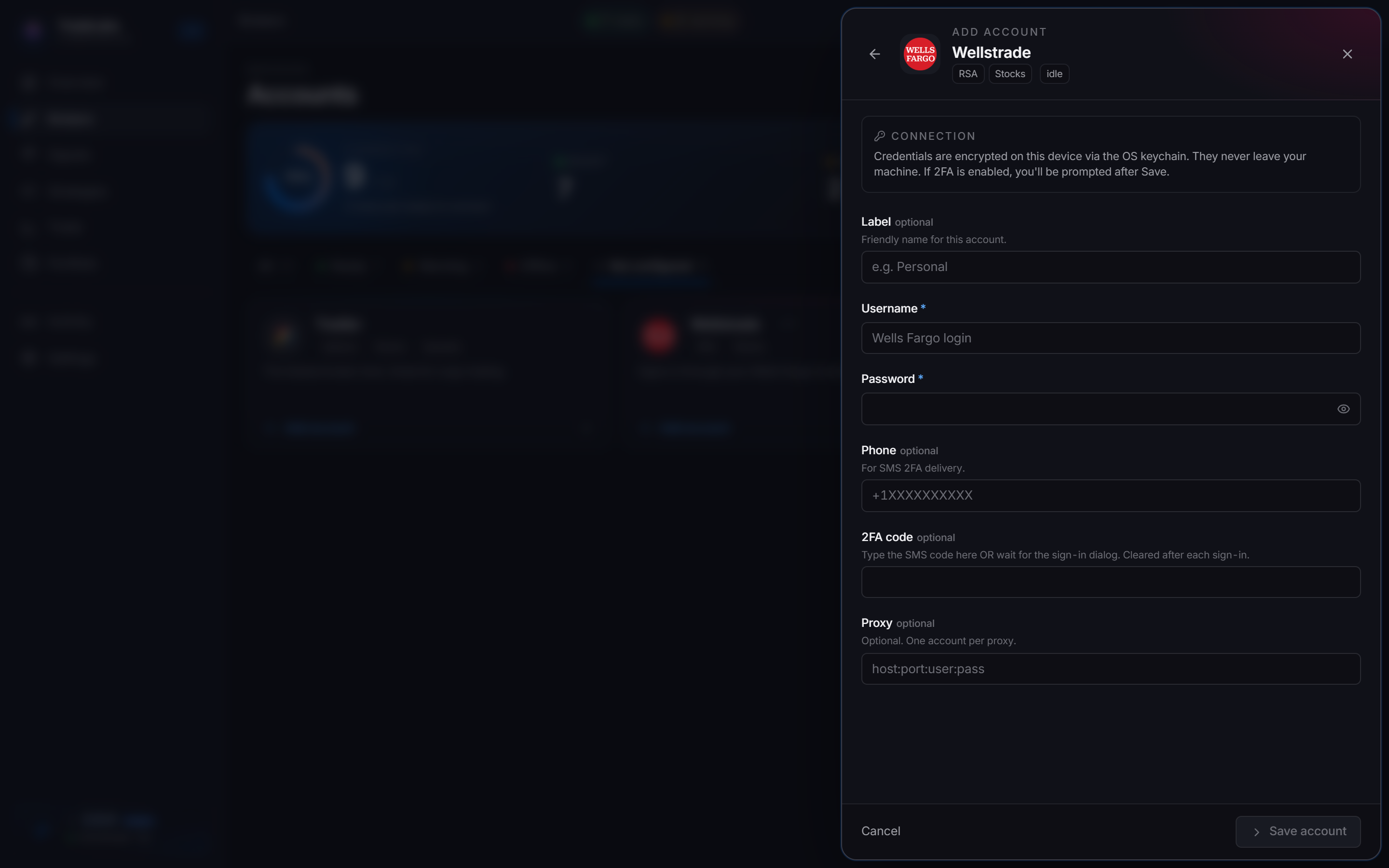
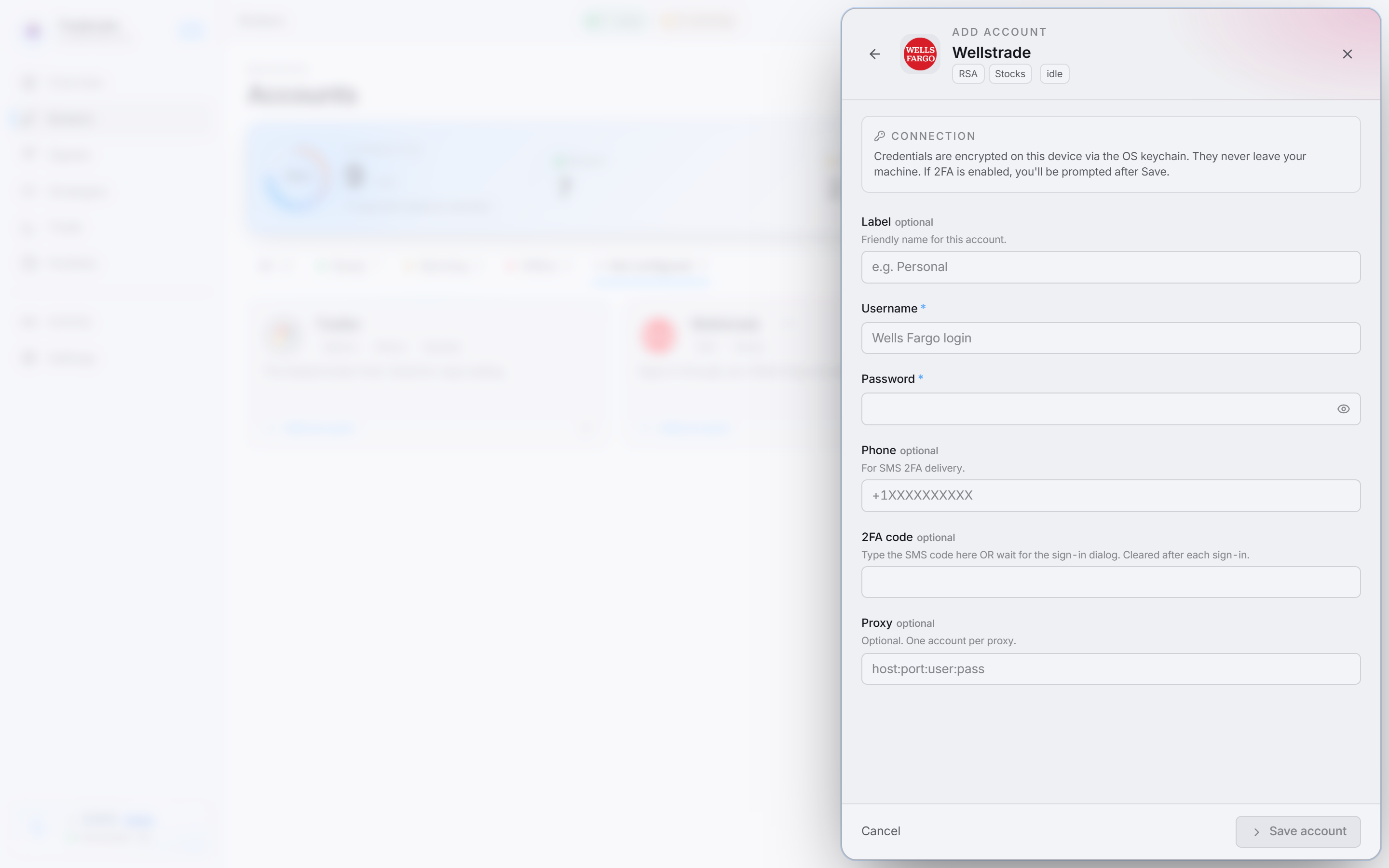 Click the Webull card, then Add account, to open the connect form
- Click Sign in on the account row. TradeLabs verifies the key pair with Webull and discovers every account under your login at once.
When the key pair checks out you see a Webull signed in confirmation. You do not add each account separately: one key pair connects them all.
Add Webull to your RSA strategy from the dashboard, or signals will not route to it.
How low-priced stocks are handled
Reverse-split arbitrage often involves stocks trading well under a dollar, and Webull rejects a plain 1-share order on those. TradeLabs handles this for you, so nothing changes on your end:
- Under $1.00: it buys 100 shares, then sells 99, leaving you holding 1 share.
- Under $0.10: it buys 1000, then sells 999, again leaving 1 share.
- $1.00 or above: a normal order is placed.
This works best during regular market hours, when the buy fills quickly and the trim sells cleanly. Outside market hours the orders can sit unfilled, so run low-priced Webull names during regular hours.
Fixing common problems
- Connection fails right after saving: double-check the App key and App secret. They are long strings and easy to mis-paste, and a bad pair is reported as rejected credentials. Confirm the Region matches your account.
- No accounts show after connecting: confirm the account under your Webull login is funded and active, then sign in again. The account list is fetched live from Webull. You can also run Check connection from the account row’s menu.
- Minimum order size rejections: you should not see these, since TradeLabs handles the low-priced rules for you. A rejection during off-hours usually means a market order could not fill while the market was closed. Trade during regular hours.
Using Webull with RSA
Once Webull is connected, add it to an RSA strategy and make sure the strategy is active. See RSA setup for the full walkthrough, and broker limits for the per-account caps. The one key pair covers every account under your Webull login.