Copy Trading
Discord strategies
Build a strategy that watches a Discord channel and trades its signals in real time, using the AI engine, your brokers, and your risk settings.
A Discord strategy watches a Discord channel and trades from the signals posted there. The AI reads each message, pulls out the ticker, direction, strike, expiration, and size, and routes the order to the broker on your strategy. It is built for members of “cook groups” and alert channels that post calls in plain text.
You can watch any channel your Discord account can see. The account has to be signed in inside the Companion App first.
Discord trades every instrument TradeLabs supports: options, spreads, stocks, crypto, memecoins, reverse split arbitrage, prediction markets and futures.
Connect Discord in the app
You sign Discord in once, in the Companion App, and every Discord strategy uses that connection.
-
Open the Signals page and select the Discord source.
-
Click Connect Discord (or Add account if you already have one). A form asks for your Discord email or phone and password.
-
Click Sign in. TradeLabs opens a real Chrome window and signs you in. Your password stays on your machine. Leave that window alone while it works. It can take 10 seconds or more before it starts typing, and clicking or typing into it breaks the sign-in. Only step in when it is waiting for your 2FA code. If you would rather type it yourself, choose Or sign in manually in the browser and finish there.
-
When it finishes, the account shows up under Accounts with the channels it can see.
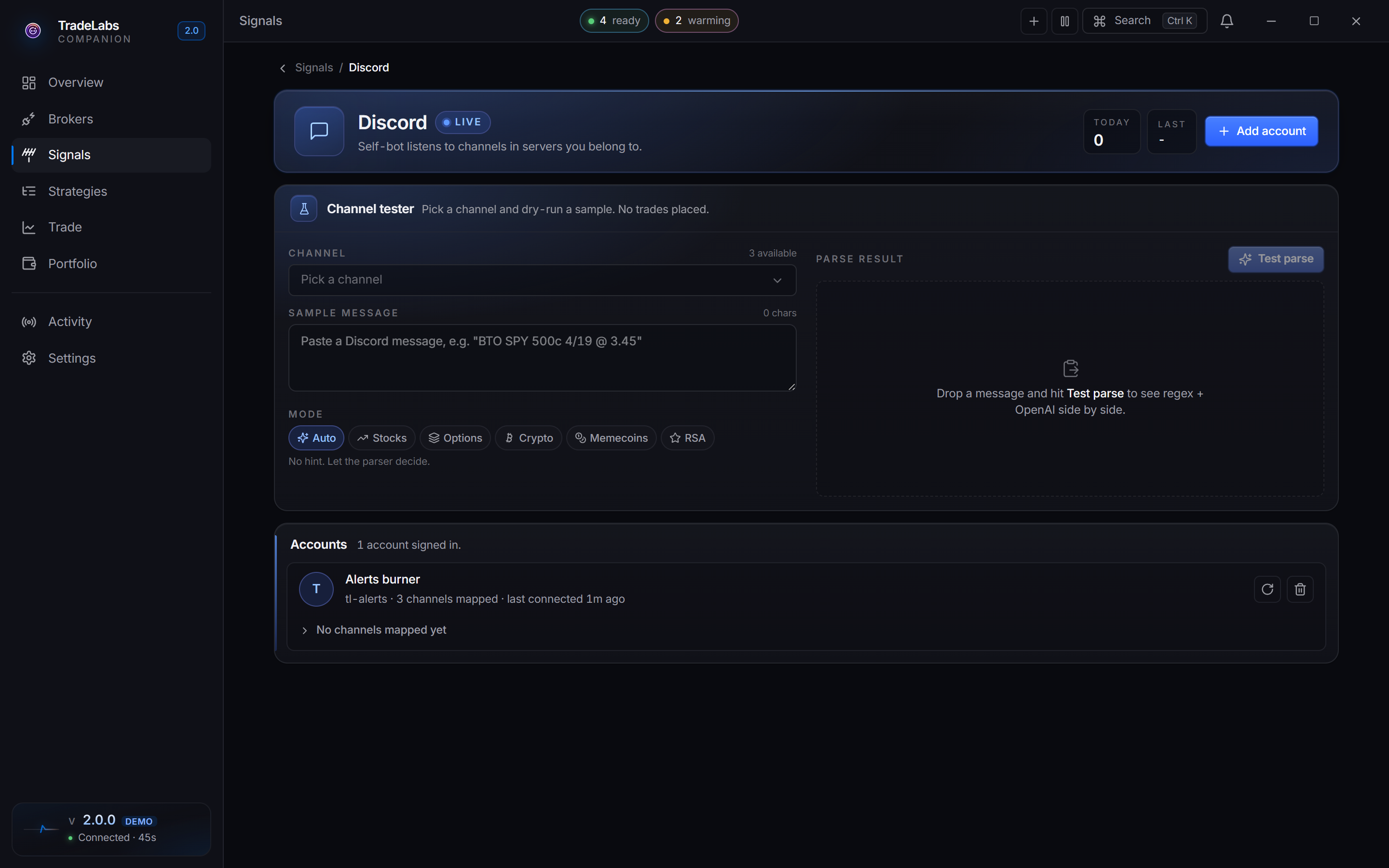
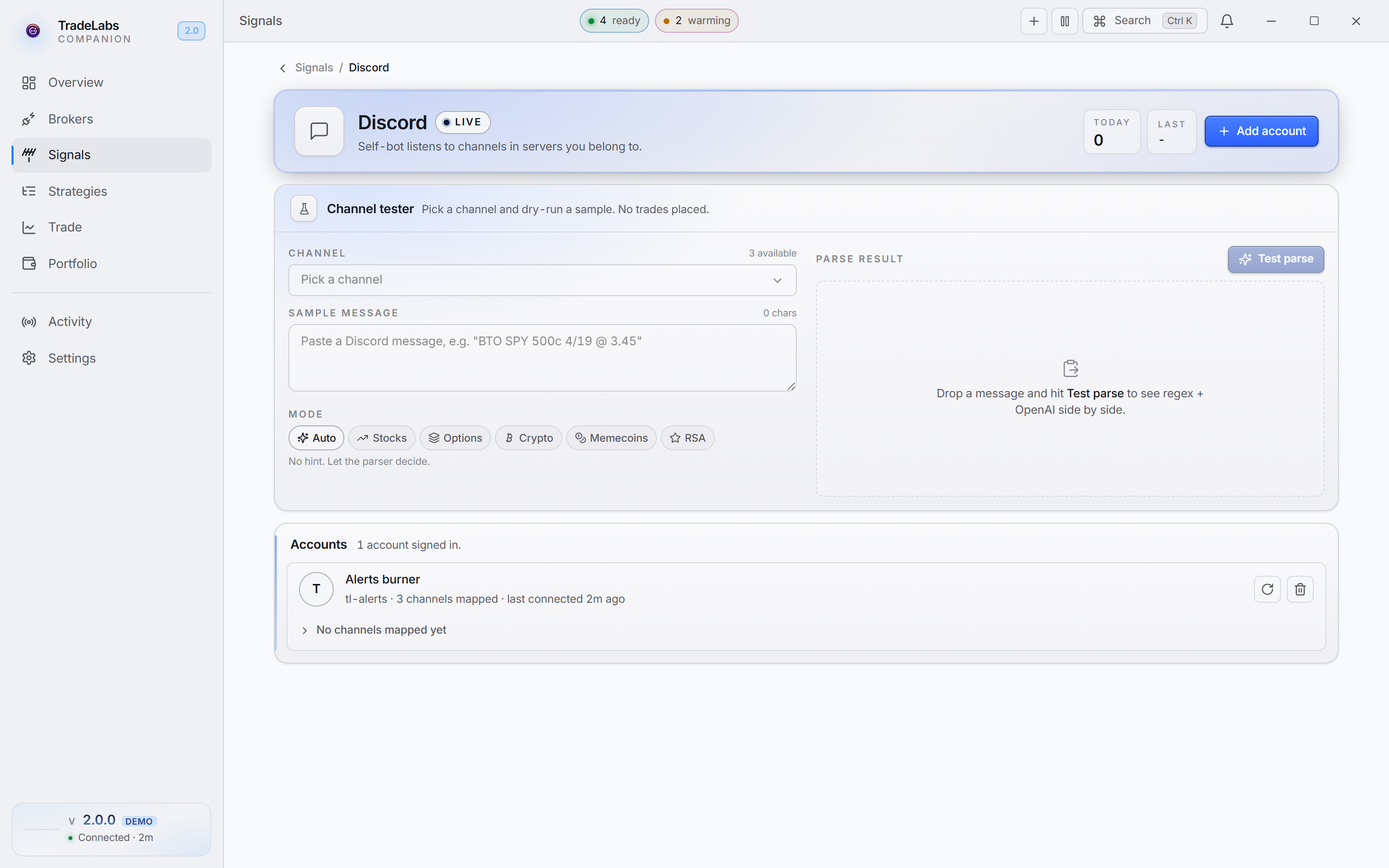 The Signals page shows your Discord connection and the channels it is watching.
If a Discord account ever shows Re-sign-in needed, click the re-sign-in action on its row and sign in again. Channels stop loading when the session expires.
Point a strategy at a channel
Every strategy needs to know which channel to watch. The Channel field lists every channel your connected accounts can see, grouped by server.
-
In the strategy editor, open the General tab. In the Signal source section, set the Source to Discord.
-
Open the Channel picker and search for the room by name. Tick it.
-
If you are in enough servers that the channel never turns up in the list, paste its ID into the search box instead — a valid ID is accepted directly. To get one, right-click the channel in Discord and choose Copy Channel ID, turning on Developer Mode first if you do not see that option. See Copy a Discord Channel ID.
Discord strategies also offer an optional Exit channel just below, for callers who post entries in one room and exits in another. It stays folded away until you open it, and it is only ever acted on when AI selling is on.
The Channel field must match the channel you want to watch. If it is empty or wrong, the strategy is on but matches nothing and never trades.
The strategy editor
The editor opens as a full page. Changes save as you make them, so there is no save button to click. The tabs across the top hold everything:
| Tab | What it holds |
|---|---|
| General | Signal source, name, instrument, direction, ticker, entry and exit, and options fields (expiration and strike). |
| Brokers | Which broker runs the trade, and per-account routing where the broker supports it. |
| Sizing | Trade size, and how to pick it (fixed, or matched by keyword). |
| AI | How the AI reads and automates trades from Discord messages. Discord and Telegram only. |
| Risk & exits | Stop loss, take profit, trailing stop, and a simulator. |
| Filters | Which signals get through, per trader or strategy-wide. |
| Protections | Guardrails that run before every trade. |
| Notifications | Send trade activity to a Discord webhook. |
For the full field-by-field reference, see the strategy editor guide.
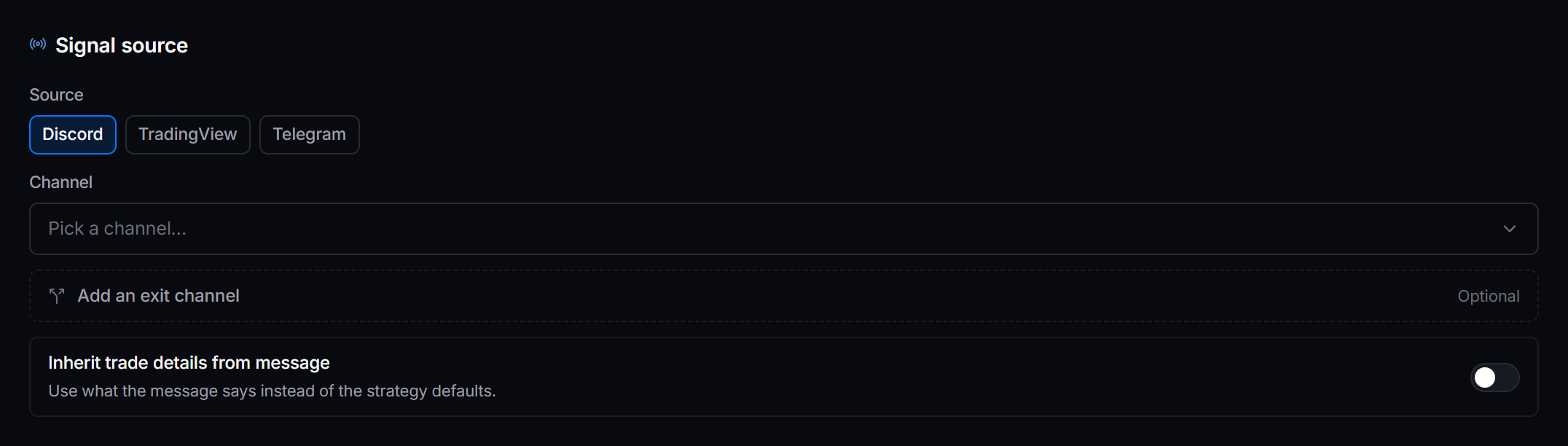
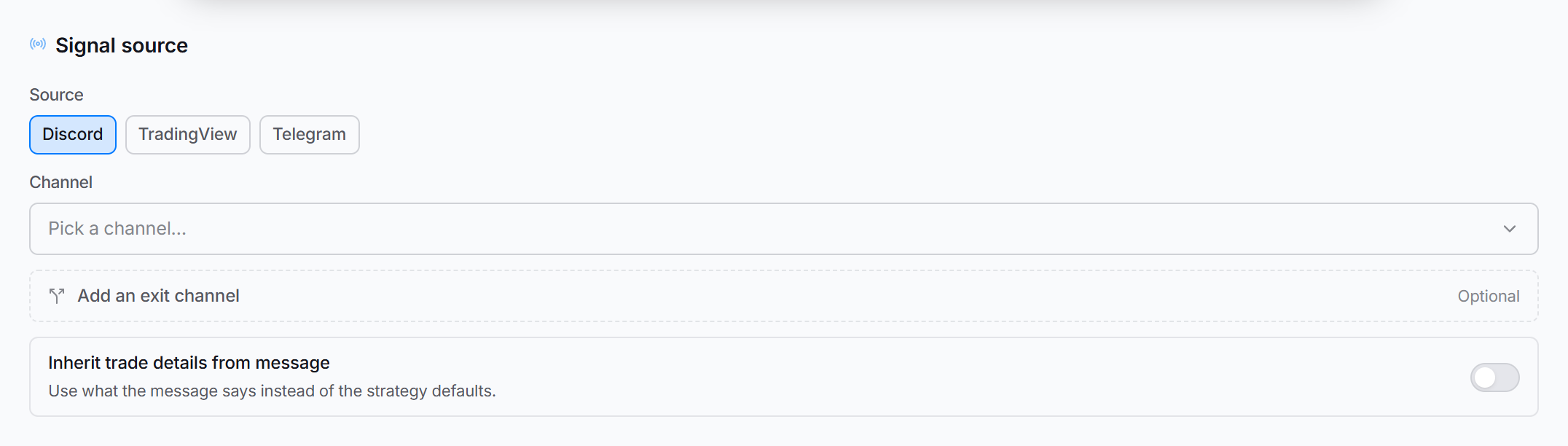 The Signal source section of a Discord strategy. Pick the server and channel here; the rest of the General tab sets the instrument, ticker, and routing.
General tab
The Signal source section sits at the top, because where a strategy listens is the first decision it makes. Below it, the rest of the setup:
| Field | What it does |
|---|---|
| Name | A name for the strategy. On Tradier the name is kebab-cased and capped at 20 characters, formatted as you type. |
| Instrument | Options, Spreads, Stocks, Futures, Crypto, Memecoins, RSA, or Prediction markets. The broker list and the visible tabs change to match. |
| Direction | Long only, Short only, or Both. For options this picks the side: Calls, Puts, or Both. |
| Ticker | A specific ticker, or ALL to accept every ticker in the channel. |
| Entry / Exit | Market everywhere else. Limit is offered only on Tradier, IBKR, and Robinhood. Robinhood options are the reverse: limit-only, with no Market choice. |
| Time in force | Day or GTC. |
These fields appear under an Options group when the instrument is Options or Spreads.
| Field | What it does |
|---|---|
| Default expiration | From signal reads the expiration out of each message. Fixed value sets your own: a day count (0, 7, 30), a weekday (Friday), or a date. From signal can also bound the result — a ≤ or ≥ comparator and a day count, so an auto-pulled expiration can be capped for being too far out or rejected for being too soon. |
| Strike position | In the money, At the money, or Out of the money, plus a strike offset. At the money uses the strike closest to the current price. |
The Risk & exits tab holds the exits. Each takes a percent or a dollar amount.
| Field | What it does |
|---|---|
| Stop loss | Auto-exit at this drop. 15% or $0.50. Leave empty to skip. |
| Take profit | Close at this gain. 40% or $1.00. Once set, a Take-profit behavior panel offers Close all or Sell in stages, which opens a ladder of trim levels. |
| Trailing stop | Follows the price up and exits if it falls back by the set amount. Once set, a Trailing-stop behavior panel picks the mode. Not on every instrument — crypto and prediction markets have none. |
For a Discord strategy you do not have to fix a ticker, expiration, or strike. To copy a channel’s calls exactly, set Ticker to ALL, Default expiration to From signal, and leave Strike position at At the money. To impose your own rules, pick a specific ticker, a fixed expiration, and a strike offset.
AI and auto parameters
The AI tab controls how the model reads natural-language Discord messages and automates trading from them. It is available for Discord and Telegram strategies only, since TradingView and server-side feeds carry no conversation to read. Every setting is optional.
| Setting | What it does |
|---|---|
| AI selling | Reads exit and trim signals in the thread and acts on them. |
| Trim selling | Under AI selling. Reduces the position gradually as profit rises. A Trim size picker offers From alert — sell the amount the caller posted — or a fixed 5%, 25%, or 50%. |
| Smart contract match | Under AI selling. When an exit’s strike can’t be read (a cropped screenshot), closes a matching contract you hold instead of skipping. A second picker decides what happens when more than one contract matches: skip it, sell oldest, or sell all. |
| Automatic quantity | Uses the size the trader wrote in the signal, overriding your strategy default. |
| Process images in signals | Reads ticker, direction, and size from images attached to messages. Off means text only. |
| Auto stop loss | Reads a stop loss written in the signal (for example SL @ 0.90) and sends it to the broker. |
| Auto take profit | Reads a take profit written in the signal (for example TP @ 1.10 or +15%) and sends it. |
| Auto trim take profit | Catches multi-level ladders (TP1, TP2) and splits the position evenly across them. |
| Wait for levels posted separately | Appears once any of the three auto-exit rows is on. Holds an entry that is still missing a stop or a target for up to this many seconds, in case the caller posts them in a follow-up message, then fires with whatever arrived. Exits are never held. |
| Memory | How much prior context the AI carries between signals: None, Limited, Normal, or Max. Max carries the deepest history and uses more AI credits. |
See Auto parameters for the full walkthrough.
Filters
The Filters tab decides which signals get through. It has two sides: per-trader rules and a strategy-wide keyword list. The strategy-wide list always applies on top of the per-trader rules.
Per-trader rules
Use these when a channel has several traders and you only want to follow some of them, or follow each one differently. Each rule has:
| Field | What it does |
|---|---|
| Trader username | Whose messages this rule checks, for example TraderX. |
| Must contain | The message must include all of these keywords. SPY and 0dte means the message needs both. |
| Must NOT contain | The message is skipped if it includes any of these. leap or paper means either one skips it. |
| Stop loss %, Take profit % | Optional. Override the strategy’s stop loss and take profit for this trader’s trades only. |
| Max trade value $ | Optional. Skip this trader’s trade if it would cost more than this. |
| Only this trader can close | Sell or close signals from other traders won’t touch positions this trader opened. |
How rules combine:
- Within a rule, everything must match (AND). Right trader, all the “must contain” words, none of the “must NOT contain” words.
- Between rules, any one match is enough (OR). A signal trades if it fully matches at least one rule.
Example:
- Rule 1: trader
AlphaTrader, must containSPY, stop loss 20%, take profit 100%. - Rule 2: trader
BetaTrader, must containQQQ, must NOT containleap.
AlphaTrader’s SPY calls trade with a 20% stop and a 100% target. BetaTrader’s QQQ calls trade with the strategy’s normal exits, unless they mention leaps. Everything else in the channel is ignored, including AlphaTrader’s QQQ calls and BetaTrader’s SPY calls.
Turn on Only this trader can close when two traders in the same channel call the same tickers. Without it, one trader’s “I’m out of SPY” can close a SPY position you opened from the other trader’s call.
Strategy-wide keywords
A keyword list that applies to every signal, whoever posted it.
- Blacklist drops any message containing a listed word. Good for skipping practice and joke calls:
paper,test,simulated,lotto. - Whitelist accepts only messages containing a listed word. Good for following one kind of trade:
SPY,0DTE. - Exact word matches whole words only, so
SPYdoes not matchSPYG. Loose matches the text anywhere in the message.
Test a channel before you go live
The Channel tester dry-runs a message through the same parser your strategy uses, so you can see exactly what TradeLabs would read from a call. No trade is placed.
-
Open the Signals page and click your Discord connection.
-
Scroll to Channel tester. Pick the Account (picked for you if you have one) and the Channel you want to test.
-
Get a message to test:
- click Pull recent to load the latest messages from that channel, then click one to use it, or
- paste your own text into Sample message.
-
Set Mode to the instrument your strategy trades, for example Options or Memecoins. The parser reads the same message differently for each instrument.
-
Click Test parse.
The result shows what was read: Ticker, Direction, Instrument, Order, and for options the Strike, Type and Expiration, plus Limit and Qty when the call names them. If nothing is read, it says why, for example that it found no trade in the message or that your OpenAI key is missing or out of credit.
Test a handful of real calls from the channel, including exits like “trim half” or “all out”, before you turn the strategy on. If Pull recent comes back empty, TradeLabs cannot read that channel: check that your account is in it and can see its history.
Protections
The Protections tab holds guardrails that run before every trade, grouped as Signal rules, Order safety, and Position limits.
| Setting | What it does |
|---|---|
| Duplicate protection | Drops signals that match a recent trade on this strategy. |
| Avoid stacking the same ticker | Blocks re-entry on a ticker you hold unless the price has moved far enough from your average cost. |
| Slippage cap | Rejects fills more than this percent away from the expected price. |
| Cancellation timer | Cancels open orders that haven’t filled after a set time. |
| Entry delay | Waits a set number of seconds after a signal before firing. |
| Maximum trade value | A hard dollar cap on what one trade can spend. |
| Double-down protection | Controls repeated buys on a name the strategy already holds. |
| Block-exit threshold | Blocks an exit while P&L is past this percent. A loss is negative (-50). STG / DAS only. |
See Protections for the full list.
Notifications
The Notifications tab mirrors this strategy’s events to a Discord webhook. Turn on Send to Discord, then set:
| Setting | What it does |
|---|---|
| Custom webhook URL | Send this strategy somewhere other than the global webhook from Settings. Leave empty to inherit the global one. |
| Compact embeds | Shorter messages with only the key fields. |
| Broker error alerts | Pings the webhook when a broker-side action fails. |
| Forward-only mode | Relays each signal to the webhook without placing, modifying, or exiting any trade. Use for read-only mirroring. |
Forward-only mode blocks all trade execution. No orders are placed, no stops or take-profits are set, and open positions are not exited by the bot. Leave it off unless you only want a signal mirror.
Turn it on
The strategy saves as you edit it. To start trading, open the Strategies page in the Companion App and toggle the strategy on. From inside a strategy, the Simulate action fires a sample message so you can confirm it parses before you go live.
Example: copy an options channel
This strategy watches one Discord channel and trades its options calls through Tradier.
| Setting | Value |
|---|---|
| Name | test-channel |
| Instrument | Options |
| Source | Discord |
| Channel | the channel ID you copied |
| Broker | Tradier |
| Ticker | ALL |
| Direction | Both |
| Setting | Value |
|---|---|
| Default expiration | From signal |
| Strike position | At the money |
| Default quantity | 5 contracts |
| Setting | Value |
|---|---|
| Take profit | 50% |
| Stop loss | 50% |
| Trailing stop | 15% |
| Duplicate protection | On |
| Double-down protection | On |
| Slippage cap | 10% |
Ticker ALL with a From-signal expiration and an At-the-money strike lets the strategy follow the channel’s calls exactly. The stop loss, take profit, and trailing stop manage the exit, and the protections guard against duplicate fills and bad prices.
What changes for a stocks strategy
A stocks strategy is the same, minus the options-only fields. There is no expiration or strike, and the size is in shares or a dollar amount instead of contracts. Stop loss, take profit, trailing stop, and every protection work the same way.
To customize an options strategy instead of following the signal, set your own values on the General tab. A strike offset shifts the strike away from the signal, and a fixed expiration overrides the one in the message.
Customizing toward cheaper, shorter-dated options raises the risk of a total loss on a trade. Set these against your own risk tolerance, account size, and the channel you are watching.
Related
- Telegram strategies run the same way off a Telegram chat.
- TradingView strategies trade from TradingView alerts.
- Strategy editor covers every field in depth.
- Per-instrument guides: Options, Stocks, Spreads, Futures, Crypto, Memecoins, Prediction markets.