Copy Trading
Telegram strategies
Run a strategy off a Telegram chat instead of a Discord channel, using the same AI engine, brokers, and risk settings.
A Telegram strategy watches a Telegram chat and trades from the signals posted there. Same AI engine, same brokers, same risk settings as a Discord strategy. The difference is where the signals come from — and two instruments that Telegram cannot drive.
How it works
-
Point the strategy at a chat. In the strategy editor’s Signal source section, set Source to Telegram and pick the chat.
-
TradeLabs watches the chat. Every new message runs through the same AI engine used for Discord.
-
The AI extracts the trade. Ticker, direction, strike, expiration, and quantity are read from the message text.
-
The order is routed to your broker. The parsed trade goes to the broker set on the strategy.
Before a Telegram strategy can receive anything, your Telegram account has to be connected in the Companion App. Connect it from the Telegram source in the Signals page.
Connect Telegram in the app
You connect Telegram once, in the app, and every Telegram strategy uses that connection.
-
Open the Signals page and select the Telegram source. Click Add Telegram account (or Add account if you already have one).
-
Get your API ID and API hash from my.telegram.org under API development tools, then enter your Phone, API ID, and API hash, and click Send code. Enter the phone number with its country code, for example
+1 305 555 0123for a US number. Without the country code, Telegram cannot find your account. -
Telegram sends a login code inside the Telegram app, not by SMS, so you must already be signed into Telegram on at least one phone or computer. Type the code in and click Verify.
-
If you have two-step verification turned on, enter your Telegram cloud password and click Sign in.
When it finishes you see Connected as your username, and the account row lists how many chats it has mapped.
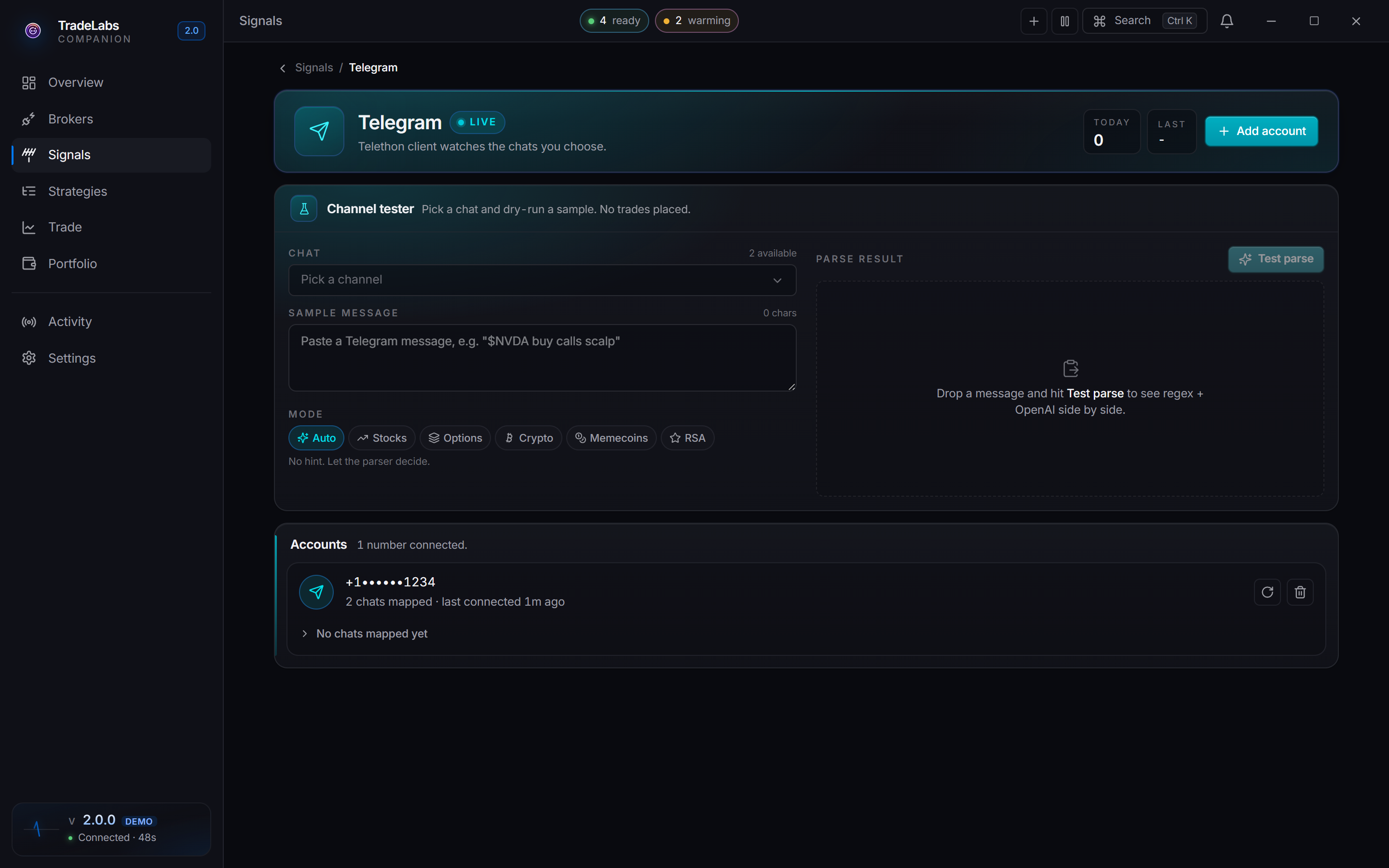
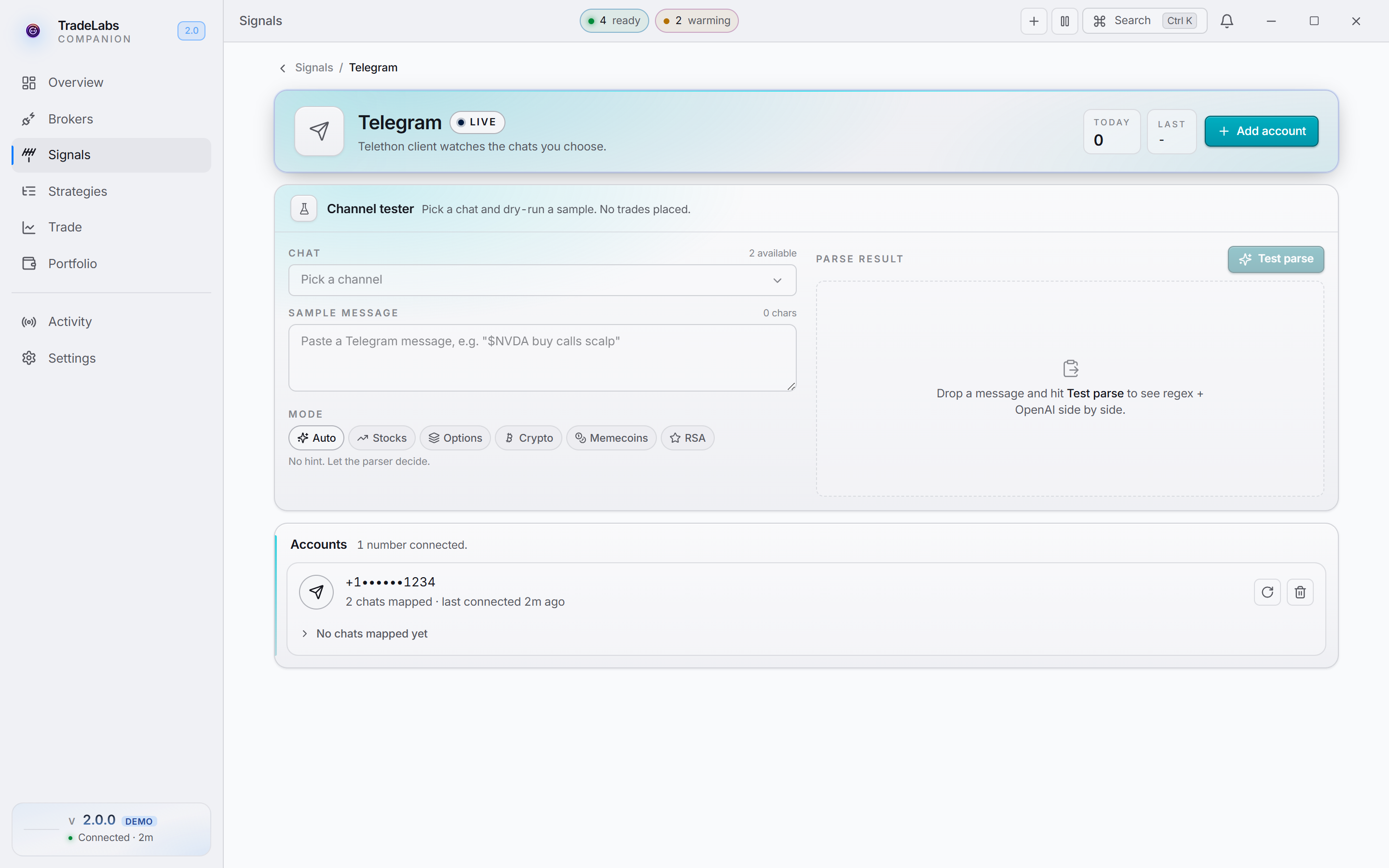 The Signals page shows your Telegram connection.
Which instruments Telegram can drive
| Instrument | Telegram |
|---|---|
| Options, Spreads, Stocks, Futures, Crypto, Prediction markets, Memecoins | Yes |
| RSA | No — RSA takes the serverside feed or Discord only |
A new strategy starts on Discord, whatever instrument you pick; switching to Telegram is one click on the Source chips. TradingView is the only source with a narrower range than Telegram — it appears for stocks, options and spreads and nowhere else.
Set it up
-
Pick the instrument. On the General tab, under Basics → Identity, set Instrument.
-
Set the source. In the Signal source section above it, click the Telegram chip. That reveals the chat fields.
-
Pick the chat. Open Chats and select it from the list, or type into the box beside it, which takes a chat ID, a title, or an
@handle. Both controls write the same value, so the picker’s choice shows up in the box as a numeric ID. -
Configure the rest. Pick the broker on the Brokers tab, the size on Sizing, and the exits on Risk & exits. Optionally set the AI tab, filters, notifications, a schedule, and protections.
-
Turn it on. Edits save as you type — there is no save button. When the readiness pill is happy, flip the run toggle in the header to Running.
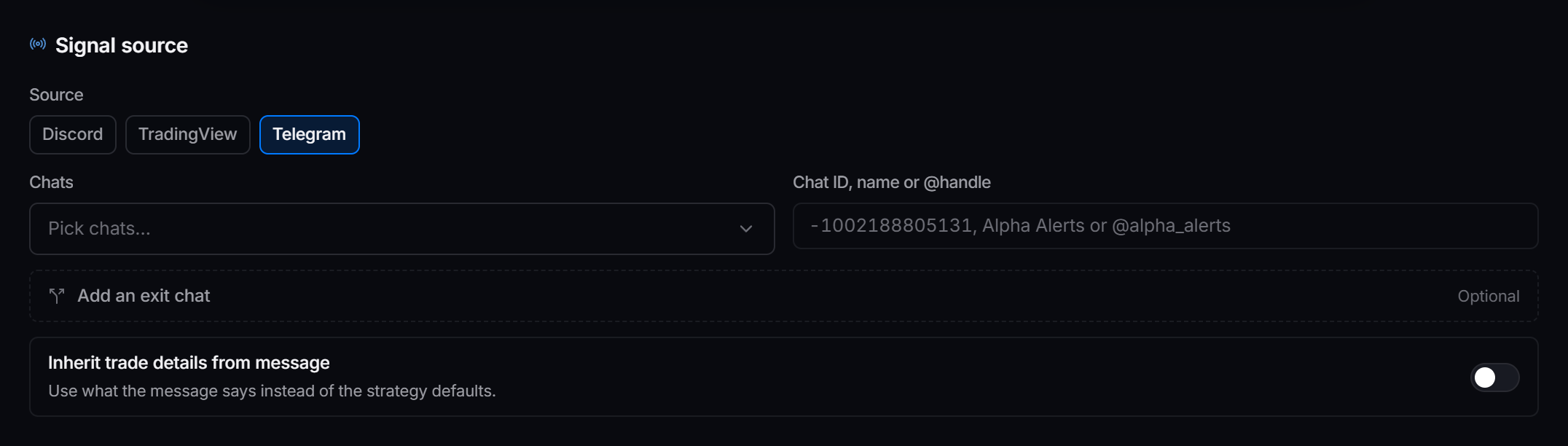
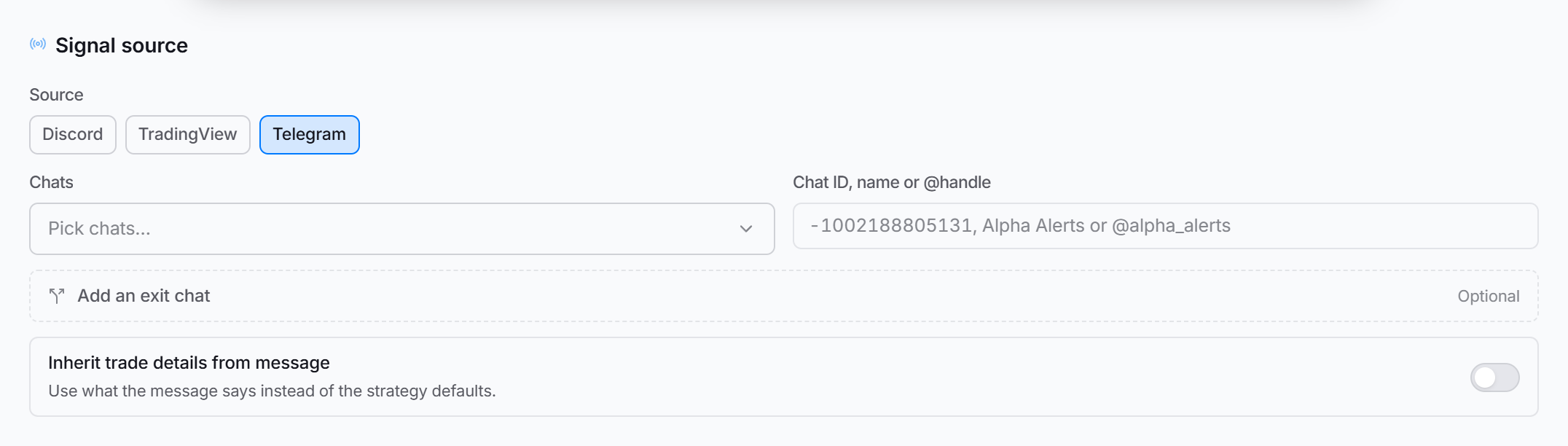 The Signal source section of a Telegram strategy. Set the source to Telegram, then pick the chat it should follow.
Two optional controls sit below the chat fields:
- Exit chat — a second chat that carries exits only, for callers who split entries and exits across two rooms. It is folded away until you open it, and only ever acted on when AI selling is on.
- Inherit trade details from message — use the strike, expiration and direction the message names instead of the strategy’s own defaults.
The chat binding must match the chat you want to watch. If it is blank or wrong, the strategy is on but matches nothing and never trades.
What differs from Discord
| Item | Discord | Telegram |
|---|---|---|
| Source chip | Discord | Telegram |
| Binding field | Channel picker | Chats picker, plus a free-text box |
| Input format | Pick from the list; a pasted channel ID also works | Pick from the list, or type an ID, a title, or @handle |
| Split exits | Exit channel | Exit chat |
| Companion App | Discord must be connected | Telegram must be connected |
| Instruments | All of them | All except Memecoins and RSA |
| Brokers | Same | Same |
| AI and auto parameters | Same | Same |
| Signal filters | Same | Same |
| Notifications | Same | Same |
| Risk management | Same | Same |
| Protections | Same | Same |
Everything below the source binding is shared with Discord. The rest of this page points you at the Discord guide for the details.
AI and auto parameters
The AI tab works the same on Telegram strategies as on Discord. For each setting, see AI and auto parameters in the Discord guide.
Signal filters
Filters work exactly as on Discord. Per-trader rules match a sender’s username: within a rule, all Must contain words are required and any Must NOT contain word skips the message. Across rules, any one full match is enough. Each rule can carry its own stop loss, take profit, max trade value and Only this trader can close. A strategy-wide keyword Blacklist or Whitelist applies on top. See Filters in the Discord guide for the field-by-field table and a worked example.
Notifications
Notifications are outbound alerts. They send trade activity and broker errors to a Discord webhook, no matter where the signal came from. They behave the same on Telegram strategies. See Notifications in the Discord guide.
Test a chat before you go live
The Channel tester dry-runs a message through the same parser your strategy uses, so you can see exactly what TradeLabs would read from a call. No trade is placed.
-
Open the Signals page and click your Telegram connection.
-
Scroll to Channel tester. Pick the Account (picked for you if you have one) and the Chat you want to test.
-
Get a message to test:
- click Pull recent to load the latest messages from that chat, then click one to use it, or
- paste your own text into Sample message.
-
Set Mode to the instrument your strategy trades, for example Options or Memecoins.
-
Click Test parse.
The result shows what was read: Ticker, Direction, Instrument, Order, and for options the Strike, Type and Expiration, plus Limit and Qty when the call names them. If nothing is read, it says why. If Pull recent comes back empty, your Telegram account cannot read that chat: check you are a member and can see its history.
Test your strategy
Before going live with real money:
- Use Test signal on the Strategies page in the Companion App to fire a sample message at your strategy and confirm it parses. From inside a strategy, the same action is the Simulate button.
- Start with smaller position sizes until you are confident the strategy behaves the way you expect.
Troubleshooting
Strategy is not detecting messages
- Confirm the chat on the strategy matches the one you want to watch.
- Confirm your Telegram account is connected on the Signals page, and that its row does not show Re-auth needed.
- Confirm your Telegram account has access to that chat.
- Confirm your AI key is valid and has balance. See Create an AI key.
Trades are not executing after a signal is detected
- Confirm the broker is connected and signed in from the Brokers page.
- Confirm the strategy reads Running in the editor header.
- Confirm your position size and protections are not blocking the trade.
- Check that Forward-only mode on the Notifications tab is off — it relays signals and places no orders.
- Review the Activity feed in the Companion App for error messages.
Examples
Options signals on Telegram
A Telegram chat posts alerts like BTO TSLA 250C 2/21 @ 3.50.
| Setting | Value |
|---|---|
| Instrument | Options |
| Source | Telegram |
| Chat | @options-alerts |
| Broker | Tradier |
| Default quantity | 5 contracts |
| Direction | Both |
| Entry | Market |
| Stop loss | 30% |
| Take profit | 100% |
The AI reads each message, detects the ticker, strike, expiration, and that BTO means buy to open, then submits 5 contracts at market to Tradier.
Crypto signals with a keyword filter
A chat posts crypto calls mixed in with off-topic chatter, and you only want the real signals.
| Setting | Value |
|---|---|
| Instrument | Crypto |
| Source | Telegram |
| Chat | @crypto-calls |
| Broker | Robinhood Crypto |
| Default quantity | $500 |
| Direction | Both |
| Keyword filter | Whitelist BUY, SELL, ENTRY |
| Stop loss | 15% |
| Take profit | 50% |
With a whitelist, only messages containing one of those words are processed. General chat is ignored. On a real signal, $500 of the coin is bought through Robinhood Crypto. Crypto has no trailing stop, so the stop and target do all the exit work.
Futures signals
A chat calls index futures. Futures route to IBKR only, and the contract month is set on the strategy rather than read from the message.
| Setting | Value |
|---|---|
| Instrument | Futures |
| Source | Telegram |
| Chat | @es-desk |
| Broker | IBKR |
| Contract | picked from the live IBKR chain |
| Direction | Both |
| Default quantity | 1 |
There is no RSA-over-Telegram. RSA takes its own serverside detection feed, or a Discord ping — Telegram never drove those brokers and is not offered. See Server-side strategies.
Instrument guides
For the per-instrument fields, brokers, and examples, see the detailed guides. Each applies to both Discord and Telegram strategies.