Brokers
Fidelity
Connect a Fidelity account for RSA stock trading: how to open and prepare the account, sign in through the app, and fix common connection problems.
Fidelity is a large US broker used for RSA (reverse split arbitrage) stock trades. TradeLabs signs in to Fidelity the same way you would on fidelity.com, driving a real browser session that stays visible by default.
| What it trades | Supported |
|---|---|
| RSA (reverse split arbitrage) | Yes |
| Stocks | Manual orders only, from the Trade page. An automated Stocks strategy routes to Tradier, IBKR, Robinhood, or STG / DAS instead. |
| Options, spreads, crypto | No |
Before you start
- A Fidelity cash account (required for RSA), created on fidelity.com.
- Funds deposited and settled.
- Your 2FA ready: either the base32 setup key from Fidelity’s authenticator screen, or your phone for a texted code.
- The TradeLabs Companion installed and running.
We recommend a maximum of 10 Fidelity accounts. Do not open them all at once: wait 2 to 3 days between each new account. Keep real trading activity in each one, not only RSA trades, and hold some real positions.
Prepare the account on fidelity.com
Do this on Fidelity’s site before you connect the account to TradeLabs.
-
Enable penny stock trading. Open Fidelity’s penny stock trading agreement (it asks you to sign in first), select the account, and complete the agreement. Do this for every account. RSA trades fail without it.
-
Finish first-time setup. Sign in, clear every pop-up dialog, answer the account preference questions, acknowledge the terms, and make sure no pending action is left on the dashboard. Skipping these can cause sign-in problems later.
SPAXX, Fidelity’s money-market core position, is optional but worth turning on. It lets idle cash earn yield between trades and does not affect RSA either way.
Connect it in the app
-
Open the Brokers page, find the Fidelity card, and click Add account.
-
Fill in the connect form, then click Save account. Your credentials are encrypted on your device.
- Username: your Fidelity.com login.
- Password: your Fidelity password.
- Authenticator setup key (optional): the base32 setup key from Fidelity’s authenticator screen. When present, the bot enters your 2FA codes for you.
- 2FA code (optional): if Fidelity texts you a code instead, type it here, or leave it blank and wait for the sign-in prompt. This field is cleared after each sign-in.
- Which Chrome to sign in with: App browser is the normal choice — sign-in runs on its own and never touches the Chrome you browse with. Switch to My Chrome only if Fidelity keeps blocking sign-in; it uses your own Chrome profile, and you have to close Chrome first.
You can also give the account a Label and set a Proxy if you use one.
-
Click Sign in on the account row. Fidelity opens a real browser window and drives the live sign-in. If the bot needs a code, an Enter verification code prompt appears on the row: type the texted code and click Submit. If you supplied an authenticator setup key, the bot fills the code itself.
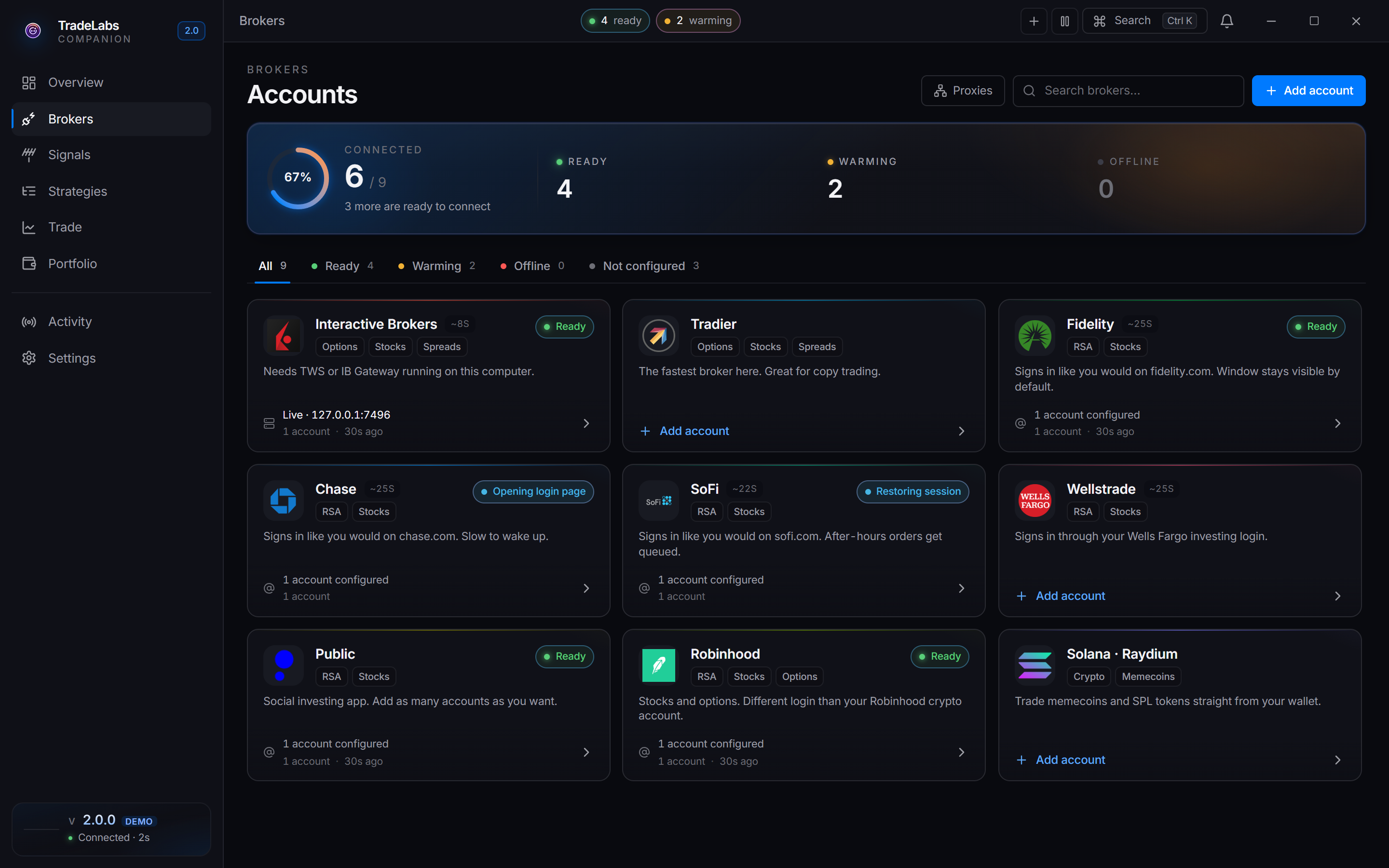
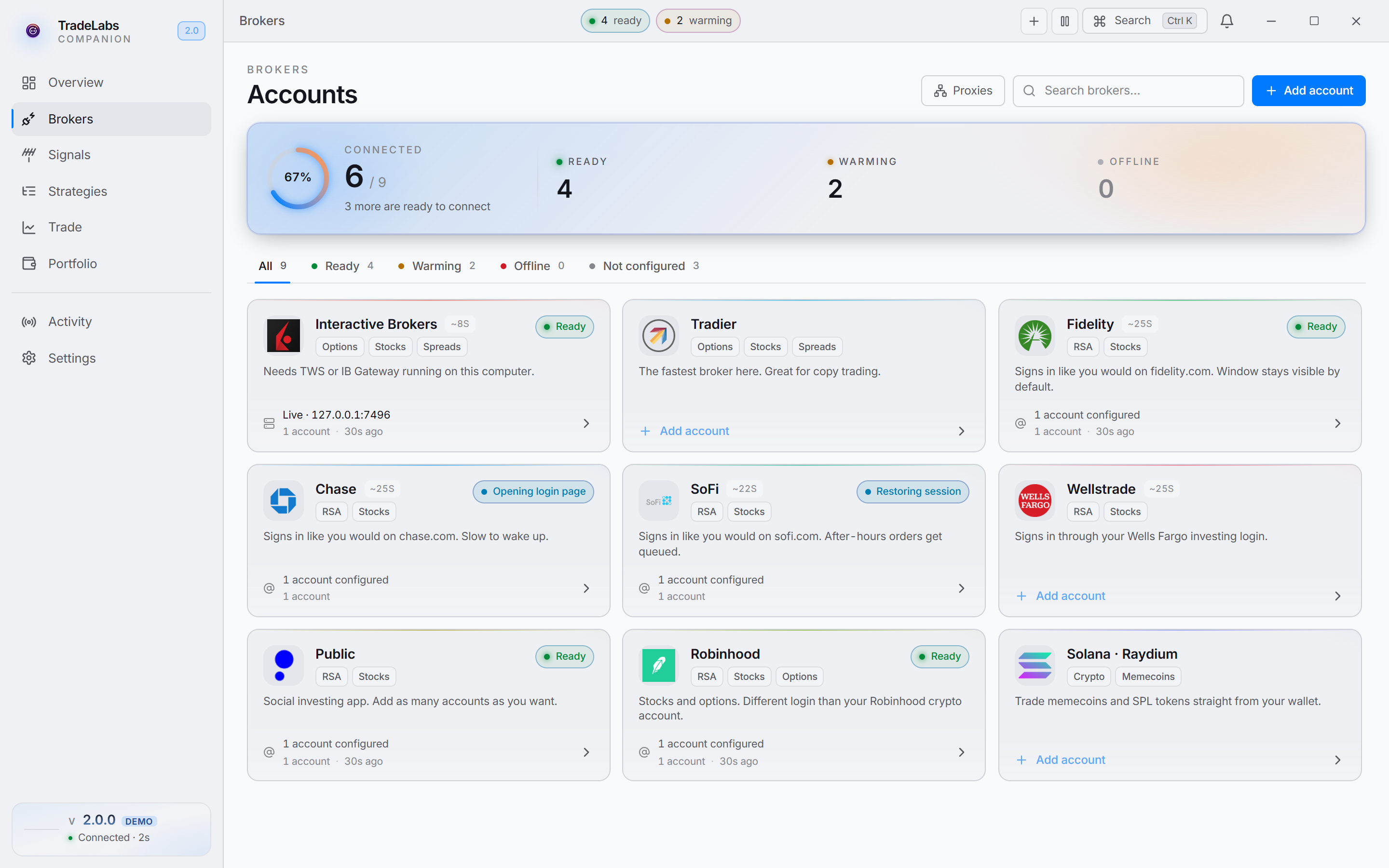 Click a broker card, then Add account, to open the connect form
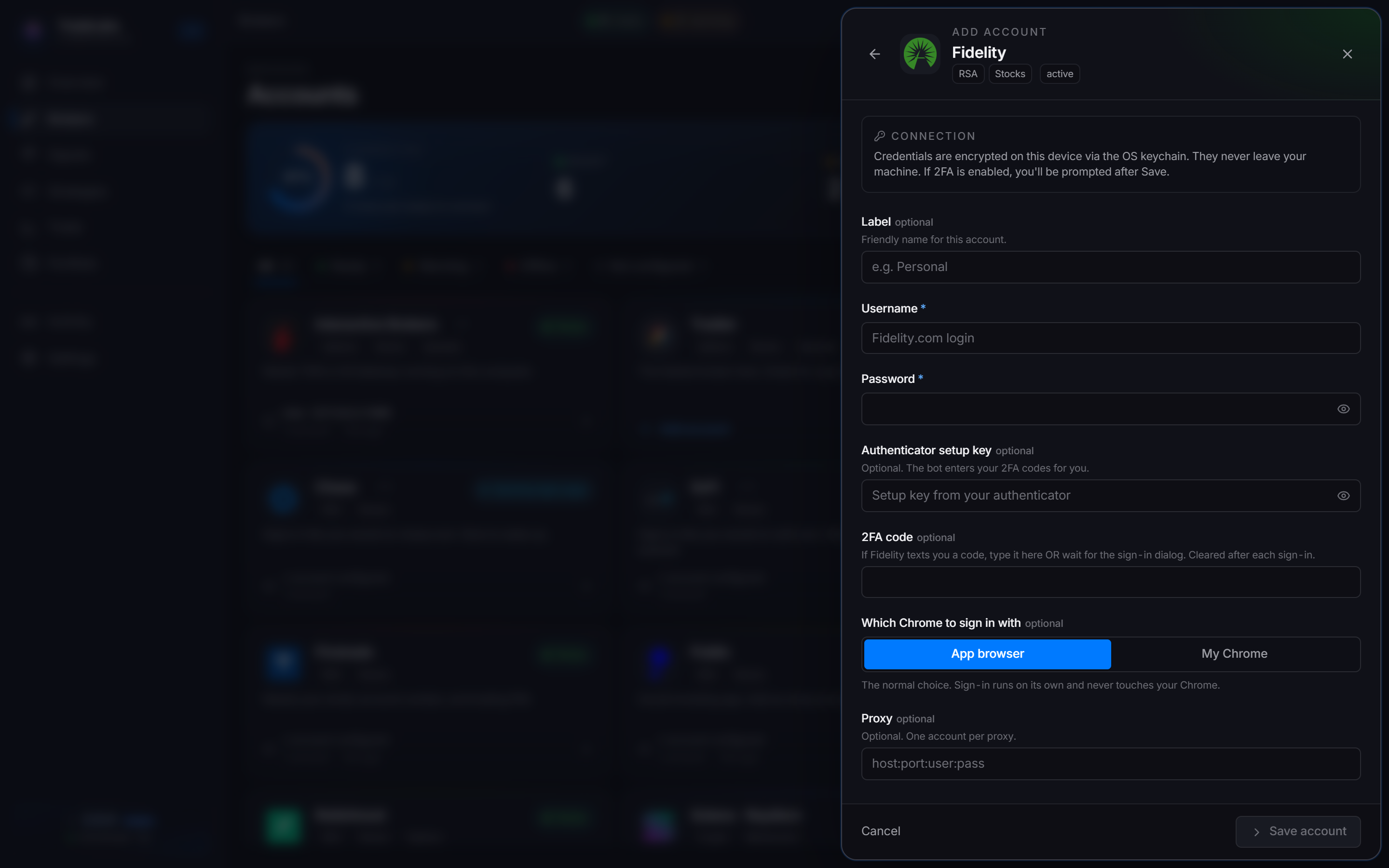
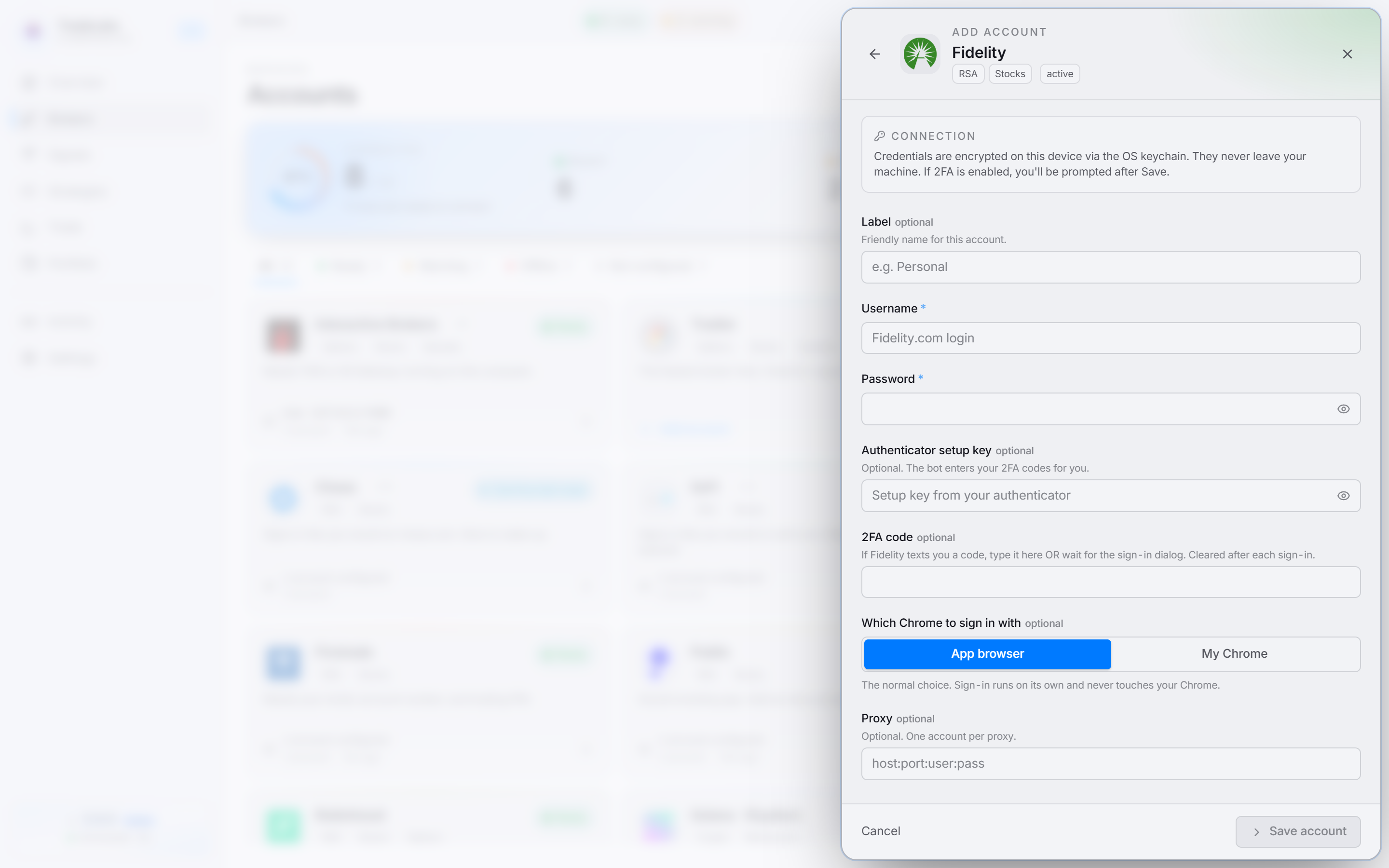 Enter your username, password, and authenticator setup key; the 2FA code field covers a one-time prompt
When sign-in succeeds you see a Fidelity signed in confirmation and the row switches to a signed-in state.
Fidelity boots a browser session, so the card often shows Warming right after sign-in. Later it settles to Idle (logged in, not recently re-checked, such as overnight), which is normal and does not mean anything is broken. Active means it was verified in the last minute; Offline means it is actually broken.
The sign-in window is visible by default. Use the Browser: Visible / Hidden toggle on the Fidelity card to hide it. If you would rather drive the sign-in yourself, open the account’s ⋯ menu and choose Sign in by hand.
Place a test trade first
Before you put Fidelity in a live strategy, prove the connection end to end with one small order.
- Open the Trade page in the Companion App.
- Pick your Fidelity account and place a small buy, one share of a cheap, heavily traded stock.
- Check it fills, and that it shows up in your Fidelity account on fidelity.com.
- Sell it the same way.
If the test order fails, fix it now, using the problems list below, rather than finding out when an RSA signal fires.
Add Fidelity to a strategy
The Companion App creates and runs your strategies. The cloud dashboard is an optional remote control.
- Open Strategies in the left rail (or the cloud dashboard).
- Select or create your RSA strategy.
- In the broker section, add your Fidelity account or accounts.
- Save the strategy, then activate it in the Companion App.
Finish first-time setup on every Fidelity account before you add it to a strategy.
Fixing common problems
- Sign-in fails: confirm your username and password. If you use an authenticator setup key, check you pasted the exact base32 key from Fidelity. Make sure first-time setup on fidelity.com is complete.
- Sign-in worked once, then failed every time after: you pasted the 6-digit code instead of the setup key. The 6-digit number is what your authenticator shows and it changes every 30 seconds; the setup key is the longer base32 string that generates it. Edit the credentials and paste the setup key.
- You cannot sign in to Fidelity yourself any more: you saved the setup key into TradeLabs but never added it to your own authenticator app. It is the same key and works in both places at once — add it to your authenticator by hand. If you would rather not use an authenticator at all, clear the Authenticator setup key field and Fidelity will go back to texting you a code.
- No texted code: confirm your phone number is registered with Fidelity and has signal. Use Resend on the code prompt to request a new one, and check that Fidelity’s SMS messages are not blocked.
- Browser window acting up: open the account’s
⋯menu, use Sign in by hand to drive it yourself, or Clear browser data to start the next sign-in fresh. - Fidelity keeps blocking the automated sign-in: edit the credentials and set Which Chrome to sign in with to My Chrome. Close Chrome before signing in, or the switch fails.
- Trades fail on penny stock rules: open Fidelity’s penny stock trading agreement, select the account, complete the agreement, wait a few minutes, and try again.
Using Fidelity with RSA
Once Fidelity is signed in, add it to an RSA strategy like any other RSA broker and make sure the strategy is active. Keep settled cash in each account, and follow the account hygiene rules above (the account cap, staggered openings, and real trading activity). See RSA setup for the full flow and the broker limits for account counts across RSA brokers.