Copy Trading
Copy Trading Setup
Everything to set up copy trading: connect a broker, connect a signal source, add an AI key, build a strategy, test it, and go live.
Copy trading means the app watches a signal source you follow (a Discord room, TradingView, or Telegram) and places the same trades in your broker, the moment a call goes out.
The whole setup, start to finish. This page walks each step.
Two rules that run through everything below: the app only trades while it is running on your computer, and you test before you go live. Both are covered at the right step.
1. Connect a broker
A broker is where your trades land. Connect at least one, choosing by what your signal source posts.
| To trade | Use |
|---|---|
| Options | Interactive Brokers (IBKR), Tradier, Charles Schwab, Robinhood |
| Stocks | Tradier, Robinhood, IBKR, Charles Schwab, STG / DAS |
| Option spreads | Tradier, Robinhood, IBKR |
| Futures | Interactive Brokers (IBKR) |
| Crypto | Robinhood Crypto |
| Memecoins | Solana, Robinhood Chain |
| Prediction markets | Polymarket |
If you’re just starting, Tradier is the easiest first pick for options and stocks.
Brokers connect one of a few ways: an API token you paste (Tradier), a sign-in in your own browser through an app you register (Charles Schwab), your credentials plus a 2FA code entered in the app (Robinhood), or local software the app talks to on your computer (IBKR, STG / DAS).
The broker issues you a token on its site; you paste it into the app. Tradier works this way (paste a live or paper access token from dash.tradier.com). No password is stored, only the token.
You enter your broker email or username, password, and a 2FA code directly in the app. Robinhood (stocks and options) works this way: the app stores your login and enters your 2FA codes at sign-in. (The multi-account RSA brokers in the broker reference also use credentials + 2FA.)
IBKR runs its own Trader Workstation or IB Gateway on your computer, and the app talks to it locally. The broker’s only setting in the app is Mode: choose Live or Paper. The app connects on 127.0.0.1 and finds the right port by itself: 7496 or 4001 for Live, 7497 or 4002 for Paper.
Make sure the IBKR software is running in the matching mode with API access enabled first.
On the Brokers page, click a broker card, choose Add account, enter its details, and choose Save account. The app verifies the connection itself; there is no separate test button.
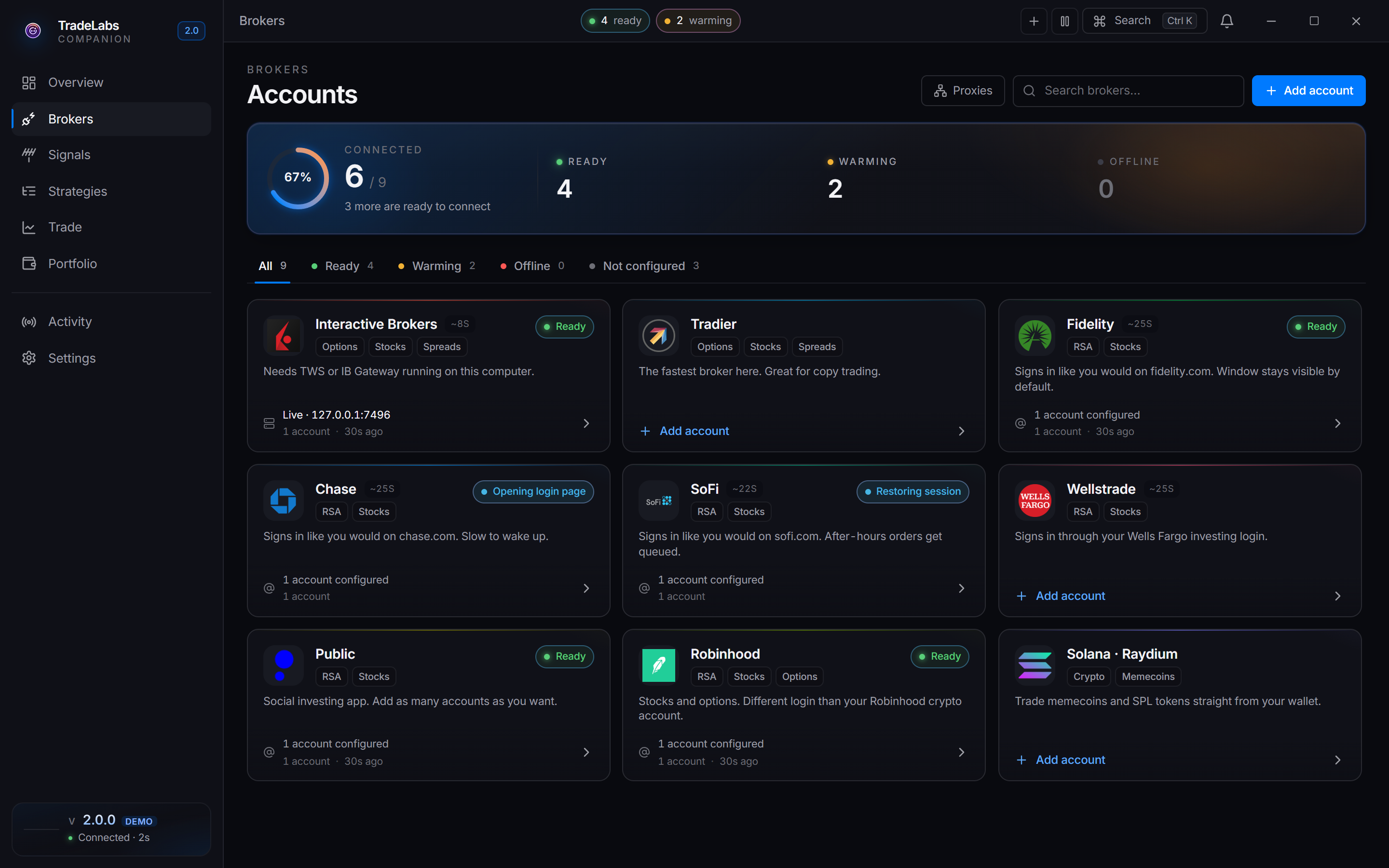
 The Brokers page. Each card shows a broker, its accounts, and its health state.
Clicking a card opens its connect sheet. What it asks for depends on the broker — Tradier wants one access token, most others want a login:
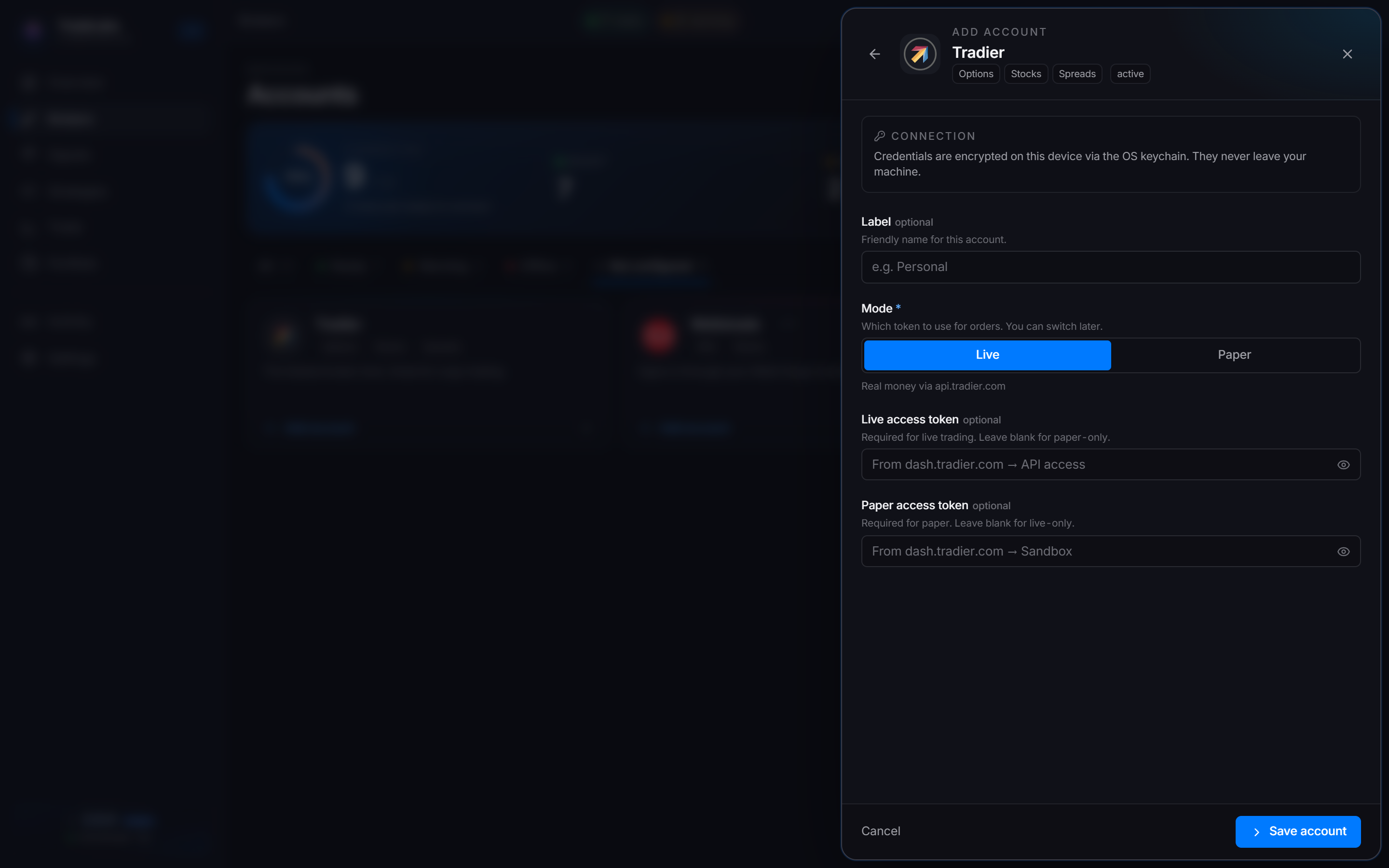
 Tradier: paste a live or paper access token from dash.tradier.com, pick the matching mode, save.
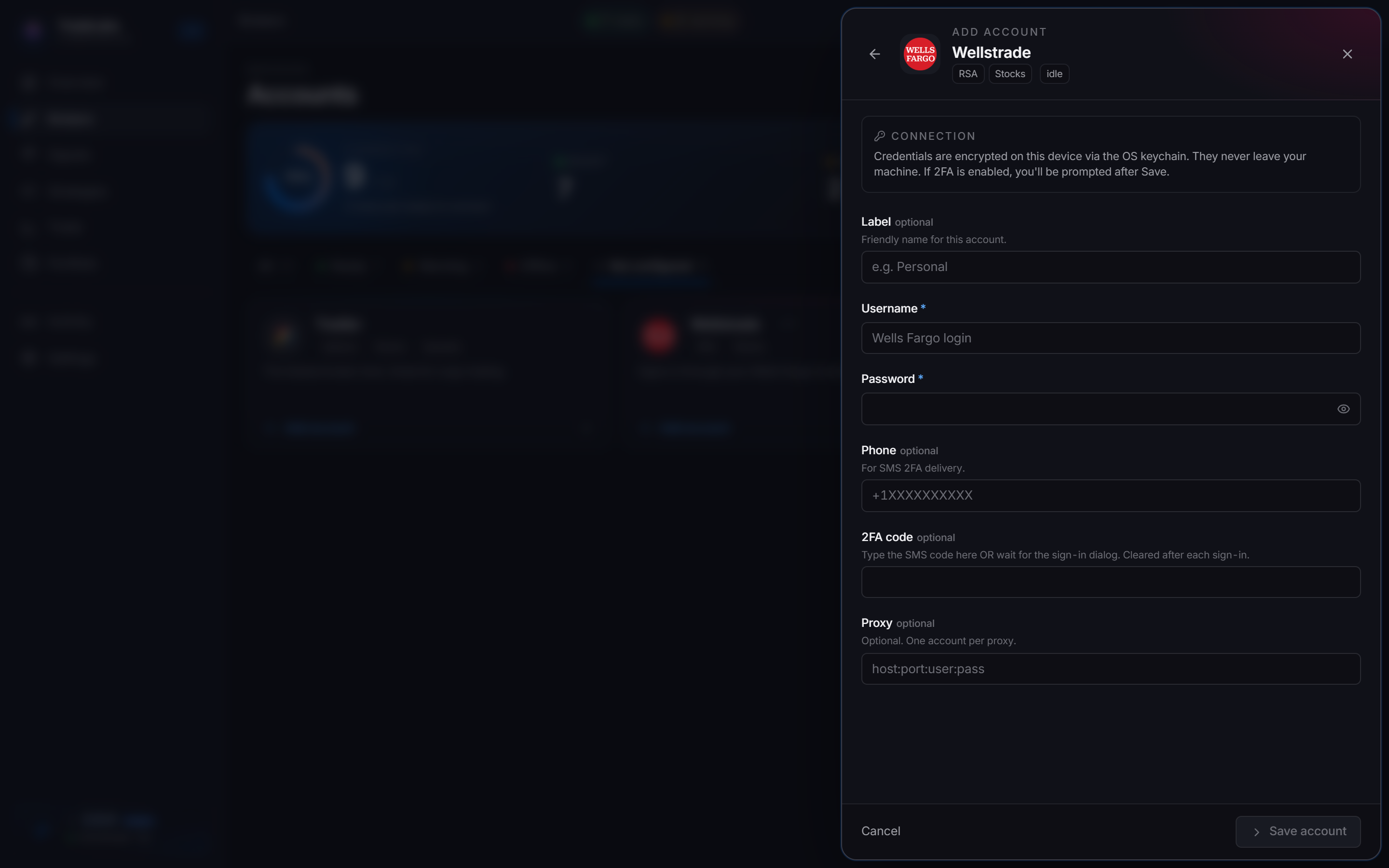
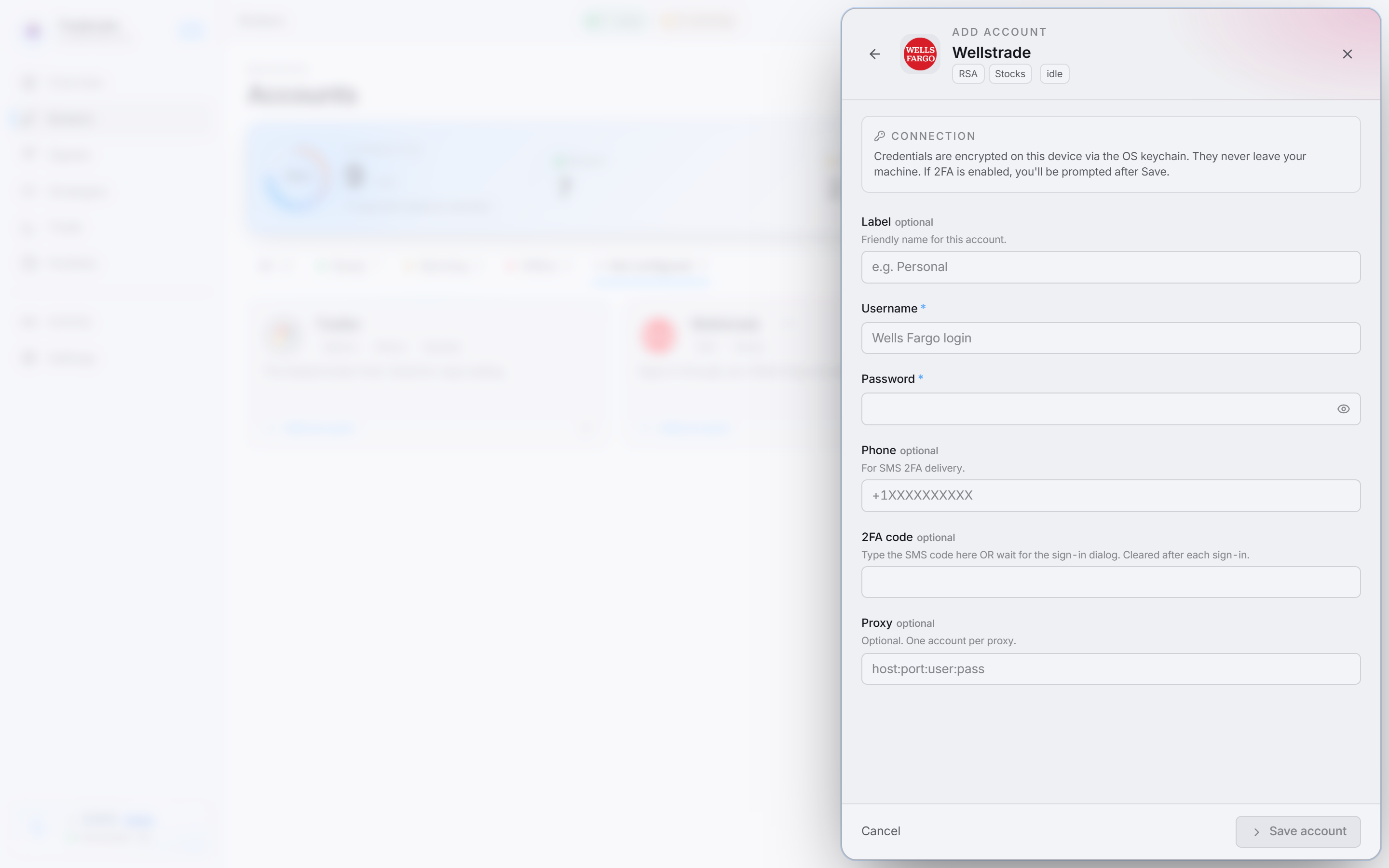 A credentials broker: username and password, entered in the app and stored encrypted on your machine.
Each broker card shows a health state. Active, Idle, and Warming all mean the connection is fine; only Offline needs your attention.
| State | Meaning |
|---|---|
| Active | Verified in the last minute. Ready to trade. |
| Idle | Logged in and valid, just not re-checked recently. Normal, especially overnight. |
| Warming | A browser-based broker is starting up. Give it a moment. |
| Offline | The session dropped or the connection failed. Reconnect the account before it can trade. |
Per-broker signup and setup detail is in the broker reference.
2. Connect a signal source
Pick where your calls come from. All three are first-class: you can connect one, or connect all three and give each its own strategy.
| Source | You follow | How it connects | Needs an AI key? |
|---|---|---|---|
| Discord | A room that posts calls in chat | Sign in with your Discord account | Yes |
| Telegram | A group or channel that posts calls | Your phone number plus api_id / api_hash | Yes |
| TradingView | Your own indicators and alerts | Sign in once; the app reads your alerts | No |
Why two of them need an AI key and one doesn’t: it’s about the shape the call arrives in, not the source itself.
Every source lives on the Signals page, one card each, with its own detail page showing connection state and recent traffic.
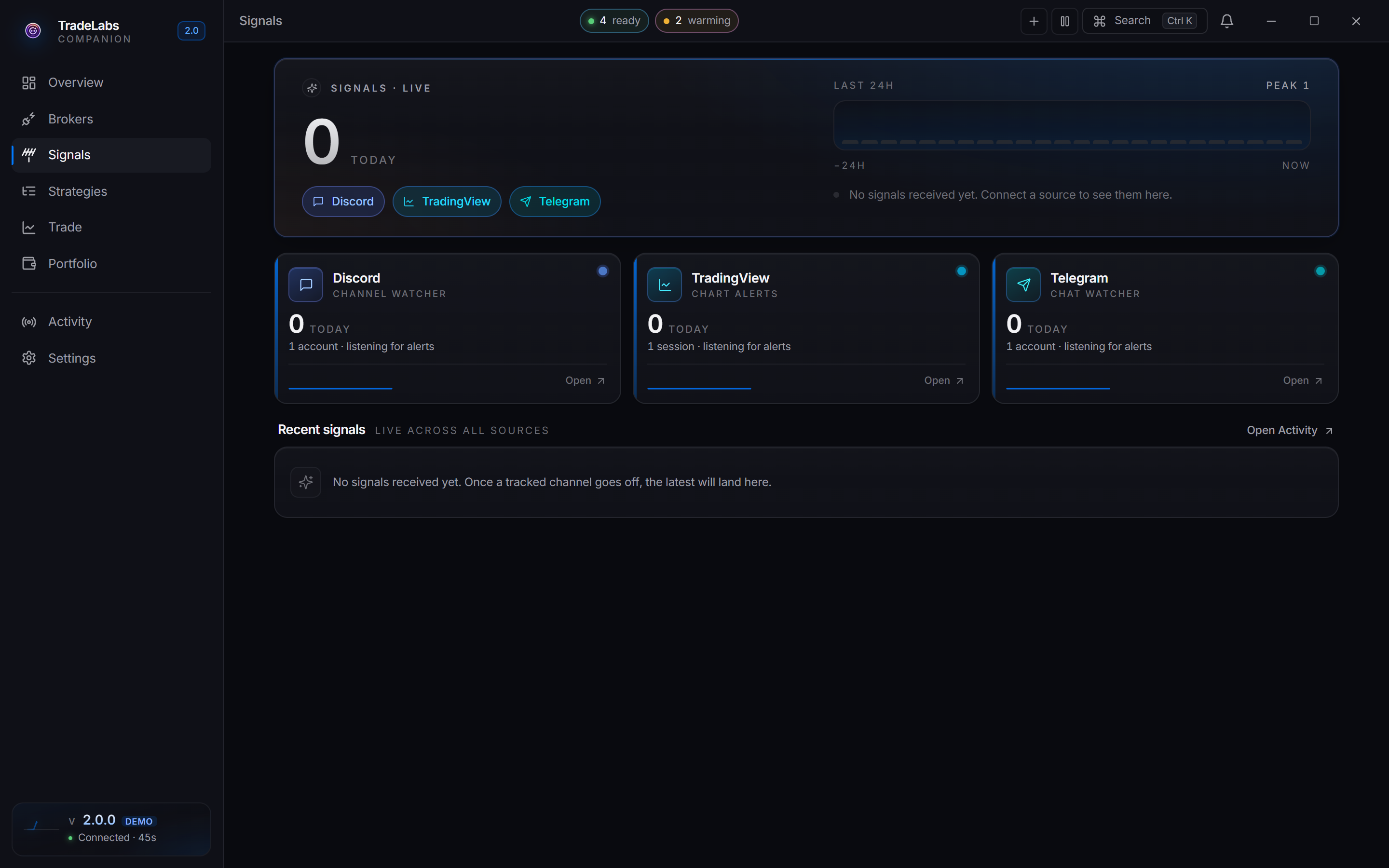
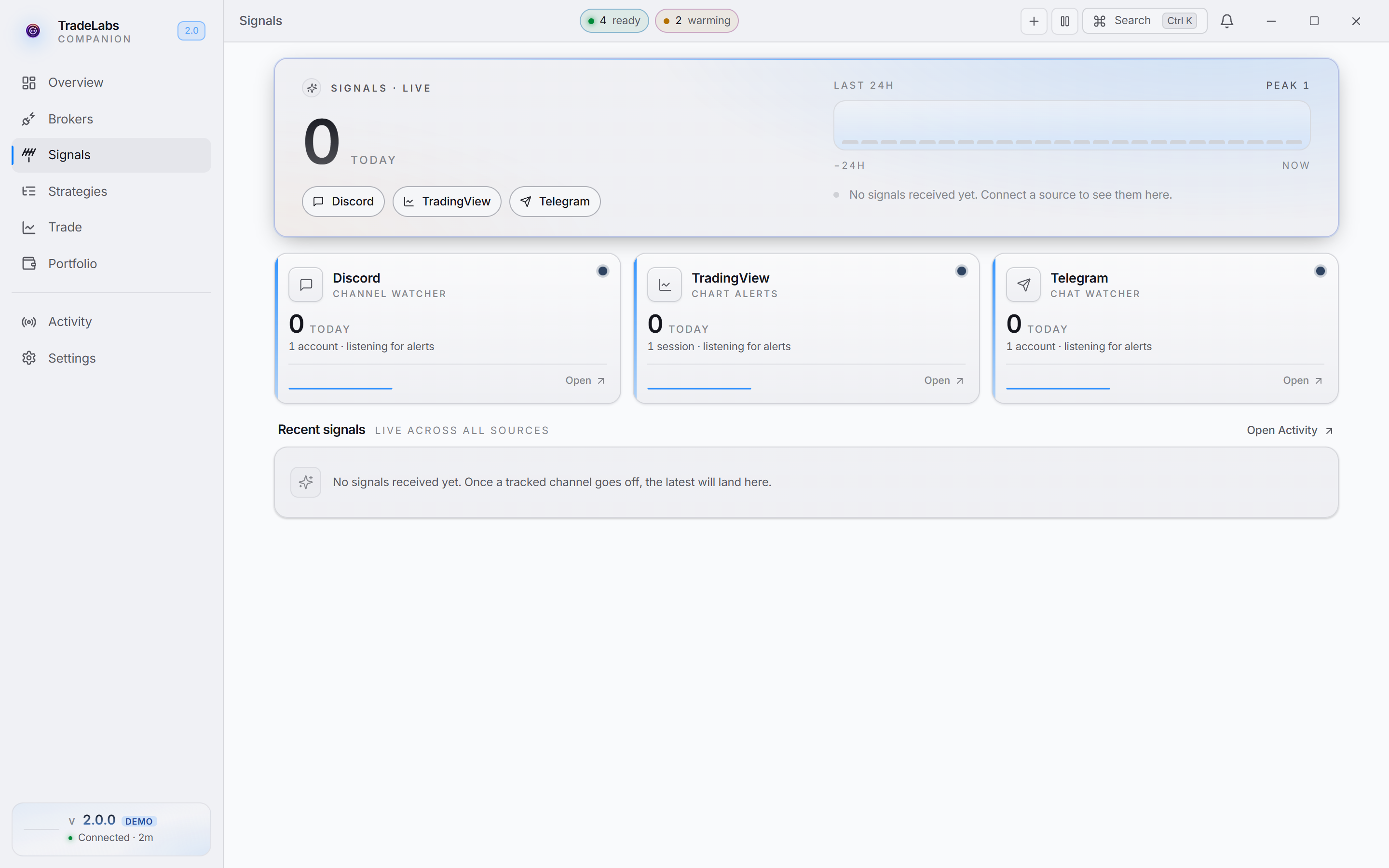 The Signals page. One card per source, each showing whether it’s connected and what it has seen lately.
A second Discord account is recommended, but not required. Monitoring signs in as a self-bot so it can read the channels you already have access to. It is built to behave like an ordinary Discord client, and across more than two years of running it we have not had a single account banned. Plenty of people connect their main account and are fine.
If you would rather keep automation separate from the account you actually chat on, use a spare one. That is the only reason to bother.
- Open Signals then Discord and choose Connect Discord (or Add account). A real Chrome window opens; the app enters your email and password, and you complete any 2FA there. Your password stays on your machine. Leave that window alone while it works. It can take 10 seconds or more before it starts typing, and clicking or typing into it breaks the sign-in. Only step in when it is waiting for your 2FA code.
- Once connected, the app enumerates the channels across your Discord servers for you. You pick which channel to follow later, inside your strategy (step 4), from a channel picker grouped by server.
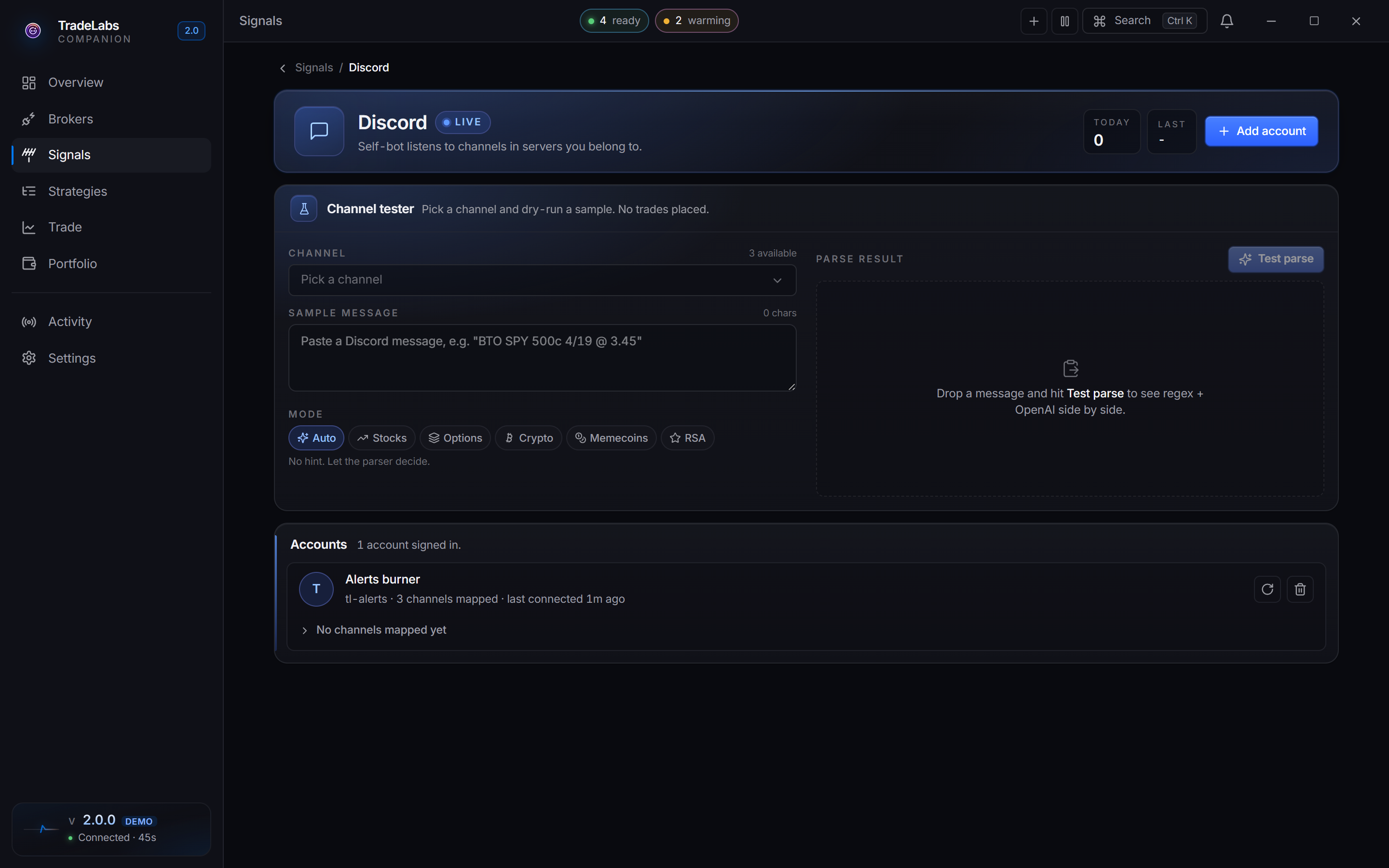
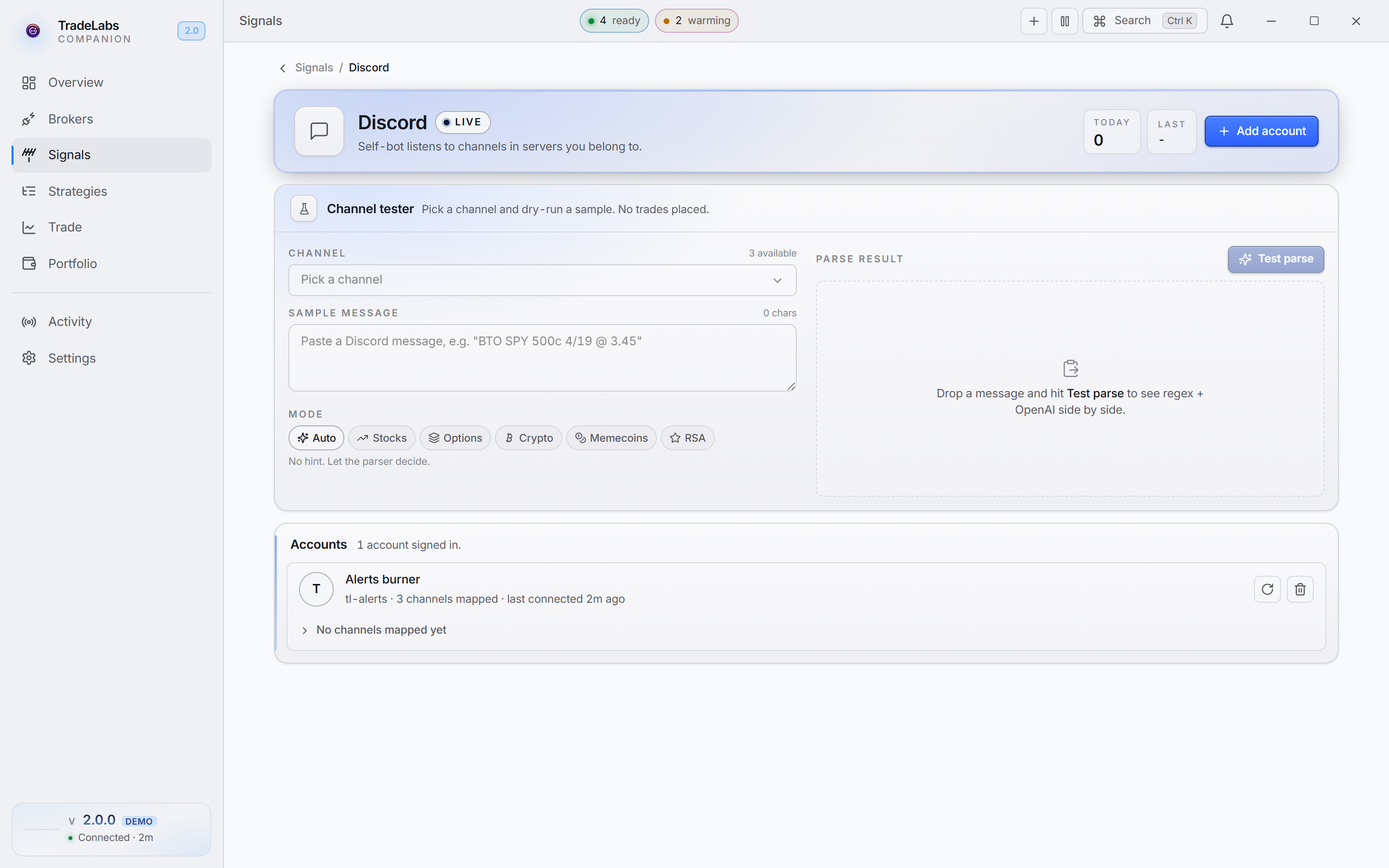 Discord, connected. The account it signed in as, and the servers and channels now available to your strategies.
Full walkthrough: Discord strategies.
- Get an
api_idandapi_hashfrom my.telegram.org — log in with your phone number, open API development tools, and create an application. It’s free and takes about two minutes. - Open Signals then Telegram, choose Add account, and enter your phone number with the country code (for example
+1 305 555 0123in the US) along with those two credentials. - Telegram sends a login code straight to your Telegram app, not by SMS, so you must be signed into Telegram on at least one phone or computer to receive it. Enter it in the app (and your cloud password too, if you have 2FA on).
- Once connected, the groups and channels you belong to become available to your strategies, the same way Discord channels do.
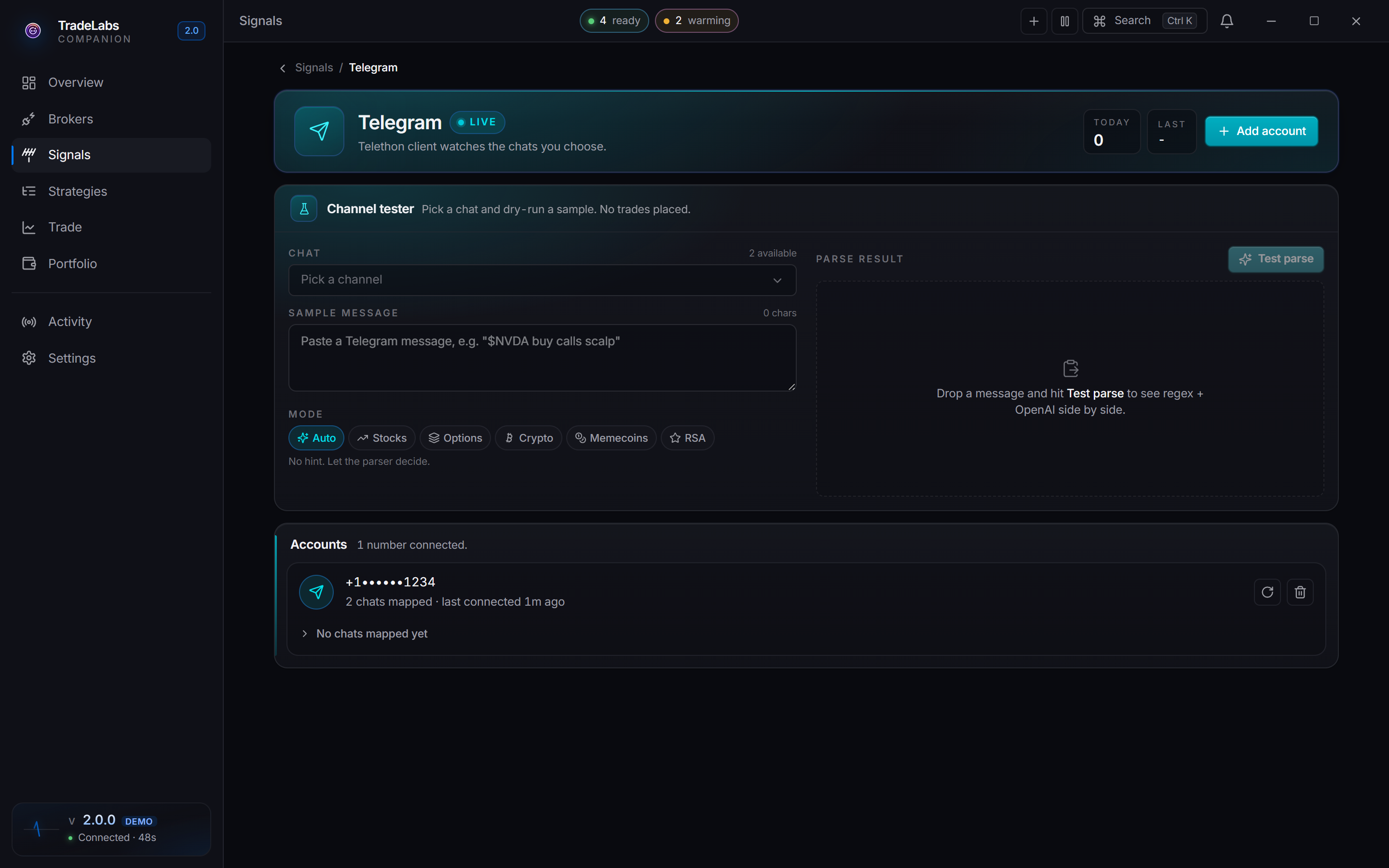
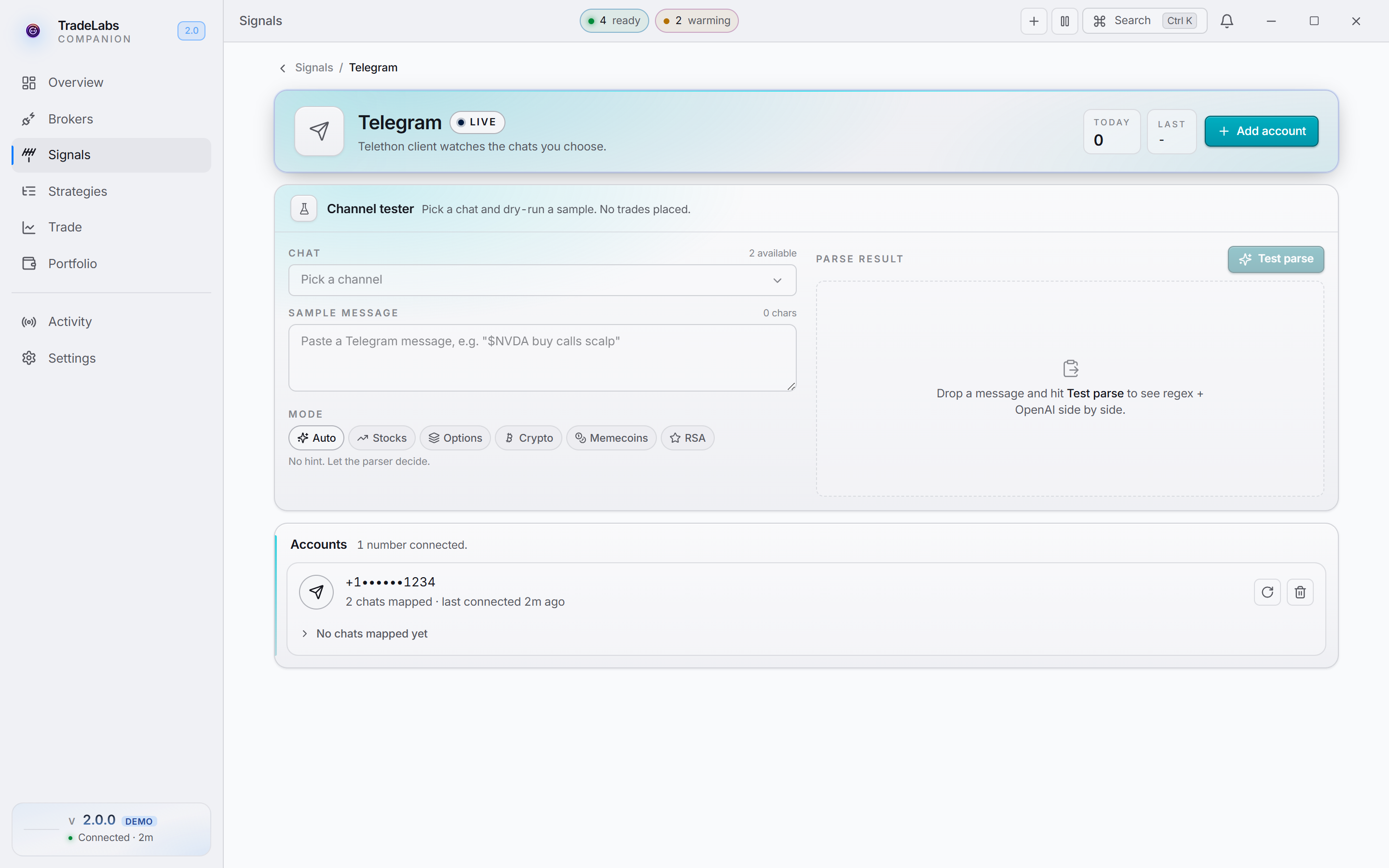 Telegram, connected. Telegram calls are read by AI exactly like Discord calls, so the same AI key covers both.
Full walkthrough: Telegram strategies.
- Open Signals then TradingView and choose Connect TradingView. Enter your TradingView email or username and password; the app opens Chrome and signs in for you. If TradingView shows a captcha or 2FA, use Or sign in manually in the browser and finish it there.
- Once signed in, the source lists every alert on your account and flags which ones are ready to fire. Alerts that need fixing can be prepared with one click — there are no webhooks to wire by hand.
- Name each alert to match the strategy you’ll build in step 4 (or list the names in the strategy’s Alert names field).
- Set alerts to trigger Once Per Bar Close. An alert that fires mid-candle can vanish when the candle closes, opening a position you never wanted.
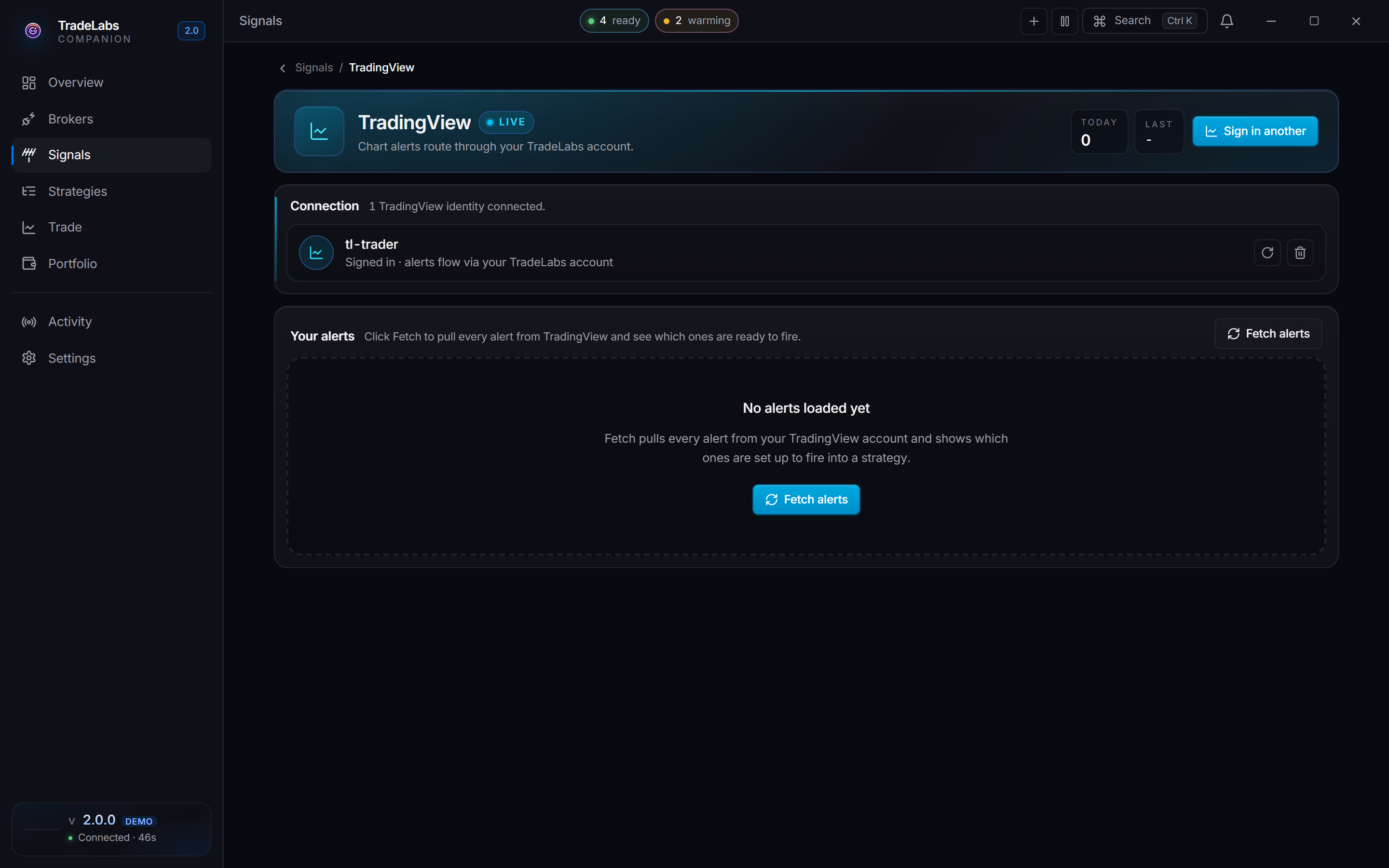
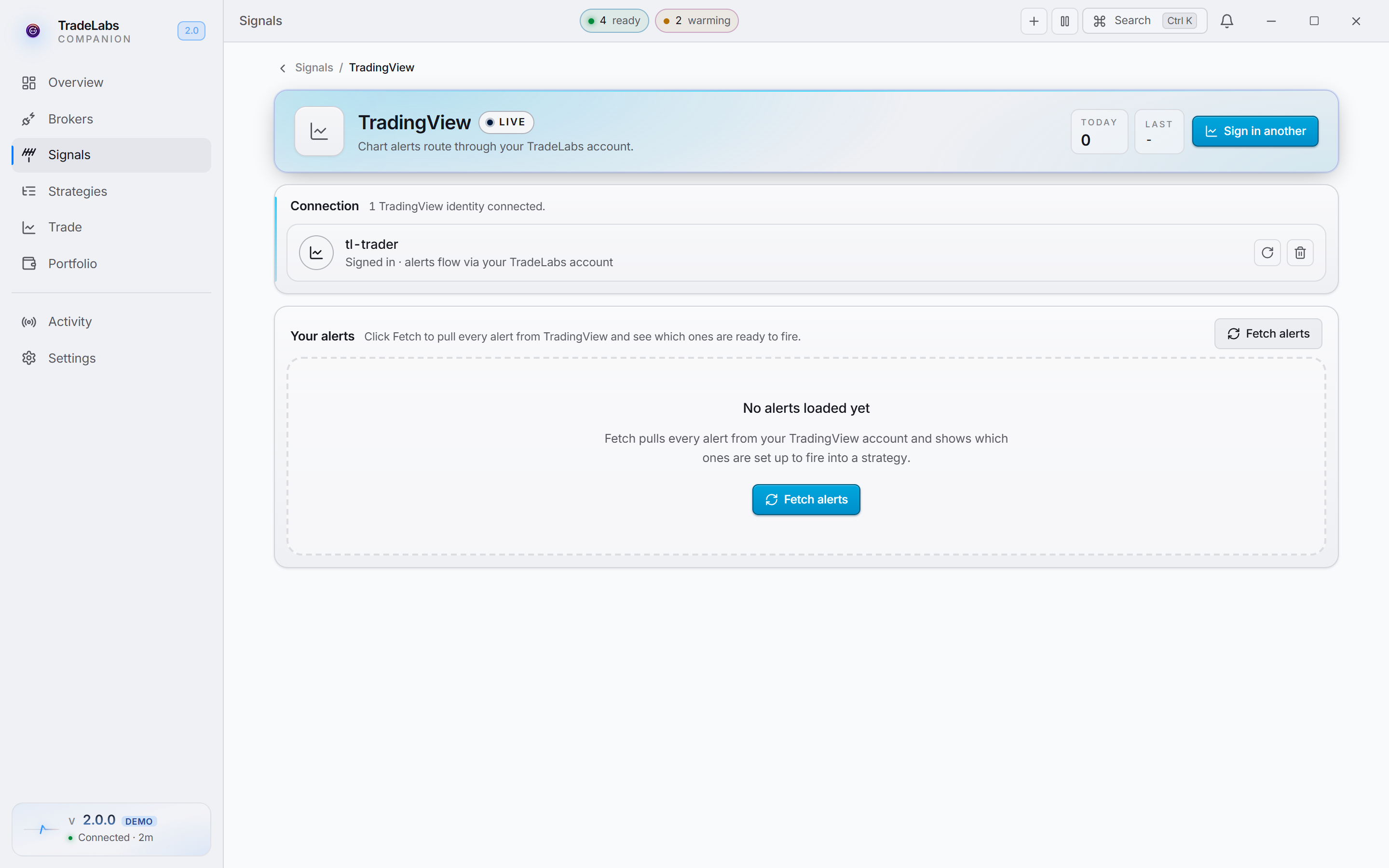 TradingView, connected. Every alert on your account, and whether it’s ready to route into a strategy.
TradingView alerts arrive as structured data, so no AI key is needed and you can skip step 3 entirely.
Full walkthrough: TradingView strategies.
3. Add an AI key (Discord and Telegram only)
On TradingView only? Skip this step. TradingView alerts are already structured, so there is nothing for an AI to read and nothing to pay for. Go straight to step 4.
Discord and Telegram calls arrive as plain English (“in SPY 540c @ 1.20”), so the app uses AI to read them into an order. Open Settings → Signal Parser:
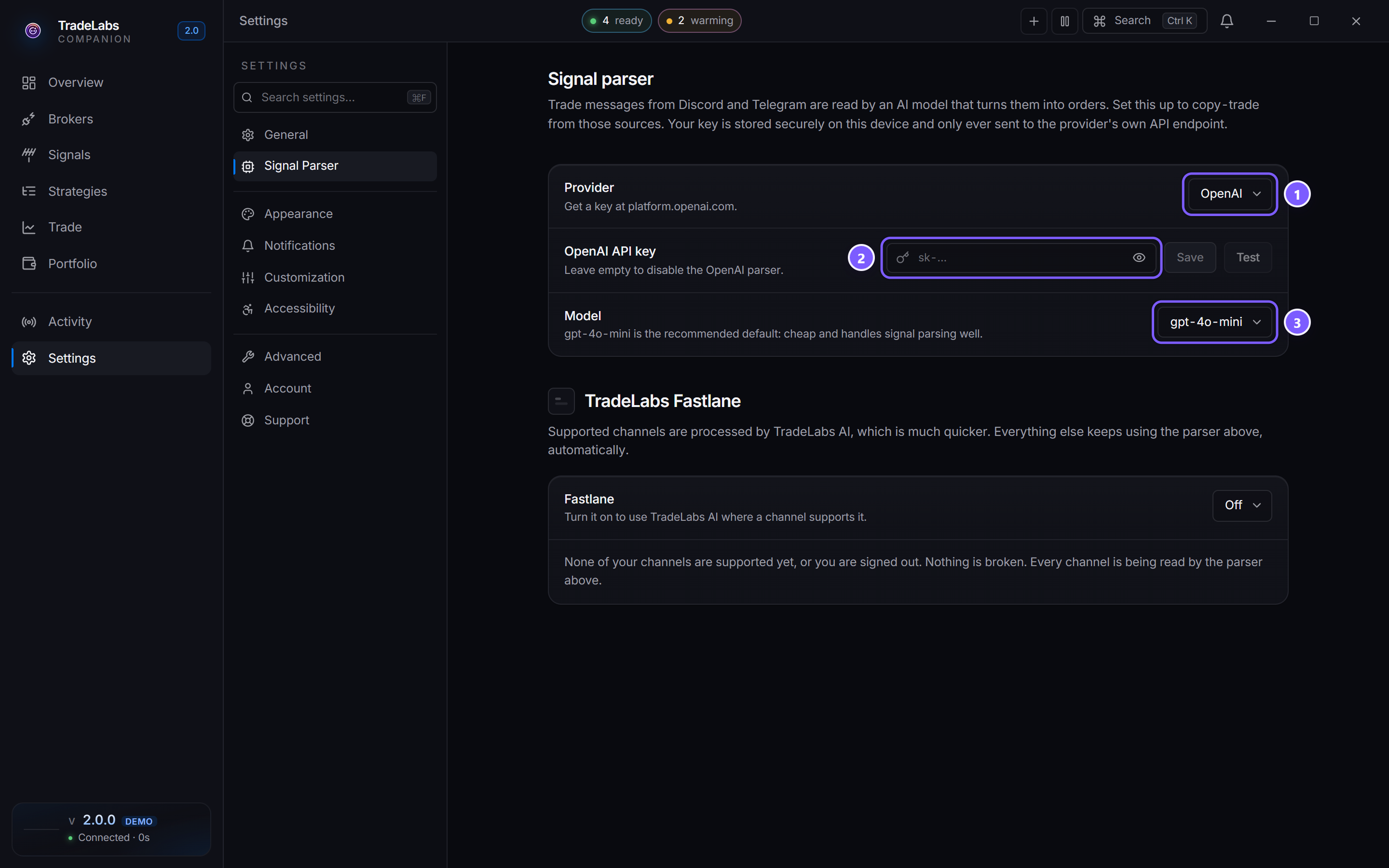
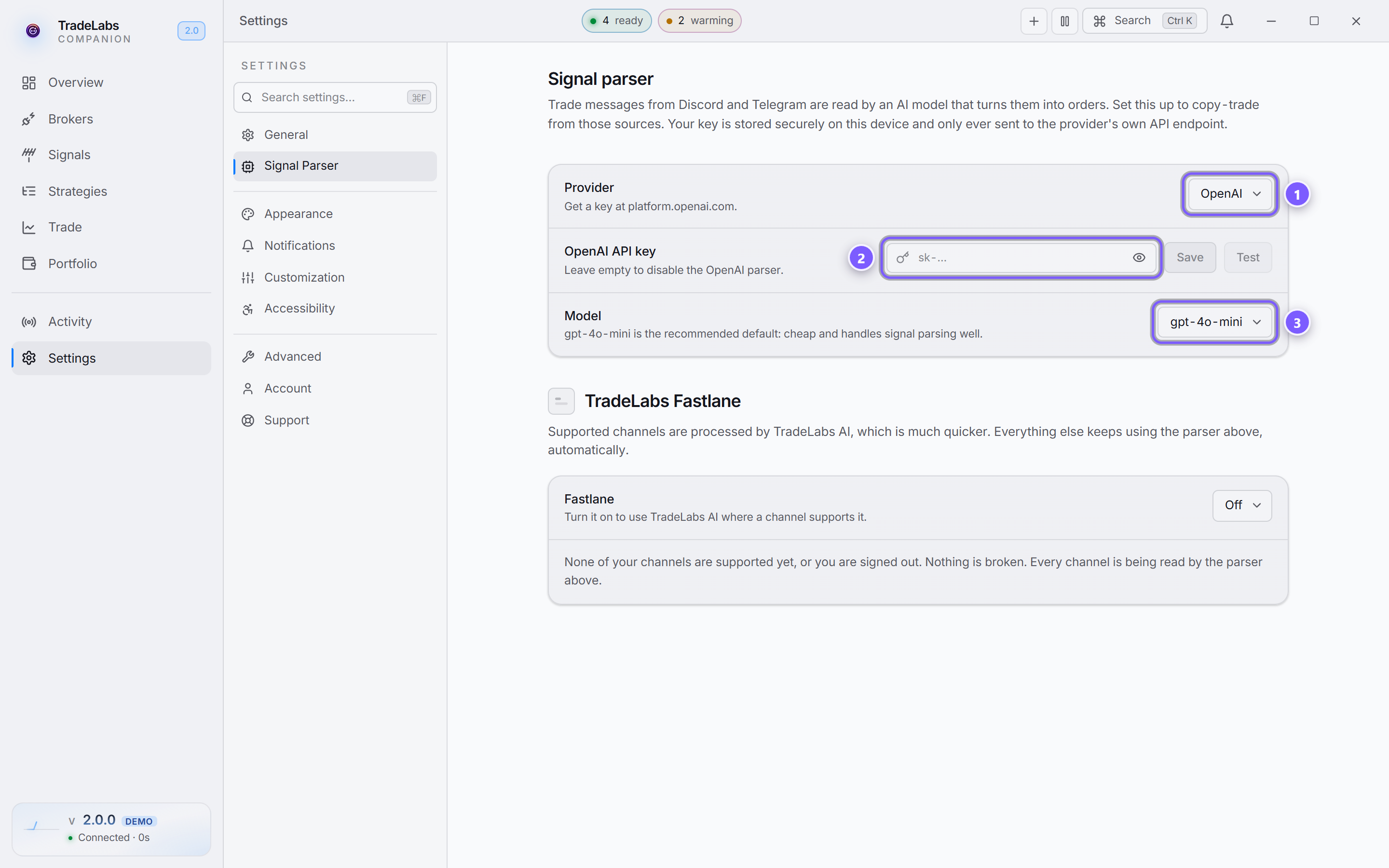 Settings → Signal Parser. Three fields, then you’re done.
- Provider — OpenAI or Google Gemini. Either works; OpenAI is the common pick.
- API key — paste the key you created with that provider, then Save. Test checks it right there, so a bad key shows up here rather than as a missed trade.
- Model — gpt-4o-mini is the recommended default: cheap, fast, and accurate on trade calls.
- Your key is billed by the provider directly, not by TradeLabs. Reading a call costs a fraction of a cent; keep a small balance topped up with your provider.
- One key covers every Discord and Telegram strategy you run — you don’t need one per strategy.
Step-by-step for getting an OpenAI key: Create an AI key.
4. Build a strategy
A strategy is the rulebook: watch this source, trade this instrument, into these brokers, at this size, with these exits. On the Strategies page, choose New strategy. To start from ready settings, click Templates instead. See Using Templates.
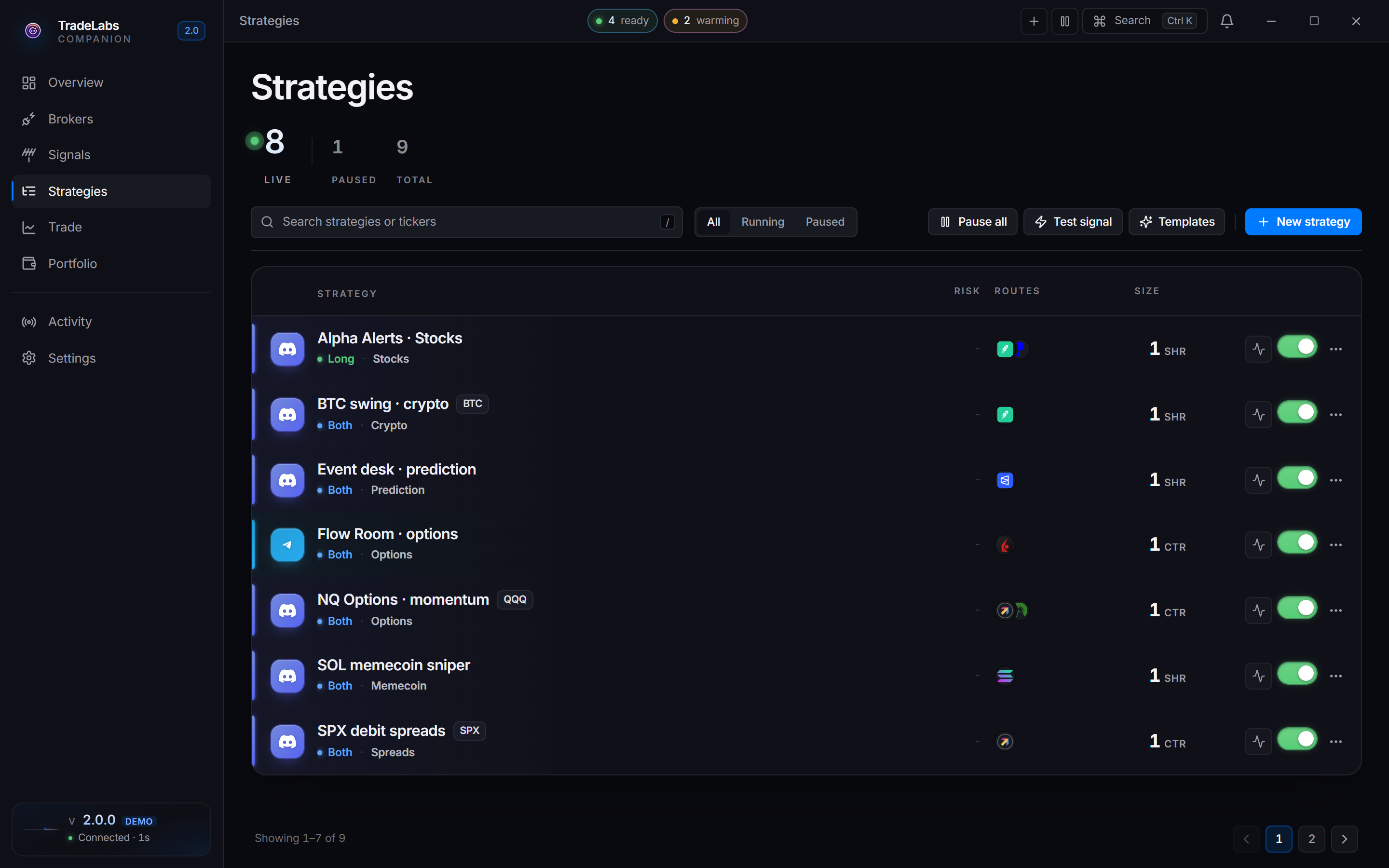
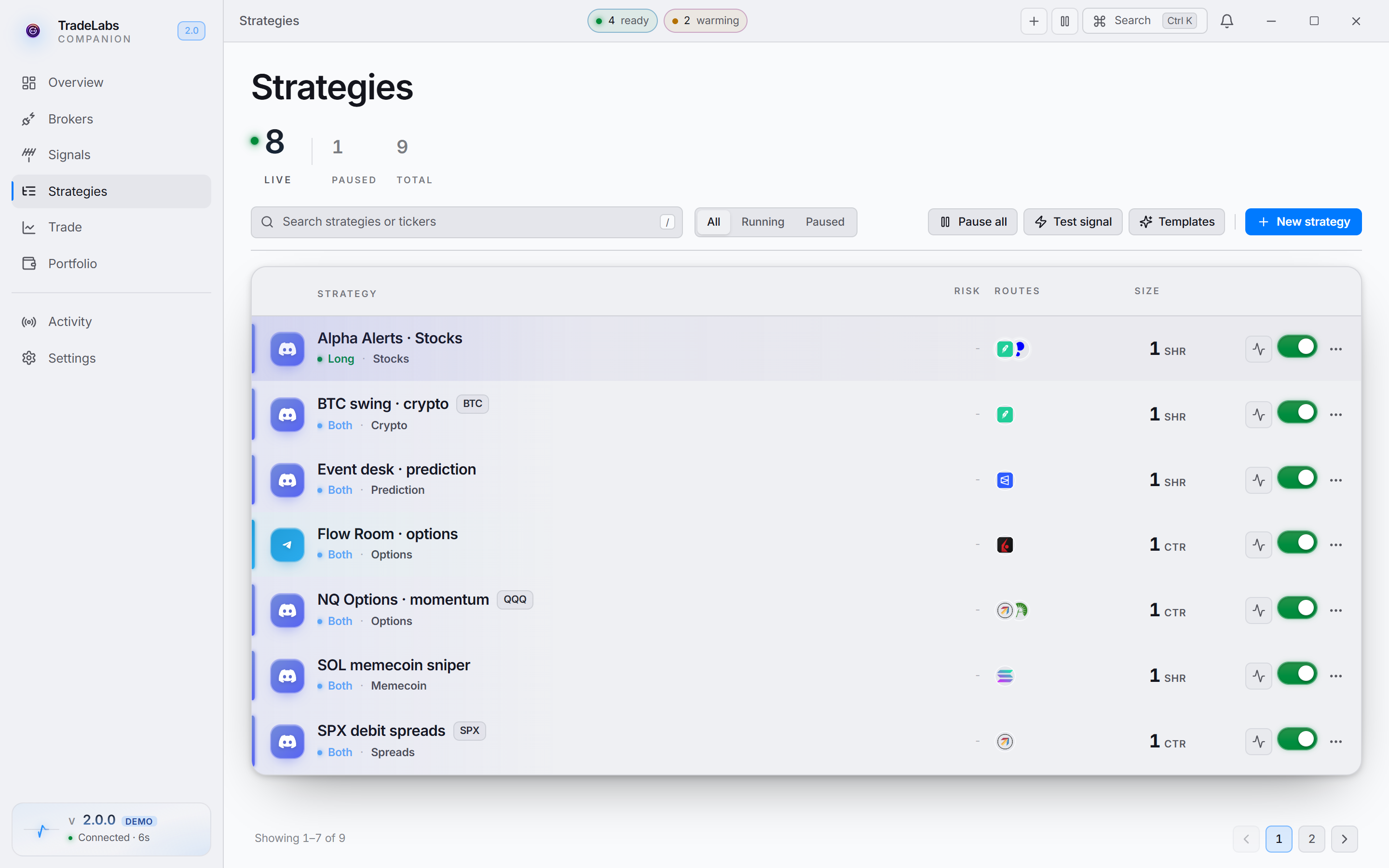 The Strategies page. Each row shows a strategy’s source, instrument, brokers, and whether it’s running.
The editor is split across tabs. General is what opens, and for a first strategy it’s most of the work:


- General — signal source, instrument, direction, ticker.
- Brokers — which accounts this strategy fires into.
- Sizing — how big each trade is.
- Risk & exits — stop loss, take profit, trailing stops.
- Protections — the guardrails to set before you go live.
The General tab
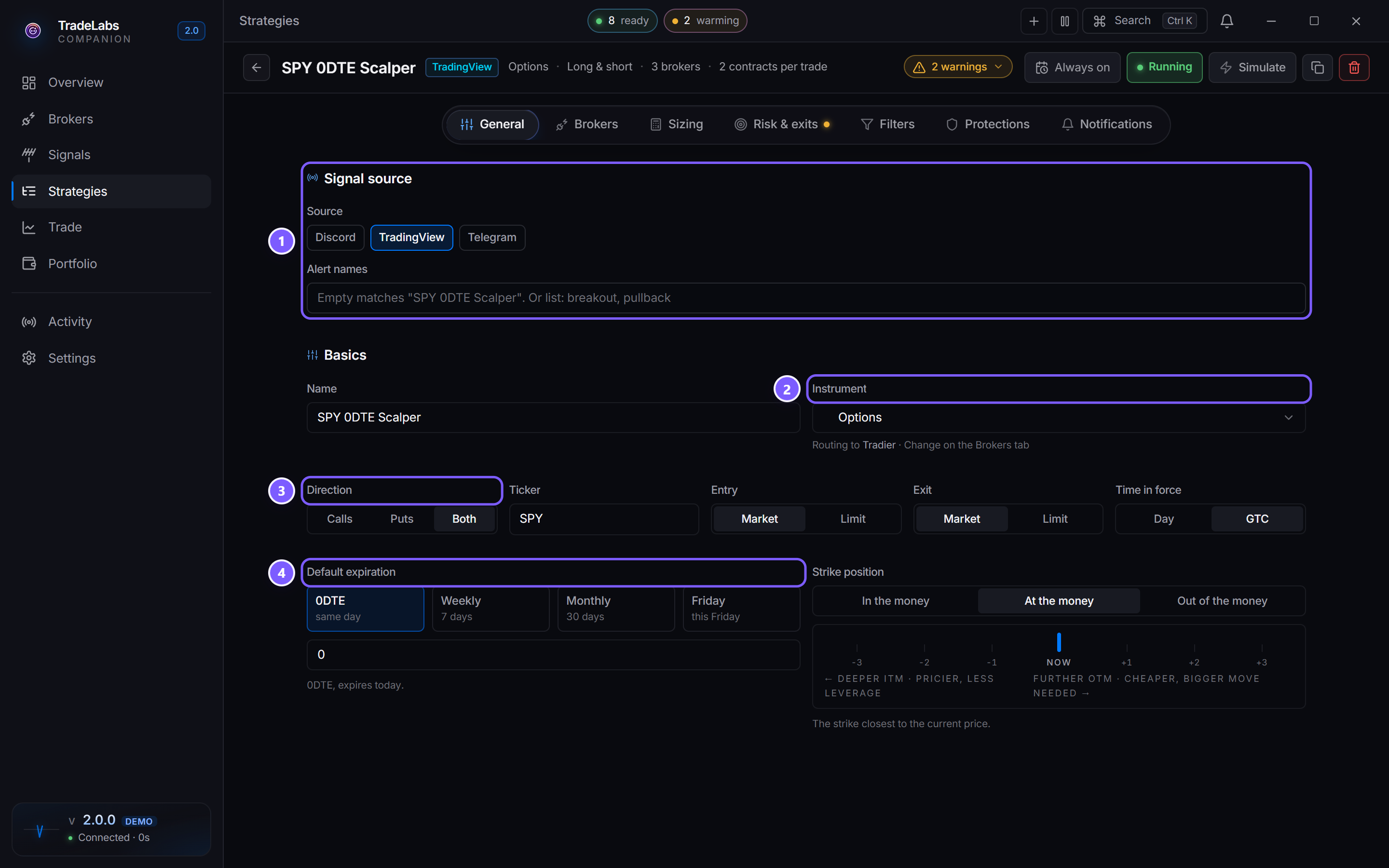
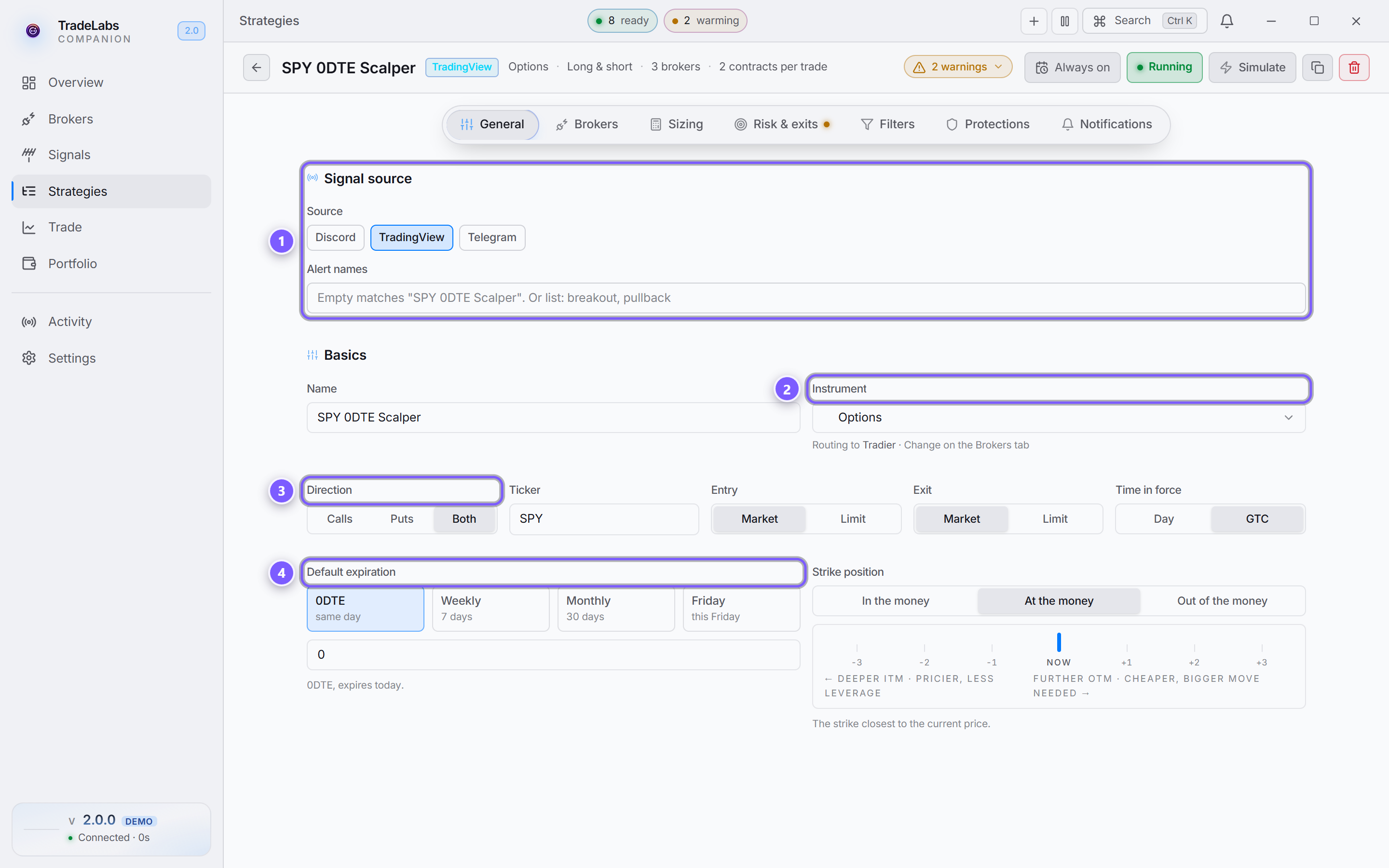
- Signal source — Discord, TradingView, or Telegram. For Discord and Telegram you also pick the exact channel or chat here; for TradingView you list the alert names to match.
- Instrument — the single most important field. It decides which other fields and which brokers you see at all.
- Direction, ticker, and order type — leave Direction on Both and Ticker on ALL to follow everything the room calls.
- Default expiration — options only: which expiry to use when a call doesn't name one.
Turn Inherit trade details from message on, in the Signal source section, so the strategy uses what the call actually says (strike, expiration, direction) instead of these defaults.
The other three
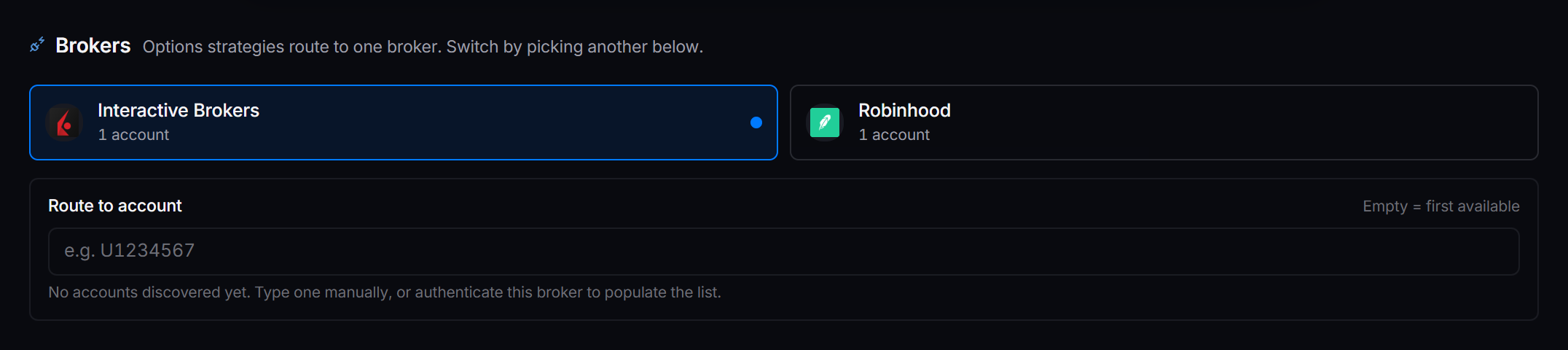
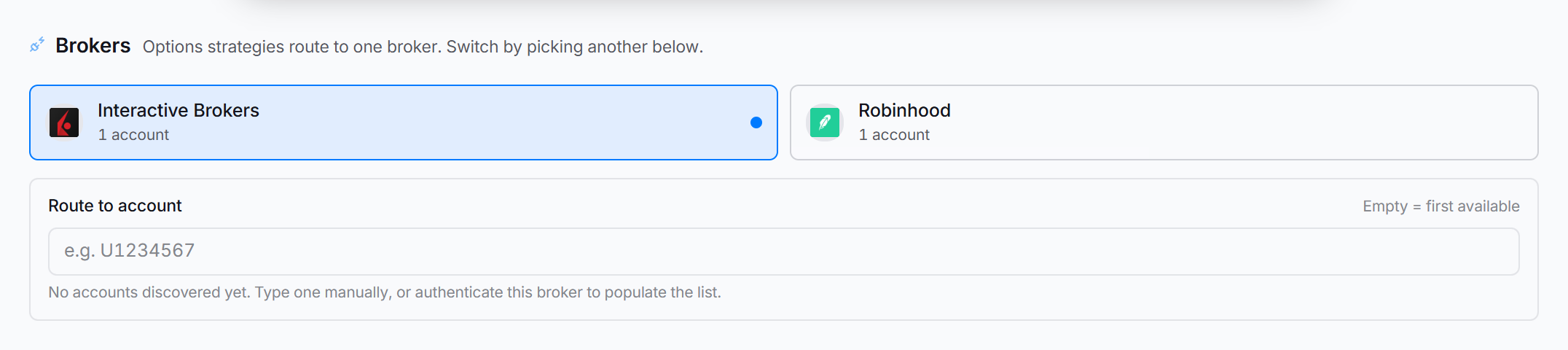
Brokers — pick one to start. Tick several and one signal fires into all of them at once.
Sizing — a fixed quantity in contracts or shares, a dollar amount, or a percent. Keep it small for a first strategy.


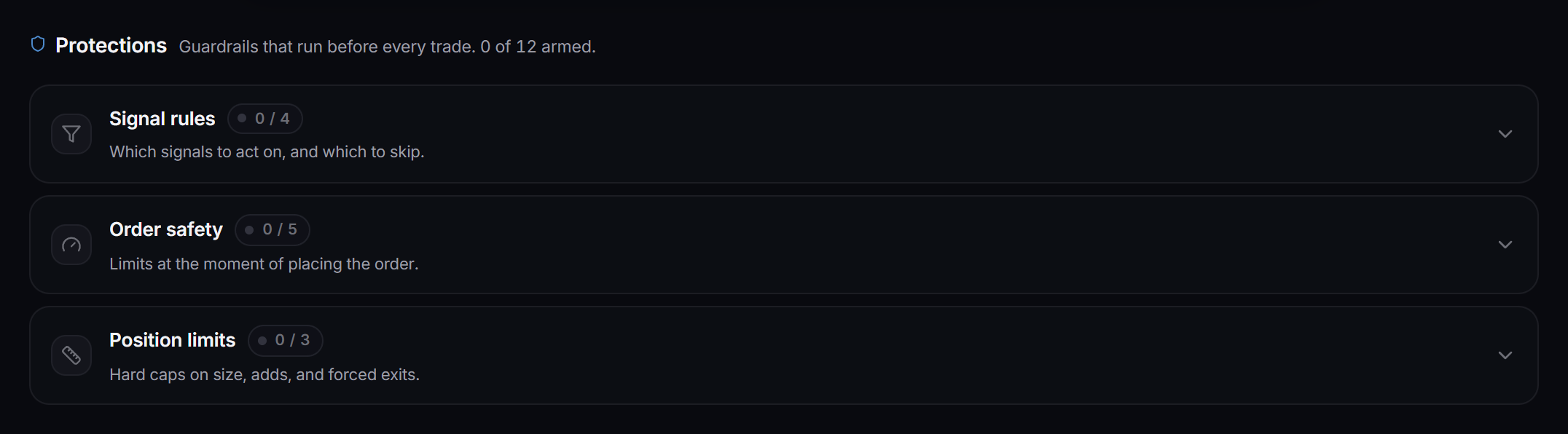
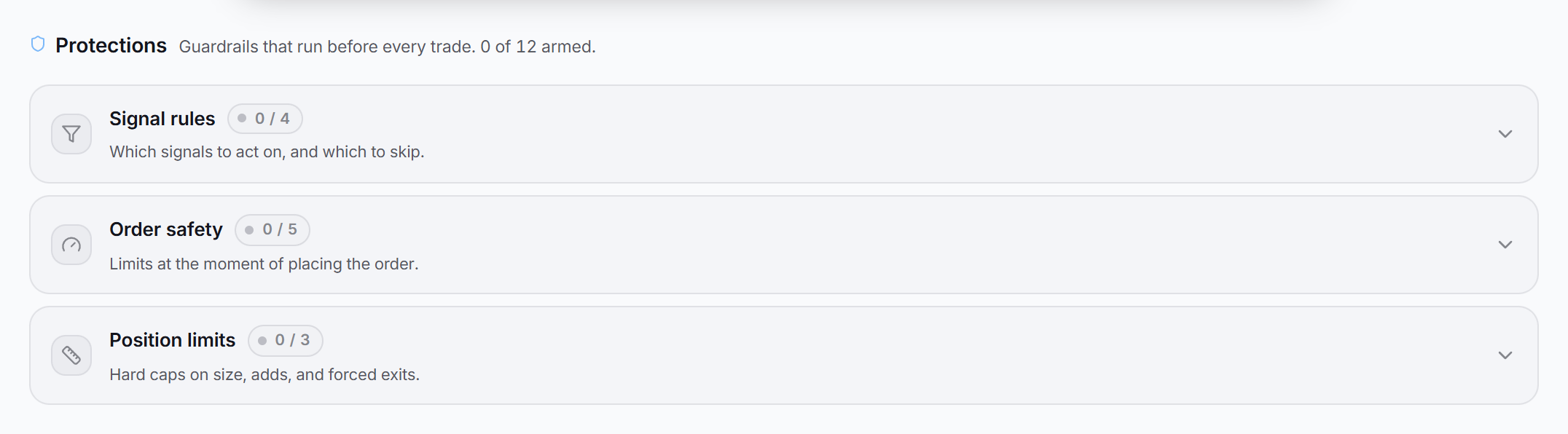
Protections — the guardrails, and the ones worth setting before you ever go live. Reach for Duplicate protection, Slippage cap, and Maximum trade value (a hard dollar cap per trade) first.
The remaining tabs (Risk & exits, Filters, Notifications) have sensible defaults and can wait until you have a working trade. Every field is documented in the strategy reference.
For ready settings for each instrument, see the strategy templates.
Save it, but leave it switched off. A strategy only trades once you turn it on, and step 5 is where you check it does the right thing before it can spend anything.
5. Test before you go live
Never point a fresh strategy at real size. Test it first. Going live untested is how a small misconfiguration becomes a real loss.
-
Simulate a call. Use Simulate in the strategy editor to push a sample call through the strategy and read the result: which broker and account it would hit, the strike and expiration it parsed, and the order it would place. Confirm it matches what you expect.
Heads upSimulate places a real order if the broker it routes to is trading live. Only Tradier and IBKR have a practice mode. To use it, open that broker on the Brokers page, edit the account, and set Mode to Paper — on Tradier that also needs a Paper access token from its sandbox, and on IBKR it needs TWS or Gateway running on the paper port. Every other broker is live-only: on those, don’t simulate with real size — go straight to the smallest possible real trade in step 2.
-
One real trade, smallest size. Once the simulation looks right, put the broker back on Live if you switched it, drop the size to the minimum (one contract, or the smallest dollar amount), turn the strategy on, and wait for one live call. Confirm it fills in your broker and the exits behave.
Check the fill price, that it hit the right broker and account, and that stop and take-profit are set, before you scale the size back up.
6. Go live
Your test trade already turned the strategy on. Going live is just putting the size back where you want it: open the strategy, set the real Sizing, and save. It keeps showing Running, and from now on every matching call is read and traded automatically — as long as the app stays open on a computer that’s on and online.
Watch it work on the Overview page: live profit, what each strategy is doing, broker health, and every signal and fill as it happens.
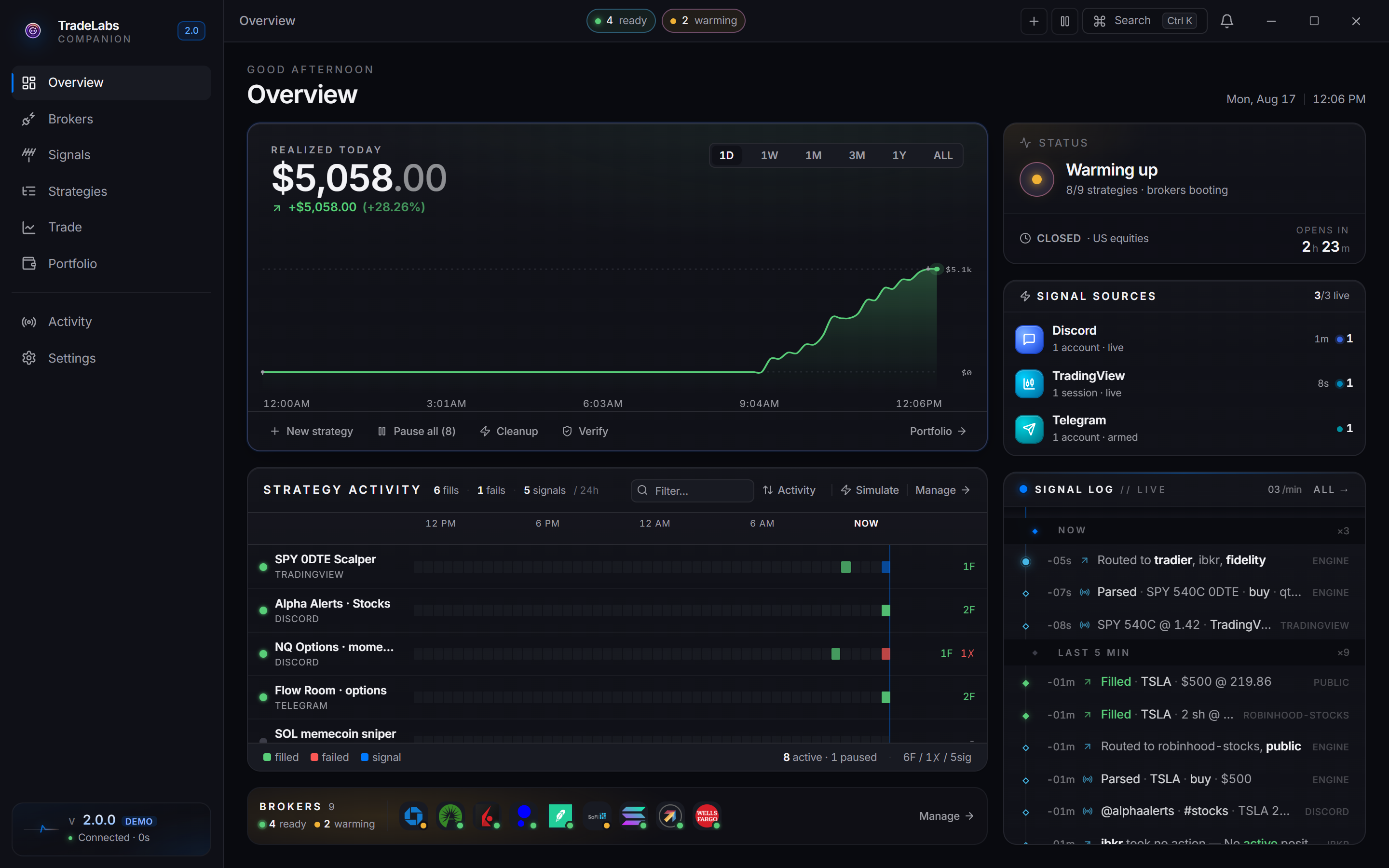
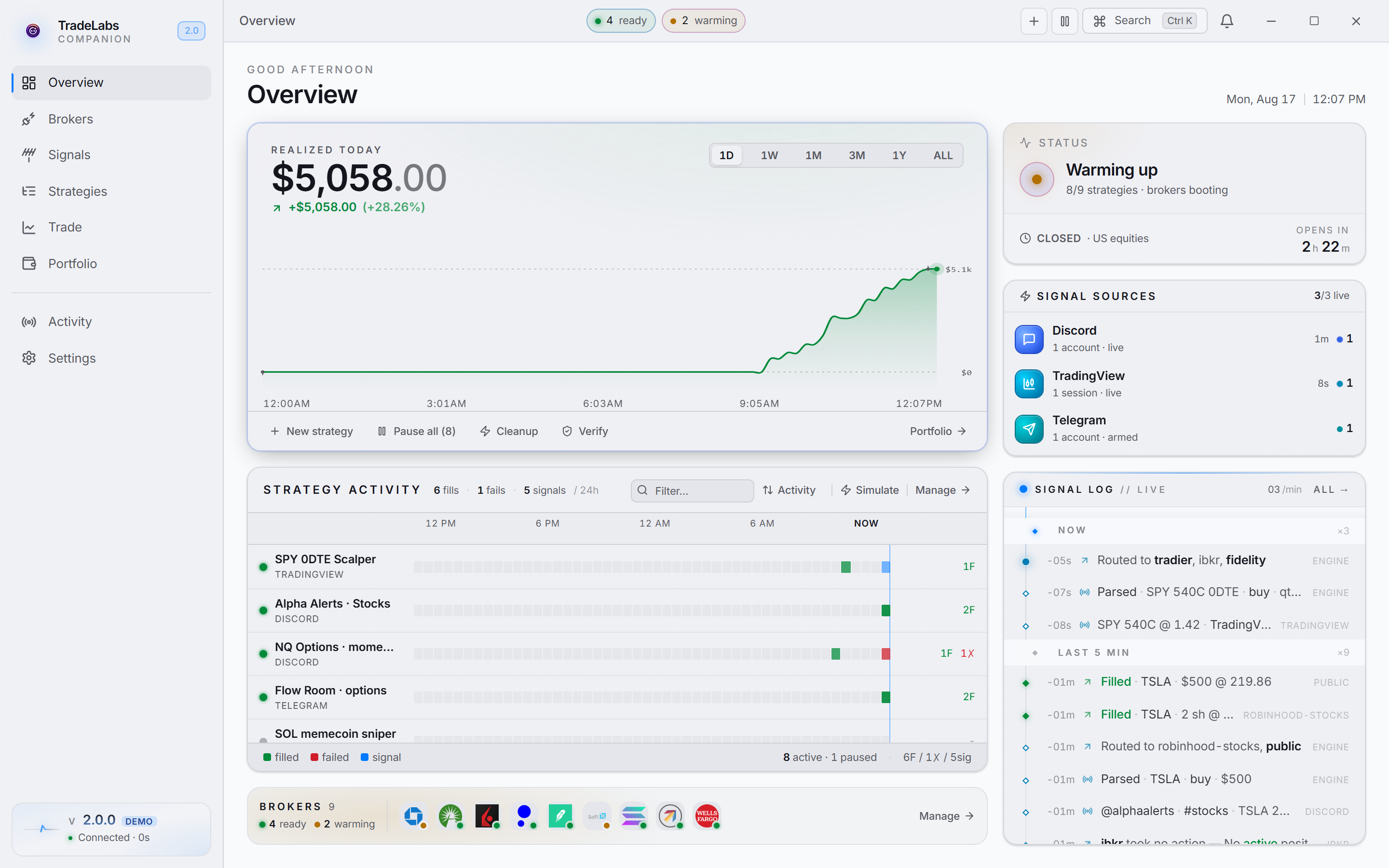 The Overview page. Your live picture once strategies are running.
Where to go next
- The App, Day to Day: the screens you’ll use once you’re live
- Strategies & Settings reference: every setting, per instrument
- The Web Dashboard: start, stop, and check on strategies from any browser