Brokers
Tradier
Connect a Tradier account with an API token: what it trades, how to generate live and paper tokens, and how to fix common connection problems.
Tradier connects with an API token instead of a login, which makes it the fastest broker here and a great fit for copy trading. It trades stocks, options, and multi-leg spreads.
| What it trades | Supported |
|---|---|
| Stocks | Yes |
| Options | Yes |
| Spreads | Yes |
| RSA, crypto, memecoins | No |
Tradier gives you two separate tokens: a live token for real-money trading and a paper token for the sandbox. You can add both and switch between them later.
Before you start
- A Tradier account. Sign up on Tradier’s pricing page and pick the free Lite plan, which is enough to generate tokens. Live trading needs a funded account. Paper trading needs no deposit: every Tradier account comes with a $100,000 sandbox account.
- A token for the mode you want. See Get your tokens below.
- The TradeLabs Companion installed and running.
Get your tokens
-
Log in at dash.tradier.com.
-
Click the gear icon in the top-right corner.
-
Click API Access in the left-hand menu.
-
Live token: under Production Account Access, click Create Token, then Show, and copy it. This token works for all your live accounts and does not expire.
-
Paper token: scroll down to Sandbox Account Access (Paper trading) and copy that Access Token. Click Regenerate if you need a new one.
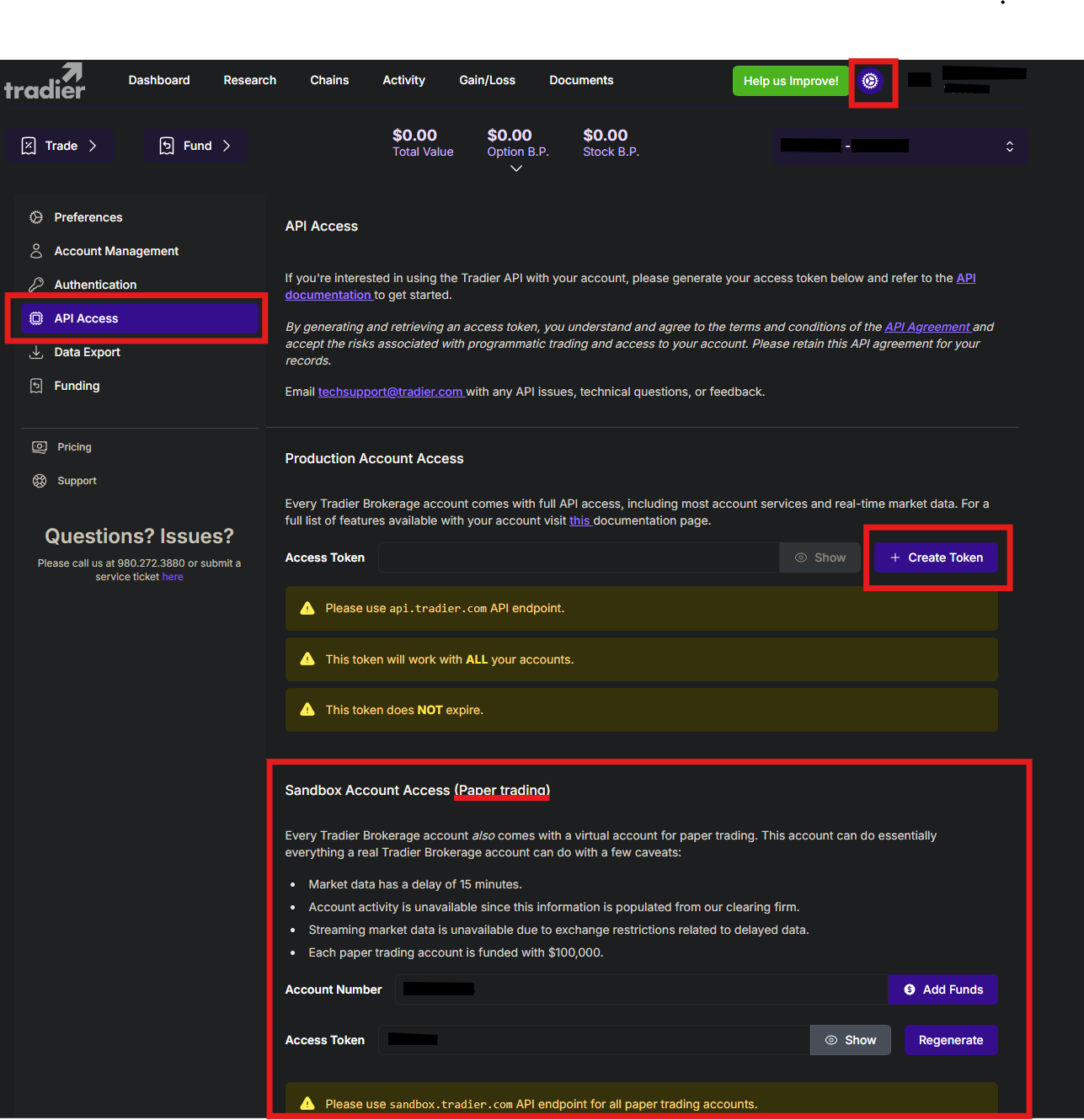 Gear icon → API Access. The live token is under Production Account Access and the paper token under Sandbox Account Access. Sandbox market data is delayed 15 minutes.
Connect it in the app
-
Open the Brokers page, find the Tradier card, and click Add account.
-
Set Mode to Live or Paper with the segmented toggle. Live sends orders through api.tradier.com; Paper uses the sandbox.tradier.com sandbox.
-
Paste your token into the matching field: Live access token, Paper access token, or both. Leave one blank if you only trade that mode.
-
Click Save account. Your tokens are encrypted on your device.
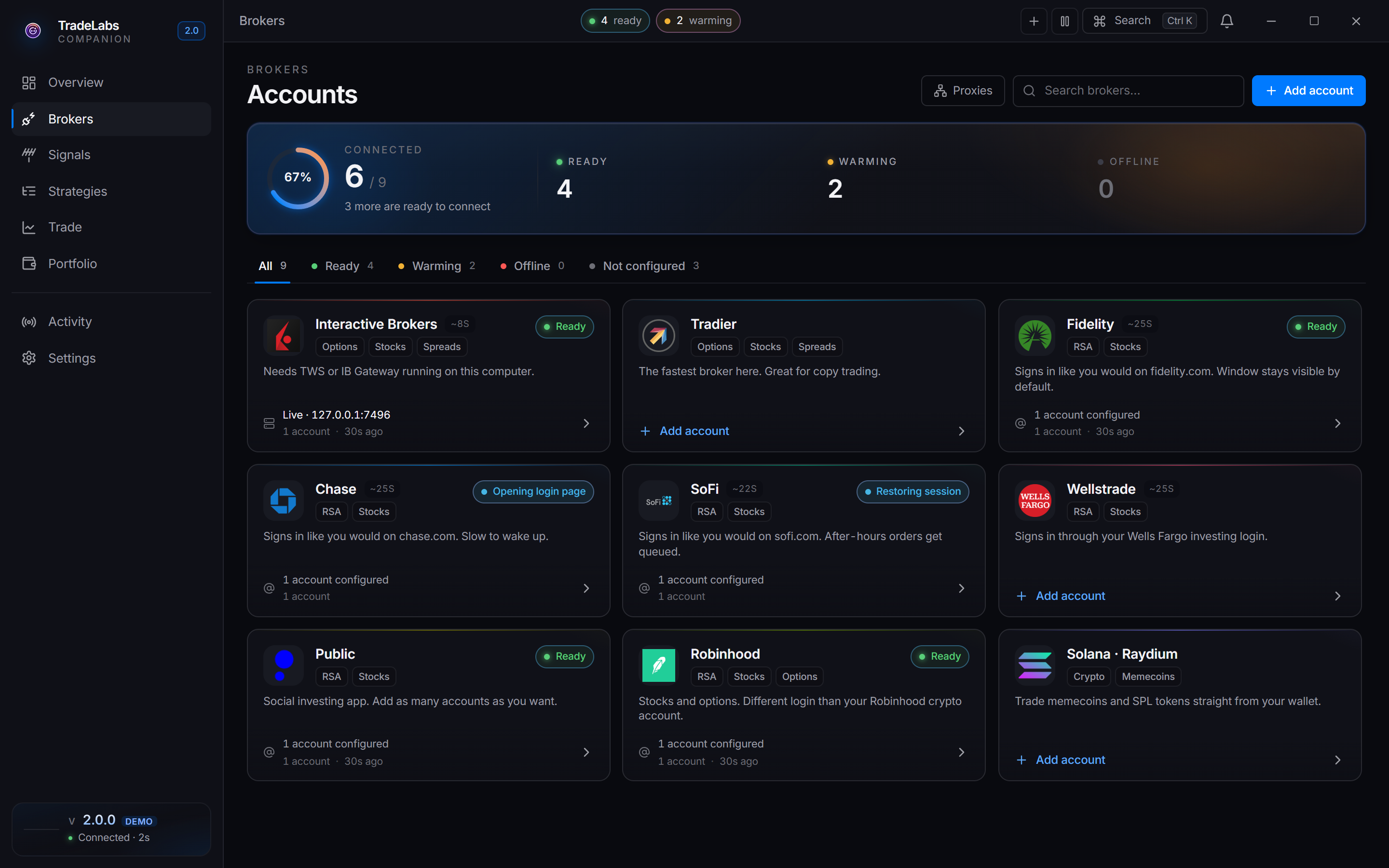
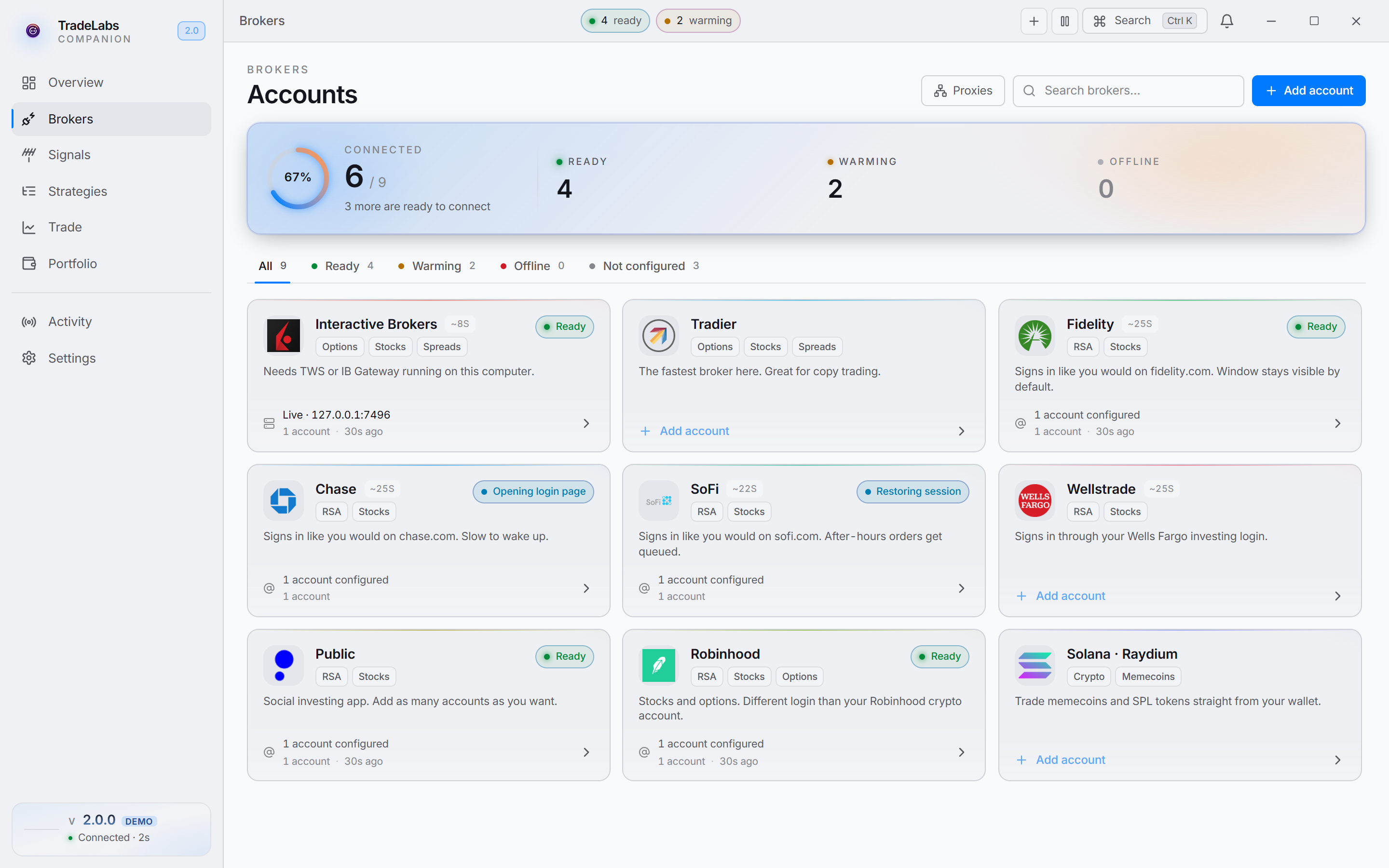 Click a broker card, then Add account, to open the connect form
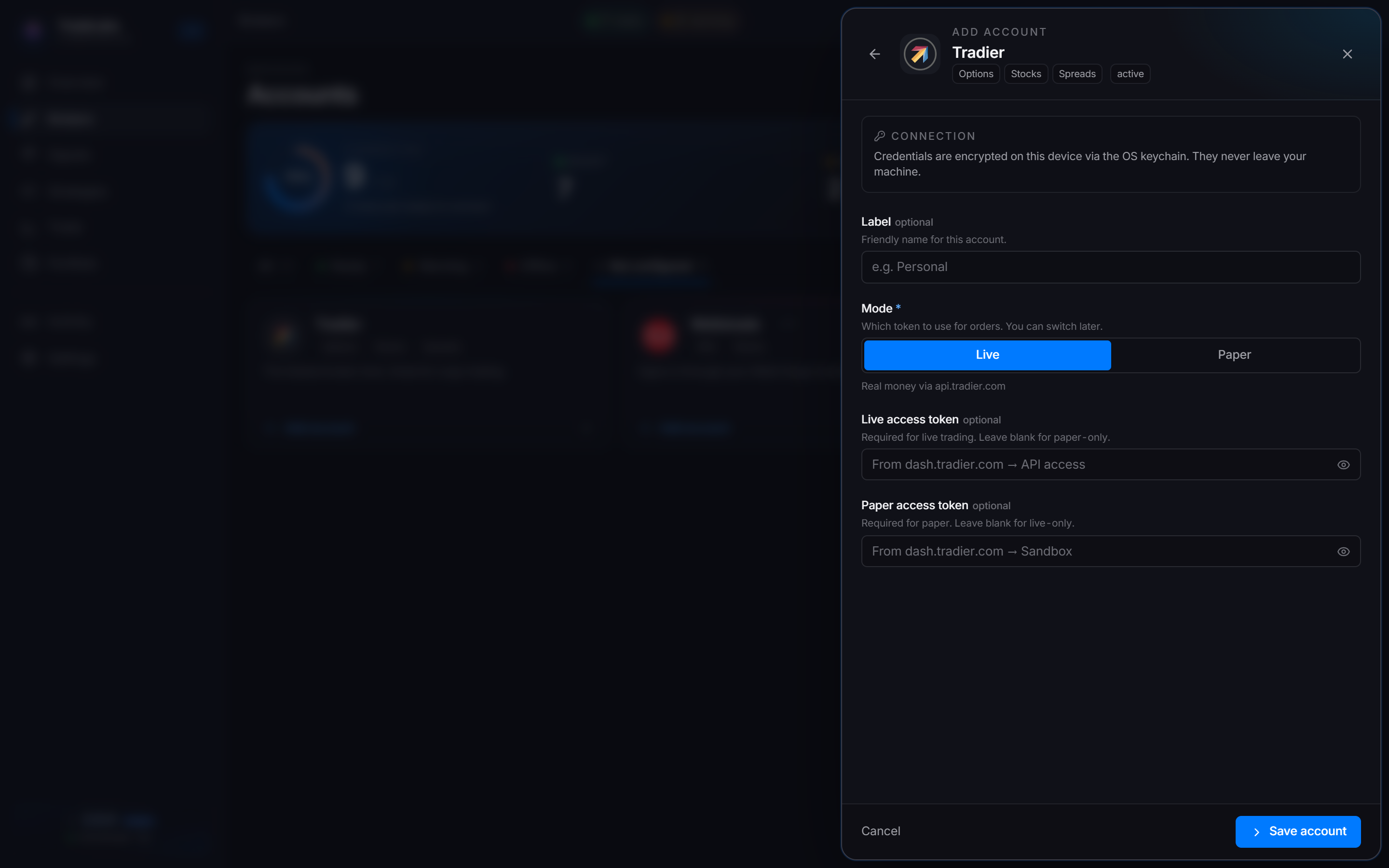
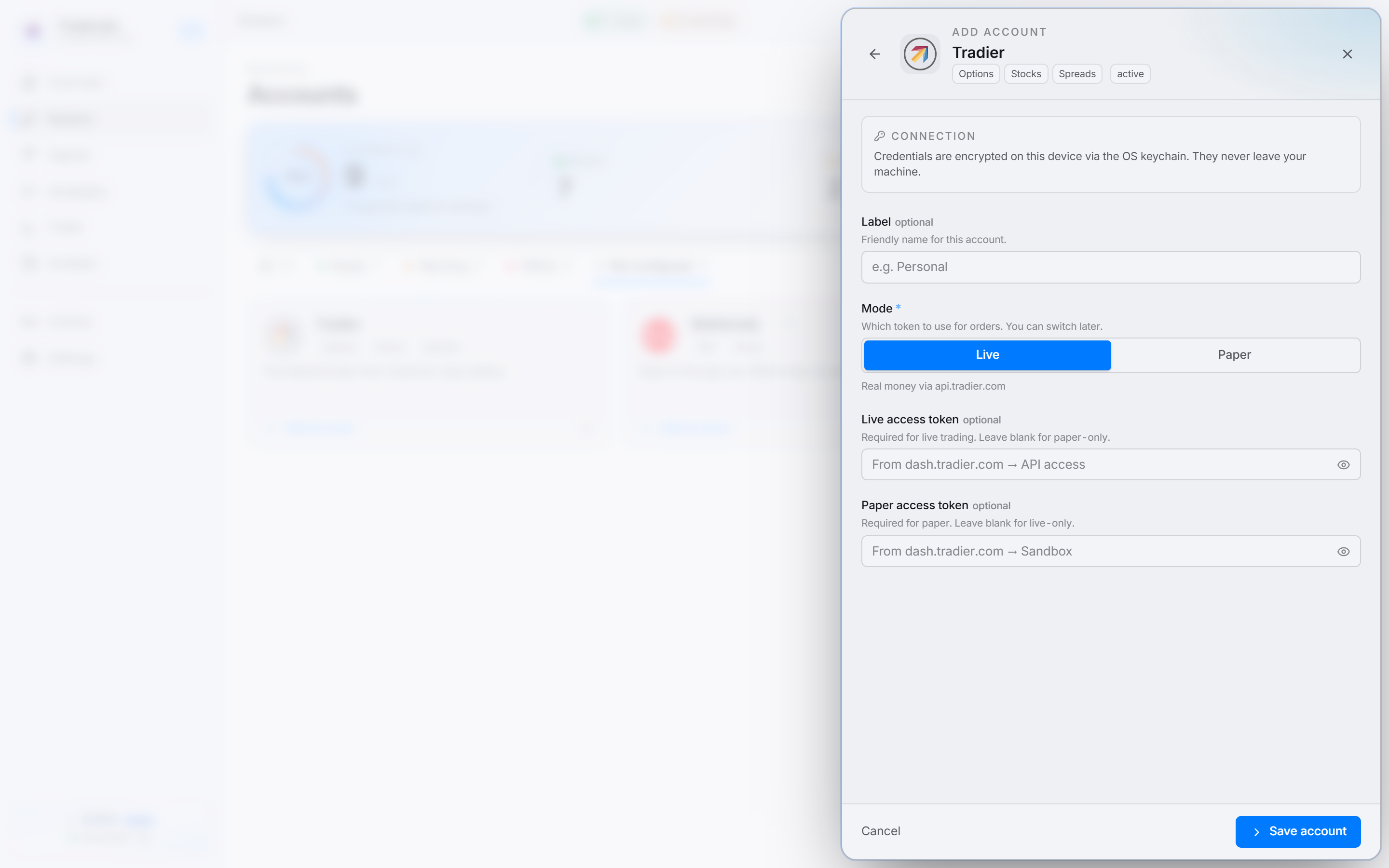 Pick Live or Paper, then paste the matching access token from your Tradier dashboard
Tradier has no password login, so there is no sign-in prompt, captcha, or verification code. To confirm the app can reach your account, open the account’s ⋯ menu and choose Check connection.
Tradier supports more than one account. Add each with its own token, then point a strategy at a specific one using the Route to account picker in the strategy editor. Different strategies can trade in different accounts even when they share a token.
Fixing common problems
- Connection check fails: confirm you pasted the token for the mode you selected. A live token in Paper mode, or the reverse, will not work. Regenerate the token from the Tradier dashboard if it may have been revoked.
- Orders go to the wrong place: check the Mode toggle. Live and Paper use separate tokens and separate accounts.
- Paper market data looks stale: Tradier delays sandbox market data by about 15 minutes. This delay comes from Tradier, not the app.
- Switching Live and Paper misbehaves: close all open positions before you switch modes so an order is not managed against the wrong account.
A trade opened on one device can only be managed from that same device. If you open a trade on your desktop and later switch to a laptop, the bot cannot update or close it from the laptop.
Options and spread orders
For a One-Triggers-Other or One-Cancels-Other order that sets only a take profit or only a stop loss, Tradier requires a Limit order. Set the order type to Limit when you use a single-sided bracket.