Using the App
Signals
The Signals page: how the app shows every inbound source at a glance, opens each source to manage it, and lists the most recent signals.
Signals is your mission control for every inbound source. It shows how many signals arrived today, which sources are live right now, and the most recent signals across all of them. Open it from Signals in the left rail.
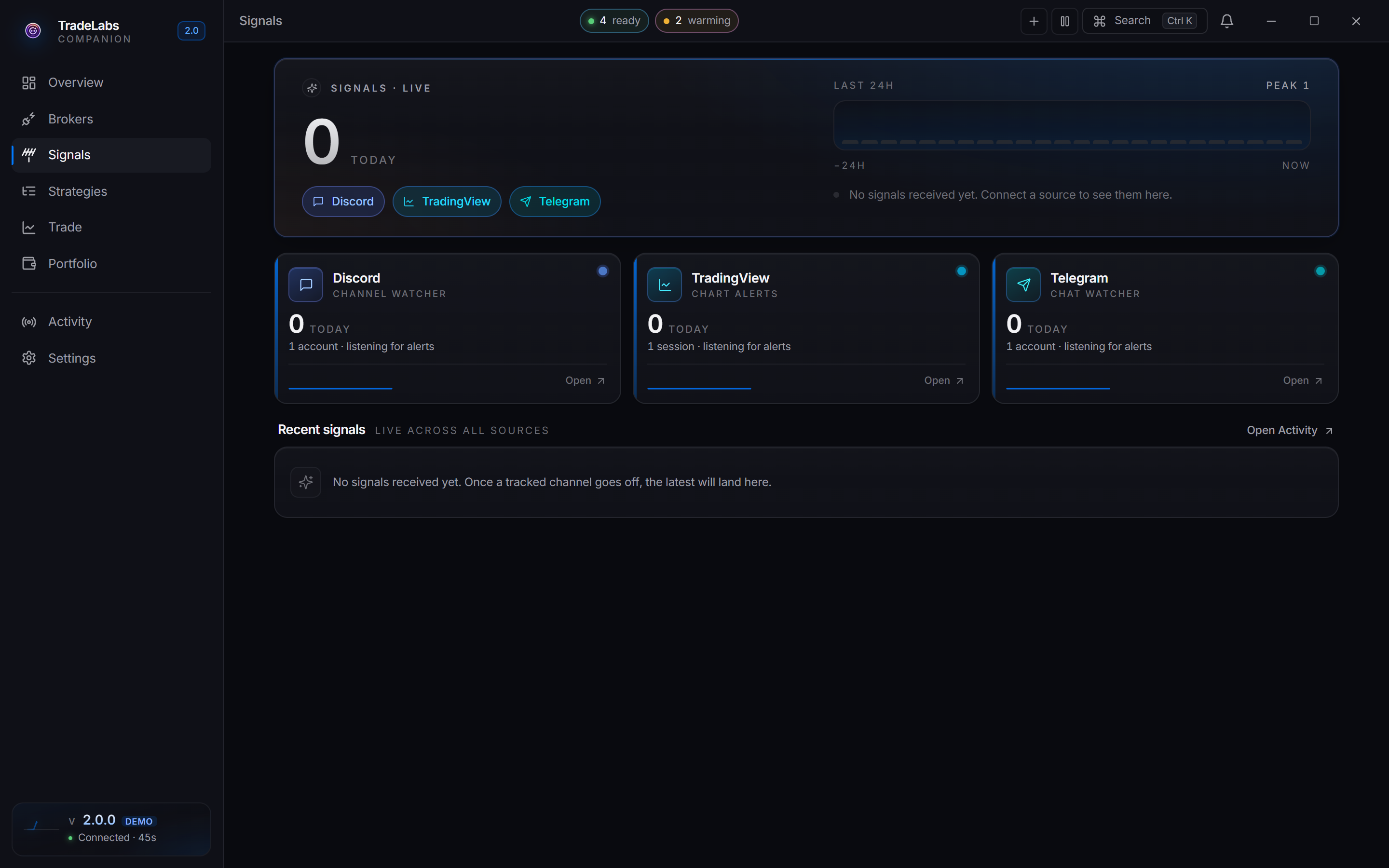
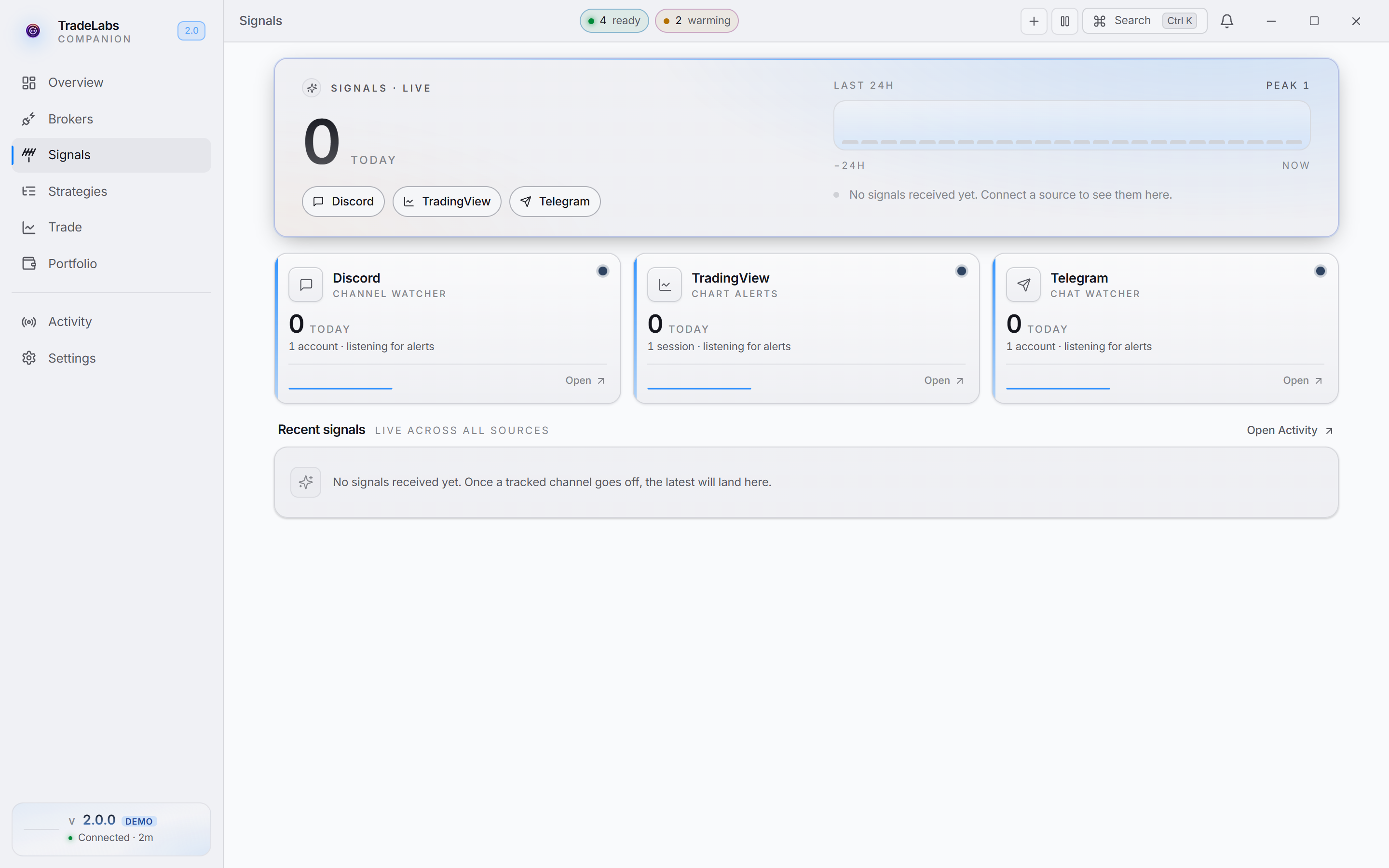 The Signals page: today’s count, a live row of sources, a 24h ribbon, and the most recent signal
What the top of the page shows
The hero at the top gives you the whole picture in one glance:
- A large today count of signals received across all sources.
- A Signals · live row of source chips. A chip’s dot lights up when that source is connected.
- A Last 24h ribbon showing when signals landed, with the busiest hour marked as peak. It runs from −24h on the left to now on the right.
- A Most recent callout that quotes the latest signal, with the source it came from and how long ago it arrived.
Before any signals arrive, the callout reads No signals received yet. Connect a source to see them here.
The source cards
Below the hero, each source you can manage gets its own card:
| Source | Card caption |
|---|---|
| Discord | Channel watcher |
| TradingView | Chart alerts |
| Telegram | Chat watcher |
Each card shows the number of signals from that source today, a small trend line, and a status dot. Click Open on a card (or click the source chip in the hero) to go to that source’s page and manage it.
There is a fourth source, the Server-side feed, that carries curated TradeLabs alerts. It turns on automatically for RSA strategies, so it is not shown as a card you pick here.
Reading the status dot
Every source card has a single status dot in its top-right corner. That dot is the whole status: no text needed.
- A lit, gently pulsing dot means the source is connected and listening.
- An amber dot means the source is connecting or degraded.
- A red dot means there is an error on that source.
- A dim grey dot means the source is not connected yet.
Recent signals
The Recent signals list at the bottom shows the latest signals from every source, newest first, labeled Live across all sources. Each row shows the signal text, the source it came from, and how long ago it arrived.
Before anything has come in, the list reads No signals received yet. Once a tracked channel goes off, the latest will land here.
Click Open Activity to jump to the full Activity feed, where you can filter and search everything the app has seen.
Setting up a source
The Signals page shows and monitors your sources. To actually connect one, open its page from a source card or chip and follow the steps there. Discord, TradingView, and Telegram each have their own connect flow, and each detail page looks a little different because each one needs different things from you.
Discord
Signs in as a self-bot, then lists the servers and channels it can watch. A spare account is recommended but not required.
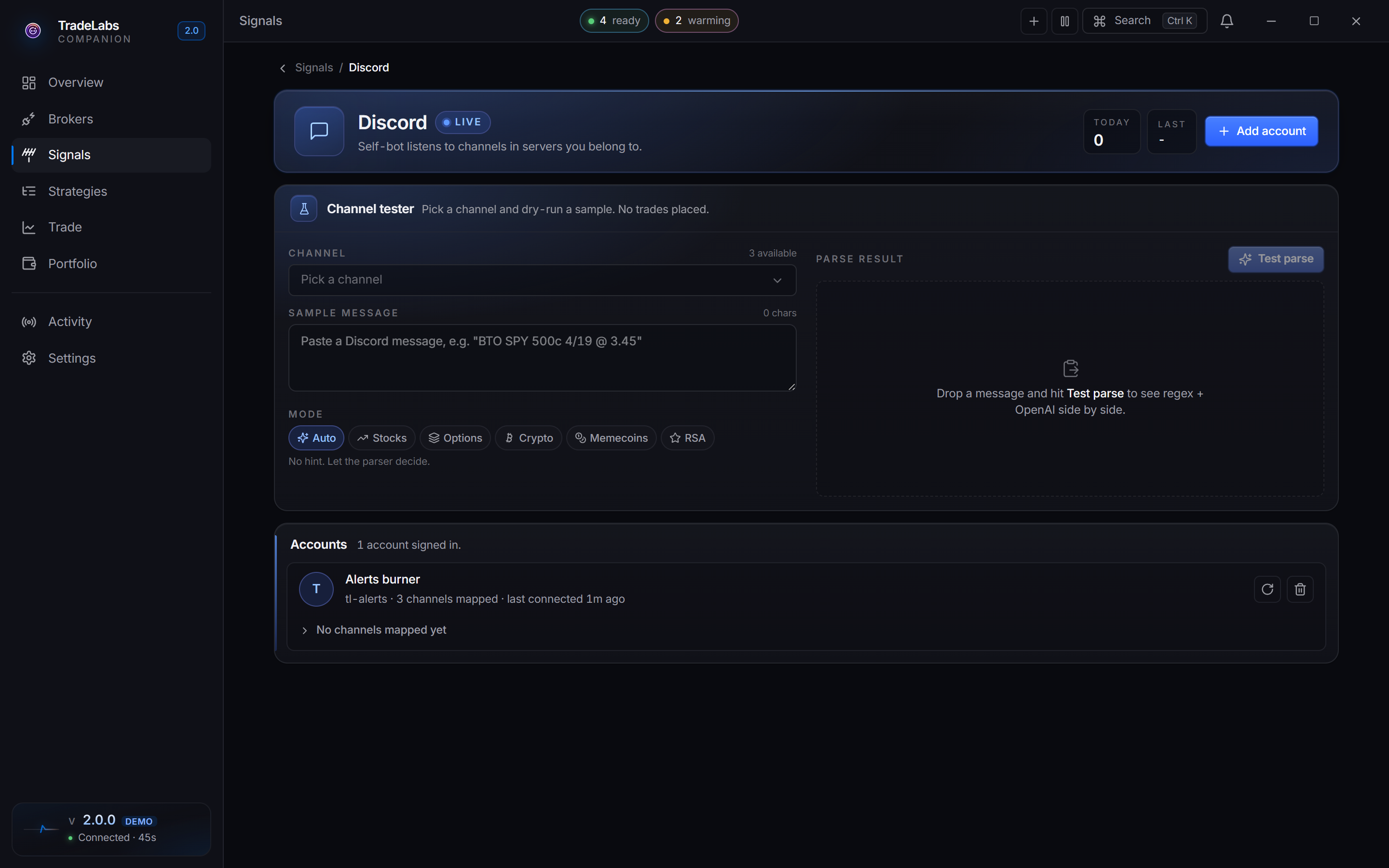
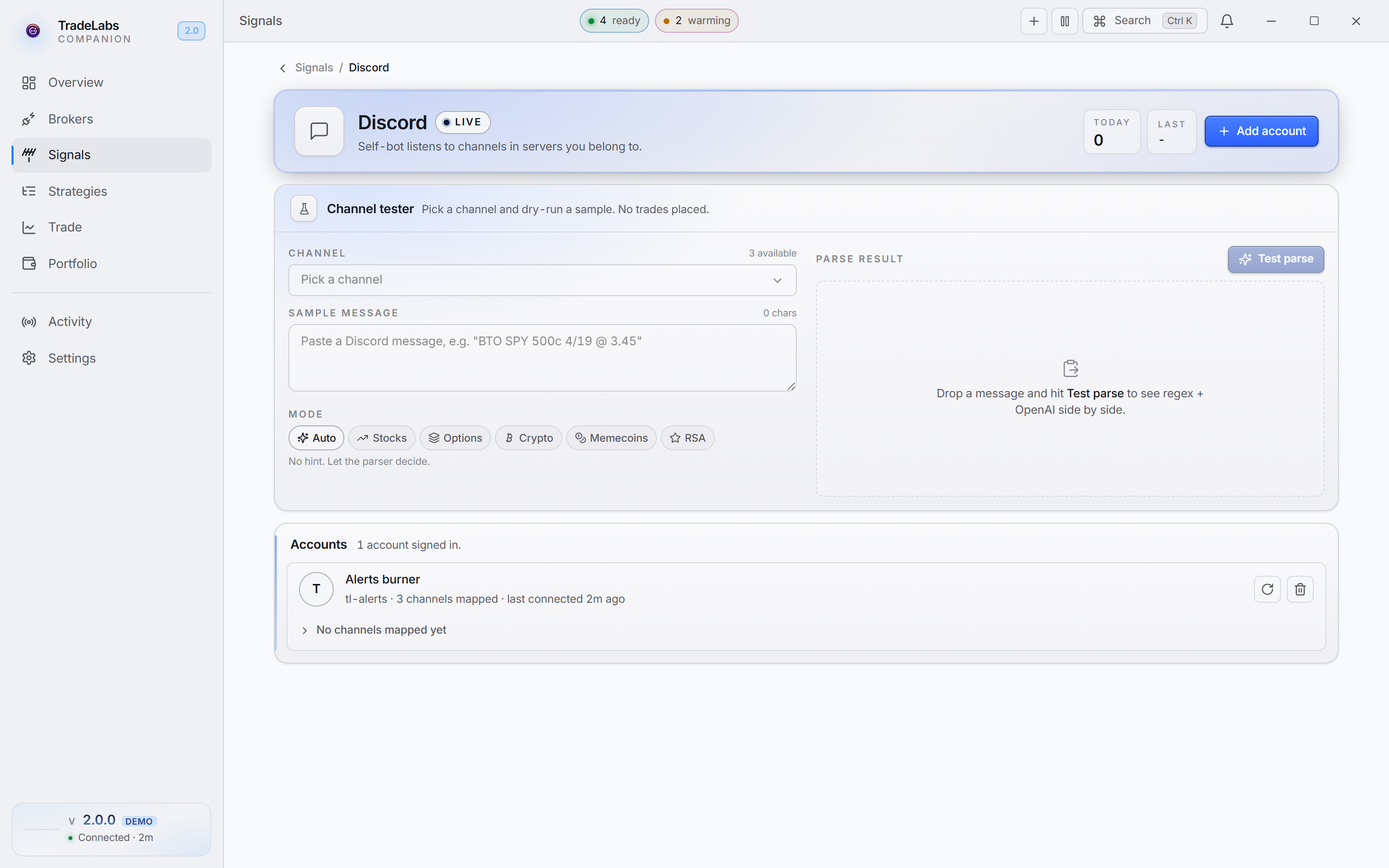
Full steps: Discord strategies.
Telegram
Signs in with your phone number plus an api_id and api_hash from my.telegram.org, then lists the chats it can watch.
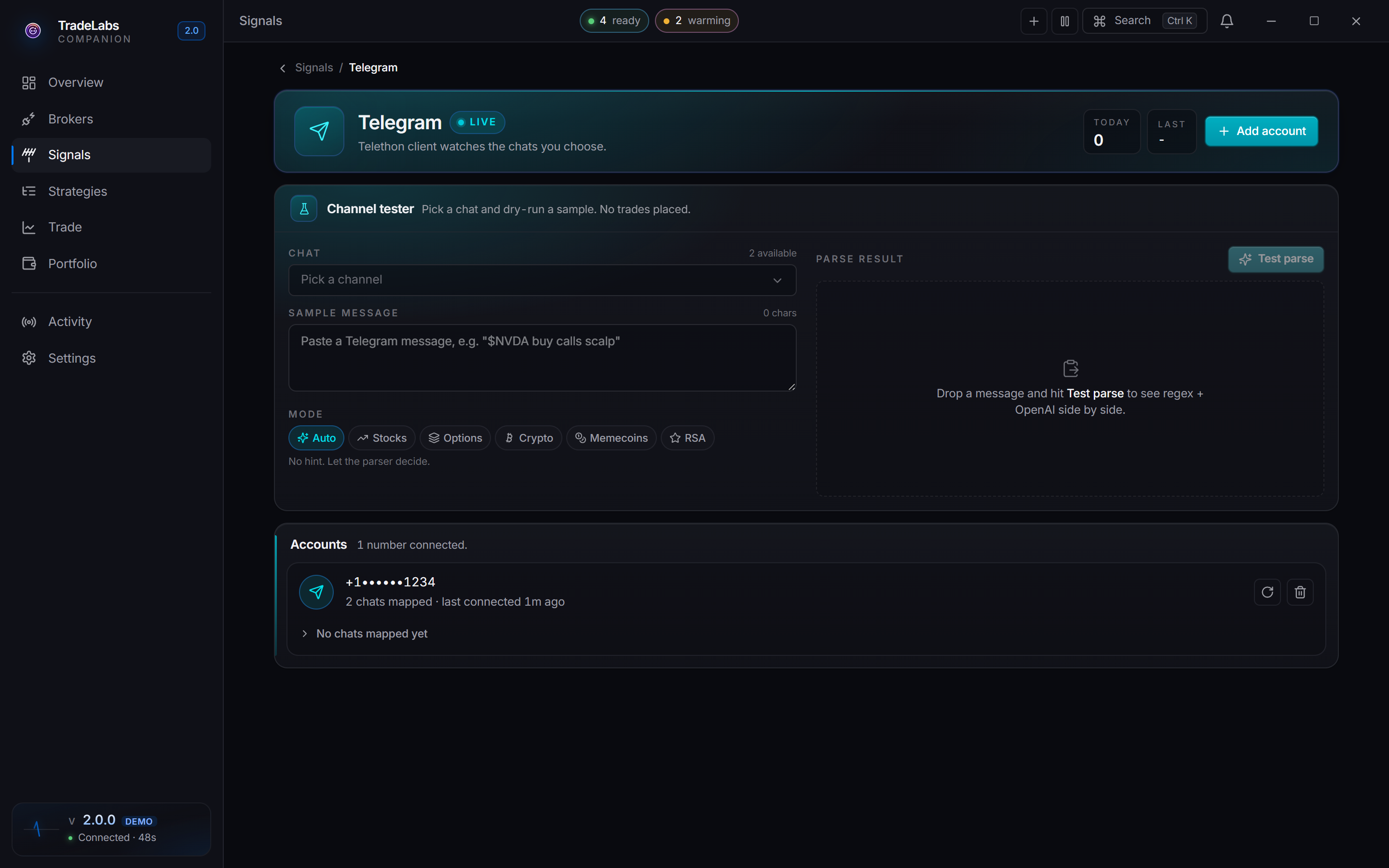
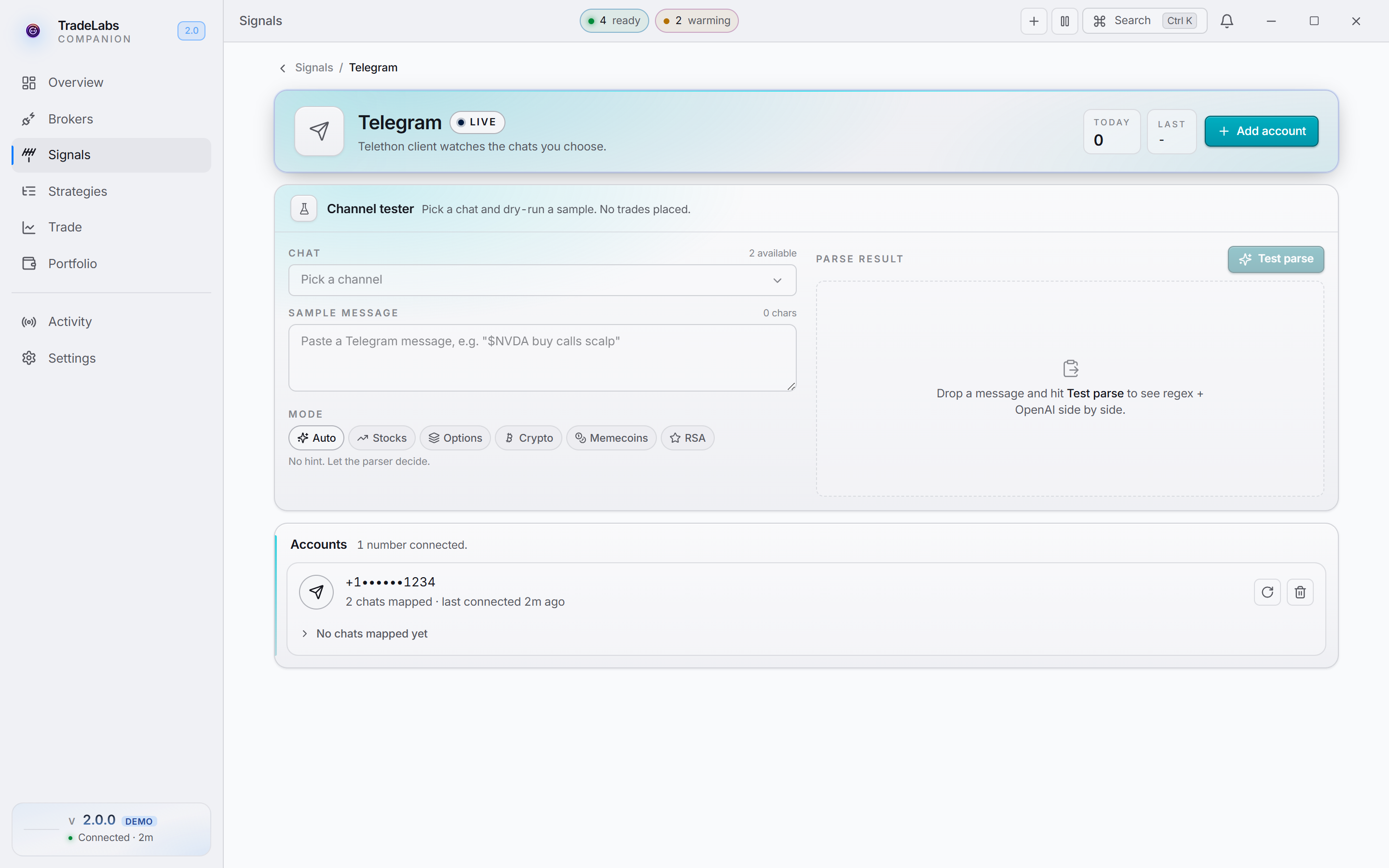
Full steps: Telegram strategies.
TradingView
Signs in to your TradingView account and reads the alerts already on it, flagging which ones are ready to fire. No webhooks to wire by hand.
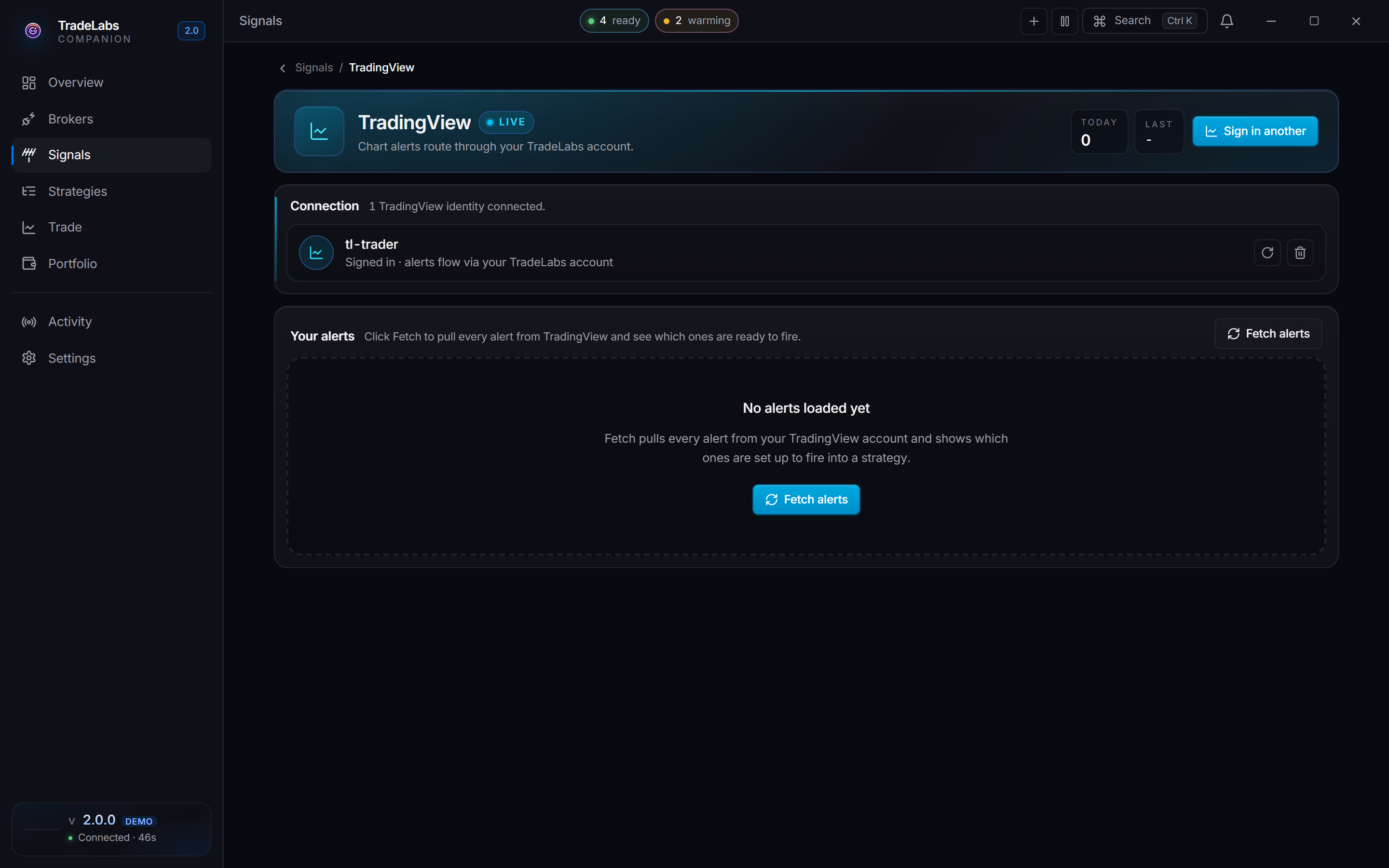
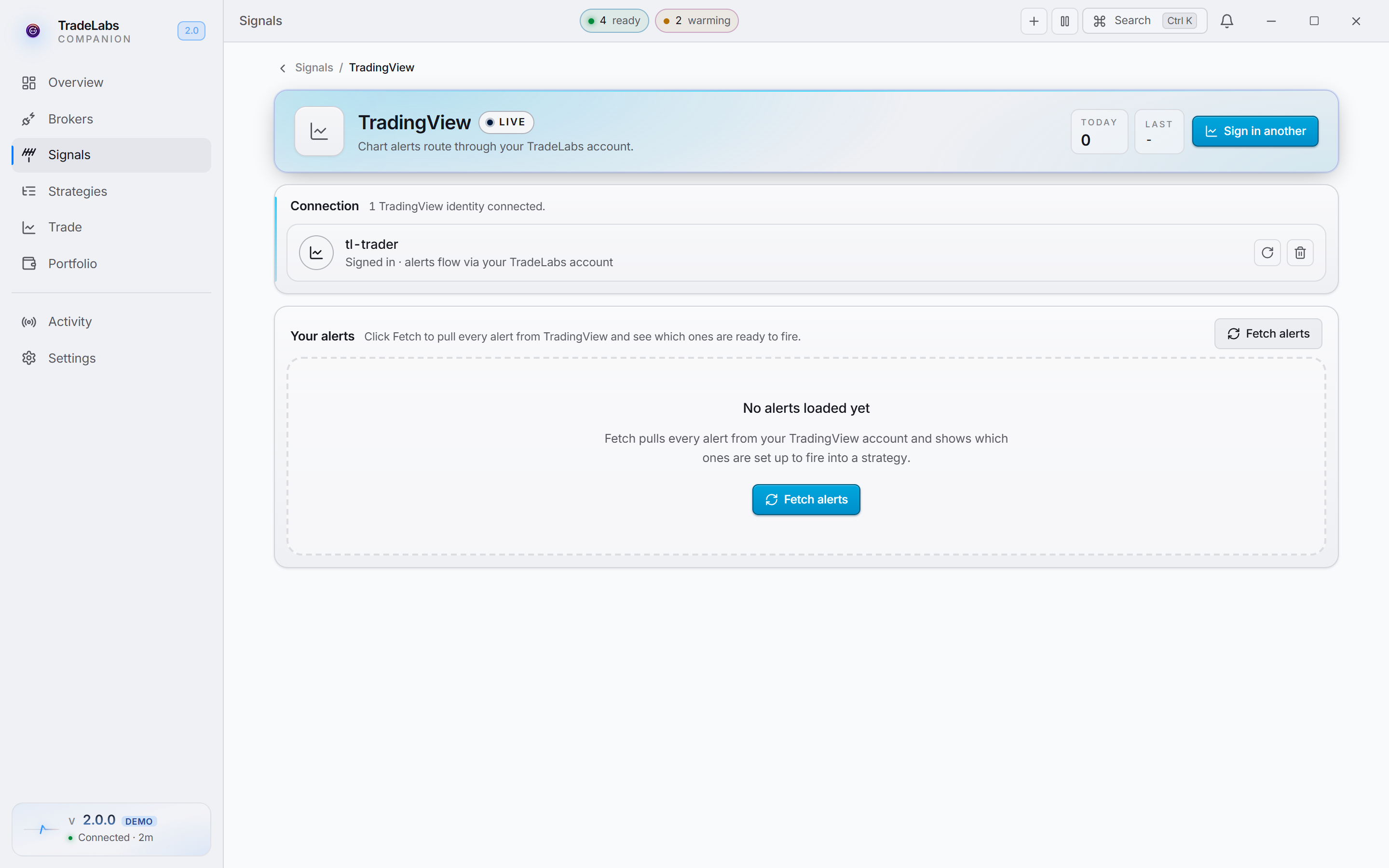
Full steps: TradingView strategies.
Server-side feed
One switch, no credentials.
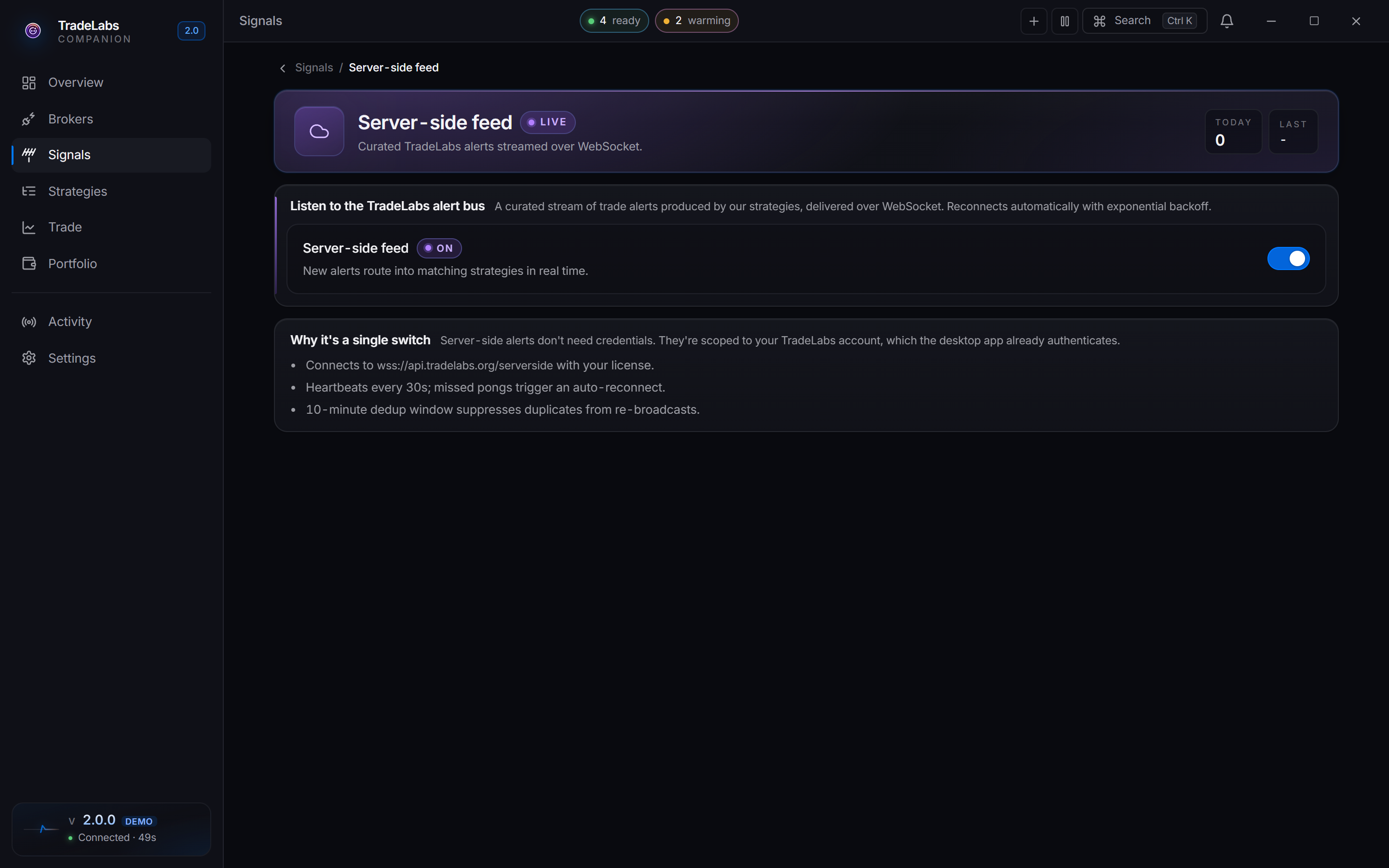
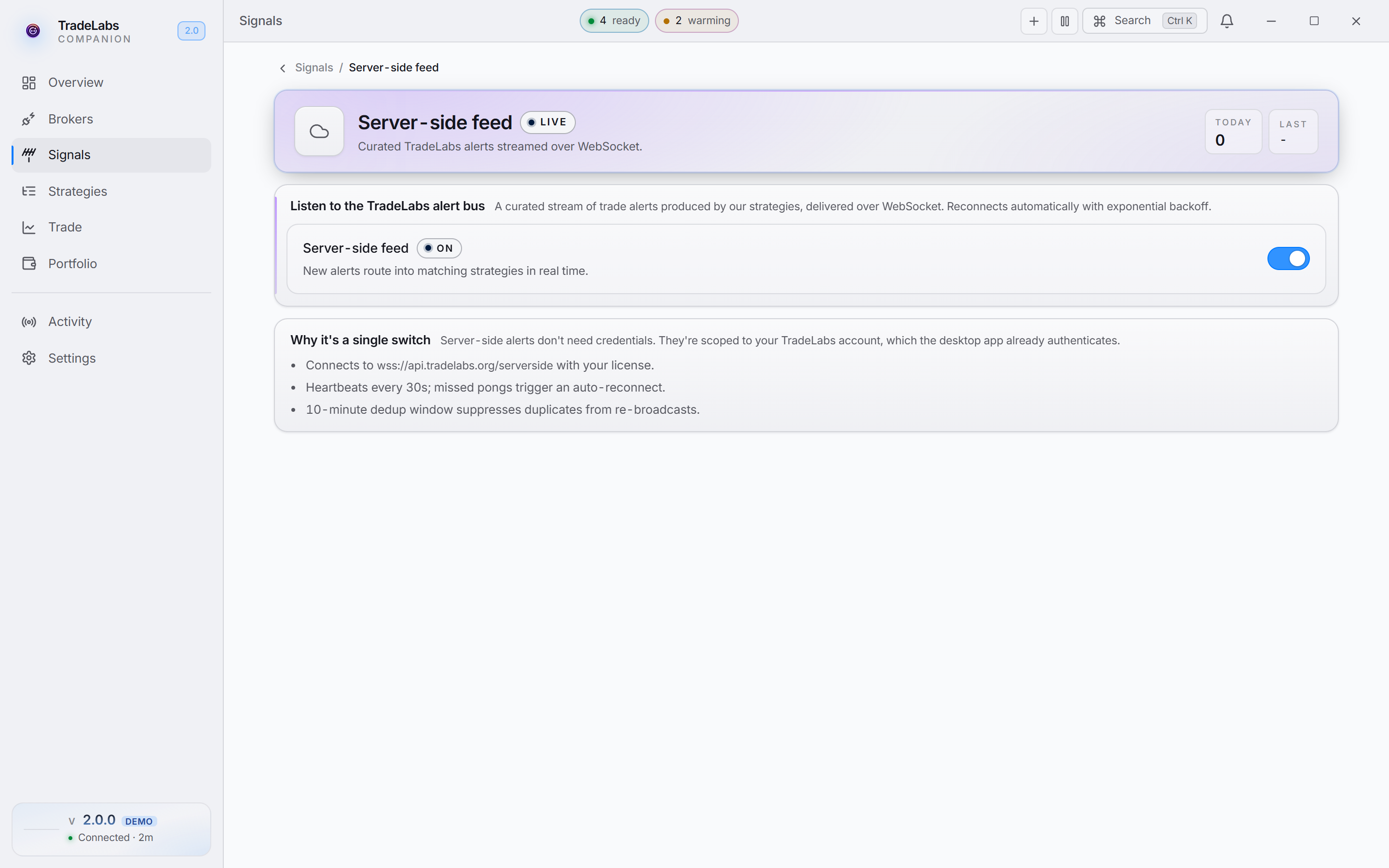
Full steps: Server-side strategies.