Copy Trading
Strategy Scheduling
Set the hours a strategy runs: pick a preset or a custom window, see the local-time preview, and pause a strategy automatically outside its hours.
Every strategy can run around the clock or only during set hours. The schedule lives on the strategy itself, so each one can keep its own window. Outside the window the strategy pauses on its own and picks back up when the window opens again.
Where the schedule lives
Open a strategy in the editor. In the header you get a small button showing the current schedule. When no schedule is set it reads Always on. When a schedule is set it shows a short summary like Market hours, Extended hours, or the custom times and timezone.
Click that button to open the schedule editor. The title reads When should this strategy run? with a reminder that the strategy pauses automatically outside the window.
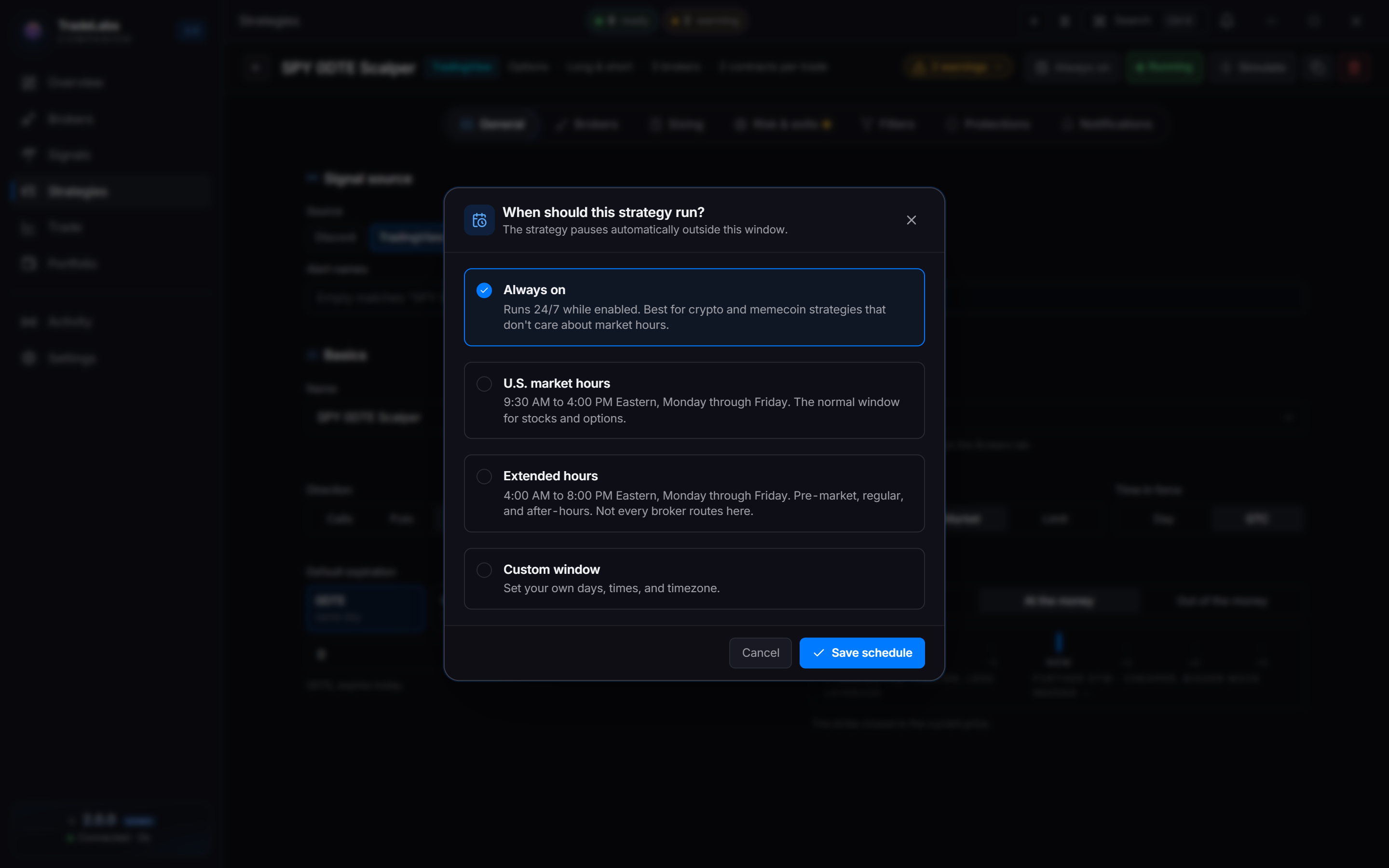
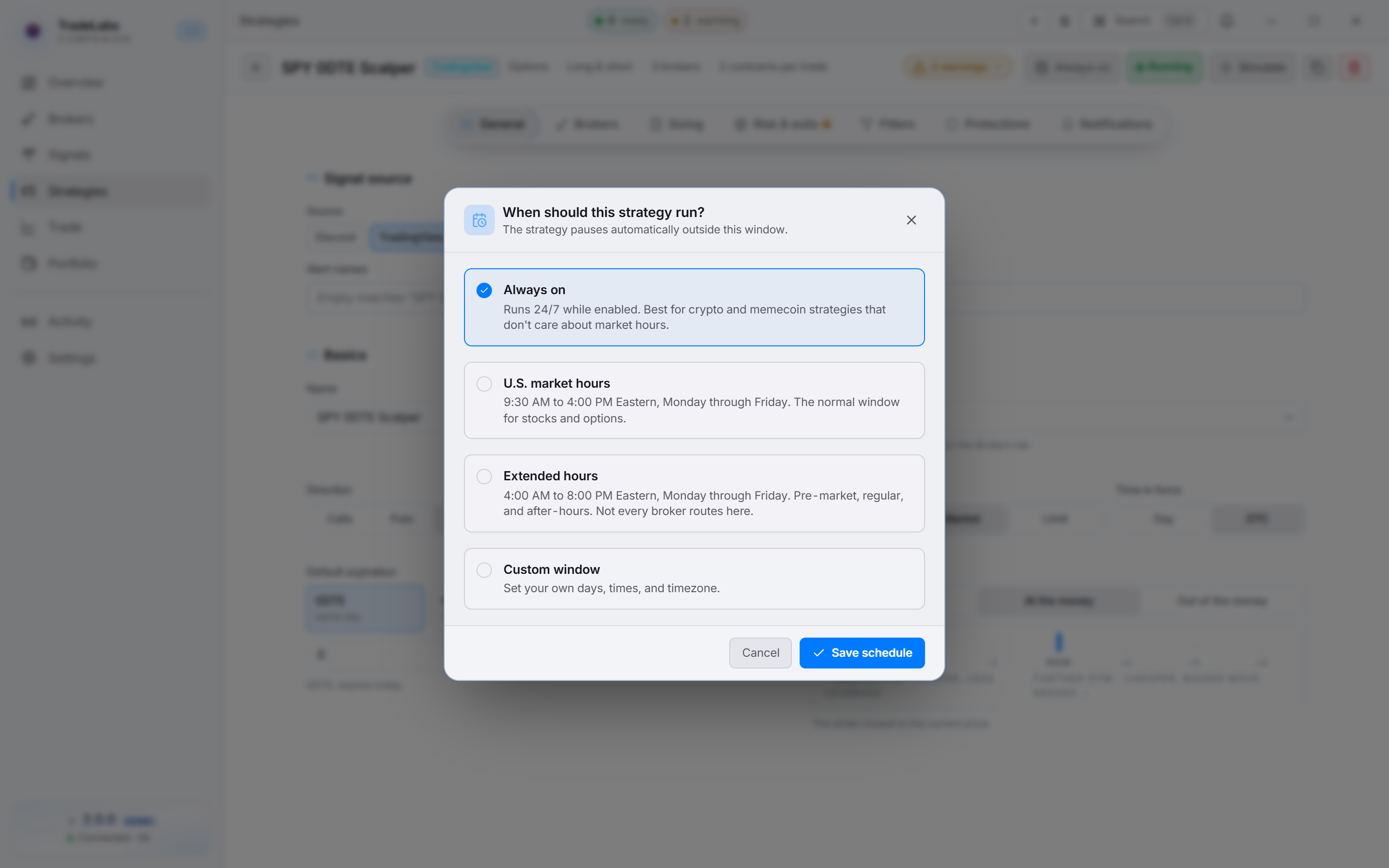 The schedule editor: pick a preset, or Custom window to set your own days, times, and timezone.
Pick a preset
The editor offers four choices. Pick one:
| Preset | What it means |
|---|---|
| Always on | Runs 24/7 while enabled. Best for crypto and memecoin strategies that do not care about market hours. |
| U.S. market hours | 9:30 AM to 4:00 PM Eastern, Monday through Friday. The normal window for stocks and options. |
| Extended hours | 4:00 AM to 8:00 PM Eastern, Monday through Friday. Pre-market, regular, and after-hours. |
| Custom window | Set your own days, times, and timezone. |
Extended hours covers pre-market, regular, and after-hours, but not every broker routes trades in those windows. Check your broker before you rely on it.
Build a custom window
Choose Custom window and the day and time controls appear below it.
- Days: a row of day buttons, Sun through Sat. Click each day you want the strategy to run. Selected days are highlighted.
- Start and Stop: the two time fields that set the daily open and close.
- Timezone: the dropdown that sets which clock the start and stop times follow. Options include America/New_York (ET, NYSE clock), America/Chicago (CT), America/Denver (MT), America/Los_Angeles (PT), Europe/London, Europe/Berlin, Asia/Tokyo, Asia/Hong_Kong, Asia/Singapore, Australia/Sydney, and UTC.
Next to the Timezone label there is a Use my local button. It fills in the timezone your computer is set to, so you do not have to hunt for it in the list.
Read the local-time preview
Whenever a schedule is set, a preview line appears under the presets. It restates the window in your own local time, so 9:30 ET reads as whatever that clock says where you are. When your local timezone already matches the one you picked, it simply confirms the start and stop times you entered.
The preview is the fastest check that a window is right. If the local times look wrong, the timezone is usually the reason.
Save or remove
- Click Save schedule to apply the window and close the editor.
- Click Cancel to close without changing anything.
- If the strategy already has a schedule, a Remove schedule button appears. Click it to clear the window and return the strategy to Always on.
Notes
- The schedule only decides when a strategy is allowed to act. A strategy still has to be active to trade during its window.
- Strategies are cloud-only, so sign in to load and edit them. See Copy Trading Setup.
- A broker showing Idle at night is normal and does not mean the schedule is broken. See broker health states in the app for what each state means.