TradingView Strategies
How TradingView Trading Works
Turn any TradingView alert into a stock, option or spread trade: how an alert reaches your strategy, how to create and name alerts, how to test, and what to check when nothing trades.
A TradingView alert says three things: the ticker, buy or sell, and the price. TradeLabs finds the strategy with the same name, and that strategy decides everything else: shares or options, which contract, how many, and when to get out.
What an alert can trade
The same alert can drive a stock, option or spread strategy. Only the strategy’s Instrument changes.
| Instrument | Buy alert | Sell alert | Guide |
|---|---|---|---|
| Stocks | Buys shares | Sells them | Stocks Strategy |
| Options | Buys a call | Closes it, or flips to a put (set by Direction) | Options Strategy |
| Spreads | Opens a bullish spread | Opens a bearish spread | Spreads Strategy |
Which brokers take which instrument is on Brokers & Compatibility.
Before you start: turn on 2FA in TradingView
TradingView only sends webhook alerts from accounts with two-factor authentication (2FA) on. Without it, your alerts fire in TradingView but never reach TradeLabs, and the Webhook check never turns Ready.
-
On tradingview.com, click your profile picture, then Settings and billing.
-
Open the Privacy and security tab.
-
Turn on Two-factor authentication and finish the setup with your authenticator app or SMS.
Do this once per TradingView account, before you prepare any alerts.
Step 1: Connect TradingView
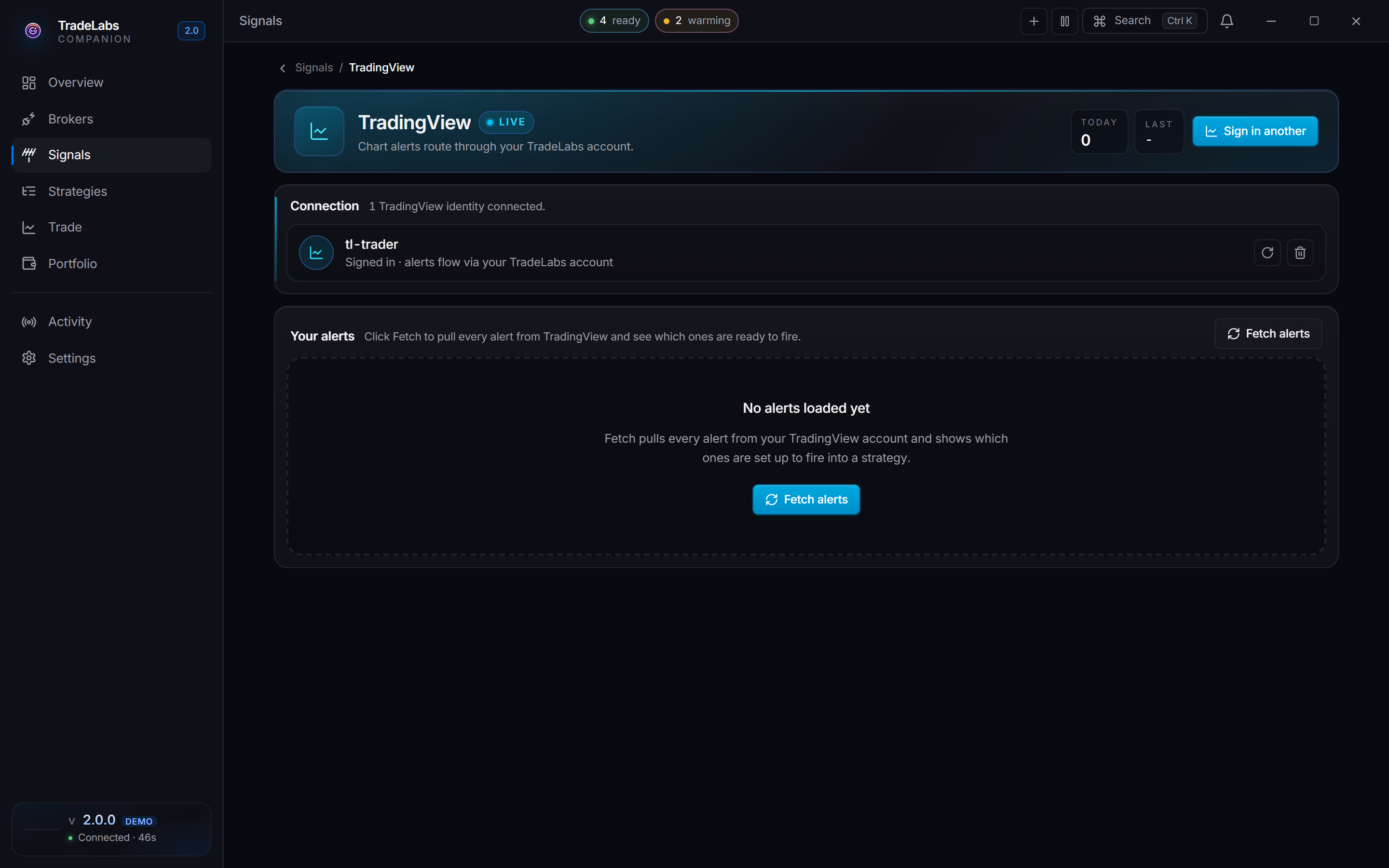
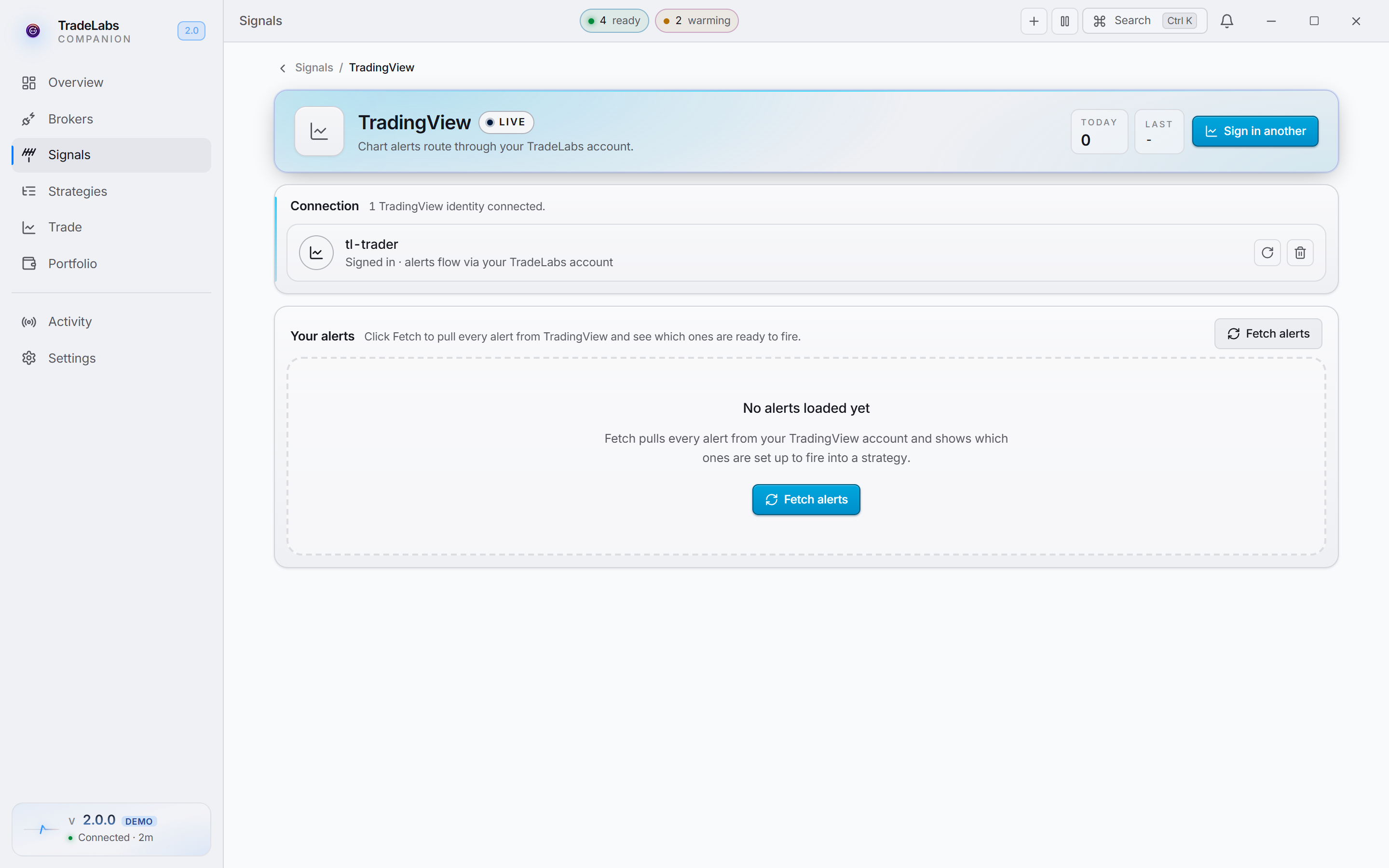
In the app, open Signals, choose the TradingView source, click Connect TradingView and sign in. If TradingView asks for a captcha or a 2FA code, use Or sign in manually in the browser. TradingView Signals has every detail.
Step 2: Create the alert in TradingView
Open the chart of the ticker you want to trade, then click Create Alert in the Alerts panel. You only set three fields.
Always use Once per bar close. An alert that fires mid-candle can repaint: the signal disappears when the candle closes, but the trade already happened.
Naming the alert
The alert name is how TradeLabs knows which strategy an alert belongs to.
- A strategy script sends buys and sells by itself. One alert, named exactly like your TradeLabs strategy.
- An indicator needs one alert per side. End the buy alert’s name with
indicator longand the sell alert’s withindicator short. - A crossover (EMA, SMA) needs one alert for the cross up and one for the cross down.
- A plain price alert works too. Name it like
SPY Buy Level indicator long. - Case does not matter. To route alerts with other names, list them in the strategy’s Alert names field, separated by commas.
Step 3: Prepare the alert in the app
Back in Signals, under TradingView, click Fetch alerts. Each alert is checked for Description, Expiration and Webhook. Click Auto-fix all and wait until every row says Ready. If Webhook will not fix, 2FA is off: see Before you start.
 A Ready alert shows the strategy it routes to. A row that still says Needs fix will not trade.
Step 4: Build the strategy
Follow the guide for what you want to trade: Stocks, Options or Spreads. Every guide starts the same way:

 Set Source to TradingView. Leave Alert names empty to match the strategy’s own name.
No AI key is needed. TradingView alerts are already structured, so there is nothing to read or interpret.
Step 5: Test it
-
Start with the smallest size, or a paper account.
-
Fire the alert once from TradingView.
-
Open Activity. You should see the alert arrive, the order go out, and the fill.
-
Check Positions. The trade shows with its stop and target.
When nothing trades
| What you see | Why | Fix |
|---|---|---|
| Webhook never turns Ready | 2FA is off on the TradingView account | Turn on two-factor authentication in TradingView, then Auto-fix all again |
| The alert never shows in Activity | The alert is not Ready, or TradingView is signed out | Fetch alerts, Auto-fix all, and check the sign-in under Signals |
| Arrives but no strategy picks it up | The name does not match | Rename the alert, or add its name to Alert names |
| Ticker is outside the strategy filter | The strategy’s Ticker list does not include it | Add the ticker, or use ALL |
| Nothing at all, strategy looks right | The strategy is switched off | Turn it on in Strategies |