Using the App
Manual trade
Place a trade by hand from the Trade page: fire one order across many accounts, build a basket, trade memecoins on Solana or Robinhood Chain, and schedule orders for later.
The Trade page is where you place an order by hand instead of waiting for a signal. Open it from the left rail. It has three modes, picked from the toggle in the top right: Stocks, Basket, and Memecoins.
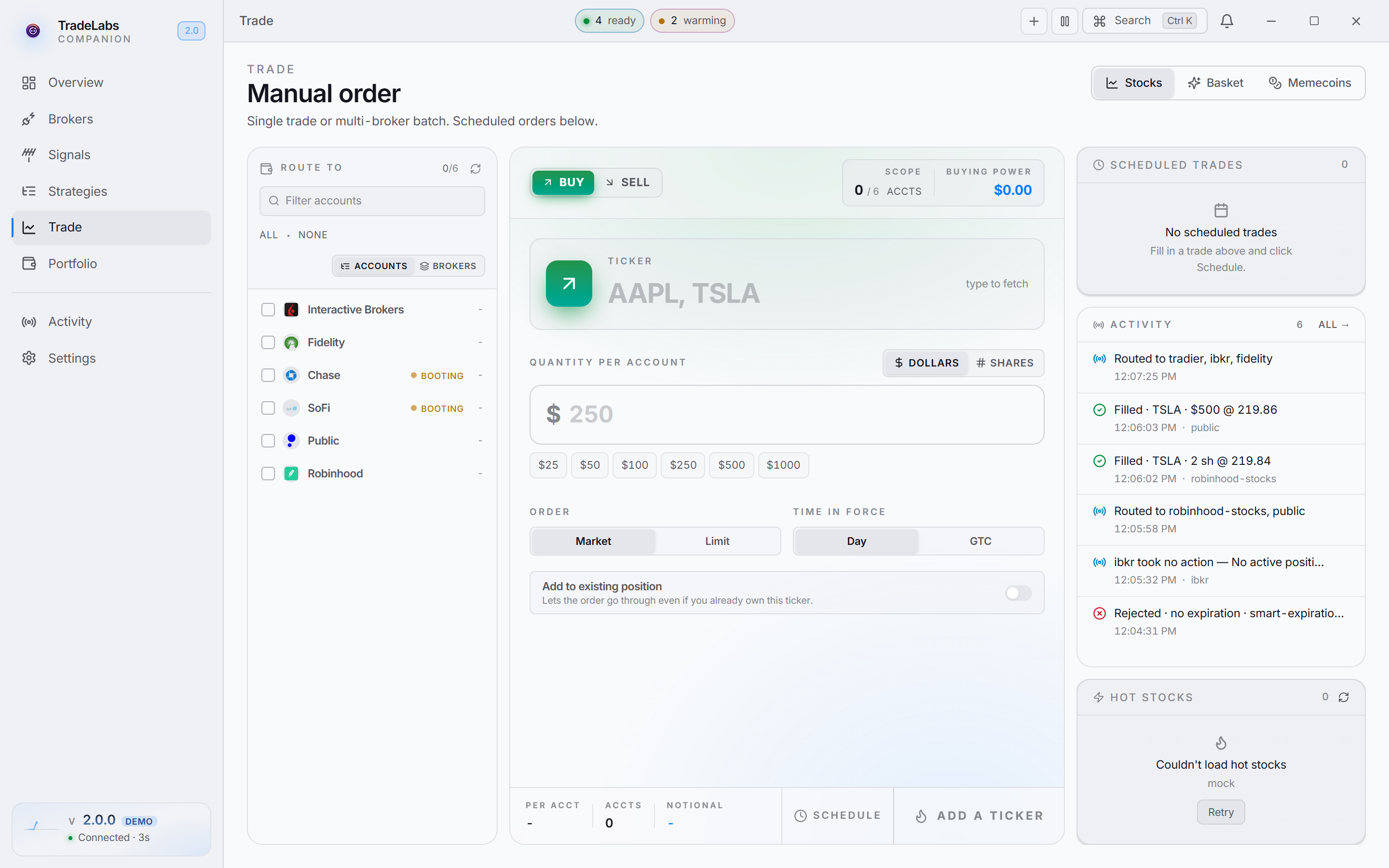 The Trade page in Stocks mode. Pick accounts on the left, set the order in the middle.
Stocks
The default mode. The header reads Manual order. You set up one order and fire it into as many accounts as you choose.
Pick where it goes
The left panel is titled Route to. It lists every account on brokers that trade stocks.
- Click an account to select it. The count at the top shows how many of your accounts are picked.
- Use All or None to select or clear everything at once.
- Type in Filter accounts to narrow the list by broker, login, or account name.
- The view switch flips between Accounts (the full account tree) and Brokers (one row per broker, so clicking it picks every account under that broker).
- The refresh button reloads the account list if a broker just finished signing in.
A broker row can show its own status next to the name: Booting while a browser broker is warming up, Offline if it is broken, or Retry if its account list failed to load.
Set the order
In the middle panel:
- Choose Buy or Sell at the top.
- Type the Ticker. You can enter several at once, separated by a comma or space (for example
AAPL, TSLA), and the same order fires into each symbol. - Set Quantity per account. Switch between Dollars and Shares with the toggle, or tap a preset amount.
- Under Order, pick Market or Limit. Limit shows a Limit price field.
- Under Time in force, pick Day or GTC.
On a buy you also get an Add to existing position toggle. Most brokers refuse a buy when you already hold the symbol. Turn this on when you actually want to add to a position, such as averaging down.
A limit order works on one symbol at a time. If you enter more than one ticker, the order stays on Market.
Fire it
The bottom bar shows the per-account amount, the number of accounts, and the total notional. Click the BUY or SELL button to send the order. You can also press the keyboard shortcut shown in the button.
The order goes out to each account in turn. When every account fills you see a confirmation toast. When a broker only queues the order (some browser brokers do), the toast says Submitted and the fill lands later in Activity.
The right rail
Three cards sit on the right:
- Scheduled trades lists orders waiting to fire and any scheduled strategies.
- Activity shows trades in flight and recent fills, with an All link to the full Activity page.
- Hot stocks is a quick-pick list. Click a ticker to drop it into the order form.
Schedule an order for later
Fill in the order first, then click Schedule in the bottom bar. That opens the Schedule trade dialog.
- Use a quick pick (+15m, +1h, +4h, Tomorrow 9:30) or set the Date and Time by hand.
- The dialog confirms when the order will fire.
Scheduled trades only fire while the app is running. Leave the Companion open until the order goes out.
Scheduled orders appear in the Scheduled trades card, counting down to the fire time. Cancel a pending one with the X on its row.
Basket
Switch to Basket to buy or sell a list of tickers at once, with per-account amounts on each line.
- Type a symbol in Add ticker and press Enter, or tap one of the quick tickers next to the field. Each ticker becomes its own line.
- On a line, set $ each for the default dollar amount, then click Pick accounts to choose which accounts that line fires into.
- In the picker, select accounts (with All / None and a filter), then click Confirm. Picked accounts show as pills with editable amounts.
Each line is independent. It has its own ticker, its own accounts, and its own side. Click the buy/sell button on a line to flip it. Use Duplicate line to copy a line, Same as above to reuse the previous line’s accounts, and Remove line to delete it. Clear empties the whole basket.
The header shows Lines, Accounts, and Notional. When any line is a buy, the Add to existing positions toggle appears. Click the fire bar to send the basket.
Memecoins
Switch to Memecoins to trade memecoins on Solana or Robinhood Chain. The header reads Memecoin swap.
Pick the chain with the switch at the top of the card: Solana or Robinhood Chain. The app remembers your last pick. When you paste a coin address, the switch moves to the chain that address belongs to.
Solana
You need a Solana wallet connected. If none is set up, the card shows No Solana wallet connected and points you to the Brokers page.
The swap card has two tiles, You pay and You receive, with a flip button between them.
- Choose Buy or Sell.
- Paste the token’s SPL mint address into the token field.
- Enter the amount. On the SOL side you can tap Max or a quick amount.
A live quote strip shows the route, price impact, and SOL price once you enter a token and an amount. Below it are pill controls:
- Route: Auto, Raydium, or Jupiter.
- Slippage: pick a preset percent or type your own.
- Priority: the priority fee tier (Med, High, Extreme), with live values from the network when available.
The Advanced button opens more controls:
- Network fee: Medium, High, Extreme, or Custom.
- Stop loss: sell if the price drops by the percent you set.
- Take profit: sell if the price rises by the percent you set.
Click the fire bar to submit the swap. Your token holdings show in the Holdings card on the right. Click a held token to set up a sell for it.
Robinhood Chain
You need a Robinhood Chain wallet connected on the Brokers page. See Robinhood Chain.
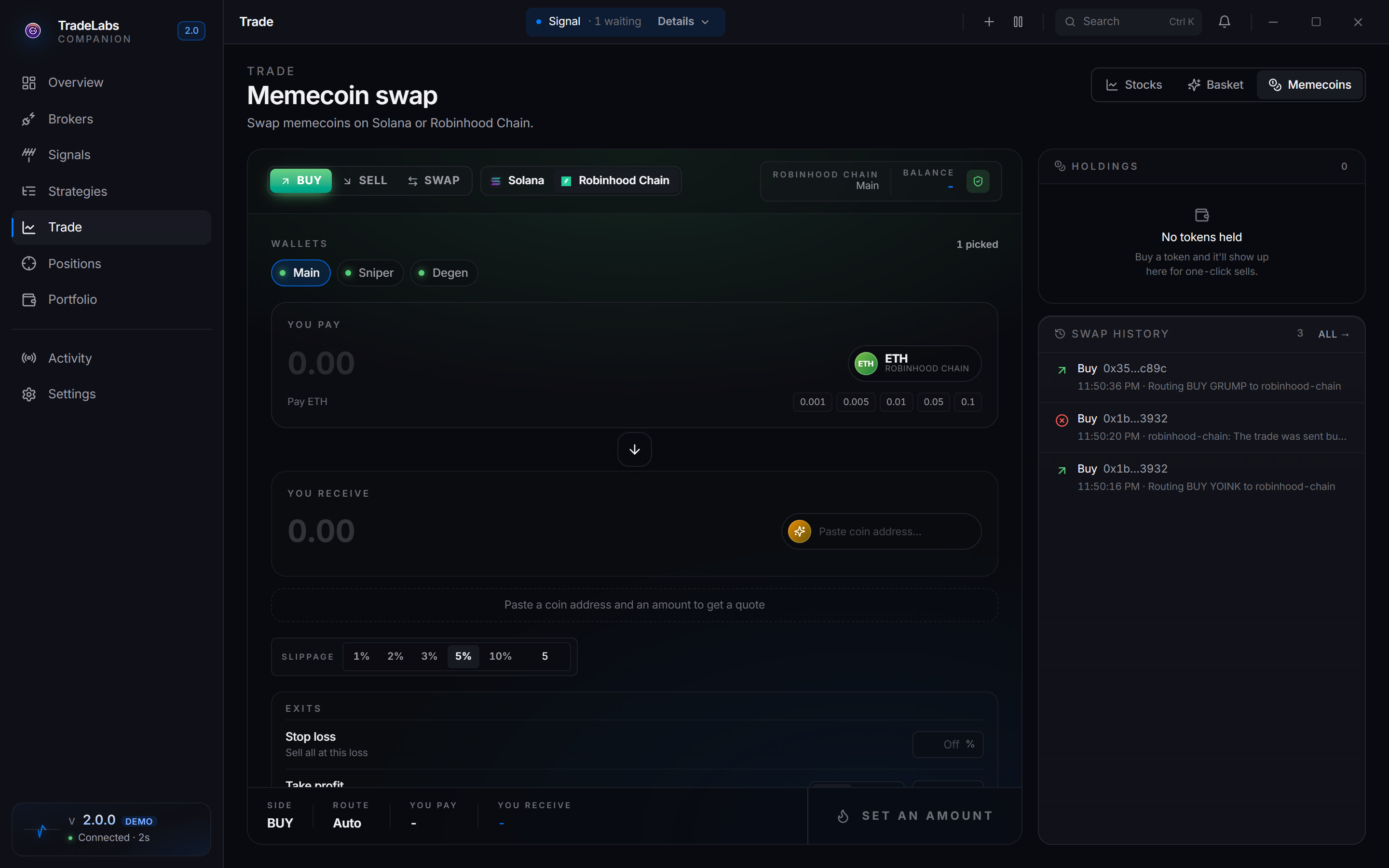
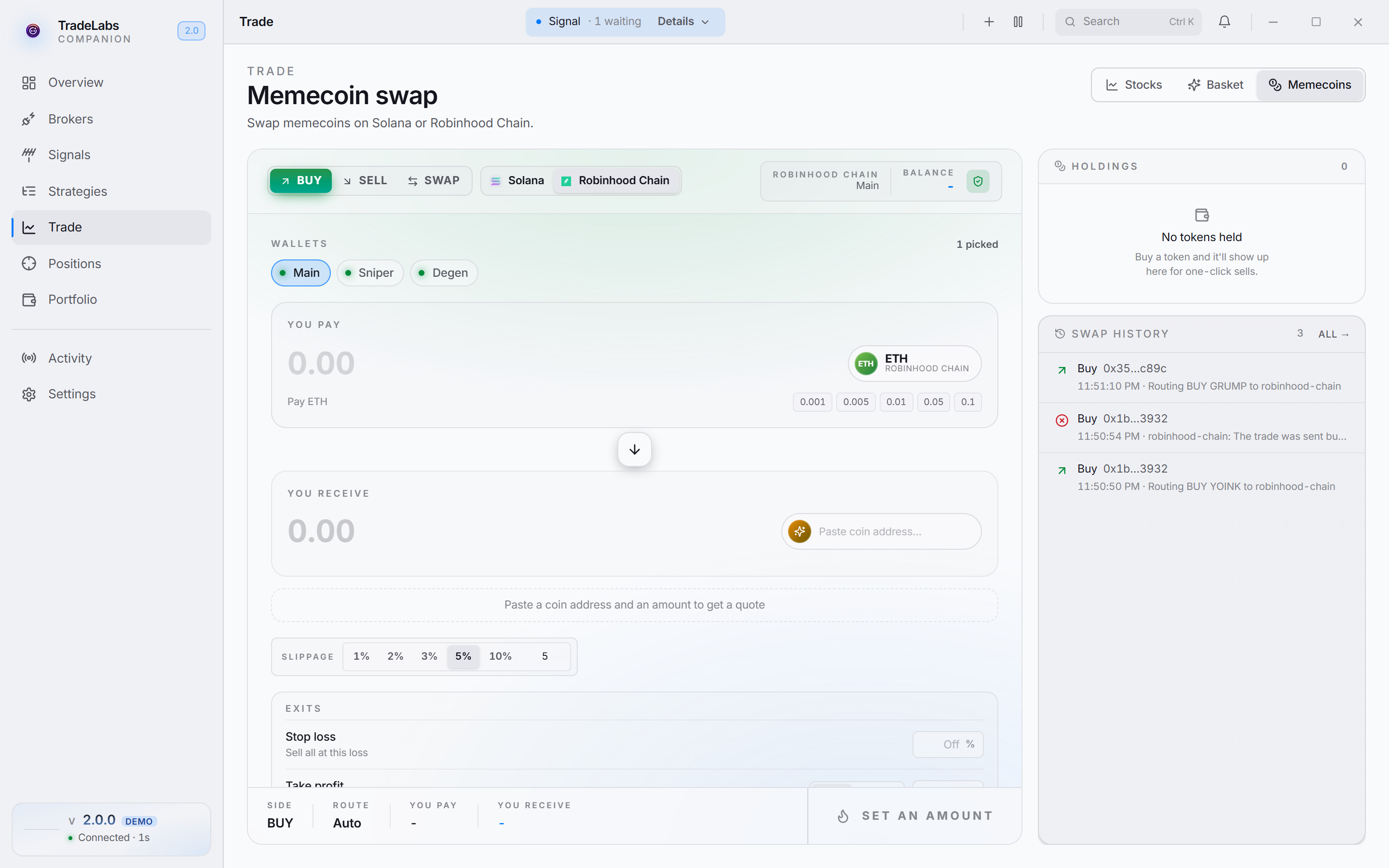 Robinhood Chain in Memecoins mode: Buy, Sell and Swap, the chain switch, and the wallet chips.
On Robinhood Chain the card has three tabs: Buy, Sell, and Swap.
To buy or sell a coin:
- Choose Buy or Sell.
- Under Wallets, click each wallet you want to use. With more than one wallet picked, the amount is per wallet.
- On a buy, enter the ETH to spend. Tap a quick amount (0.001, 0.005, 0.01, 0.05 or 0.1 ETH) or type your own.
- Paste the coin address. A Robinhood Chain coin address is
0xfollowed by 40 characters. - Read the quote strip: Route (Launch curve or Uniswap pool), At least (the least you get after slippage), and Quote age. The app shows about how much ETH amounts are worth in dollars.
- Set Slippage with a preset (1%, 2%, 3%, 5%, 10%) or your own value.
- Click the button at the bottom of the card.
If a coin launched seconds ago, the quote shows its Launch tax and whether the buy waits or buys now. Pick Max launch tax next to slippage: 1%, 5%, 25% or your own value. The buy waits up to 6 seconds for the tax to fall to it.
On a buy, the Exits section sets automatic exits for the coins you buy:
- Stop loss: sell all at this loss.
- Take profit: sell all at one target, or sell in steps.
- Trailing stop: follow the price up and sell when it falls back by the percent you set. Leave the start empty to trail right away.
- Secure initial investment: at the gain you set, sell enough to take out what you paid.
The broker watches these exits the same way it watches a strategy’s exits. Keep the app running, or the exits do not run.
Test with a tiny trade
Before a strategy spends anything, check that a buy and a sell work. Use the smallest amount.
- Choose Robinhood Chain in the chain switch and click the Buy tab.
- Under Wallets, click the wallet to use.
- In You pay, tap 0.001.
- In You receive, paste the coin address.
- Read the quote strip, leave Slippage at 5%, then click the button at the bottom of the card.
- When the buy fills, click the Sell tab, paste the same coin address, enter the coin amount, and sell.
If the quote shows “No quote available”, read the reason under it.
The Swap tab moves ETH onto Robinhood Chain and swaps tokens inside it.
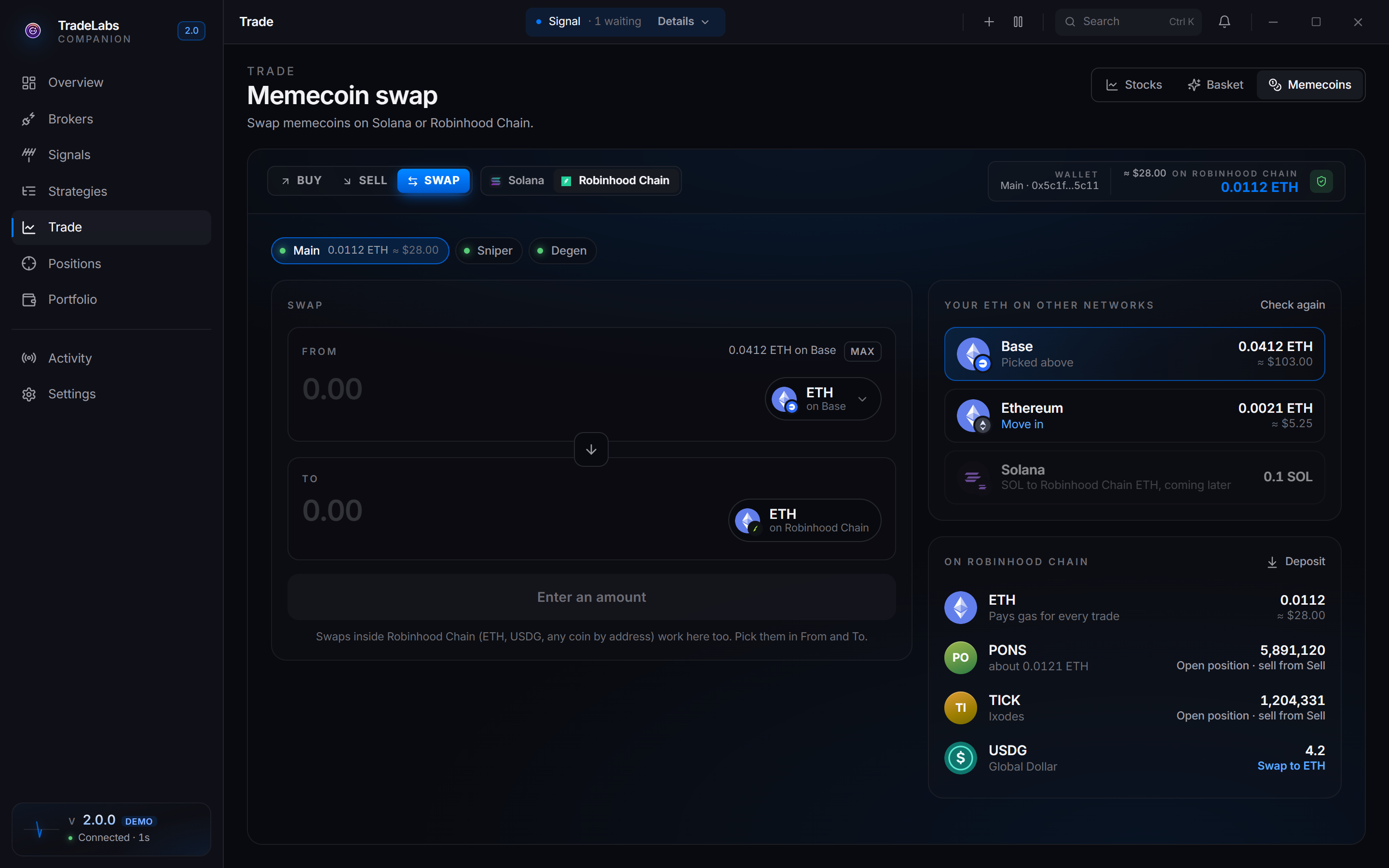
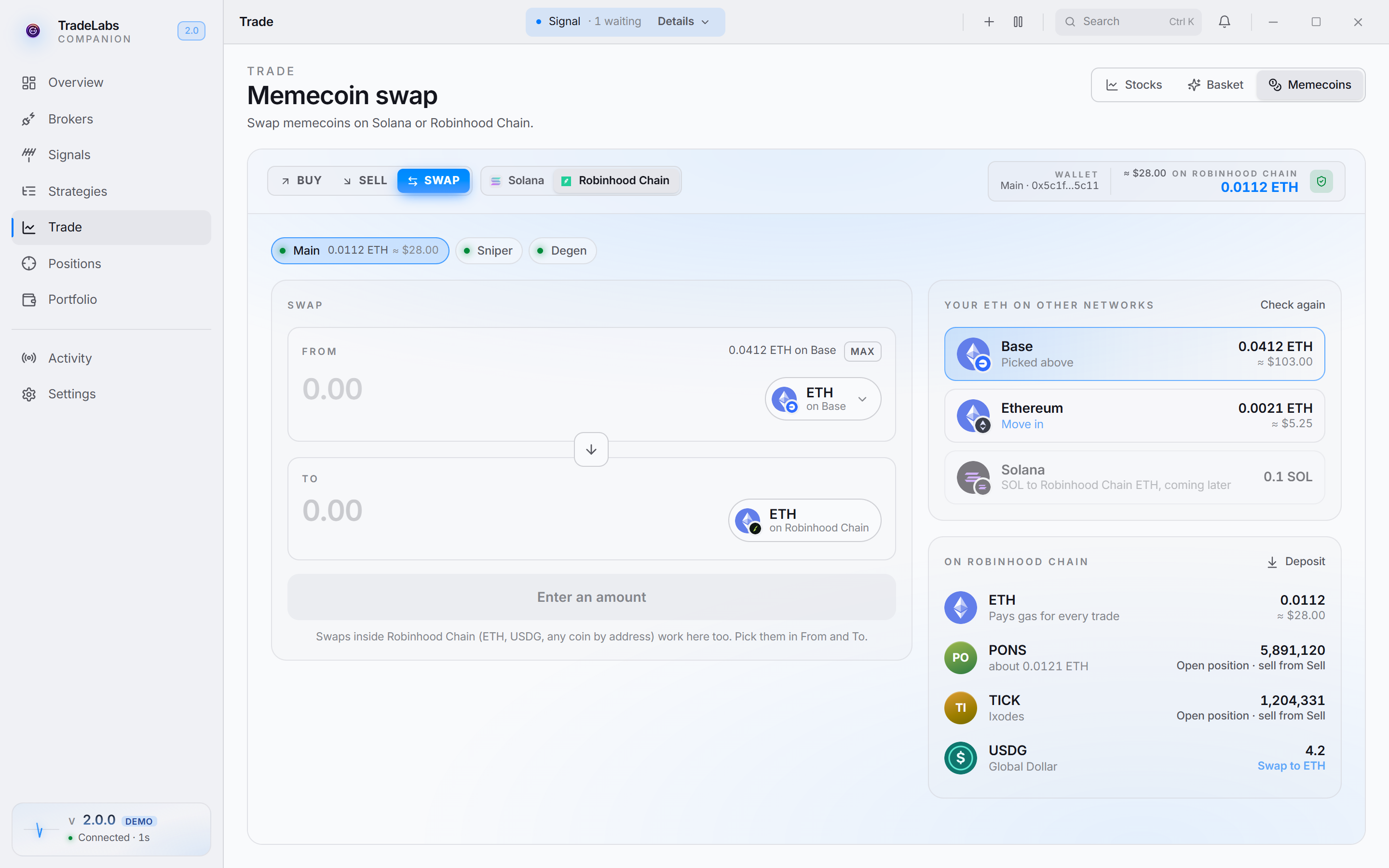 The Swap tab: the swap box, your ETH on other networks, and what the wallet holds on Robinhood Chain.
- Swap swaps between ETH, USDG, coins the wallet holds, or any coin you paste by address. Pick them in From and To.
- Your ETH on other networks lists ETH the same address holds on Base, Ethereum or Arbitrum. Click Move in to fill the swap box with it, enter the amount or click MAX, and send it. The move goes through the Relay bridge. The app refuses a move under 0.001 ETH, or when the bridge fee is over 2% of the amount or over $1.
- On Robinhood Chain lists ETH, USDG and the coins in the wallet. Swap to ETH swaps a token back to ETH. A coin with an open position says to sell it from the Sell tab. Deposit shows the wallet address.
- Recent moves and swaps lists each move and swap with its status.
A wallet with no ETH anywhere shows Get ETH onto Robinhood Chain instead. To fund the wallet, see Fund the wallet with ETH.