Reference
Create an AI key
Create an OpenAI or Google Gemini API key and add it to the Signal Parser tab so the app can read Discord and Telegram trade calls.
An AI key lets the app read plain-English trade calls from Discord and Telegram and turn them into orders. You add the key in the Signal Parser tab of Settings. The app works with either OpenAI or Google Gemini, and you only need one.
You only need an AI key for Discord and Telegram strategies. TradingView and serverside strategies send structured data, so they parse without a key.
Create an OpenAI key
-
Go to platform.openai.com and sign in, or create an account and verify your email.
-
Open the API keys page and click Create new secret key. Set permissions to All.
-
Copy the key the moment it appears. It starts with
sk-and is shown only once, so store it somewhere safe.
The whole flow: sign in, open API keys, create a secret key, and copy it once.
An OpenAI key needs at least a small balance on your OpenAI account before it will work. Add credit in the billing section if the test call fails with a quota error.
Add the key in the app
-
Open Settings from the sidebar, then select the Signal Parser tab.
-
Leave Provider set to OpenAI. Paste your key into the OpenAI API key field (it starts with
sk-). -
Click Save. You see an OpenAI key saved confirmation, and the key is stored securely on your device.
-
Click Test. A Test result row pings the provider and, on success, shows Connected with the model it reached, the tokens used, and the tiny cost of the test call.
-
In the Model row, pick a model. gpt-4o-mini is marked Recommended: it is the cheapest option that handles signal parsing well.
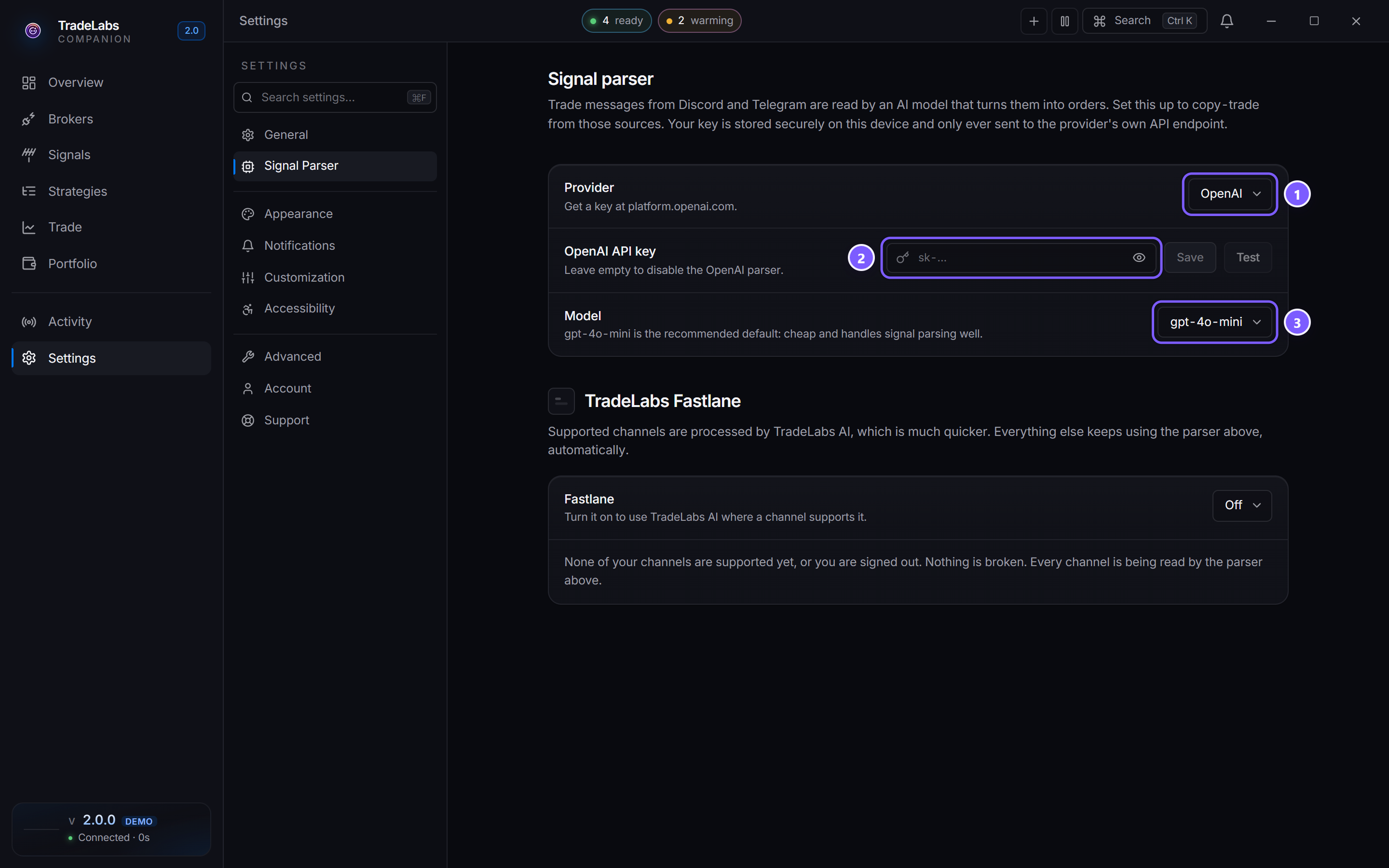
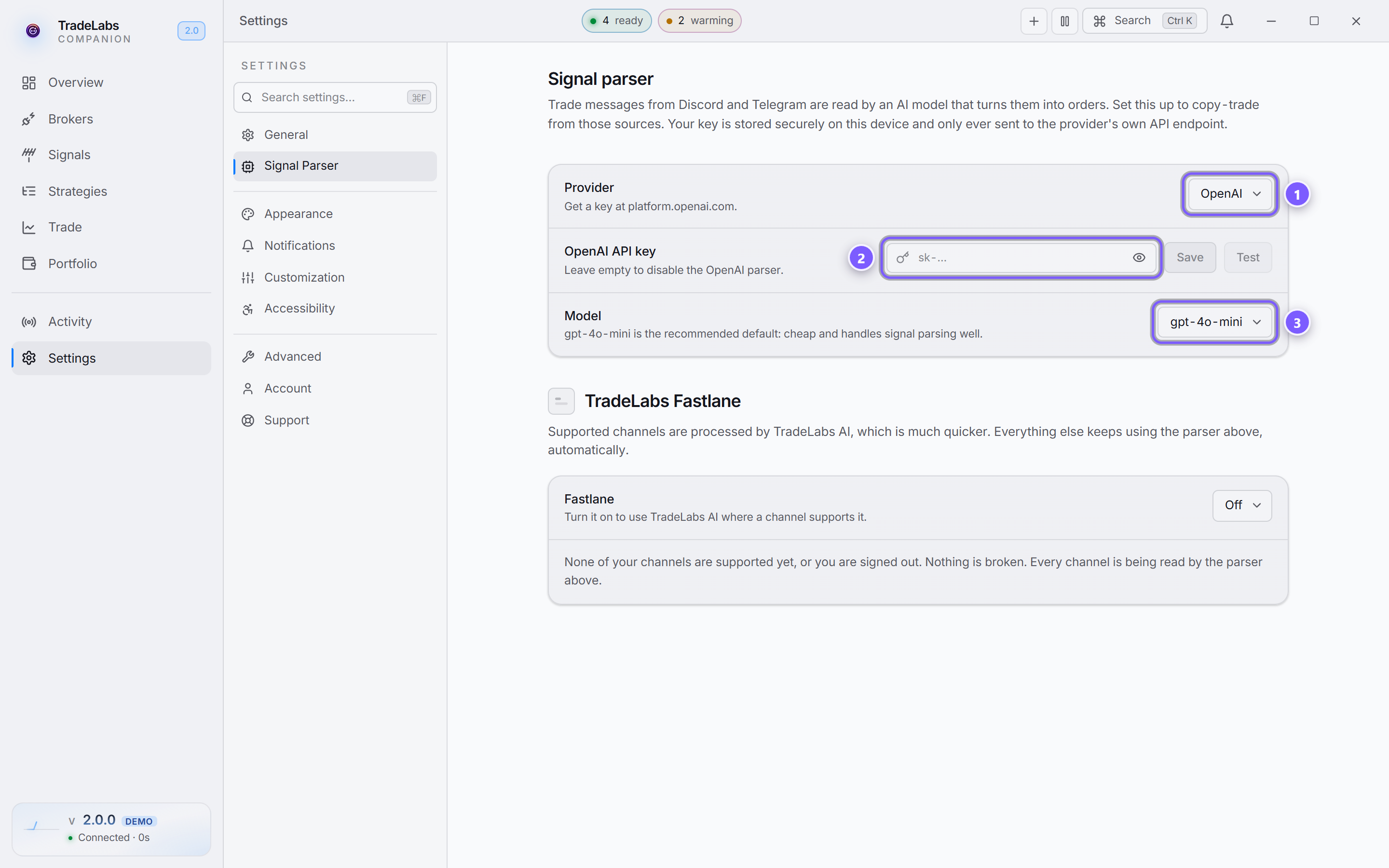
- Provider — OpenAI or Google Gemini.
- API key — paste it here, then Save. Test confirms it works before you rely on it.
- Model — gpt-4o-mini is the recommended default.
Use Google Gemini instead
The app also parses with Google Gemini. To use it, get a key at aistudio.google.com, then in the same Signal Parser tab:
-
Change Provider to Google Gemini.
-
Paste your Gemini key into the Gemini API key field. It starts with
AIza. -
Click Save, then Test.
-
In the Model row, pick a model. gemini-2.5-flash-lite is marked Recommended.
The provider and key are per provider. If you save an OpenAI key and a Gemini key, switching Provider brings back whichever key you saved for that provider. The parser uses the provider currently selected.
Fixing common problems
- Test shows an error: re-check that you pasted the full key with no extra spaces, and that it matches the selected provider (
sk-for OpenAI,AIzafor Gemini). - Quota or billing error: add credit to your OpenAI or Google account, then click Test again.
- Discord or Telegram calls are not turning into trades: confirm a key is saved for the selected provider. Without a key here, those messages are not parsed at all.