Using the App
The App, Day to Day
The screens you use once strategies are live: Overview, Activity, Brokers, Portfolio, manual Trade, and the token swap.
The Companion App does the real work. It holds your broker sessions, watches your signal sources, and places every trade. It has to be running on a computer that is on and online.
This page covers the screens you live in once you are set up: Overview, Brokers, Signals, Strategies, Trade, Portfolio, Activity, and Settings.
Overview
The landing page, and the answer to “is my bot actually working?” Everything on it is live. You never refresh it.
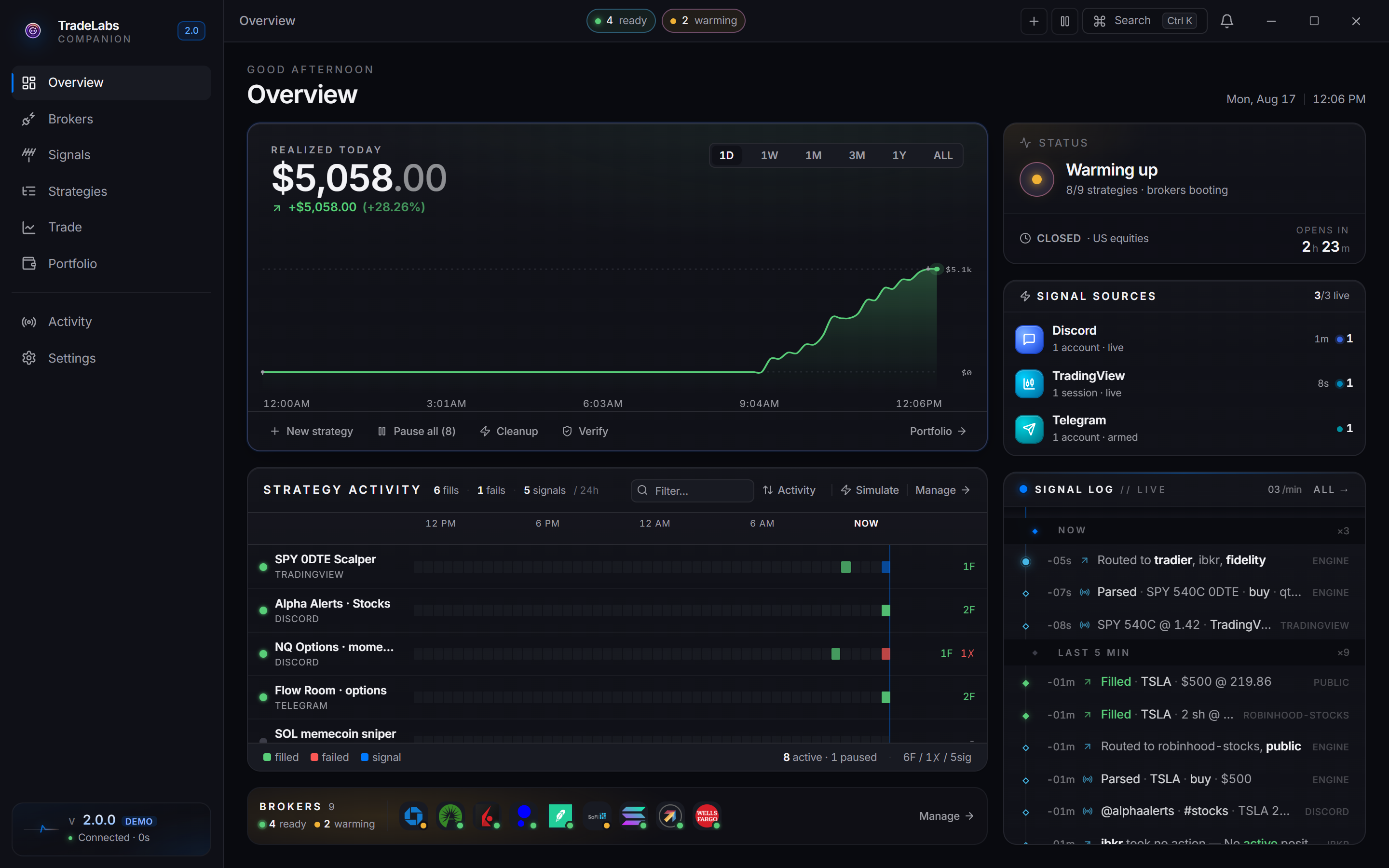
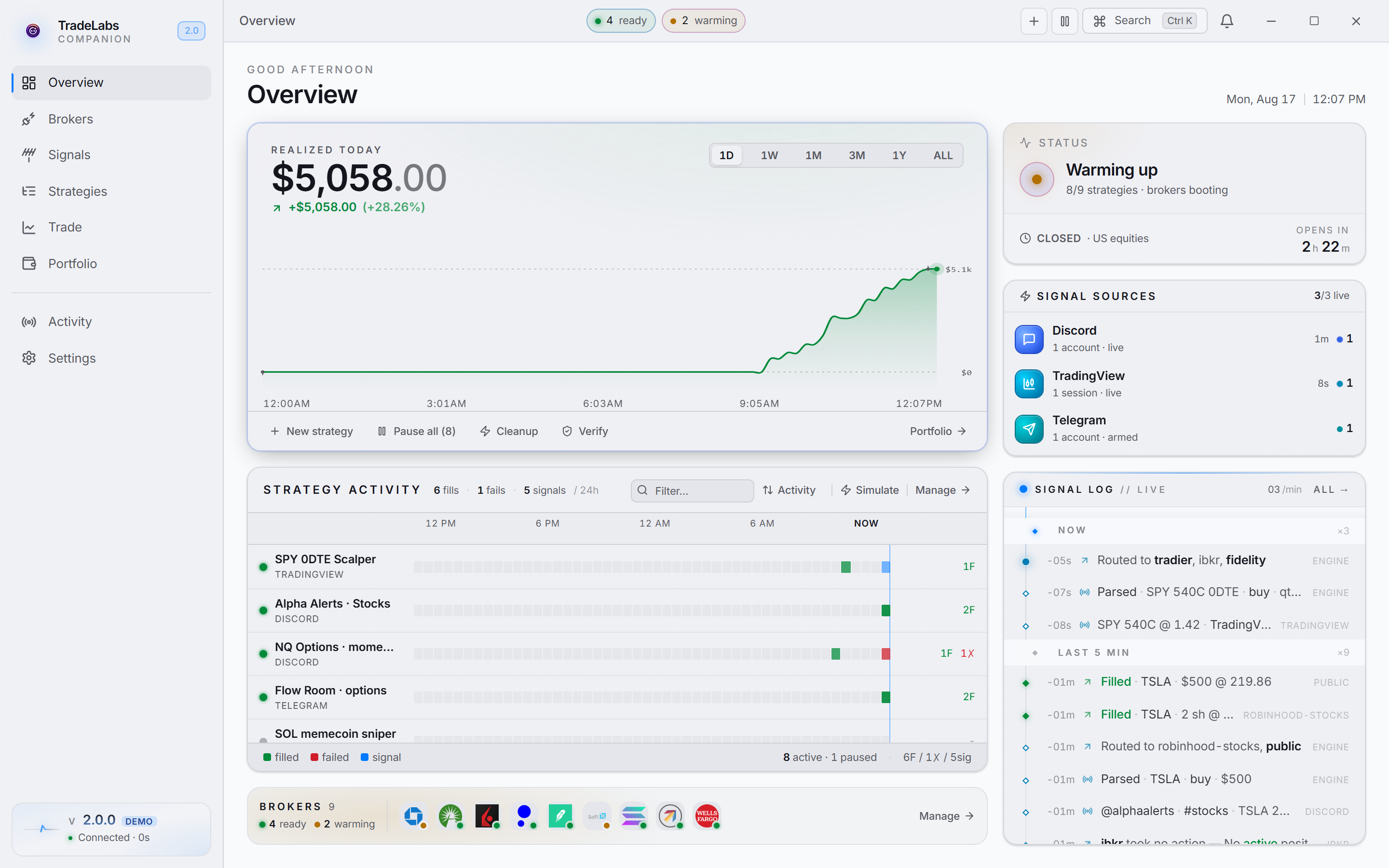 The Overview page and its widgets
- P&L hero. Realized profit and loss shown large, with range tabs and a cumulative chart. It counts closed round-trip trades only, so the 1D headline reads “Realized today”. A footer holds New strategy, Pause all, Cleanup, and Verify.
- Strategy Activity. A 24-hour heatmap, one row per strategy, with cells for fills, failures and signals, and a now line on the right edge.
- Brokers. A compact dock of every broker with its state dot.
- Signal Sources. Connection state for Discord, TradingView and Telegram.
- Signal Log. A short live feed of the latest signals, fills and errors.
- Status. Strategies running, plus a market clock.
If a broker gets stuck in a crash loop, a banner appears at the top with Open Brokers and Logs. Arrange the widgets from the Customization tab in Settings.
Activity
The Activity page is the full searchable history of everything the app has done: every signal received, every order placed, every state change between. Its heading is Event stream.
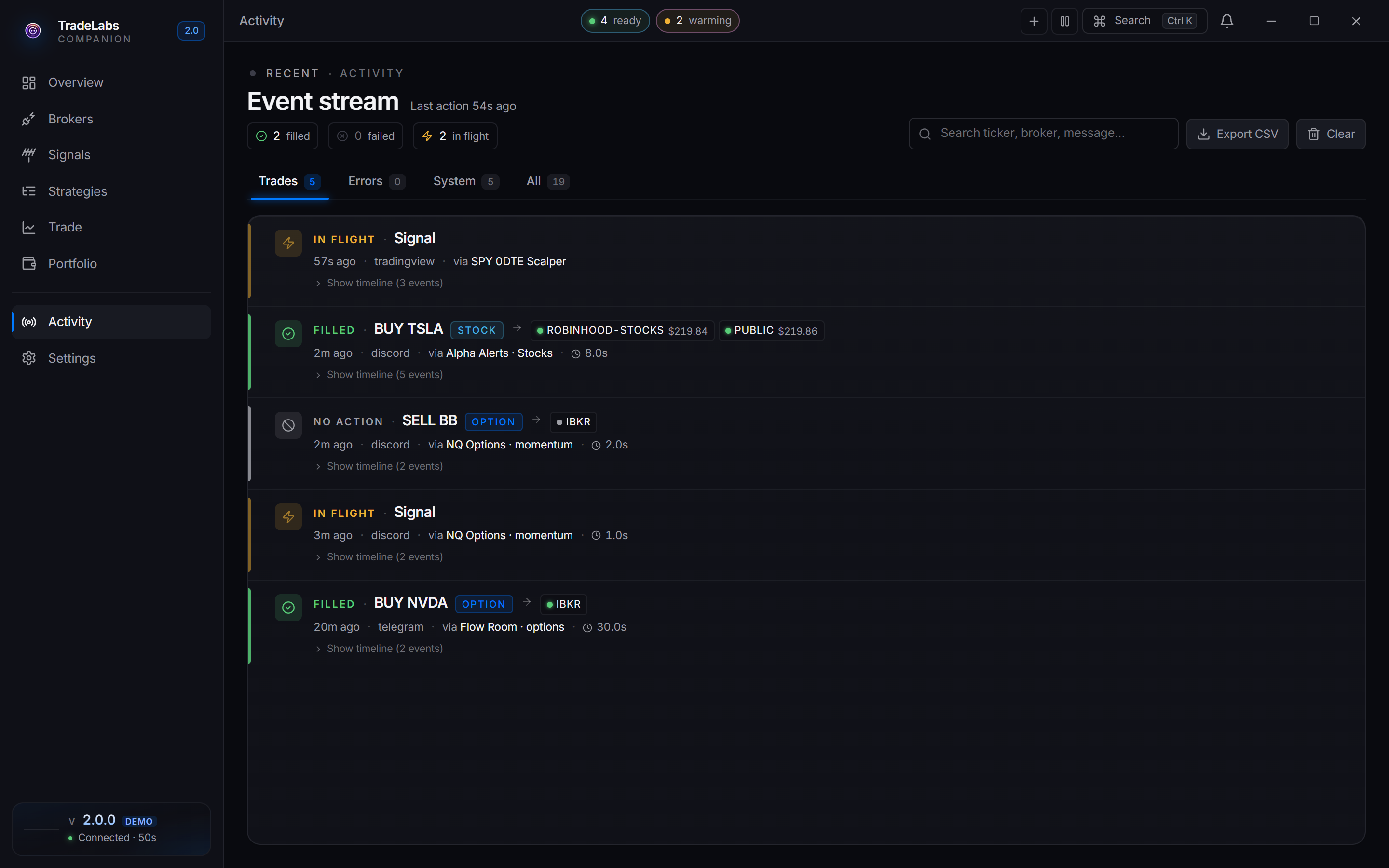
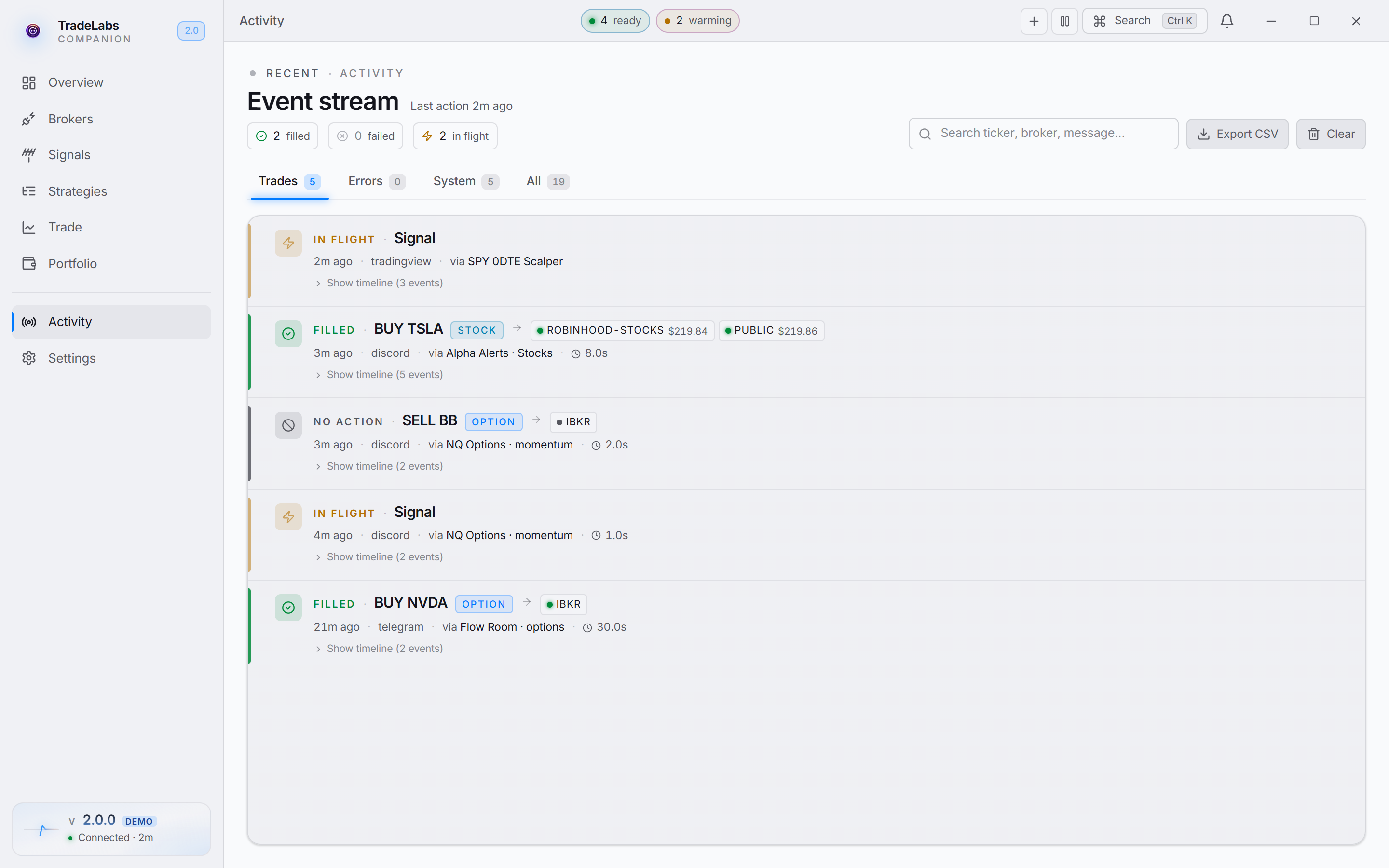 The Event stream, with each trade expandable to its full timeline
Counters across the top summarize the current view (filled, failed, in flight). Four tabs slice the stream:
| Tab | What it shows |
|---|---|
| Trades | Signal-to-trade flows and their outcome: Filled, In flight, Queued, or No action. |
| Errors | Failed trades and broker or system breakages. |
| System | Broker health, source connections, lifecycle events. |
| All | Everything in one chronological stream. |
Each trade card names the trade, the broker it routed to, the fill price, the source and strategy behind it, how long it took, and when. Show timeline expands the step-by-step trail.
Search by ticker, broker or message to filter. Export CSV pulls the history into a spreadsheet. Clear resets the view.
Brokers & health
You add brokers on the Brokers page and the app keeps their sessions alive. Your logins stay on your computer, encrypted through the OS keychain. They are never uploaded to TradeLabs.
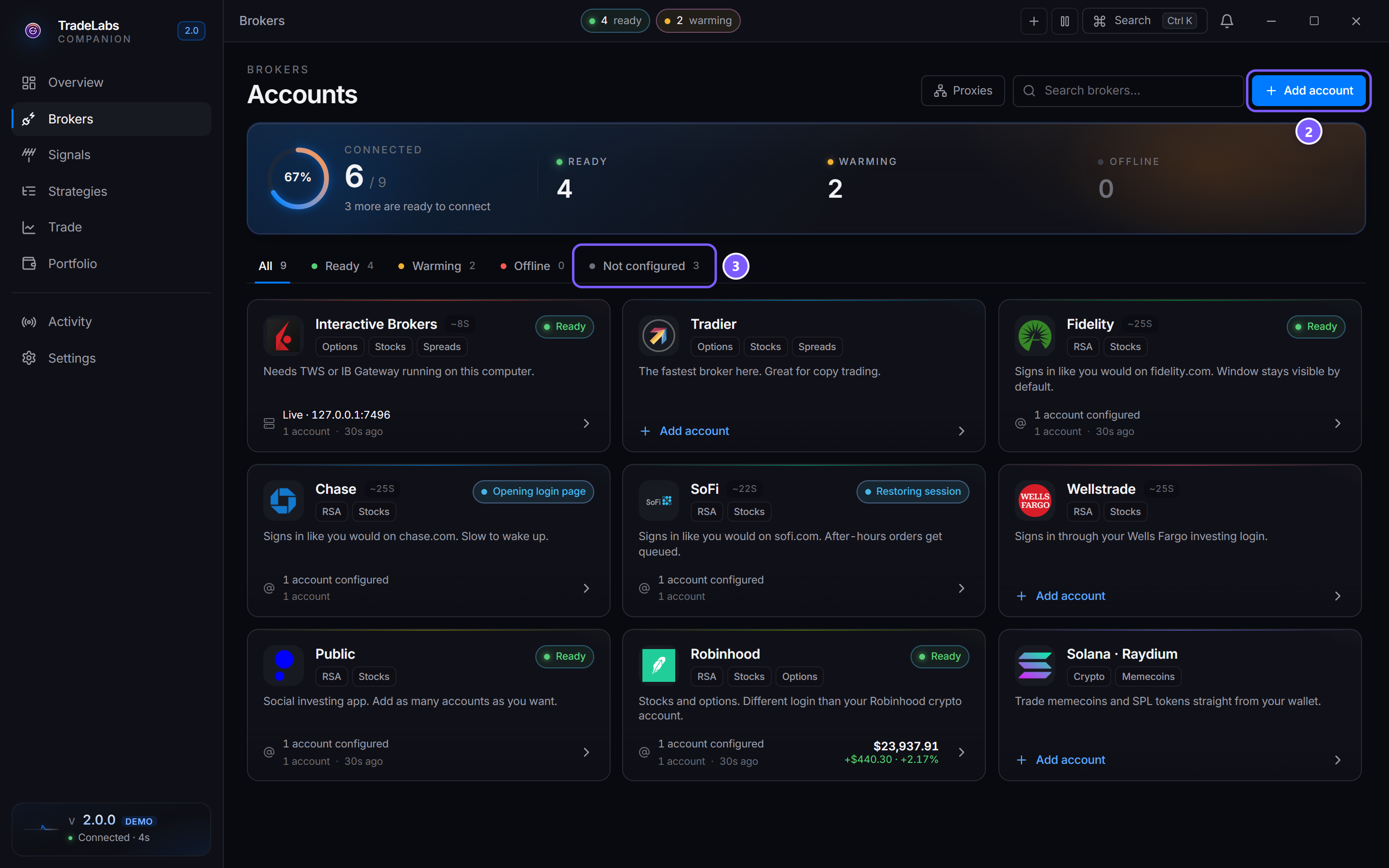
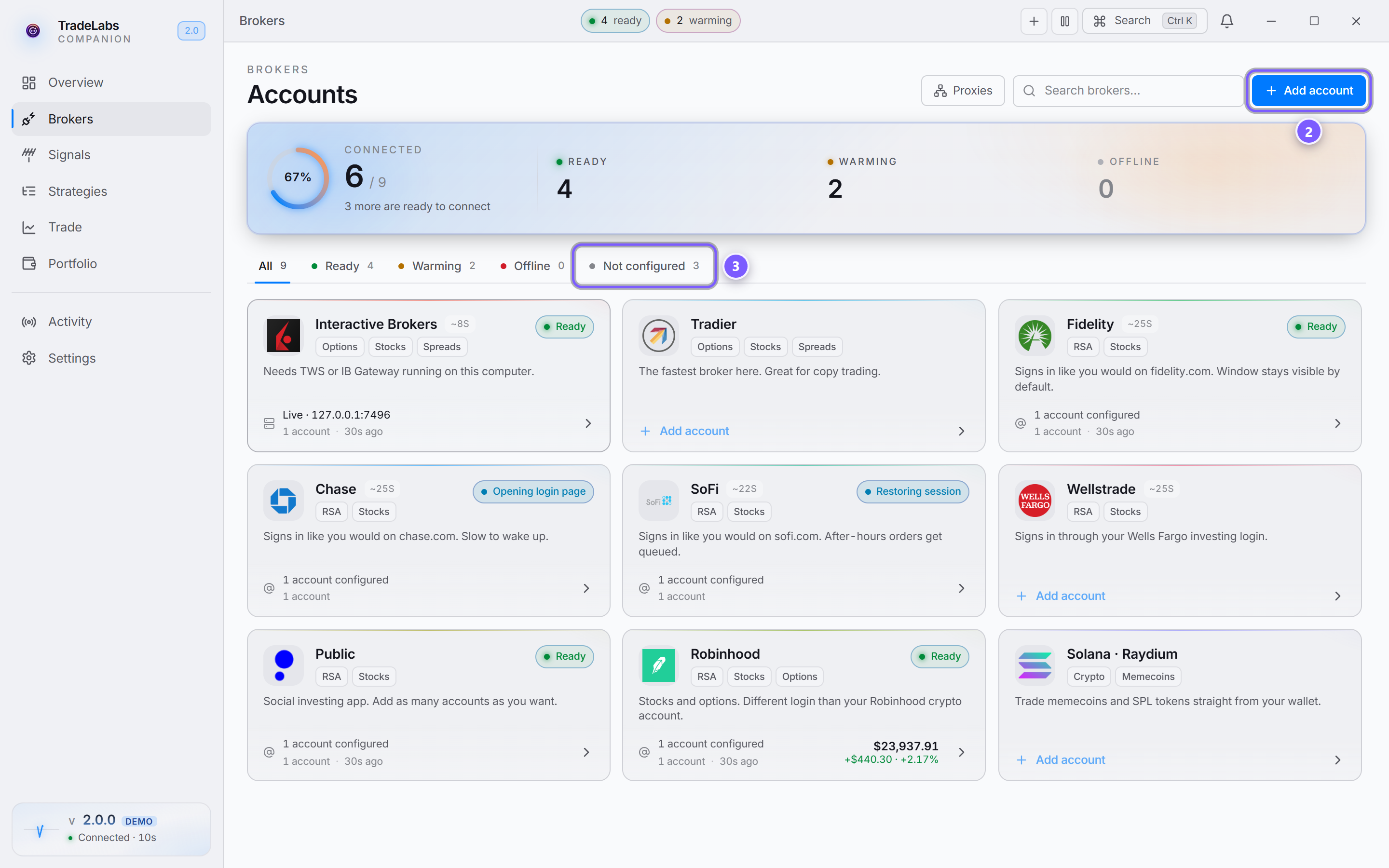 Each broker is a card with its live health state
A Connected count and a status strip summarize Ready, Warming and Offline. Filter tabs sit below: All, Ready, Warming, Offline, Not configured. Add account jumps to the Not configured view. Many RSA-capable brokers run several accounts at once.
Each broker reports its process, its session, and when that session was last verified. The app turns those three into one of four states, not a simple online light:
Only Offline needs you. Idle is a normal resting state, especially overnight.
Idle is not offline. Idle means logged in and valid, but not re-verified in the last minute. Most brokers sit there overnight. Active and Idle both show as Ready on the card, because the difference is a recent re-check, not a health problem. The app re-checks the moment it needs to.
Clicking a broker opens its sheet, the side panel where you manage that broker’s accounts. Add account takes credentials, then Save account. Each account row carries Sign in and a ⋯ menu holding Check connection, Edit credentials, and Remove account.
The chrome-based brokers (Chase, Fidelity, SoFi, WellsTrade) add Sign in by hand and Clear browser data to that menu, plus a Browser: Hidden / Visible toggle in the sheet header. There is no separate Test button. The app verifies connections itself.
Brokers sign in one of four ways:
You paste API keys from the broker into the account fields, then save. No browser window, no password stored. Tradier (live and paper access tokens), Robinhood Crypto (API key plus public key), and Webull (app key plus app secret) work this way.
You enter your broker username or email, password, and a 2FA code when asked, right in the app. Robinhood stocks, Fidelity, Chase, SoFi, WellsTrade, Public, Fennel, BBAE, DSPAC, and Firstrade work this way.
With 2FA on, the prompt comes after Save. A CAPTCHA may appear on the first connection for the brokers that use one; BBAE and DSPAC show it in the sign-in dialog. Chase, Fidelity, SoFi and WellsTrade show Warming while their browser session boots.
The app talks to software already running on your machine. Interactive Brokers works this way: run TWS or the IB Gateway and the app connects over 127.0.0.1. The one field you set is Mode, Live or Paper, which selects the port pair: 7496 or 4001 for Live, 7497 or 4002 for Paper. The app finds the program that runs. STG / DAS connects to DAS Trader Pro on the same computer.
You paste a wallet private key rather than a login. Solana takes a wallet key and an optional private RPC URL. Robinhood Chain takes a wallet name, an Ethereum-style wallet key and an RPC URL (see Robinhood Chain). Polymarket takes a Polygon wallet key and a funder address. Nothing is sent anywhere but the chain.
Interactive Brokers and Tradier both carry a Live/Paper Mode toggle, so you can practice without real money first.
If a broker process keeps crashing in a short window, the app stops the restart loop and shows a red block with Try again and View logs. Per-broker setup lives in the broker reference.
Portfolio
The Portfolio page pulls positions from every connected broker and wallet into one view. Click the header total to break it down by broker.
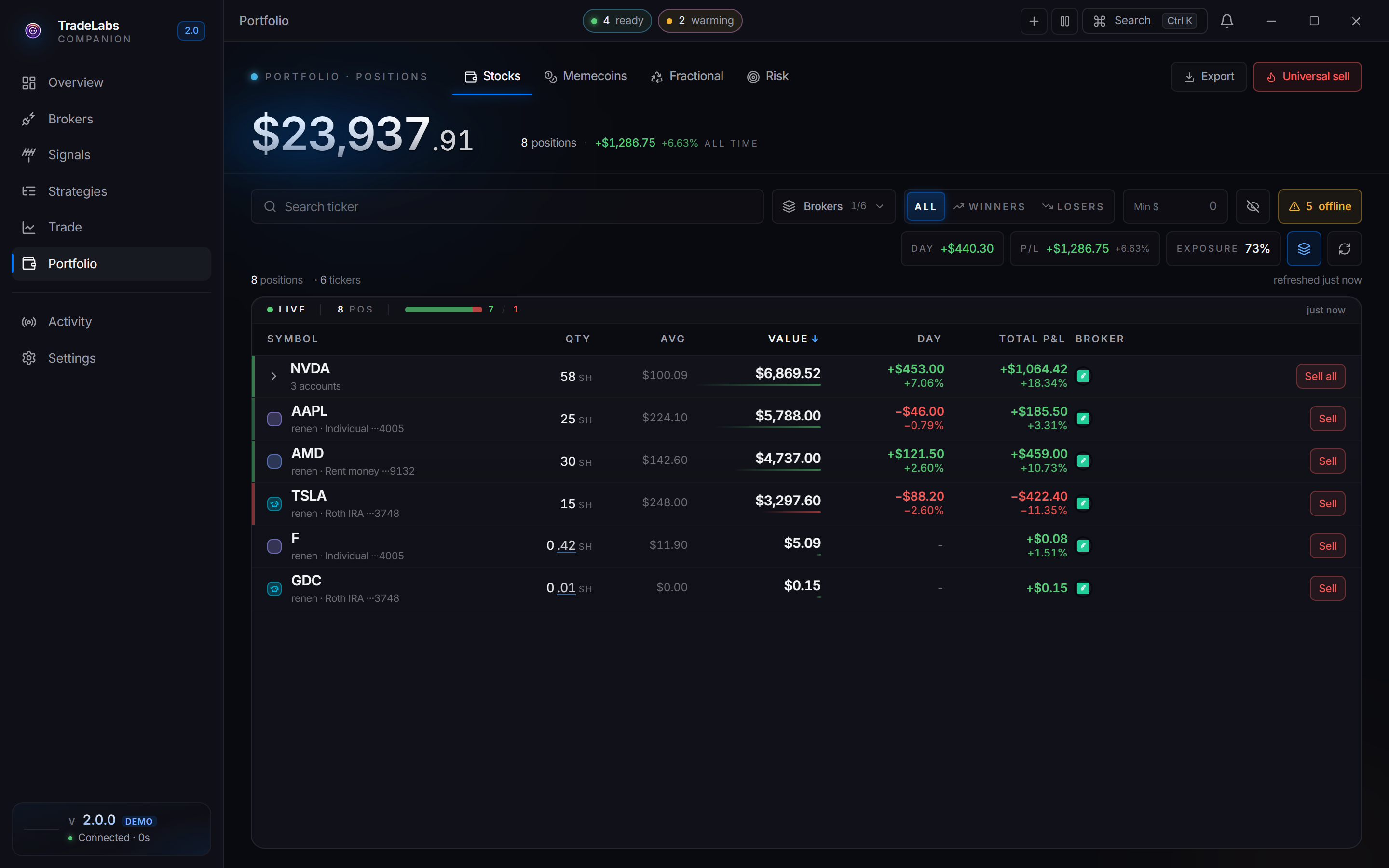
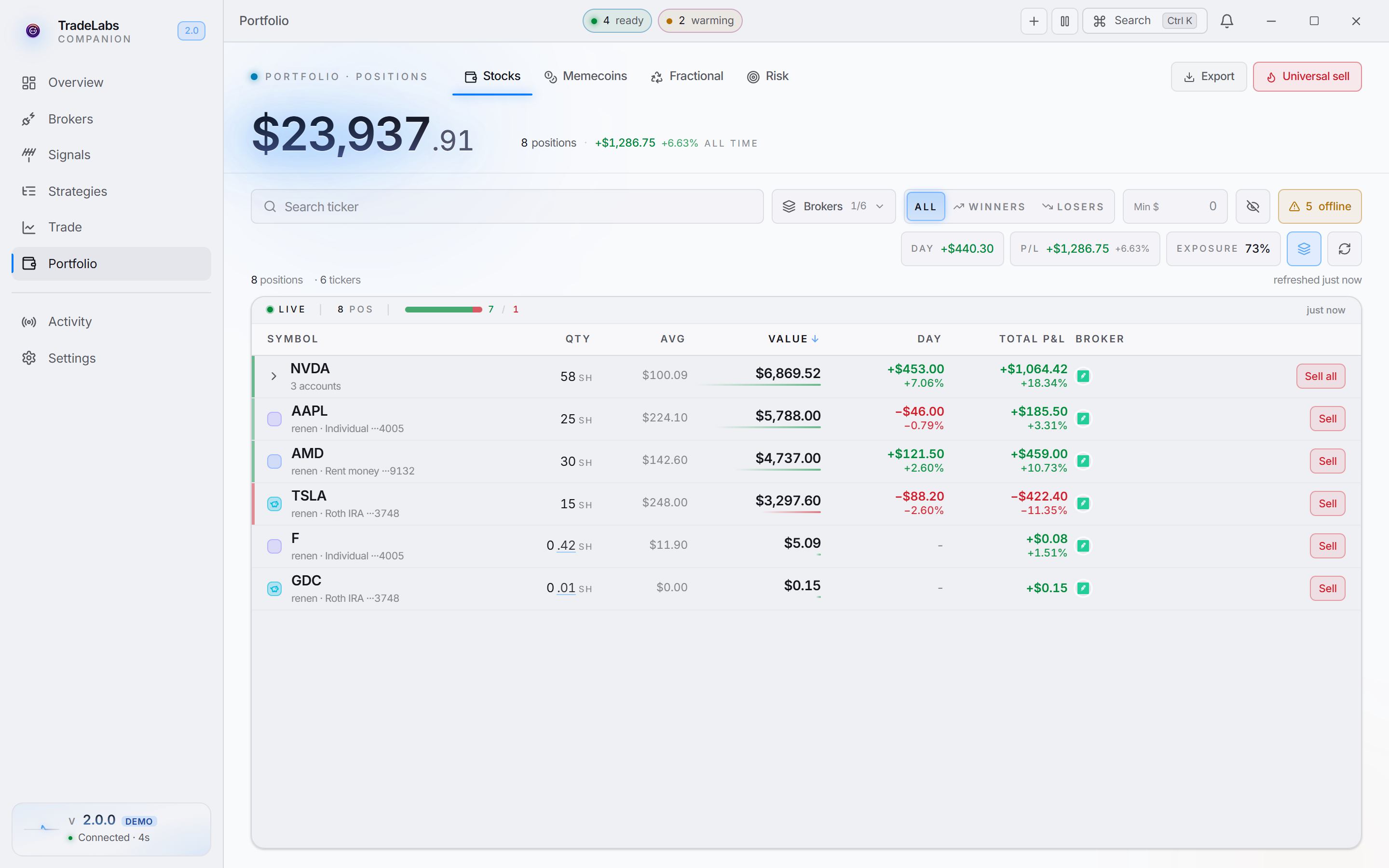 The Portfolio page and its tabs
| Tab | What it shows |
|---|---|
| Stocks | Every equity position across your brokers: Symbol, Qty, Avg, Value, Day, Total P&L, Broker. Click a header to sort. |
| Memecoins | Solana, Robinhood Chain, Polymarket and Robinhood Crypto holdings, with a dust filter. |
| Fractional | Fractional-share cleanup for RSA+ members: run now or on a schedule. |
| Risk | A risk view of your exposure. |
Stocks. Search a ticker, filter by broker or by Winners and Losers, and hide small positions with Min $. A group toggle collapses the same ticker held at several brokers into one row. Press r to force a fresh fetch from every broker.
Memecoins. Each card shows quantity, value and P&L. Hide dust is on by default and hides anything worth under about a dollar, so check that toggle first if the list looks empty. You buy and sell from the Trade page in Memecoins mode.
Fractional (RSA+). Cleans up the tiny fractional shares RSA strategies leave behind. It runs only during regular US market hours and skips dust too small for the broker to sell. Preview shows exactly what would sell, broker by broker, before anything fires. Run now starts a run immediately. The schedule and Run now share one last-run stamp, so they never double-fire.
A fractional flagged Consolidating is a Public round-up share. It rounds up into a whole share on its own within about a month. Selling it now just spawns a fresh fractional later, so cleanup skips it by default.
Selling from here places real market orders. Read every confirmation before you accept it.
- Sell on a row closes that single position at that broker.
- Sell all on a grouped ticker fans a market sell out to every broker holding it.
- Universal sell in the header sends a market sell for every open position at every broker.
A broker filter footer shows each broker’s state as positions refresh, so a missing position usually means a broker is slow or offline.
Manual trading
The Trade page places trades by hand. Pick a mode top-right, fill in the details, and the app fires the order across every account you chose at once.
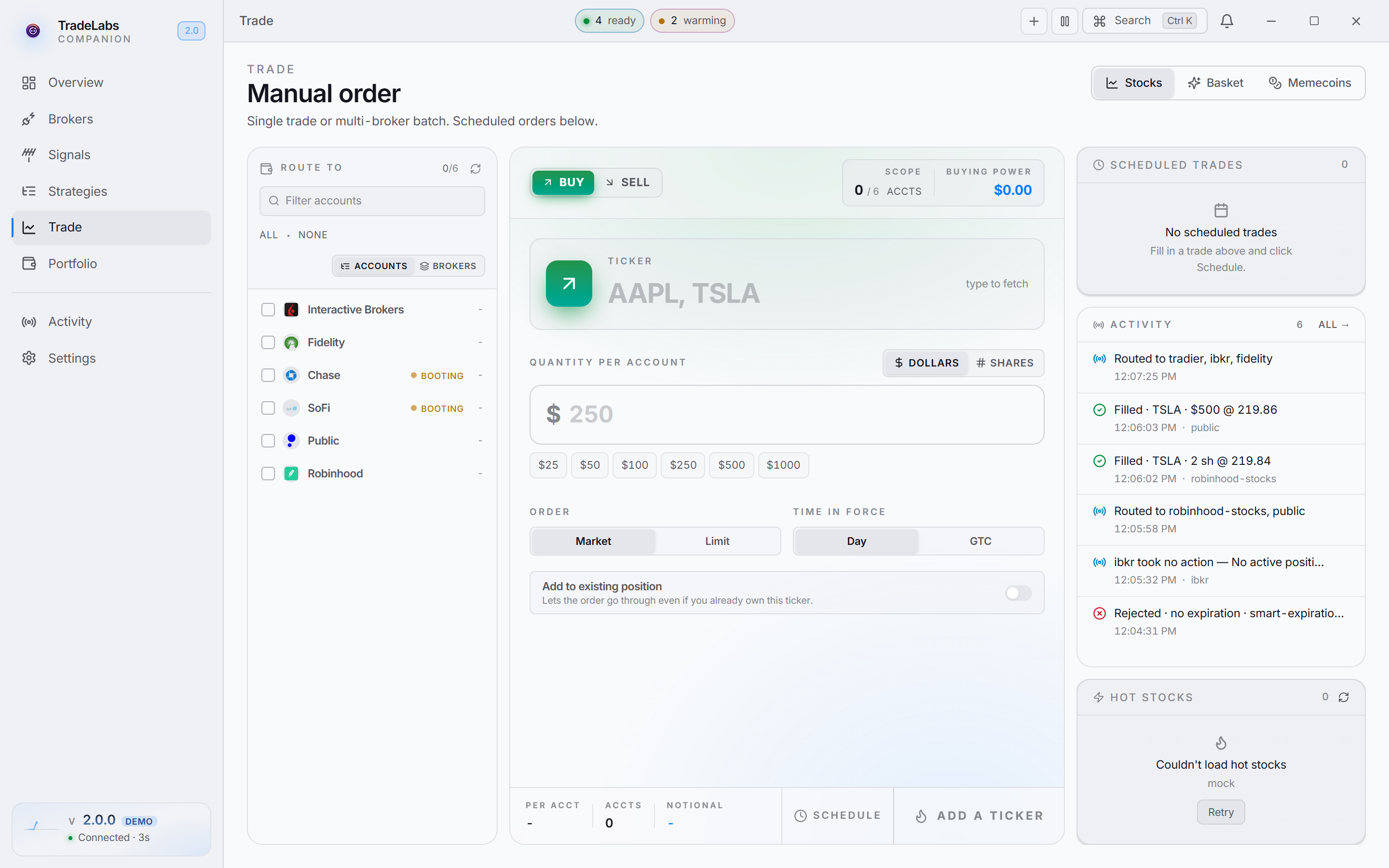 The Trade page in Stocks mode
| Mode | What it does |
|---|---|
| Stocks | One order across the accounts you select. Needs a ticker, side, quantity and order type. A Route to panel picks the accounts, down to individual sub-accounts. |
| Basket | A list of tickers, one per line. Each line carries its own side, dollar amount and accounts. |
| Memecoins | The token swap for Solana and Robinhood Chain memecoins. |
Order types are Market and Limit. Limit reveals a price field. There is no Mid order type. Time in force is Day or GTC, and quantity takes shares or dollars.
Scheduled trades fire later instead of now. The right side of the page carries quick-reference cards: Scheduled for queued trades, an activity card for orders you just placed, and Hot stocks, where clicking a ticker drops it into the form.
Before you place a trade: double-check the ticker, confirm buying power on every account you selected, and keep the first multi-broker test small.
Token swap
The token swap is Memecoins mode on the Trade page. A chain switch at the top picks Solana or Robinhood Chain. This section covers Solana. For Robinhood Chain, including the Swap tab, see Manual trade.
Add the Solana broker first, since that is where your wallet connects. A wallet badge in the header shows the connected wallet and its SOL balance.
The swap card is two stacked tiles, You pay and You receive, with a flip arrow between them:
- Side. Buy spends SOL to get the token. Sell turns the token back into SOL.
- Token. Paste the token’s mint address.
- Amount. Quick SOL buttons and a Max button, or type your own.
- Route. Which venue the swap goes through.
| Route | When to use it |
|---|---|
| Auto | Let the app pick the best route. Default. |
| Raydium | Better liquidity for established tokens. |
| Jupiter | Wider coverage, including very new tokens. |
The app checks you hold enough SOL, or enough of the token, before it sends.
Slippage takes a preset (1%, 2%, 3%, 5%, 10%) or your own value. A higher tolerance gets a volatile token filled more often, at a worse price. An Advanced panel adds a network priority fee and optional stop-loss and take-profit percentages.
Once a swap goes through, the position appears on the Portfolio Memecoins tab, and a swap-history card lists past swaps.
Memecoin trading is very volatile. Verify the mint address before every swap, and start small on a token you have not traded before.