Using the App
Activity
Read the Activity feed: what the Trades, Errors, System, and All tabs show, how to search and export events, and how to see why a trade failed.
The Activity page is the record of what the app actually did. Every signal that lands, every trade that routes to a broker, and every broker or source state change shows up here. It answers the question “is my bot really working, and if not, why?”
Open it from Activity in the left rail.
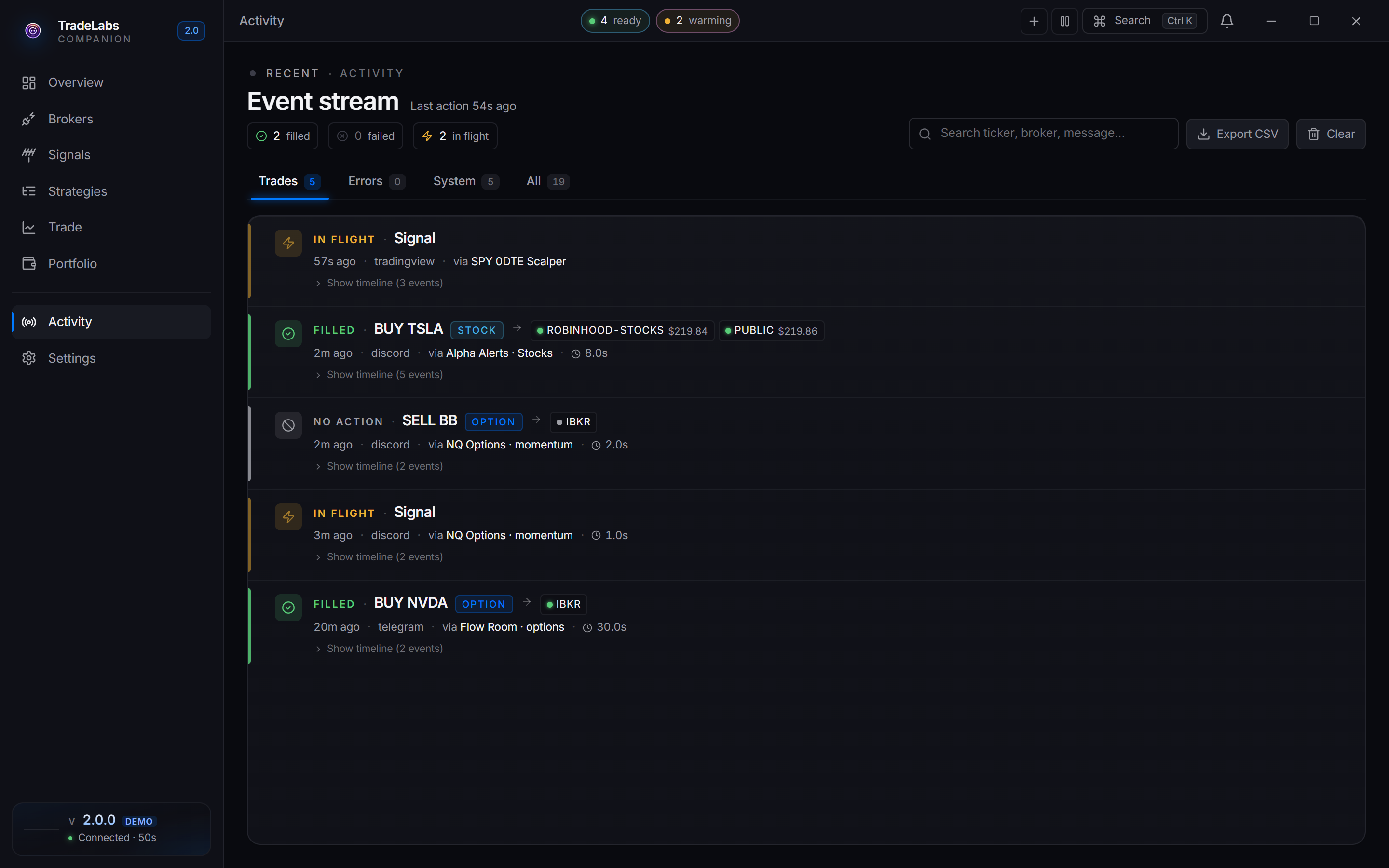
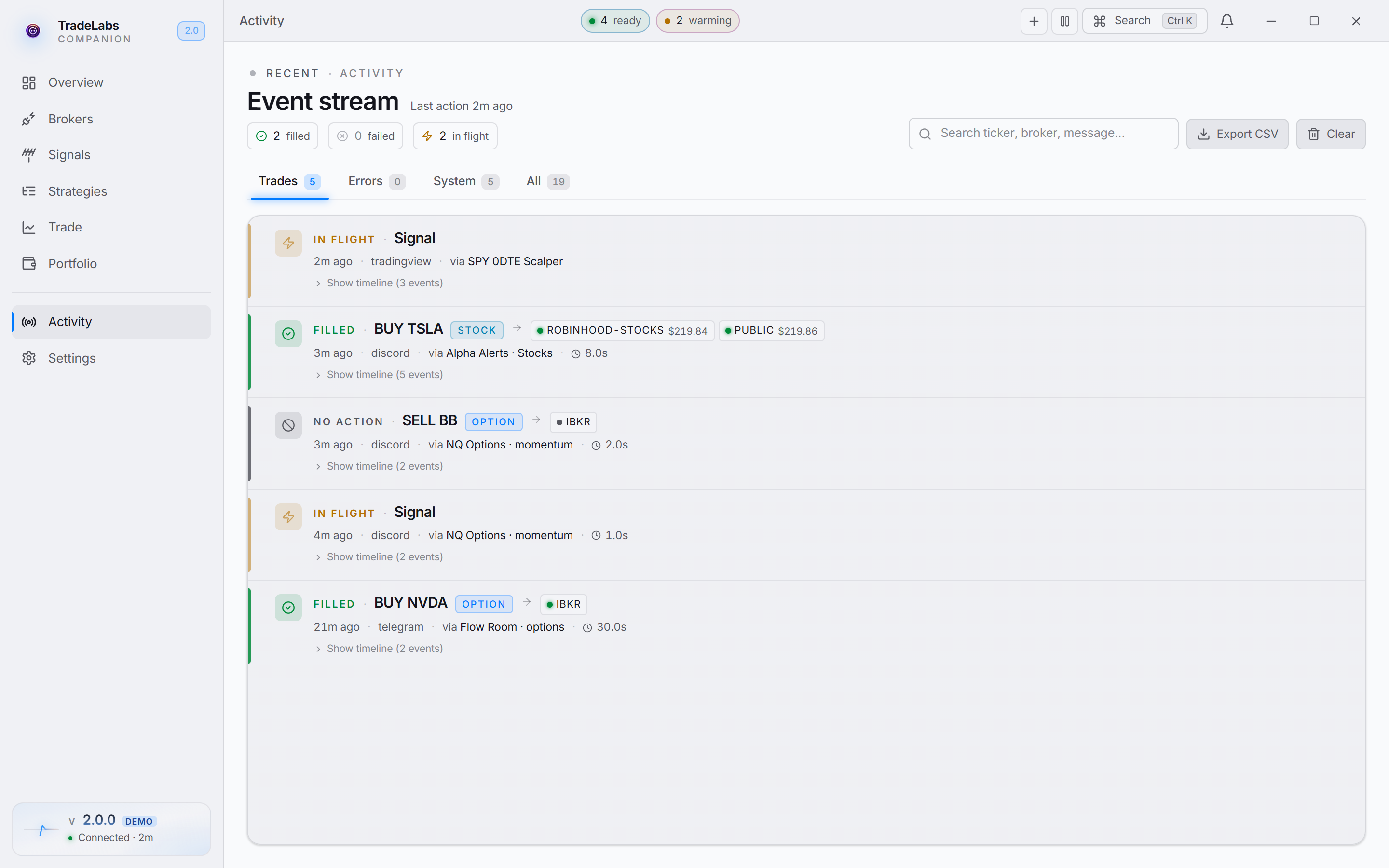 The Activity page groups a whole signal-to-trade flow into one card
The header
The top of the page shows a live status word and the page title Event stream:
- Live means an event landed in the last 30 seconds.
- Recent means events have come in, but not just now.
- Quiet means nothing has arrived yet.
Next to it you see the time since the last action, or Waiting for the first event if the feed is empty.
Below that are three running counts pulled from your trade flows:
- filled: flows where every broker filled.
- failed: flows that failed or only partly filled.
- in flight: flows still working or sitting in a broker queue.
The four tabs
The feed is split into four views. Each shows a count badge so you can see where the action is.
| Tab | What it shows |
|---|---|
| Trades | Signal-to-trade flows. The thing you actually care about. |
| Errors | Failed trades and broker or system breakages. |
| System | Broker health, source connections, and lifecycle events. |
| All | Everything in one chronological stream. |
Trades is the default view.
Reading a trade card
Each card is one signal from start to finish, not one line per step. A card shows:
- A status word: Filled, Queued, Partial, Failed, Rejected, No action, Filtered, Skipped, or In flight.
- The trade preview, like
BUY BNZI, and a kind badge (Stock, Option, Spread, Crypto, Memecoin, RSA, Prediction, Congress, or Trade). - How long ago it started, the signal source, and the strategy it ran through.
- The brokers it routed to, each with a colored dot and a fill price when it filled.
Click Show timeline on a card to expand every underlying event with millisecond offsets. Click Hide timeline to collapse it again.
Queued is not the same as filled. It means a broker accepted the order into its own queue but has not executed it yet. The card resolves to Filled or Failed once the broker reports back.
Many brokers on one trade
When a trade fans out to more than two brokers (an RSA bundle, for example), the card shows a ladder instead of a row of chips. The header reads something like 3/6 filled, and each row lists a broker with its status and timing. If a broker split across sub-accounts, click Show accounts on its row to expand the per-account results.
The Errors tab
Errors leads with what broke and why, not the full trade story. Each failed card shows the broker that failed and the plain-language reason on its own line. If a trade only partly filled, you also see a Filled on list so you know which legs are still in the market. Click Show full timeline for the complete event trail.
If nothing has gone wrong recently you see No errors.
The System tab
System is where broker health changes, source connections, and app lifecycle pings land. It is normal to see a broker move between the four health states here. A broker sitting Idle at night is expected, not a problem. See Brokers and health for what each state means.
Search, export, and clear
- Search: type in the box (placeholder Search ticker, broker, message…) to filter the current tab by ticker, broker, strategy name, source, or message text.
- Export CSV: downloads every event currently in the feed as a CSV file. Disabled when the feed is empty.
- Clear: empties the feed. A Clear the activity feed? dialog asks you to confirm first. New events keep streaming in after you clear.
Clear removes everything currently shown. It does not stop trading or change any strategy. It only wipes the on-screen history.
Focusing on one strategy
If you open Activity from a strategy’s Activity button, the header shows a Scoped to chip with that strategy’s name and a Back to strategies link. Click the x on the chip to clear the filter and see the full feed again.
When the feed is empty
Before any trades run, the Trades tab shows No trades yet. As the note explains, when a signal lands and routes to a broker, the full flow appears here as a single card. Run a strategy or fire a manual trade to see events stream in.