Strategy Templates
Using Templates
Start a strategy from a template in the desktop app or the web dashboard, then adjust it, connect a source, test it and go live.
A template is a strategy with its settings already filled in. You pick one, change the settings that are yours, and save. You can change every setting after that.
In the desktop app
-
Open Strategies from the left rail.
-
Click Templates in the toolbar. If you have no strategies yet, click Browse templates.
-
The Start from a template panel opens. Click a template card.
-
The app creates the strategy and opens it in the editor.
-
Change the settings that are yours: the channel or alert names, the broker, and the size.
-
Test the strategy before you turn it on. The strategy starts switched off.
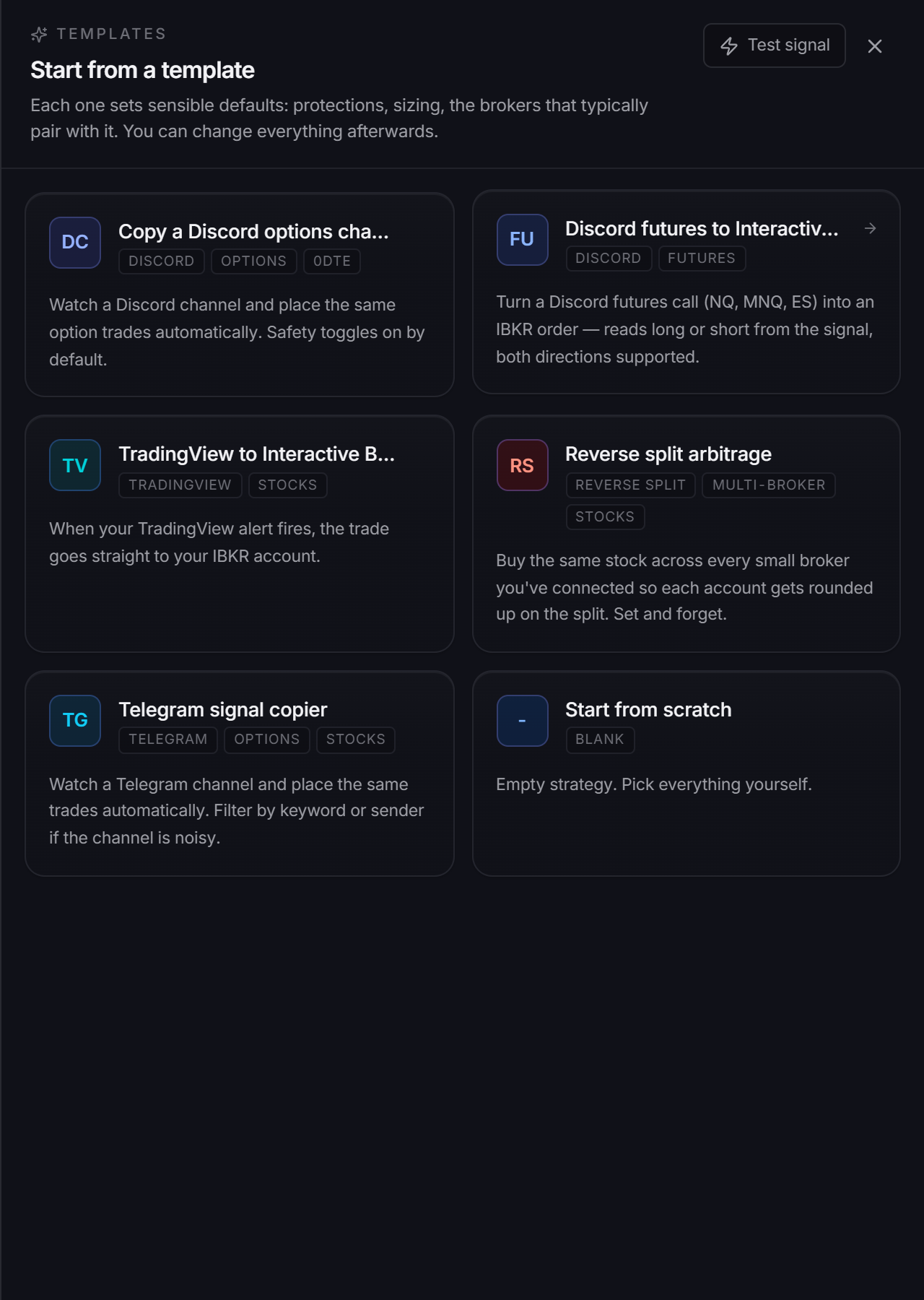
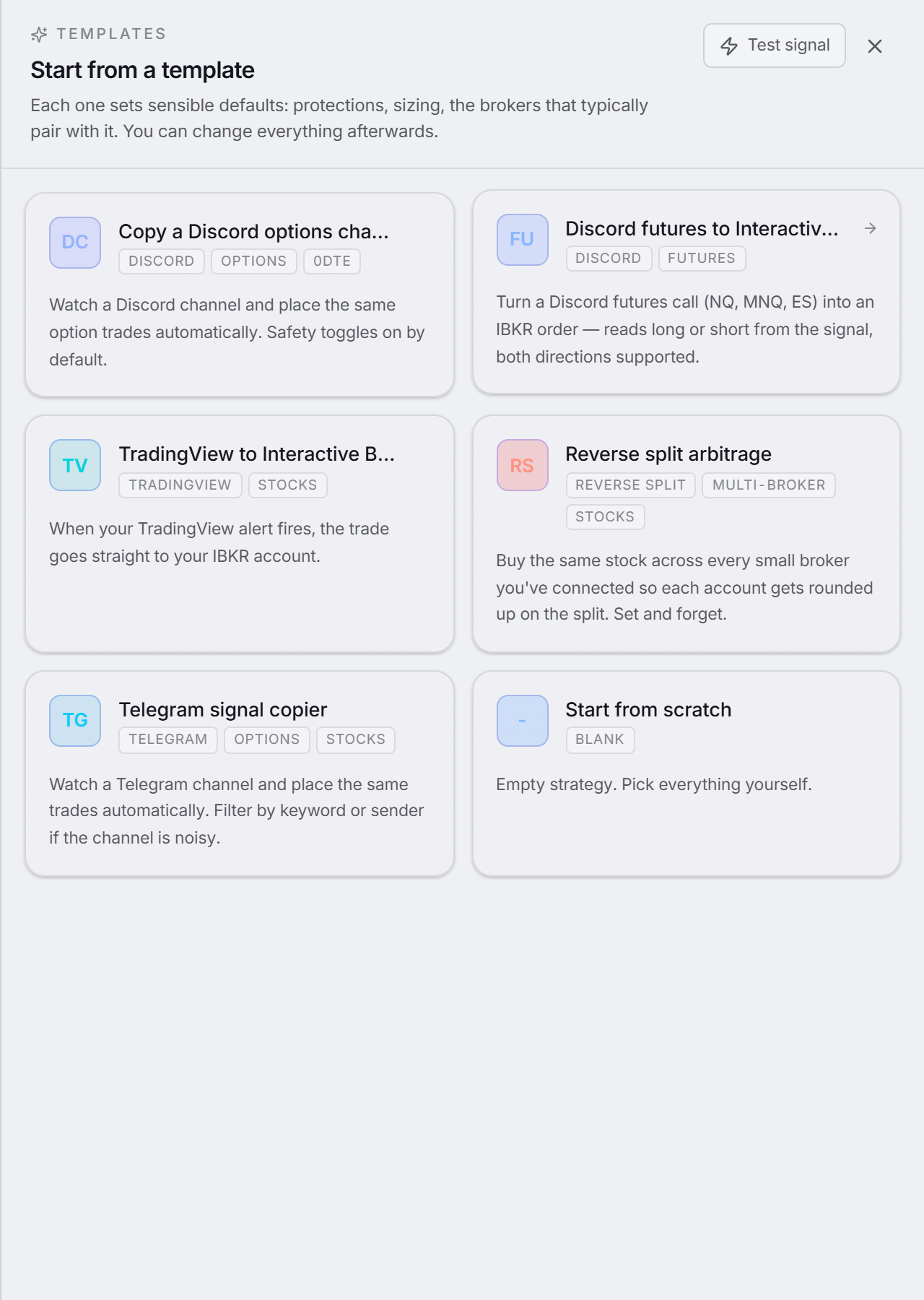 The templates panel. Each card shows the source and the instrument it sets.
The desktop app has these templates:
| Template | Source | Instrument | What it sets |
|---|---|---|---|
| Copy a Discord options channel | Discord | Options | Size 1, Double-down protection on, Buy same-day on the matching weekday on, Slippage cap 5% |
| Discord futures to Interactive Brokers | Discord | Futures | Broker IBKR, ticker NQ, direction Both, size 1, Slippage cap 1% |
| TradingView to Interactive Brokers | TradingView | Stocks | Broker IBKR, size 100, Slippage cap 1% |
| Reverse split arbitrage | Serverside | RSA | Fennel and 9 more RSA brokers, 1 share each |
| Telegram signal copier | Telegram | Options | Match by keyword with a default size of 1, a keyword whitelist of BUY, SELL, STC and BTO, Double-down protection on, Slippage cap 10% |
| Start from scratch | An empty strategy |
The Copy Trading app does not show the Reverse split arbitrage template.
In the web dashboard
-
Open Strategies and click New strategy. The Overview page has the same button.
-
The Start a new strategy page shows the templates. Click a chip, for example Options or Memes, to see one instrument. You can also type in Search templates.
-
Click a template card. The builder opens with the template settings.
-
Pick your own Discord channel or Telegram chat. A template never brings a channel with it.
-
Change the size and the broker if you need to, then save. The strategy starts paused.
To start with an empty form, click Start from scratch, the first card.
A card shows the take profit and the stop loss when the template sets them. It also shows up to three features, for example AI selling or Dupe protection. Some templates come from a signal provider, and the card shows the provider’s name and logo.
Already in the builder with a new strategy? Click Use a template. On a phone, the button is Template. The template replaces the settings in the form.
TradeLabs publishes the web dashboard templates, so that list can change. The desktop app templates are part of the app. The two lists are not the same.
Templates for each instrument
Each page below gives ready settings for one instrument, the differences between its brokers, and how to test it.
| Instrument | Template page | Brokers |
|---|---|---|
| Options | Options | IBKR, Tradier, Charles Schwab, Robinhood |
| Option spreads | Option Spreads | IBKR, Tradier, Robinhood |
| Futures | Futures | IBKR |
| Stocks | Stocks | IBKR, Tradier, Charles Schwab, Robinhood, STG / DAS |
| Crypto | Crypto | Robinhood Crypto |
| Memecoins on Solana | Solana Memecoins | Solana |
| Memecoins on Robinhood Chain | Robinhood Chain Memecoins | Robinhood Chain |
| Prediction markets | Prediction Markets | Polymarket |
The template pages give values, not explanations. The Strategy Editor explains what each setting does.