Copy Trading
TradingView strategies
Connect TradingView, create alerts that route by name, prepare them in the app, and build the strategy they fire into.
A TradingView strategy links your TradingView alerts to a TradeLabs strategy. When an alert fires, the signal routes through your TradeLabs account into the strategy whose name matches the alert, and that strategy places the trade.
There are no webhooks to wire by hand. You sign in to TradingView once, TradeLabs reads the alerts on your account, and it can prepare each one so it routes correctly.
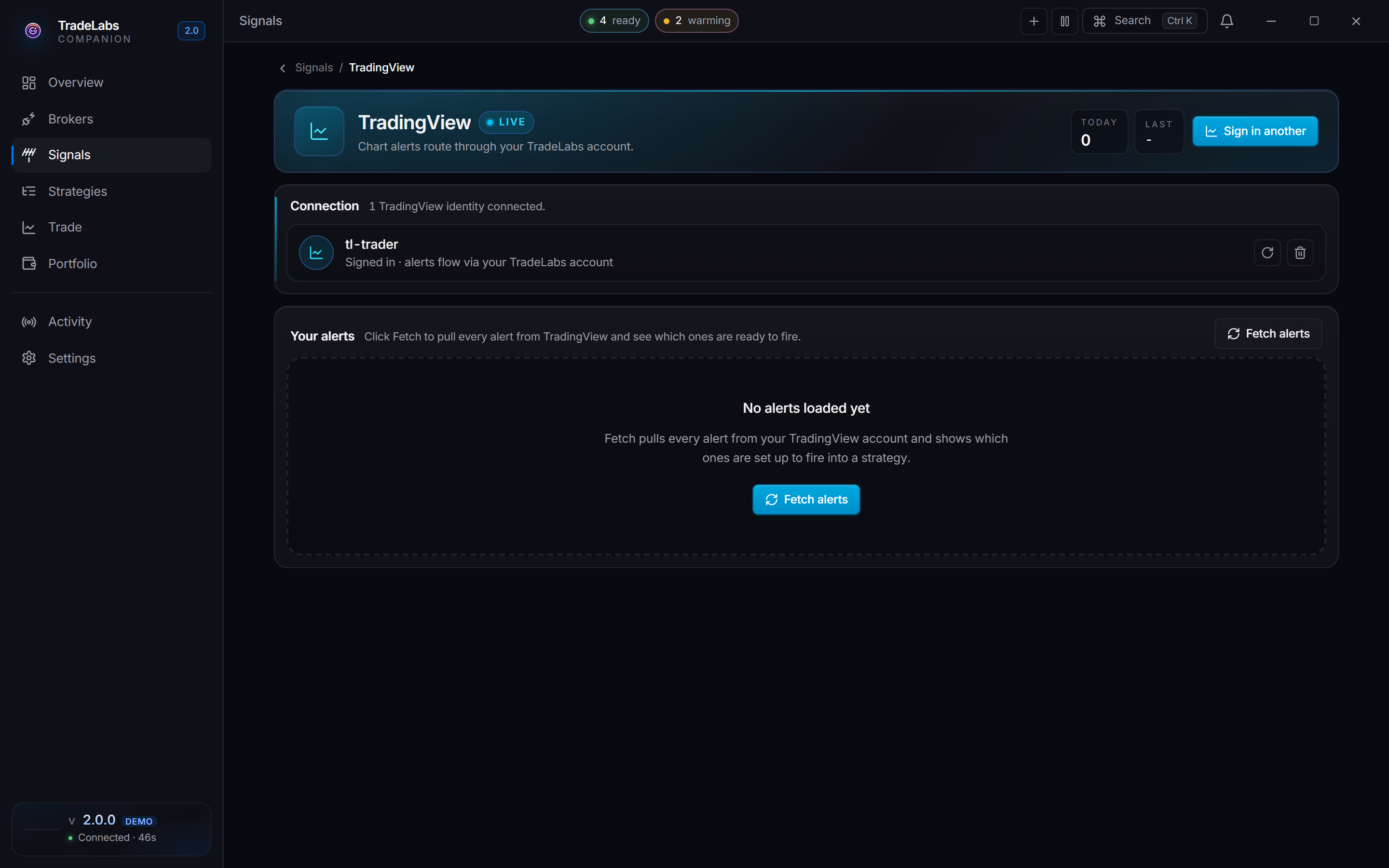
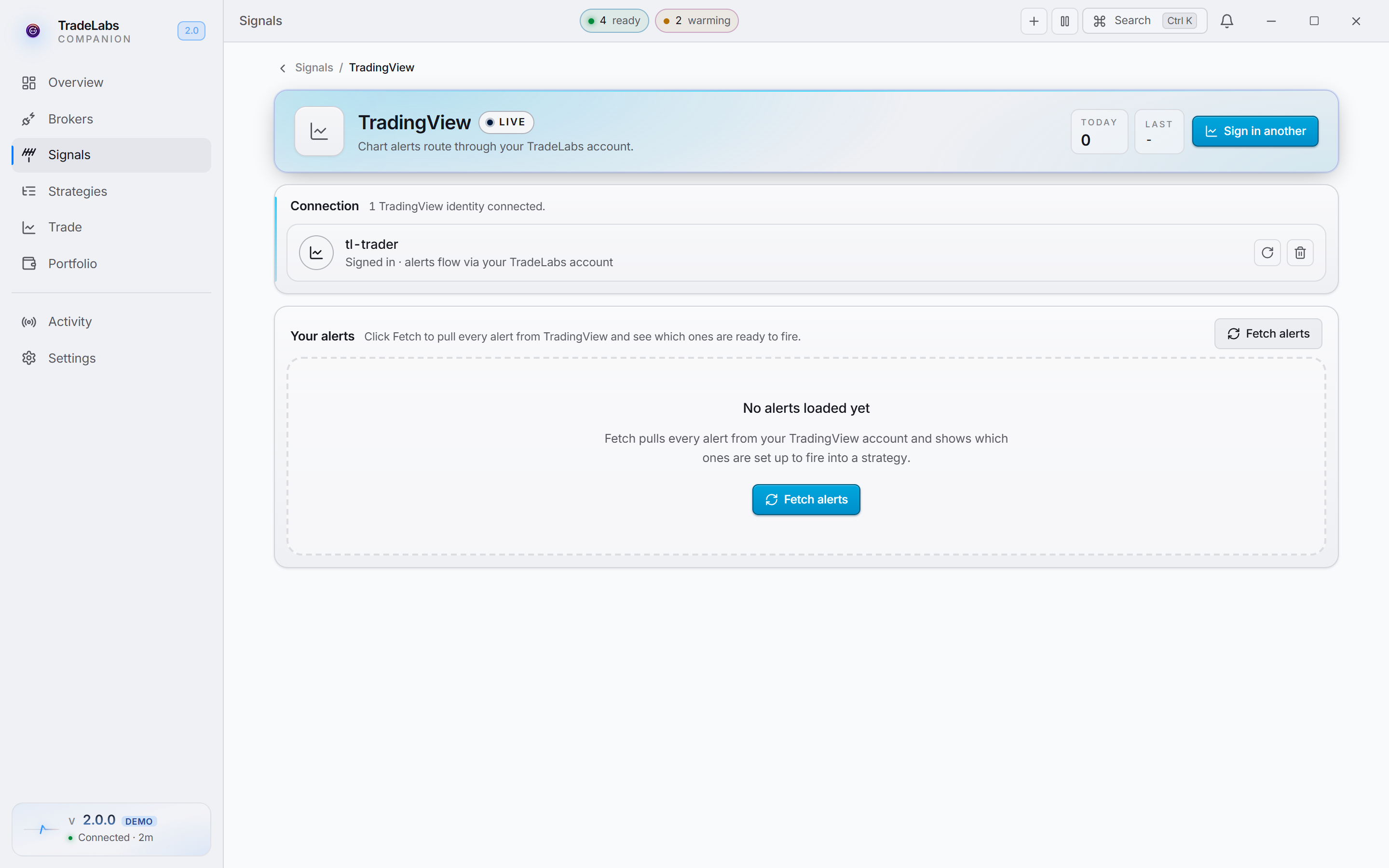 The TradingView source lists every alert on your account and shows which ones are ready to fire.
| What TradingView can trade | Supported |
|---|---|
| Stocks | Yes |
| Options | Yes |
| Spreads | Yes |
| Crypto, futures, prediction markets | No |
New to this? TradingView Strategies walks through building a stocks, options or spreads strategy step by step.
| Memecoins, RSA | No. Memecoins take Discord or Telegram. RSA takes the serverside feed. |
What alerts can be used
You can automate both strategies and indicators as long as they produce clear alerts for trade entries. The alerts must not repaint.
Repainting is when an alert’s condition is met while a candle is forming, but no longer holds by the time the candle closes, so the alert disappears. That can open positions you did not want. Trigger your alerts Once Per Bar Close to avoid it.
Turn on 2FA in TradingView first
TradingView only sends webhook alerts from accounts with two-factor authentication on. Turn it on under your TradingView profile, Settings and billing, Privacy and security, before you prepare alerts. Without it, the Webhook check never turns Ready and no alert reaches TradeLabs.
Connect TradingView
Open the app, go to Signals, and open the TradingView source.
-
Click Connect TradingView. Enter your TradingView email or username and password, then click Sign in. TradeLabs opens Chrome and signs in for you.
-
If TradingView shows a captcha or 2FA prompt, use Or sign in manually in the browser and finish the sign-in yourself in the window.
-
Once you are signed in, the source shows your login under Connection. To add another login, click Sign in another. To refresh a login whose cookies have expired, use the re-sign-in action on its row.
Alerts flow into your strategies through your TradeLabs account once you are signed in. There is nothing else to wire up.
Create a TradingView alert
Set up alerts on TradingView first, then build the matching strategy.
Create the alert, set the condition, trigger once per bar close, and name it to match your strategy.
-
Sign in at tradingview.com and open the chart for the ticker you want to automate.
-
Open the Alerts panel (the clock icon on the right of the chart) and click the Create Alert button (the plus at the top of the panel).
-
Under Condition, pick the strategy or indicator you want to automate.
-
Set the trigger to Once Per Bar Close so the alert only fires on a confirmed signal.
-
Name the alert to match your TradeLabs strategy, then click Create. Matching names are how TradeLabs knows which strategy a signal belongs to.
If you are using an indicator
An indicator usually needs two alerts: one for buy signals and one for sell signals.
Name the buy alert with indicator long on the end and the sell alert with indicator short, keeping the rest of the name the same. For a strategy called “BB & RSI”, name the alerts “BB & RSI indicator long” and “BB & RSI indicator short”. TradeLabs strips the indicator long and indicator short suffix when it matches, so both route to the same strategy.
For a crossover indicator that does not declare separate buy and sell signals (an EMA, MA, or SMA cross), create one alert for the cross up and one for the cross down so both directions produce signals.
You can also use a plain price alert. Create a strategy called “SPY - Buy Level” and name the alert “SPY - Buy Level indicator long”.
Prepare your alerts
After you sign in, the TradingView source lists your alerts under Your alerts.
-
Click Fetch alerts to pull your alerts from TradingView. Each row shows checks for Description, Expiration, and Webhook, plus a Ready or Needs fix badge.
-
To fix one alert, click Fix on its row. To fix everything at once, click Auto-fix all, which works through each alert that needs a fix and shows a progress bar you can Cancel mid-run. An alert the fix could not repair comes back as Fix failed rather than Ready.
-
Click Refresh to pull the list again at any time. A search box filters the list by name, description, or ticker.
When an alert is Ready and its name matches an active TradingView strategy, the row shows which strategy it routes to.
Build the strategy
Create the strategy your alerts route into. On the Strategies page, New strategy makes a blank one and opens it. Templates beside it opens the template browser instead. On an empty Strategies page the same two choices read Blank strategy and Browse templates.

 The Signal source section of a TradingView strategy. Leave Alert names empty to match the strategy’s own name, or list the alert names it should answer to.
-
In Basics, set the Name. This is what TradingView alert names match against, so name it to match your alert and drop any
indicator longorindicator shortsuffix. -
Choose the Instrument: Stocks, Options, or Spreads.
-
In Signal source, set Source to TradingView.
-
In the Alert names field, leave it empty to match the strategy’s own name, or list specific alert names (comma separated) that should route into this strategy. Matching is case insensitive.
The AI settings tab does not appear for a TradingView strategy, and no AI key is needed. TradingView signals do not carry a conversation to read, so features like AI sells and automatic quantity are hidden.
Options fields
When the instrument is Options, the editor shows these fields:
- Ticker: the ticker the strategy trades. Use
ALLto accept any ticker, or list specific ones likeSPY, QQQ. - Default expiration: how far out the contract expires. Pick a number of days or a weekday from the picker.
- Strike position: where the strike sits relative to price, set as In the money, At the money, or Out of the money, plus a Strike offset.
- Direction: Calls buys calls on a buy signal, Puts buys puts on a sell signal, and Both responds to both.
- Entry and Exit: the order type for entering and exiting. Market fills immediately. Limit targets a price and is available on the brokers that support it.
- Time in force: Day keeps an order active for the trading day. GTC keeps it active until it fills or is canceled.
Set Stop loss and Take profit under the strategy’s Risk management section. Choosing levels for both, tuned to your strategy and risk tolerance, is recommended.
Save and edit
Strategy edits save as you make them, so there is no separate save step. Your strategy is available from both the app and the dashboard. To change a strategy later, open it from Strategies and edit any setting. Edits take effect right away.