Get Started
Install & Sign In
Create your account, install the app on Windows, sign in, and let the setup wizard connect everything.
Three short steps: make your account, install the app, sign in. Then a wizard walks you through the rest.
Prefer to watch? The getting-started video shows where you land after sign-up and how to get the app. Pick your plan: RSA+ or Copy Trading.
1. Create your account
- Go to dashboard.tradelabs.org.
- Click the Create account tab.
- Enter your email and a password (at least 6 characters).
- Enter your License key in the format
TLABS-XXXX-XXXX-XXXX, from your TradeLabs purchase email. - Click Create account.
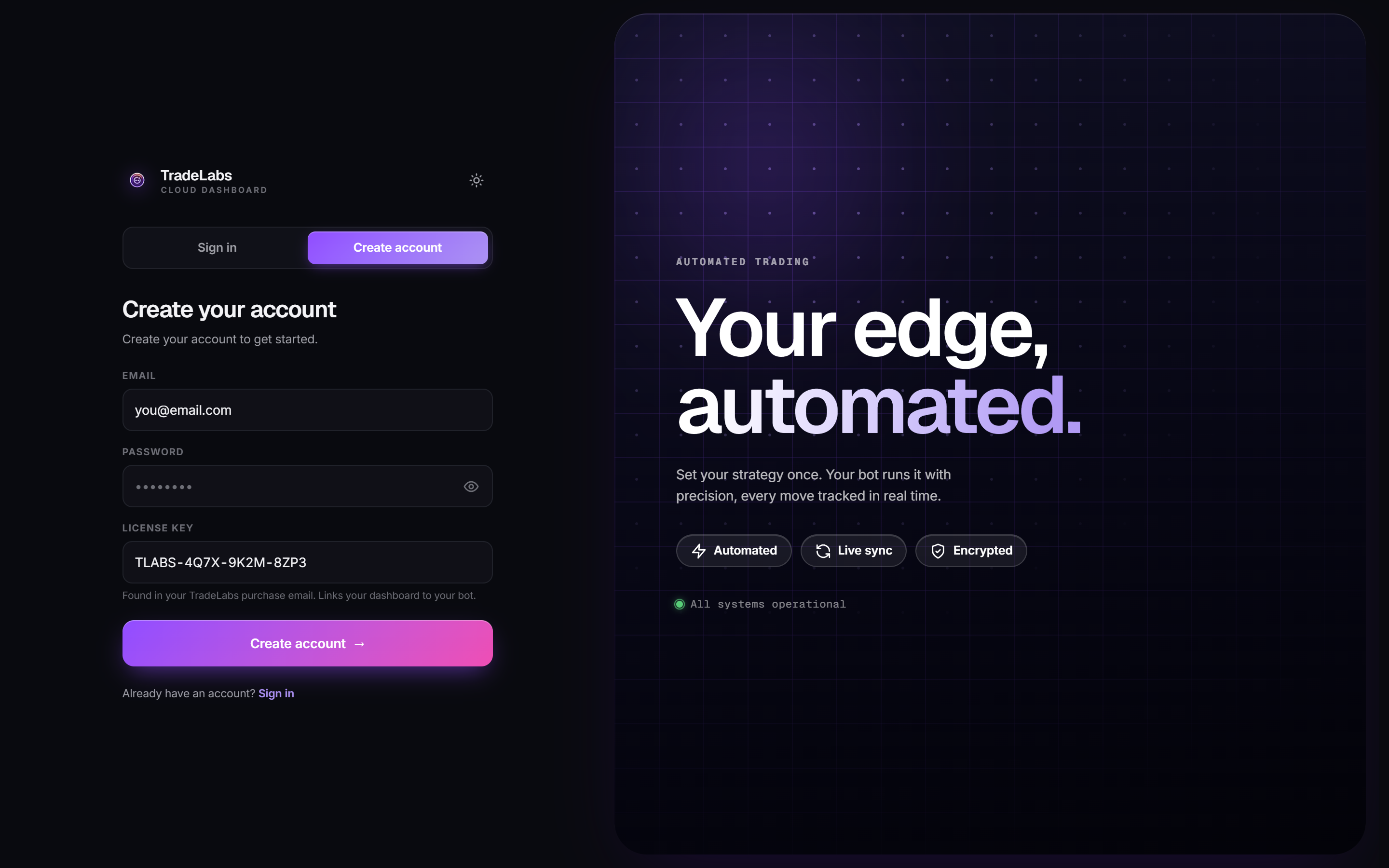 The Create account tab: email, a password of at least 6 characters, and your license key.
Can’t find your license key? Check spam or junk. It’s sent to the email you subscribed with.
Already have an account? Use the Sign in tab instead.
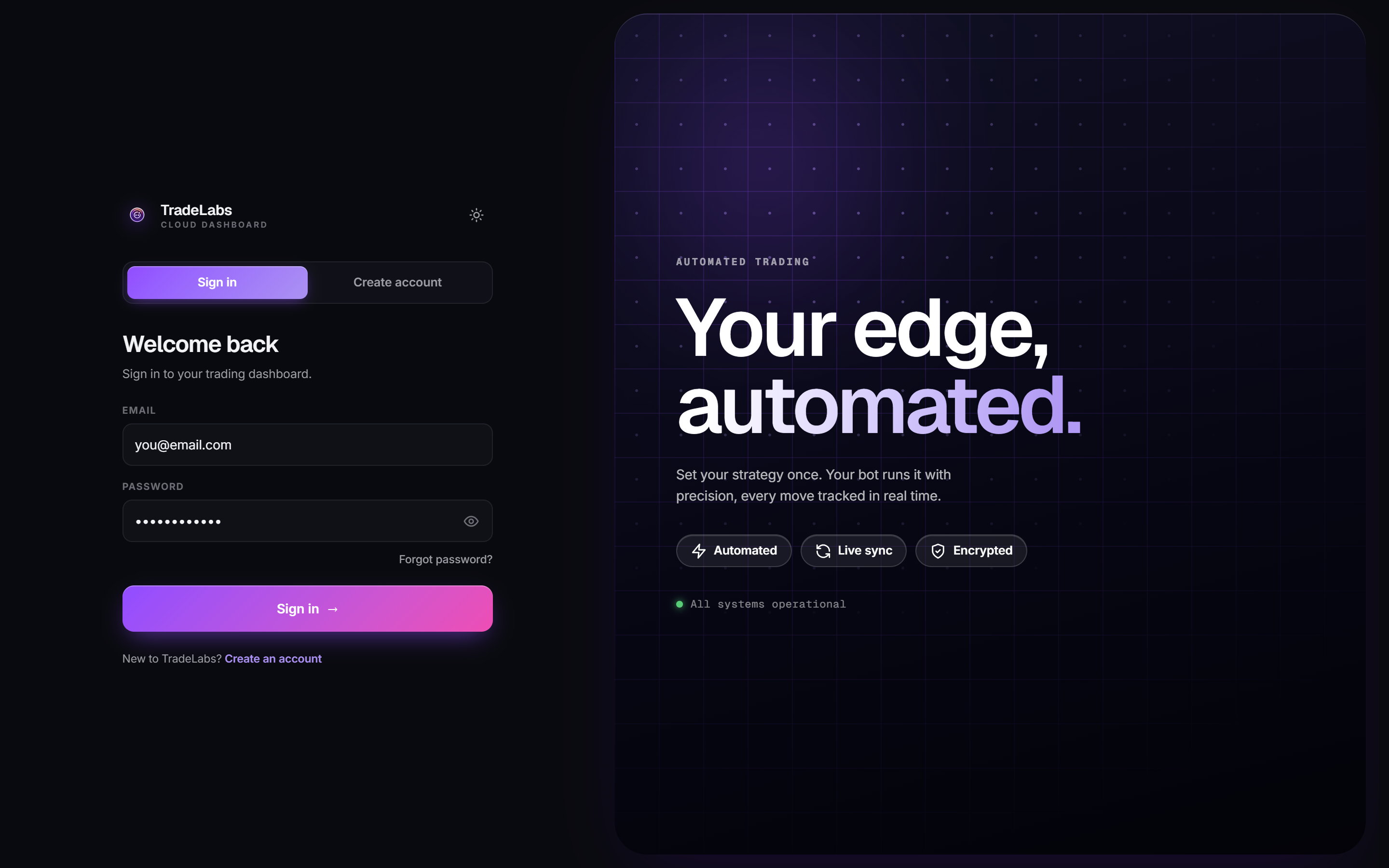 Signing back in later: email and password, same page.
You can link your Discord account from your Profile on the dashboard, using the Connect button on the Discord panel. This links your real Discord account so it can verify subscriptions, sync roles, and receive alerts.
This is separate from whichever account you sign in with for copying trade signals — they don’t have to be the same one, and they don’t have to be different either.
2. Install the app
The Companion is a Windows desktop app. You do not need to install Node, Python, or anything else by hand. The installer is self-contained.
What you need:
| Operating system | Windows 10 or 11 |
| Browser | Google Chrome installed. Browser-based brokers sign in through it. |
| Memory | 4 GB RAM minimum, 8 GB recommended. Each browser-based broker and each memecoin position being price-checked uses its own Chrome tab. |
| Disk | A few GB free |
| Internet | A stable connection. Trades only go out while the app is online. |
| Uptime | The app has to be running to trade, so use a computer that stays on and awake during market hours, or a Windows server or VPS for 24/7. |
- Sign in to the dashboard and click the Download button in the top bar to open the TradeLabs Companion download panel.
- Pick a release channel (Stable is the default and recommended) and click Download.
- Run the installer, then launch the app when it finishes. It updates itself from here on.
Windows SmartScreen may stop the installer with a blue Windows protected your PC screen, because the file is new and not yet widely downloaded. Click More info, check the file name is the TradeLabs Companion installer you just downloaded, then click Run anyway.
New .exe files that aren’t yet widely downloaded are sometimes flagged as a false positive. If Windows Security quarantines the Companion, add its folder as an exclusion:
-
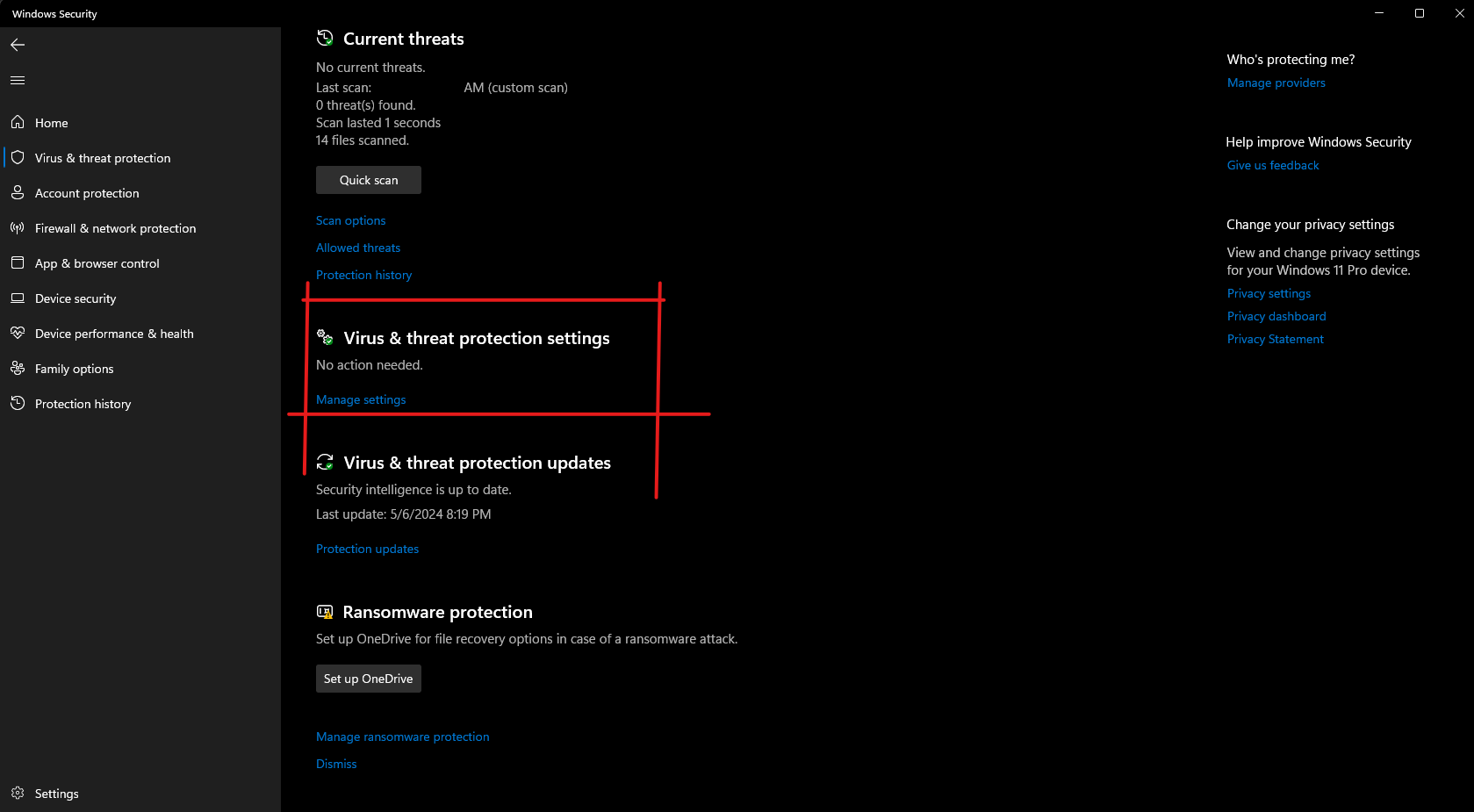
Open Windows Security → Virus & threat protection.
-
Under Virus & threat protection settings, click Manage settings.
-
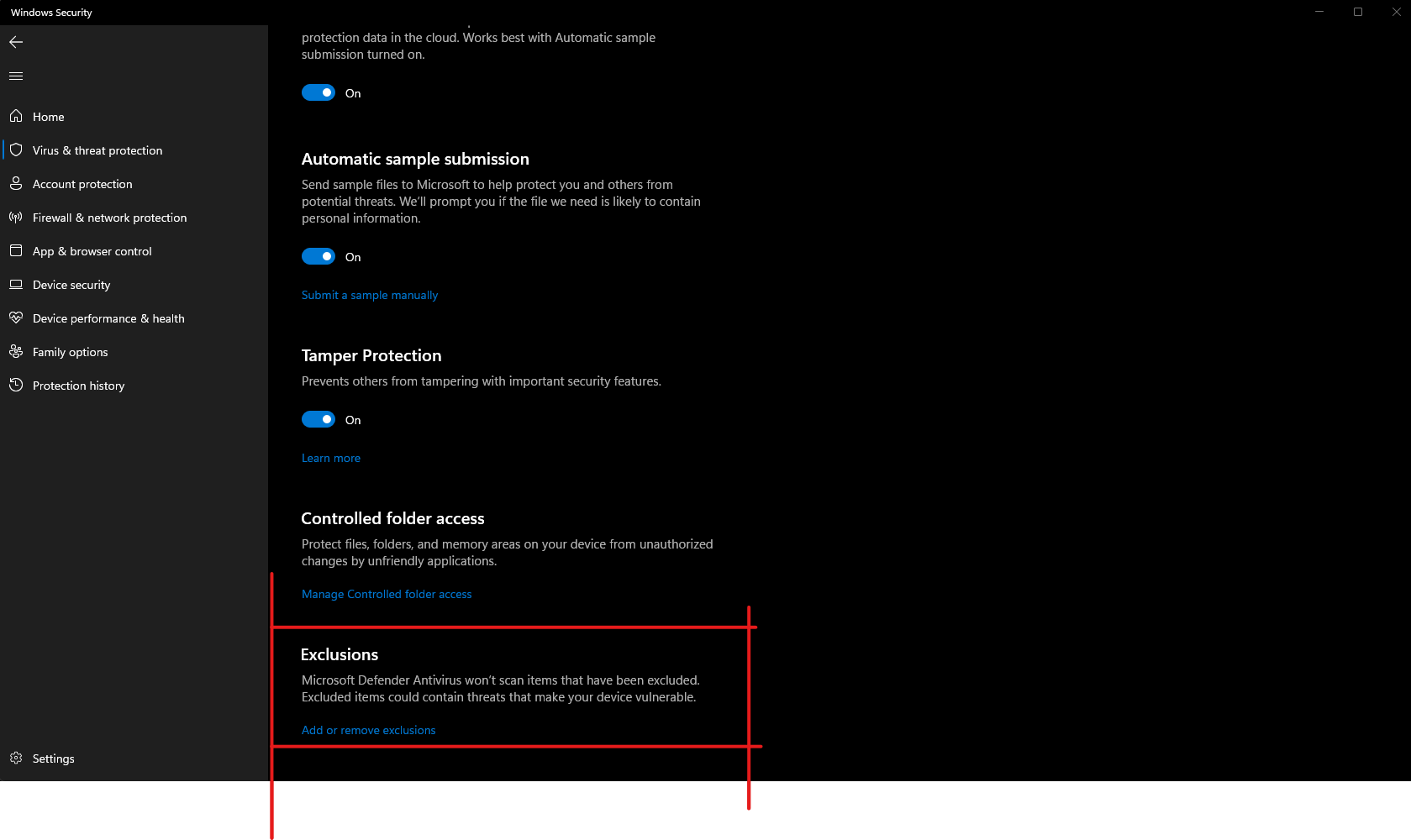
Scroll to Exclusions and click Add or remove exclusions → Add an exclusion → Folder.
-
Paste this path into the folder picker’s address bar and select the folder:
%localappdata%/Programs/tradelabs-companion
Then re-run the installer.
If the app installs but cannot connect to anything, allow TradeLabs Companion through Windows Defender Firewall on both Private and Public networks, then restart the app.
3. Sign in and run the wizard
Launch the app and sign in with your TradeLabs email and password.
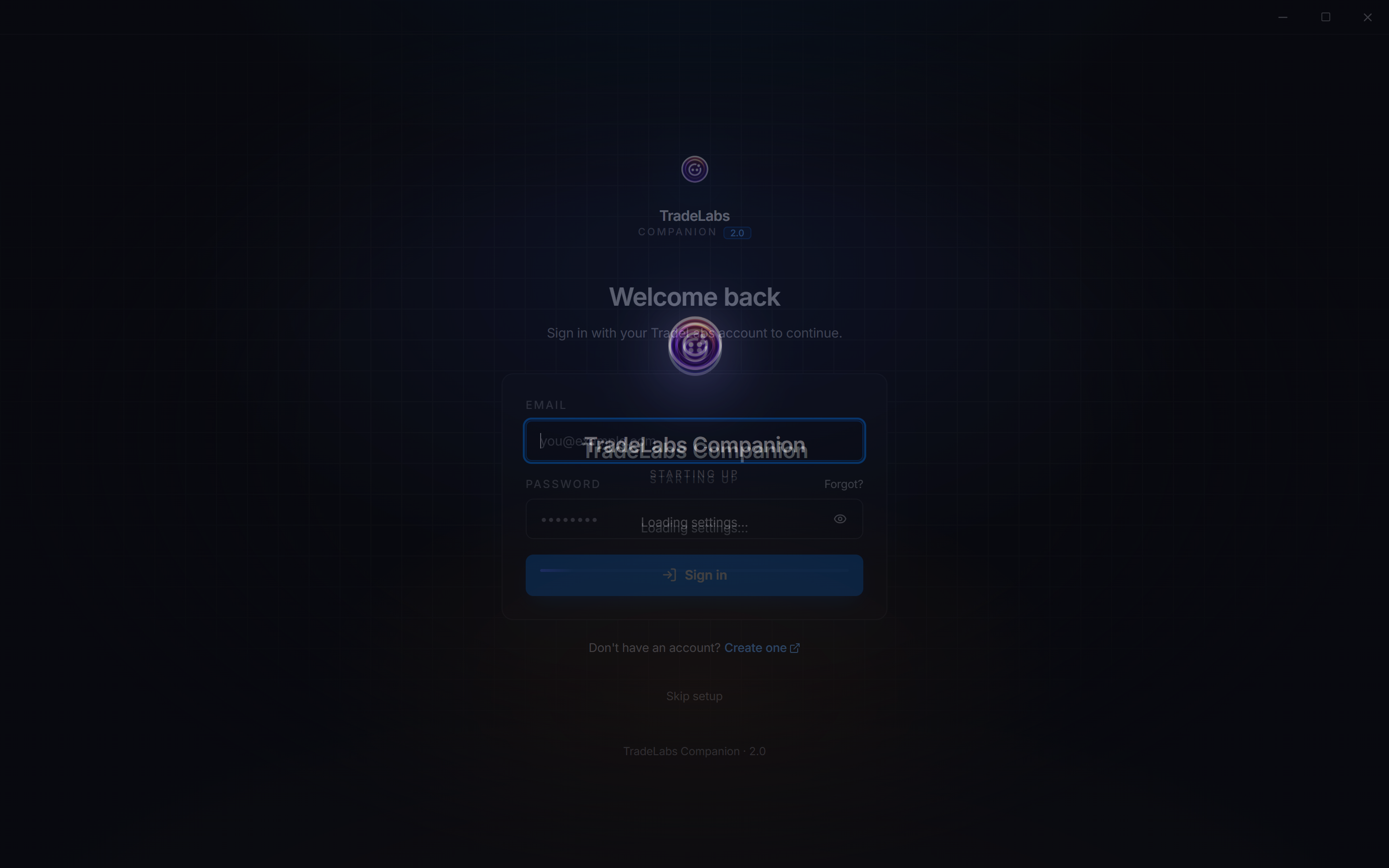
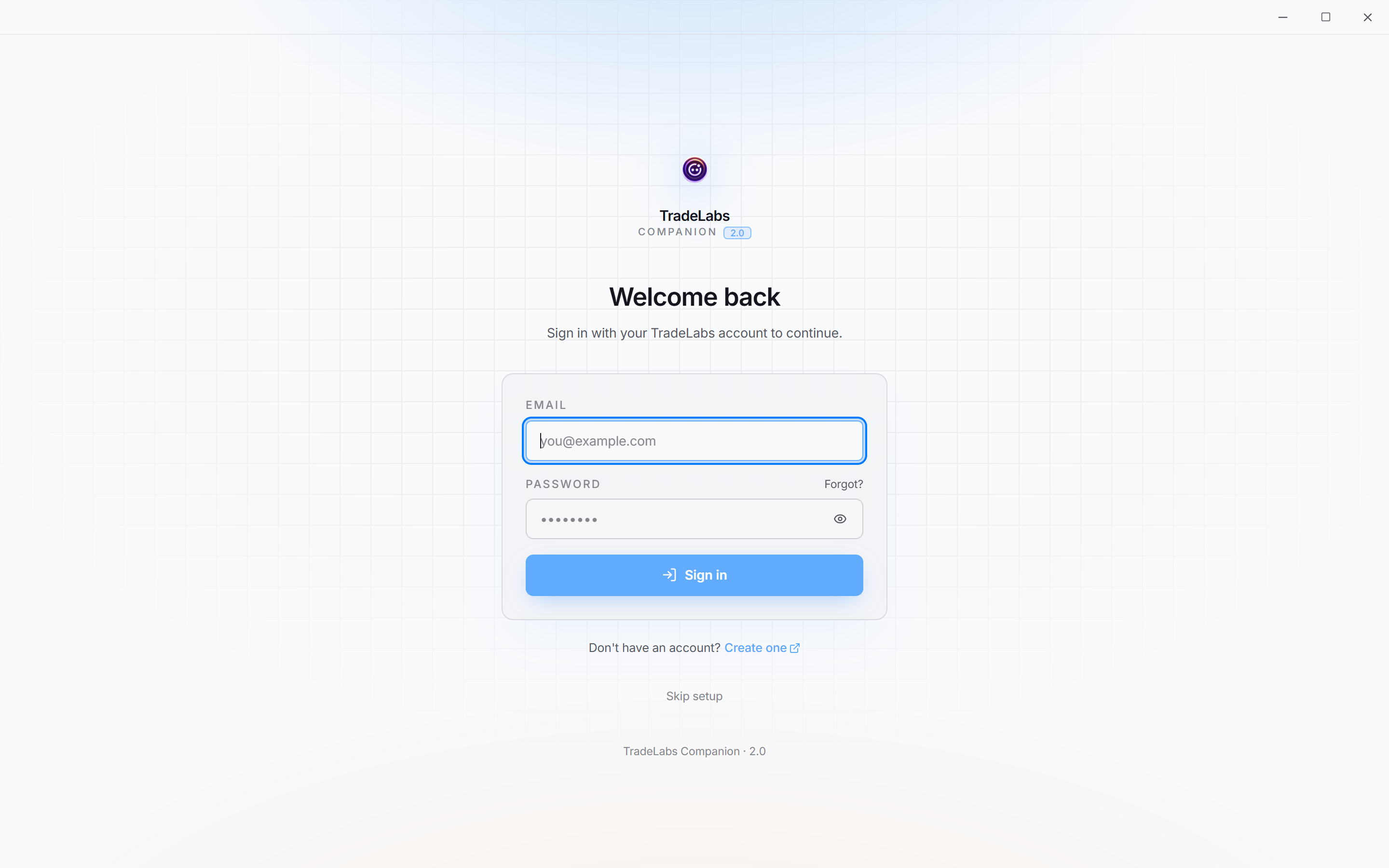 Sign in with the email and password you just created
The first time, a setup wizard walks you through connecting everything, and it skips any step you’ve already done:
| Step | For |
|---|---|
| Sign in | Log into your account |
| Migrate | Import an older TradeLabs setup (new users skip) |
| Discord / Telegram / TradingView | Connect the signal sources you’ll use |
| AI parser | Add an OpenAI or Gemini key so the app can read plain-English calls |
| Broker | Pick your first broker to trade in |
| Strategy | Start with a template |
If you used an older version of TradeLabs, the Migrate step offers to import your old setup so you do not start from scratch. It’s non-destructive and only fills empty slots, carrying over your brokers, OpenAI key, and Discord webhook from v1. Click Import my settings to bring them across, or Start fresh to skip.
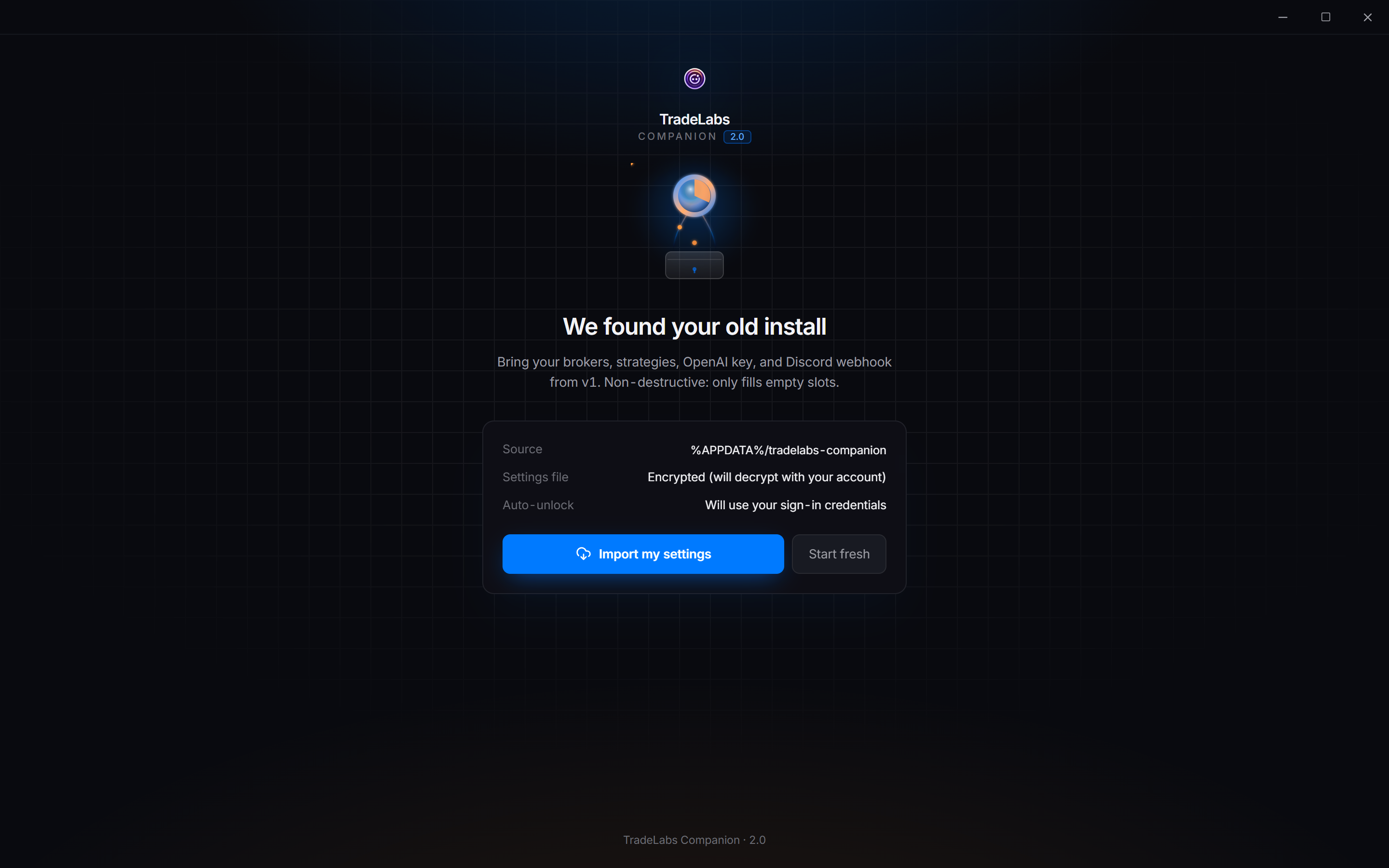
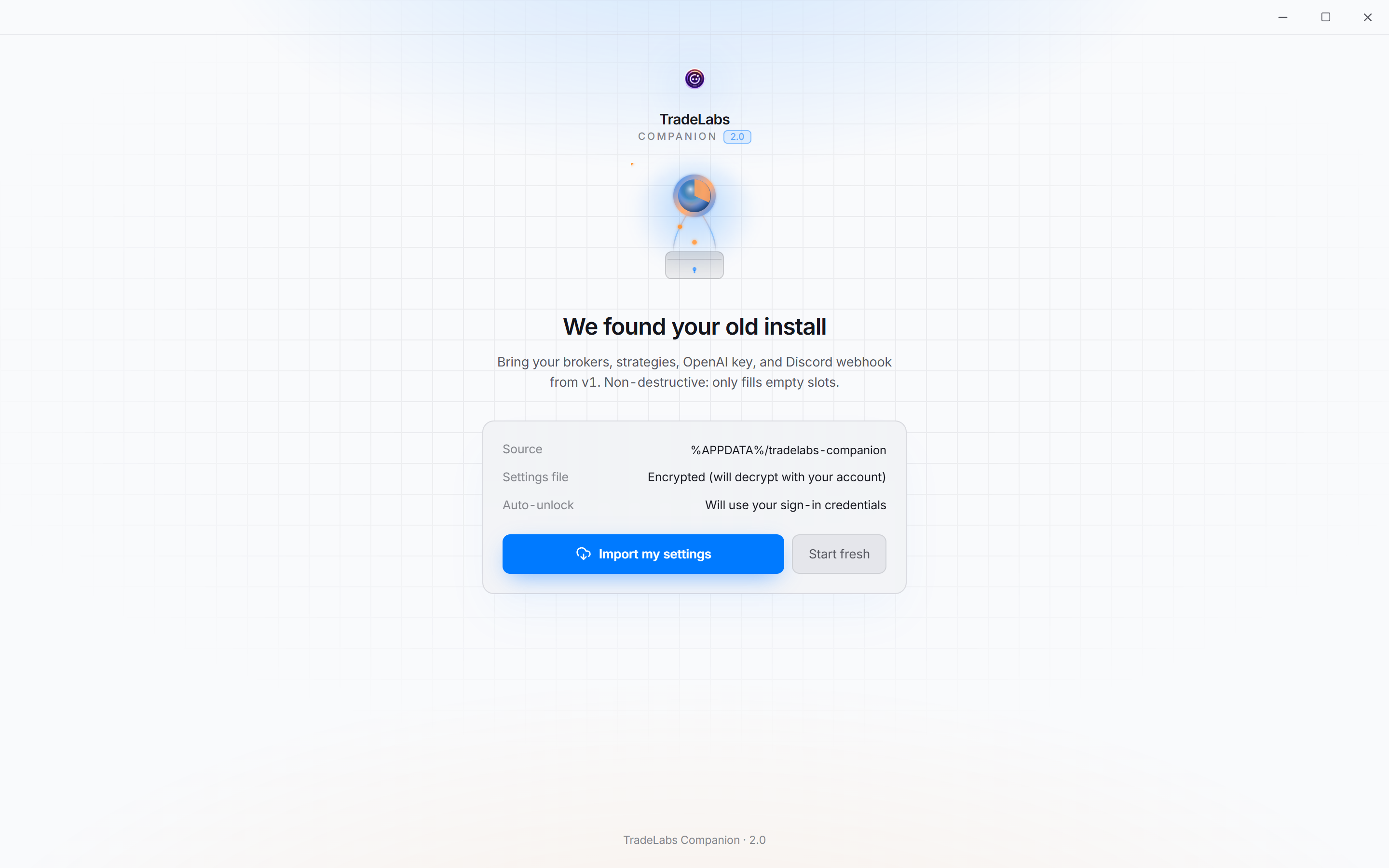 The wizard offers to import your settings when it finds an older install
You can re-run the wizard any time from Settings → Advanced → Onboarding wizard → Run wizard, or set everything up manually from the app’s own pages.
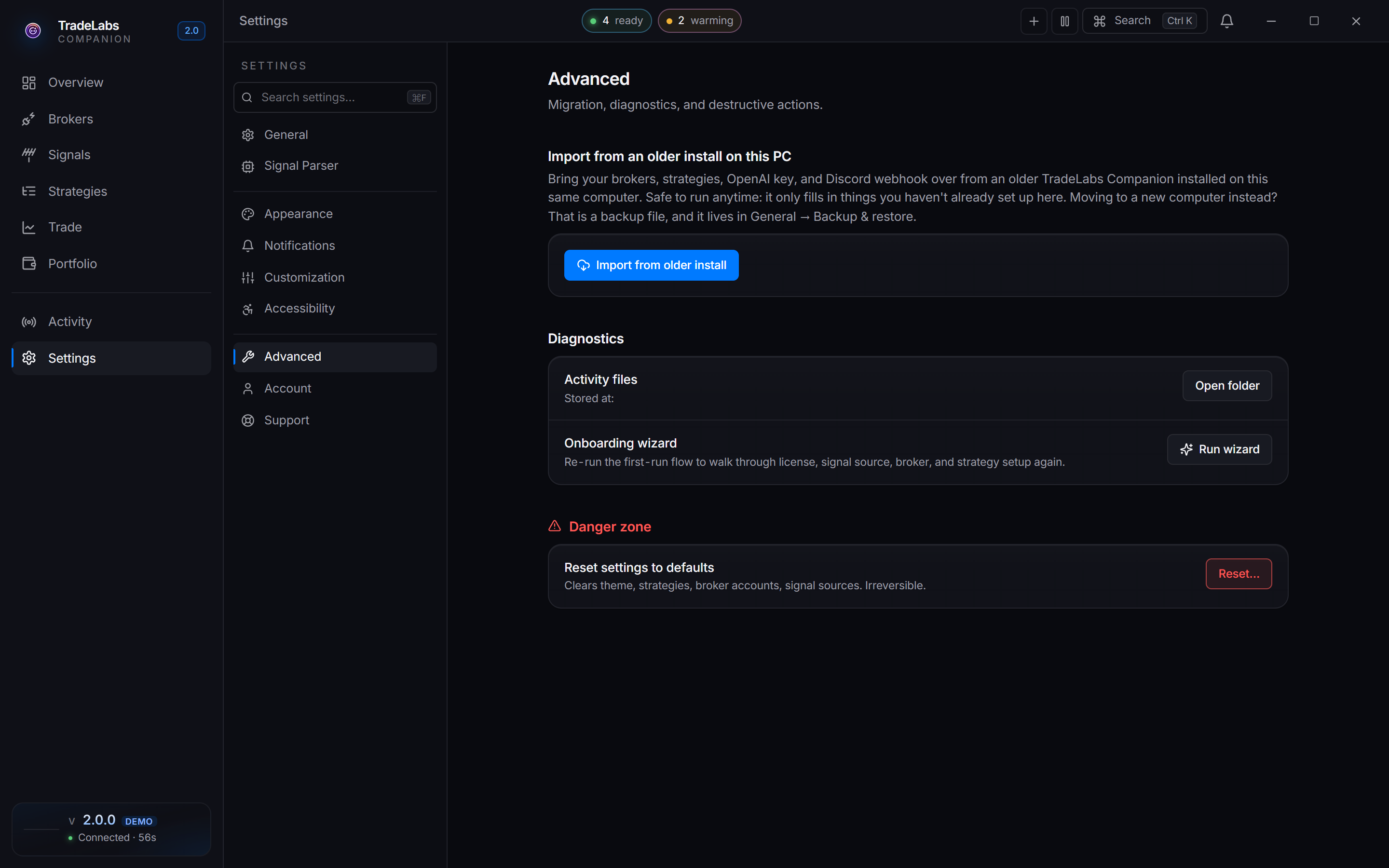
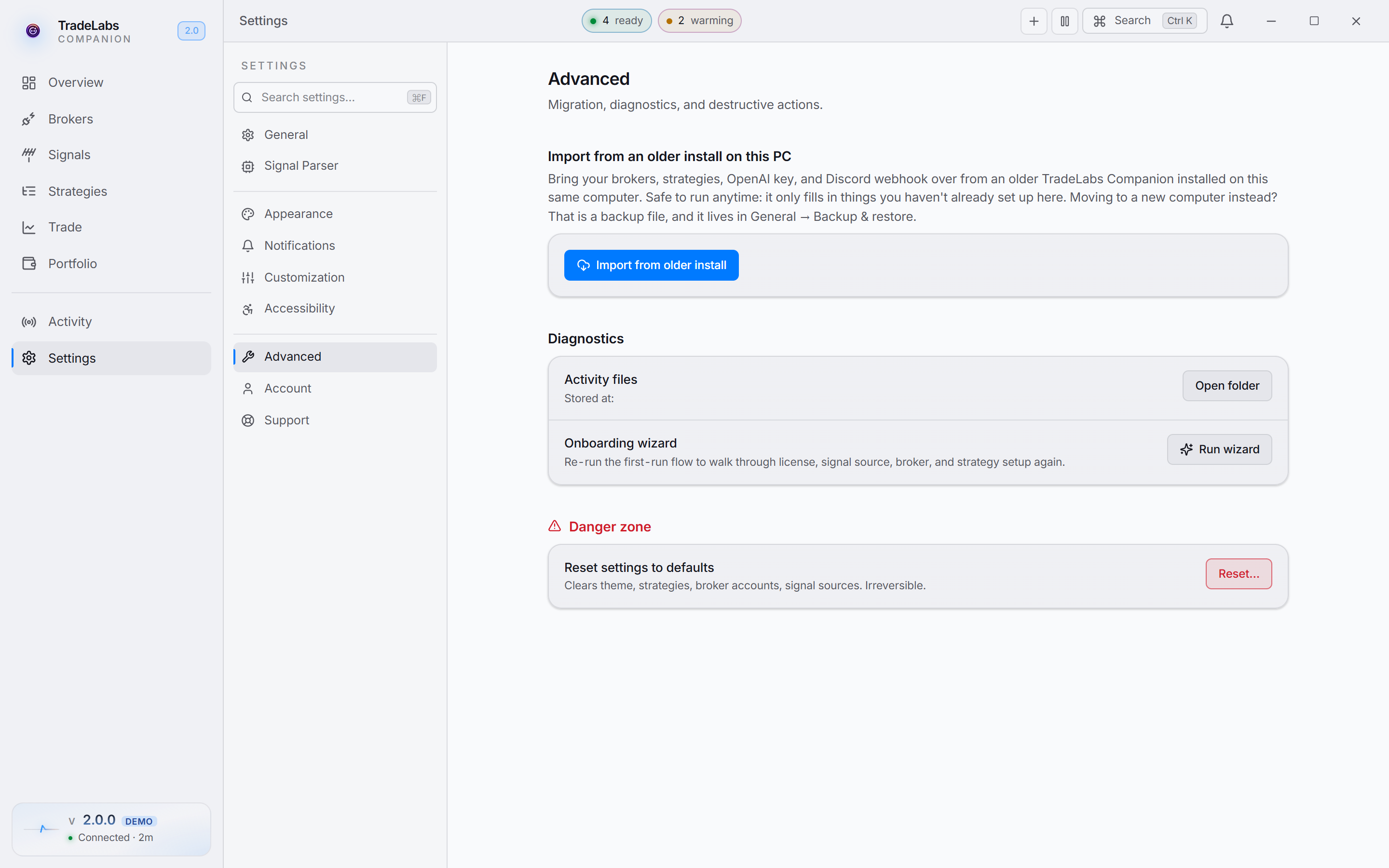 Settings → Advanced holds the Run wizard button, so you can restart onboarding whenever you want.
Can’t sign in? Usually your subscription expired, your password is wrong, or your license is tied to a different computer. If you switched machines, reset the binding from the dashboard (Profile → Reset hardware binding) and sign in again.
Once you’re signed in and the wizard is done, you’re ready to pick your track.