Using the App
Proxies (RSA+)
Proxy management for RSA+ members: what proxies do, how to create groups, add and test proxies, assign them to broker accounts, and fix common failures.
Proxies route your trading requests through different IP addresses. For RSA that lets you run many brokerage accounts at once, each behind its own IP, without tripping the broker restrictions that come from many accounts sharing one.
One rule runs through everything below: the same broker never shares a proxy across two of its accounts. A reuse cap controls how many different brokers may share one proxy. It defaults to 1, so every broker gets its own.
Full proxy management is RSA+. Copy Trading gets the page too, but scoped to Polymarket alone, because Polymarket geo-blocks whole countries and you cannot connect a wallet from one without a proxy. Polymarket only accepts HTTP and HTTPS, so SOCKS is not selectable there.
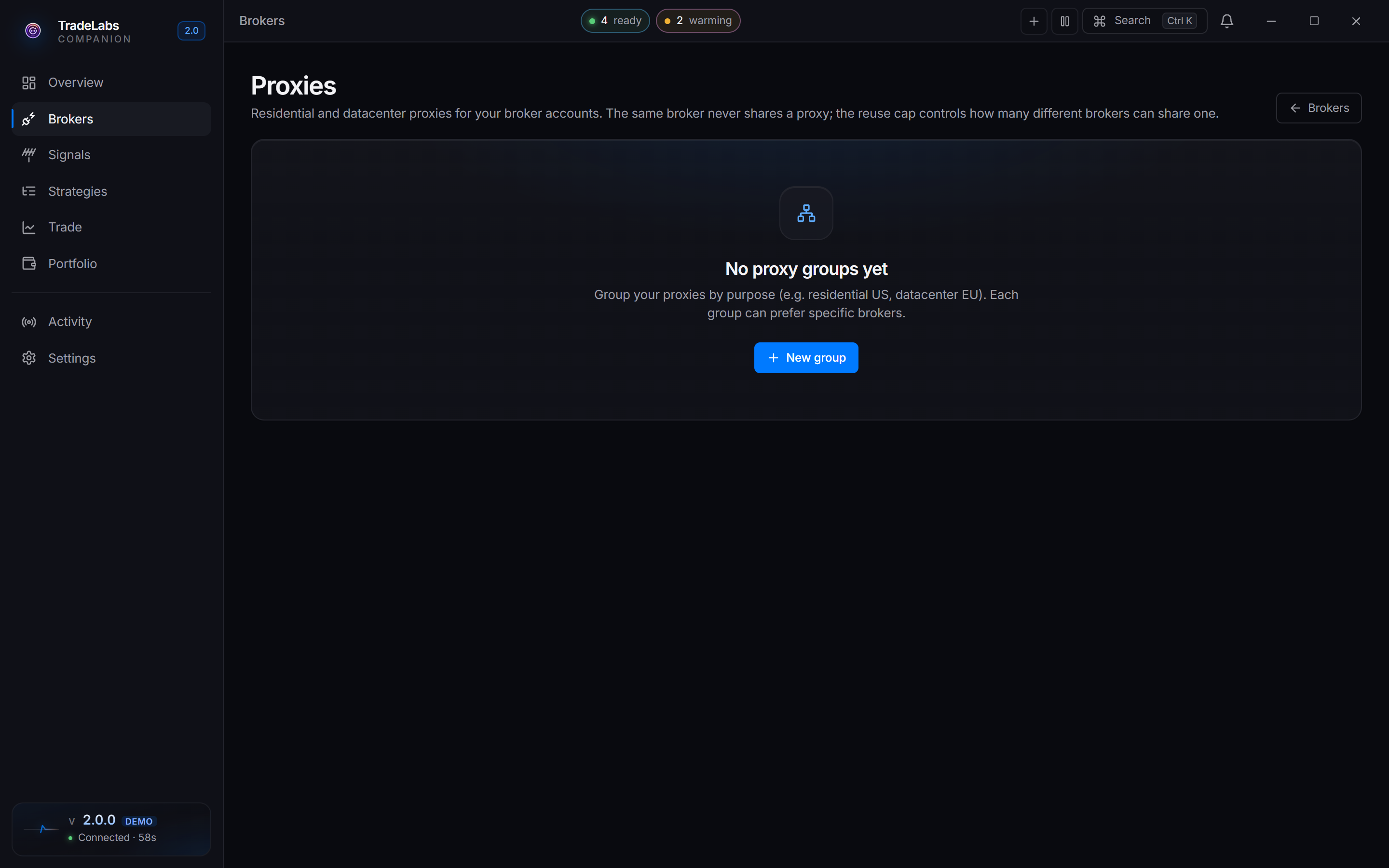
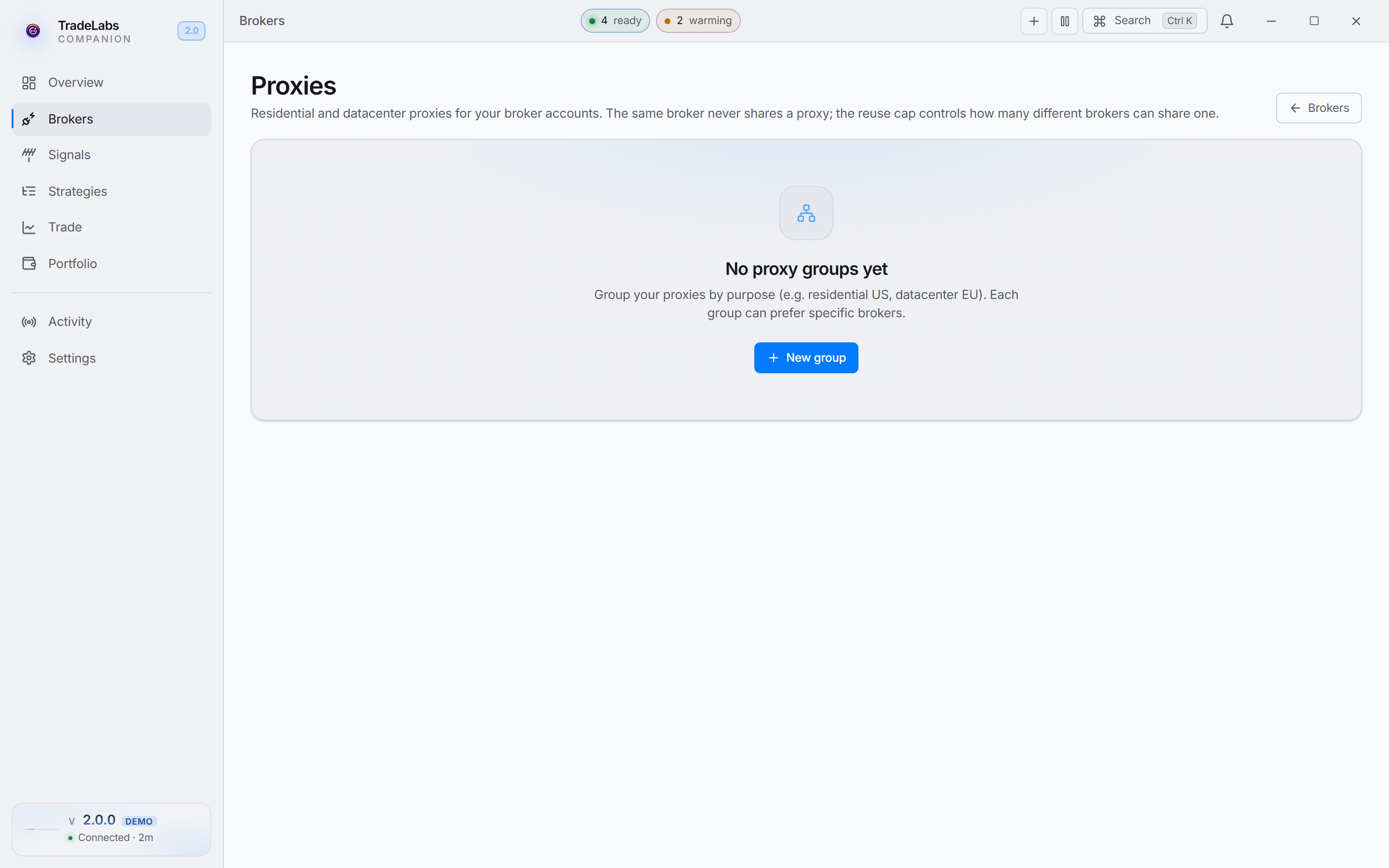 The Proxies page, where you add proxies and assign one to each brokerage account
Eleven brokers take a proxy: Robinhood (stocks), Fidelity, Chase, Public, Firstrade, Fennel, BBAE, DSPAC, Wellstrade, SoFi, and Polymarket. The app handles HTTP, HTTPS, SOCKS4 and SOCKS5.
Getting proxies
Add your own from any provider, or use the partner.
Unknown Proxies (TradeLabs partner): 10% off with code tradelabs10. Get proxies. The Utility ISPs pack (15 proxies) covers most setups.
Create a proxy group
Open the Proxies page under Brokers, then click New group. The group appears straight away with an auto-name.
Click the name to rename it. Open the gear icon for its settings: a Description, an Enabled toggle (park a group without deleting it), and a Broker priority list. Leave the priority list empty and the group becomes a global pool any broker can draw from.
Add proxies
Click Add proxy. The Single tab takes one proxy: protocol, host or IP, port, and optional username and password. The Bulk paste tab takes a list, one per line.
Just paste and go. Bulk paste auto-detects ip:port, ip:port:user:pass, user:pass@ip:port, and protocol://..., so you never convert anything by hand. Lines starting with # are ignored.
As you paste, the form counts what parsed and what did not, with a peek at the failures. Click Add N when the list looks right.
Test before you go live
Test proxies before they touch a real account.
Test against picks the target. Default (any site) confirms the proxy is alive and reports its exit IP. Picking a broker also checks whether that broker has already blocked it, which is the one worth running before you assign. Then hit each proxy’s Test, or Test all.
A working proxy reports its latency and exit IP. A blocked one names the broker that flagged it. A failed one shows the raw error.
The app disables proxies that keep failing. Three rejections in a row disables a normal proxy. A rotating pool gets eight, because timeouts are routine there and pulling it early would be wrong. The row shows the running count once it reaches three.
Assign proxies to broker accounts
Never put the same proxy on two accounts within one broker. Sharing inside a broker causes connection problems and broker restrictions. Sharing across brokers is fine, up to the reuse cap.
Auto-assign is the easy path. Click Auto-assign on the Proxies page. The dialog lists eligible brokers with a checkbox each, and lists separately the brokers it skips. It keeps your existing and hand-pasted assignments, and it never shares a proxy inside one broker.
Assign by hand when you need geographic matching, faster proxies on priority accounts, or one isolated account for troubleshooting. On the Brokers page, open the broker, edit the account, type the proxy into its Proxy field as host:port:user:pass, and save. Keep every account in that broker on a different proxy.
Managing groups
Each group card shows its name and proxy count, with its proxies as rows below. The header holds rename, sort, group settings, and delete. Proxies are added and edited inline on the card.
A stats strip at the top of the page totals every group: Groups, Proxies, Healthy, and Assigned, plus Failing and Untested when either exists.
Troubleshooting
Proxies failing mid-session. Open the failing group’s settings and turn off Enabled, switch on a backup group if you keep one, then re-assign. If every proxy fails, check your internet, confirm the proxies are still live with your provider, and if they use IP auth confirm your IP has not changed.
Read the test result. A failed row shows the raw error. A blocked row names the broker. Test against a specific broker to tell “this proxy is dead” apart from “this broker blocked this proxy.” High latency on a working proxy points at the proxies or your network, not the app.
What each test error means
A failed test row shows the raw error. Find the closest match:
| Error contains | What it means | Fix |
|---|---|---|
407 or Proxy Authentication Required, SOCKS5 authentication failed | The proxy is up but rejected your username or password. | Check the credentials in your provider’s dashboard, confirm the plan is active and paid, then re-enter the proxy. If your provider uses IP whitelisting instead of a password, confirm your current IP is on the list. |
ENOTFOUND, EAI_AGAIN, getaddrinfo | The proxy’s hostname does not exist or cannot be looked up. | Check the host for typos. Try the provider’s IP address instead of the hostname. If the host is right, your DNS is failing: test it with nslookup <host> in Command Prompt. |
ECONNREFUSED | Nothing is listening at that address and port. | The port is wrong, the proxy is offline, or your IP is not whitelisted. Recheck the port against your provider’s list. |
EHOSTUNREACH, ENETUNREACH | Your computer cannot reach the proxy at all. | Check your internet connection, firewall and VPN. |
not a SOCKS proxy | You chose SOCKS for an HTTP proxy port, or the other way round. | Re-add the proxy with the protocol your provider lists for that port. |
timeout, ETIMEDOUT, timed out | The proxy took too long to answer. | One timeout on a rotating pool is normal. If every test times out, test the proxy outside TradeLabs (in a browser or with curl -x), check Windows Firewall, and try other proxies from the same provider. |
ECONNRESET, socket hang up | The connection opened, then dropped. | Usually a bad peer on a rotating pool. Retest. If it keeps happening, the provider is overloaded or you are past its usage limits. |
proxy is reachable — this is the destination, not the proxy | The proxy works. The site on the other end refused. | Not the proxy’s fault, and it is not counted against it. Test against the specific broker to see if that broker is blocking the IP. |
Works sometimes, fails other times. Test at different times of day to spot a pattern. Check whether your provider has a usage or bandwidth limit you are hitting, avoid putting more accounts on a proxy than your reuse cap allows, and keep a second group as a backup.
Slow but working. Consistently high latency means the proxy or your network is slow, not the app. Running TradeLabs on a server instead of a home PC, or switching to premium ISP proxies, usually fixes it.
Format errors. Bulk paste flags the lines it could not parse. Check for typos and stray spaces, keep one proxy per line, and confirm nothing is cut off.
Robinhood. US-based HTTP or HTTPS only, never SOCKS. One proxy per account. Non-US proxies get blocked.
Firewall and ISP. Allow the Companion App through Windows Firewall on both Private and Public networks, then restart. If everything fails at home but works on a mobile hotspot, your ISP is blocking proxy traffic: try port 443 or 8080, or a VPN.
Who to contact. Contact your proxy provider when every proxy from them fails, you see 407 or other authentication errors, or you have billing problems. Contact TradeLabs support when proxies pass the test but trades still fail through them, or the app behaves unexpectedly. Send a screenshot of the failing rows, the test result text, and when it started.