Brokers
STG / DAS
Trade stocks and short sell through DAS Trader Pro (STG Markets or Cobra Trading): broker costs and account opening, the DAS client downloads, the CMD API port, connecting in the app, short locates, stop losses on shorts, extended hours, and recommended starting settings.
DAS Trader Pro is a direct-access trading platform. TradeLabs connects to it to trade stocks, including short selling, through STG Markets or Cobra Trading. Each of those brokers ships its own DAS client. You run the client on the same computer as TradeLabs, and TradeLabs talks to it over a local port. The broker card in the app is named STG / DAS.
| What it trades | Supported |
|---|---|
| Stocks (long) | Yes |
| Short selling | Yes |
| Pre-market and after-hours | Yes |
| Options, spreads, crypto, RSA | No |
The whole setup at a glance
- Pick a broker: STG Markets or Cobra Trading.
- Open and fund the account, then request DAS access.
- Download the DAS client for that broker and log in.
- Set the CMD API port in DAS and restart it.
- Connect it in TradeLabs.
- Paper trade first, then go live.
1. Pick a broker
STG Markets specializes in short selling and extended hours, with trading from 4:00 AM ET.
| Minimum deposit | $1,000 |
| Monthly cost | $50/month STG + $100/month DAS = $150/month |
| Margin | x6 by default |
| DAS client | DAS x STG download |
Cobra Trading is a direct-market-access broker for active traders who want competitive rates.
| DAS client | DAS x Cobra download |
Check Cobra’s site for current minimums and platform fees.
Costs and minimums are set by the broker and DAS, not TradeLabs, and they can change. Confirm them with the broker before you fund.
2. Open the account and request DAS access
Having a broker account is not enough on its own. The broker also has to switch on DAS Trader Pro access, and that is a separate request.
-
Go to the STG Markets website and click Open Account.
-
Fill in your personal and financial details and upload your documents:
- a completed W-9
- identity verification: passport or green card, plus ID, plus a utility bill or bank statement from the last 3 months
-
Fund the account with at least $1,000.
-
Wait for approval. Allow 5 to 7 business days.
-
Log into the STG account portal and request DAS Trader Pro access. It is usually granted within 24 to 48 hours.
-
Go to the Cobra Trading website and click Open Account.
-
Fill in your personal and financial details and upload the documents Cobra asks for.
-
Fund the account.
-
Contact Cobra support to confirm DAS Trader Pro access is enabled on your account.
Incomplete documents are the most common reason accounts sit in review. Fund above the minimum so you have buying power for the strategy you plan to run, not just enough to open the account.
Live and paper accounts. Your live account is your account number, for example 4860. Your paper account is the same number with a TR prefix, for example TR4860.
3. Download the DAS client
Each broker has its own DAS client. Install the one for your broker on the same computer as TradeLabs.
- STG Markets: DAS x STG client
- Cobra Trading: DAS x Cobra client
-
Download and run the installer, following its setup wizard.
-
Open the client and log in:
- User ID: your broker account ID or account number
- Password: your broker account password
-
Click Login.
If the login fails, your broker has probably not activated DAS access yet. Contact their support. TradeLabs cannot connect until DAS logs in on its own.
4. Set the CMD API port
TradeLabs reaches DAS through its CMD API port. You set it once in each DAS client you run.
-
In DAS Trader Pro, click Setup in the top menu bar.
-
Choose Other Configuration.
-
In the settings window, search for CMD.
-
Find the field labeled CMD API Port: and enter a port number. Use the recommended ports below.
-
Save the settings.
-
Close DAS Trader Pro completely and open it again. The port only takes effect after a restart.
| Broker | Recommended CMD API Port |
|---|---|
| STG Markets | 8888 |
| Cobra Trading | 8889 |
Any free port works, as long as no two DAS clients use the same one.
Every DAS client needs its own port. If you run STG and Cobra at the same time, they cannot share a CMD API port. Give each one a different port and enter the matching port on each TradeLabs account.
5. Connect it in TradeLabs
With DAS open, logged in, and restarted after the port change:
-
Open the Brokers page, find the STG / DAS card, and click Add account.
-
Fill in the form:
- Account ID (required): your DAS login username, the one you type into DAS Trader Pro. It usually looks like
CB4860for Cobra orTR4860for STG. - Password: your broker account password.
- Account: the account to trade. For live trading, your account number, for example
4860. For paper trading, theTRaccount, for exampleTR4860. - Port: the CMD API port you set in step 4, for example
8888. - Sub-broker: STG, Cobra, or DAS.
- Account ID (required): your DAS login username, the one you type into DAS Trader Pro. It usually looks like
-
Click Save account.
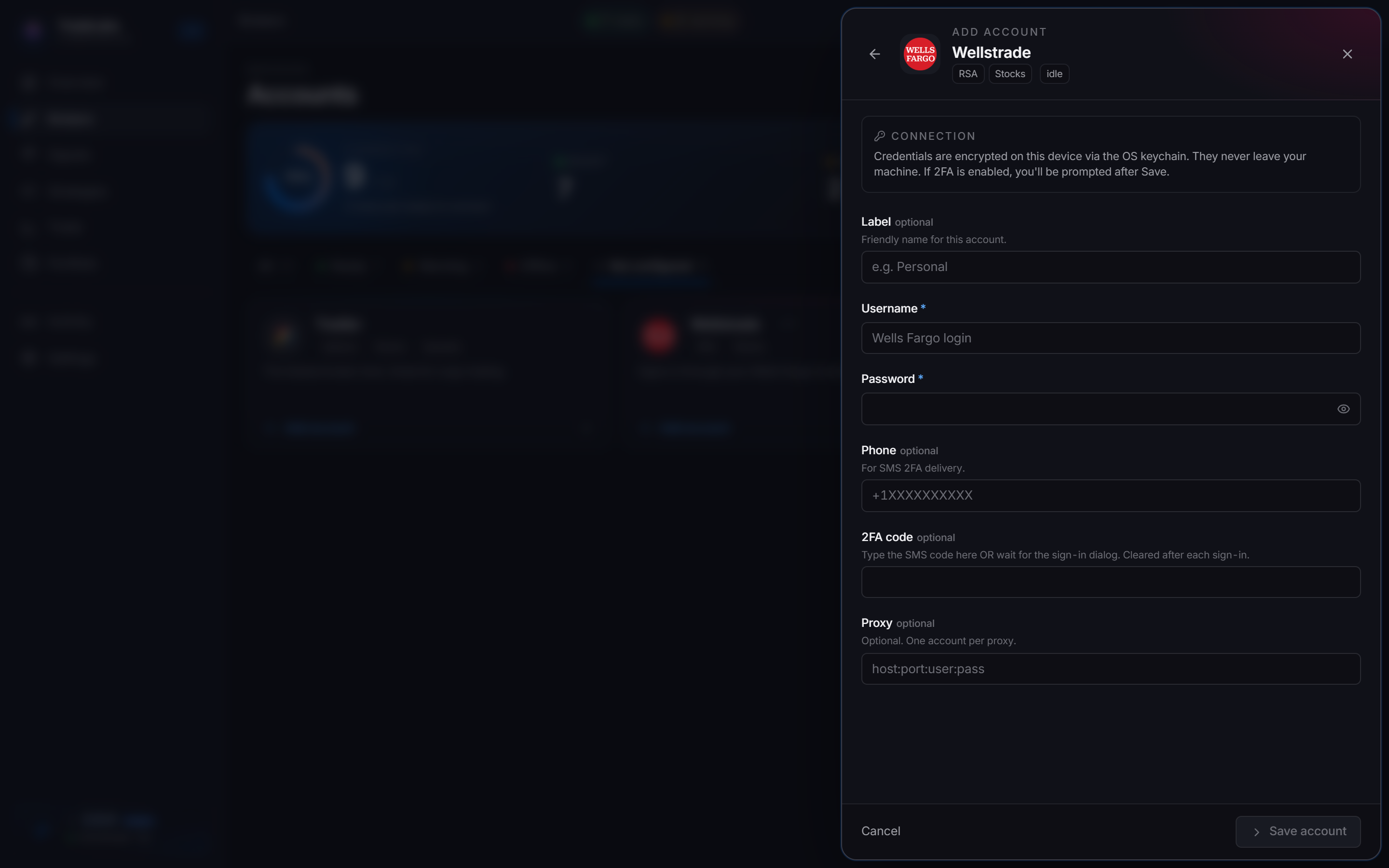
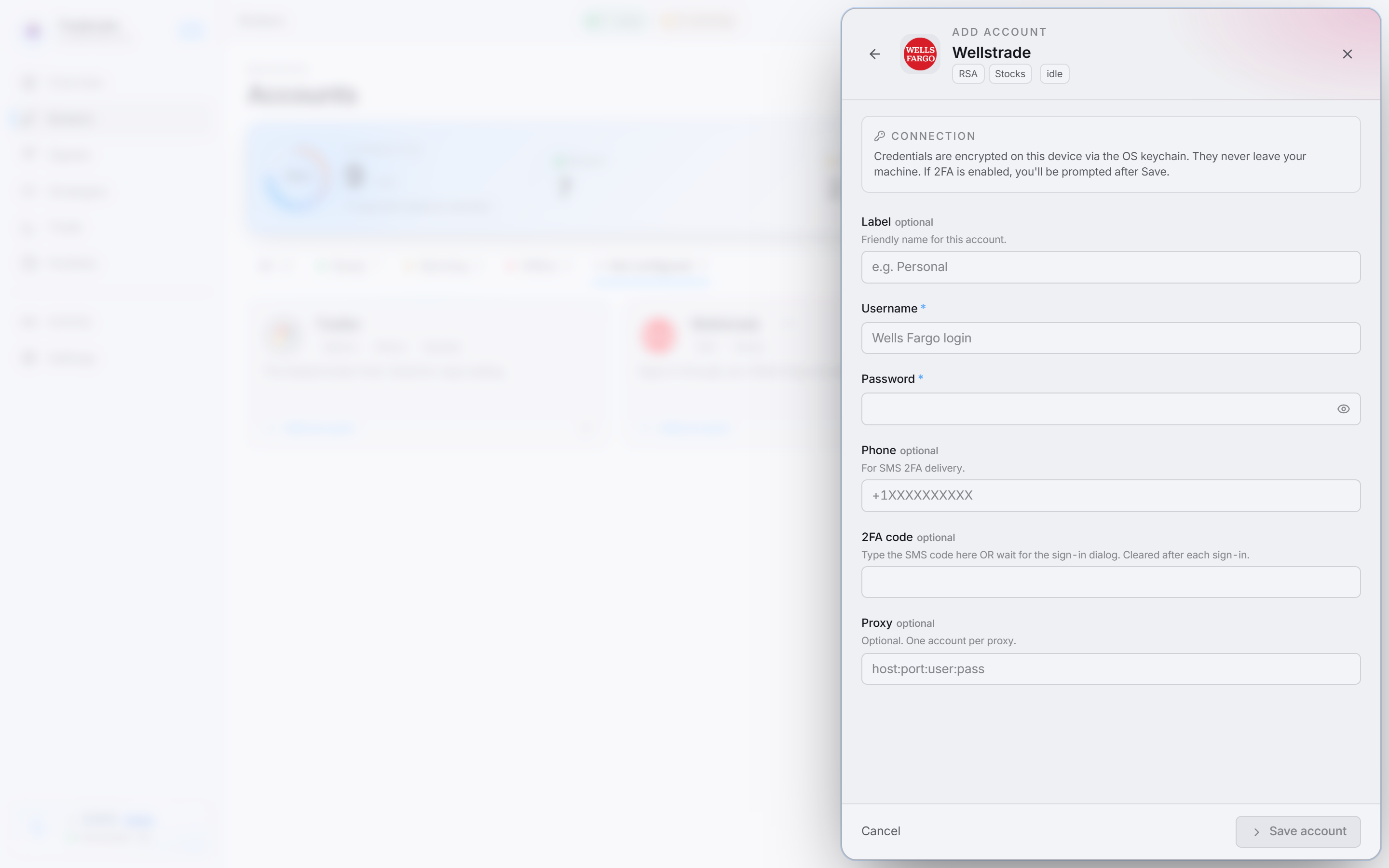 Account ID, Password, Account, Port and Sub-broker. The Port must match the CMD API Port in that DAS client.
TradeLabs connects to DAS and checks the link itself, so there is no separate test step. The account then reads Active, Idle, Warming or Offline on the Brokers page. To re-check later, open the account row menu and choose Check connection.
Running STG and Cobra together
You can trade through both brokers at the same time.
-
Open the DAS x STG client and log in.
-
Open the DAS x Cobra client and log in.
-
Make sure each one has its own CMD API port, for example
8888and8889. -
In TradeLabs, add one STG / DAS account per client, each with its matching port and sub-broker.
Both clients must stay open while you trade. Running several live accounts multiplies gains and losses alike, so prove the strategy on paper first.
Trading on STG / DAS
Short locates
Before a short, the broker has to locate shares to borrow, and hard-to-borrow tickers carry a locate fee.
- Short locate % (on a Stocks strategy routed to STG) is the most you will pay to borrow, as a percent. If the actual fee comes back higher, the short is blocked instead of filled. Example:
5blocks any short with a fee over 5%. Leave it empty to skip the check. - Trade size matters. Around $200 per trade is the practical minimum. At that size roughly 85% of signals could be located in our testing. That rate depends on the tickers your signal provider calls. Some tickers need at least 100 shares to short, which can be expensive on higher-priced stocks. A larger dollar size per trade gets located more often.
- When a locate fails, TradeLabs skips the trade instead of filling it, and a notification goes to your webhook if you have one set.
Stop losses on shorts
Shorts are naked by default, so losses can exceed 100% of the position. The STG integration reads stop loss and take profit as a percent of price. A plain 100 means 100 percent, not $100.
We recommend a stop loss of 100 to 110% on short strategies, unless you have a reason not to:
| Use a stop loss when | A stop loss may not be needed when |
|---|---|
| The channel rarely posts clear exits | The channel posts clear entries and exits |
| The market or tickers are volatile | You can watch your trades actively |
| Risk control is your priority | The strategy has a proven track record |
| You are learning or testing | You follow an experienced signal provider |
One exit method at a time
On STG, a strategy uses one of take profit, trimming, or a trailing stop, not several at once. The strategy editor enforces this.
STG-only protections
| Protection | What it does |
|---|---|
| Block-exit threshold | Refuses a sell while the position’s P&L from your average cost is past the percent you set, so it can recover or hit your stop instead. Enter a loss as a negative number: -50 will not sell at a 50%+ loss. A positive number blocks sells at that gain or more. |
| Avoid stacking the same ticker | Blocks re-buying a name you already hold near your average cost. Example: 2% on AAPL held at $100 blocks new buys until the price is above $102 or below $98. 0% blocks every re-entry while you hold it. After you close, the rule keeps checking for 5 minutes, so a repeated alert cannot reopen the same trade. |
Extended hours
STG and Cobra trade outside the regular session:
| Session | Hours (ET) |
|---|---|
| Pre-market | from 4:00 AM |
| Regular | 9:30 AM to 4:00 PM |
| After-hours | until 8:00 PM |
There is no extended-hours switch to turn on. Between 9:30 and 4:00, TradeLabs sends your order type as set. Outside those hours it turns market orders into limit orders at the current price, adjusted by your LMT offset so the order is priced to fill. A 1% offset is a good starting point for out-of-hours fills.
Recommended starting settings
A sensible starting point for a short-selling stock strategy on STG. Adjust it to your signal source and risk tolerance.
| Setting | Value | Why |
|---|---|---|
| Instrument | Stocks | DAS trades stocks only |
| Order type | Market | Converted to limit automatically outside regular hours |
| LMT offset | 1% | Prices out-of-hours orders so they fill |
| Short locate % | 5 | Blocks shorts with expensive borrow fees |
| Trade size | $400 | Comfortably above the ~$200 locate minimum |
| AI selling | On | Lets the channel’s exit calls close positions |
| Stop loss | 100 to 110% | Caps losses on naked shorts |
Paper trade first
Run a new setup on paper for at least 3 to 5 days before going live.
-
In TradeLabs, set Account to your
TRpaper account, for exampleTR4860. Everything else stays the same. -
Let the strategy run on paper and check it trades the way you expect.
-
Move to live only after consistent results, starting with smaller sizes and increasing as you gain confidence.
Paper results flatter shorts: in paper mode every locate succeeds, so every short fills. Live, shares may be unavailable before or even after a locate. Use paper to confirm the setup and timing, not to predict your live fill rate.
Fixing common problems
- Cannot connect. Check the DAS client is open and logged in, and that Port in TradeLabs matches the CMD API Port in that DAS client.
- Port change did nothing. Fully close and reopen DAS. The change only takes effect on restart.
- Two clients, one fails. They are sharing a CMD API port. Give each client its own port and update the matching TradeLabs account.
- Cannot log in to DAS itself. Your broker has not activated DAS access yet. Contact their support.
- Shorts skipped on live. No shares to locate, or the locate fee was above your Short locate %. Increase the dollar size per trade, or raise the locate limit if you accept higher fees.
- Out-of-hours orders do not fill. Raise the LMT offset so the converted limit order is priced more aggressively.