Reference
FAQ and Troubleshooting
Answers to common questions about TradeLabs, plus fixes for the problems people hit most: brokers, strategies, updates, and sign-in.
Answers to the questions people ask most, grouped by topic. Use the on-this-page menu to jump to a section.
General
What is TradeLabs?
TradeLabs is an automated trading platform. You connect your brokerage accounts, point it at a signal source (Discord, Telegram, TradingView, or serverside), and it places trades for you when a signal arrives.
What are the two parts?
TradeLabs is a Companion App plus a Cloud Dashboard.
- Companion App: the desktop app that does the work. It connects to your brokers, watches your signal sources, and places every trade. You can create and run strategies here on their own.
- Cloud Dashboard: a web page you open from any browser to create, edit, start, and stop strategies and see results. It is a remote control.
The app has to be running for anything to trade. The dashboard can change a strategy from anywhere, but the app is what places the orders. See How TradeLabs works.
What are the plans?
Two plans: Copy Trading (automate off Discord, Telegram, or TradingView signals) and RSA+ (everything in Copy Trading plus Reverse Split Arbitrage).
Which operating systems are supported?
The Companion App runs on Windows 10 and 11, and it needs Google Chrome installed. The brokers that sign in through a browser session (Chase, Fidelity, SoFi, WellsTrade) drive Chrome behind the scenes.
Account and setup
How do I move to a new computer?
Your license binds to one machine at a time. Open the Cloud Dashboard, go to your Profile, and use Reset hardware binding. Then sign in on the new machine so the license binds there.
The Companion App shows your current Hardware ID under Settings → Account. The reset itself happens in the dashboard Profile at dashboard.tradelabs.org.
Can I run TradeLabs on two computers at once?
No. The license is bound to one computer through the Hardware ID. To switch, reset the hardware binding from the dashboard Profile, then sign in on the other machine.
Can I run two copies of the app on one computer?
No. Only one copy of the Companion App runs at a time. If you open a second one, it closes itself straight away and leaves the first one running. This stops two copies from fighting over the same broker connections.
Does the app need to stay open?
Yes. The app is the engine: it watches your signal sources and places your trades. If you close it or the computer sleeps, signal watching and trading stop. If your internet drops, the app reconnects on its own, but no trades go out while it is offline.
Brokers
Which brokers does TradeLabs support?
TradeLabs connects to Interactive Brokers, Tradier, Charles Schwab, Robinhood (stocks and crypto), SoFi, Public, Fennel, Fidelity, Chase, BBAE, DSPAC, WellsTrade, Firstrade, Webull, Solana, Robinhood Chain, Polymarket, and DAS/STG. See the Brokers reference for the full list and setup for each.
How do I connect a broker?
You connect brokers in the Companion App on the Brokers page. Find the broker’s card, click Add account, fill in the connect form, and click Save account. Then click Sign in on the account row. The exact sign-in flow differs by broker, so follow that broker’s page in the Brokers reference.
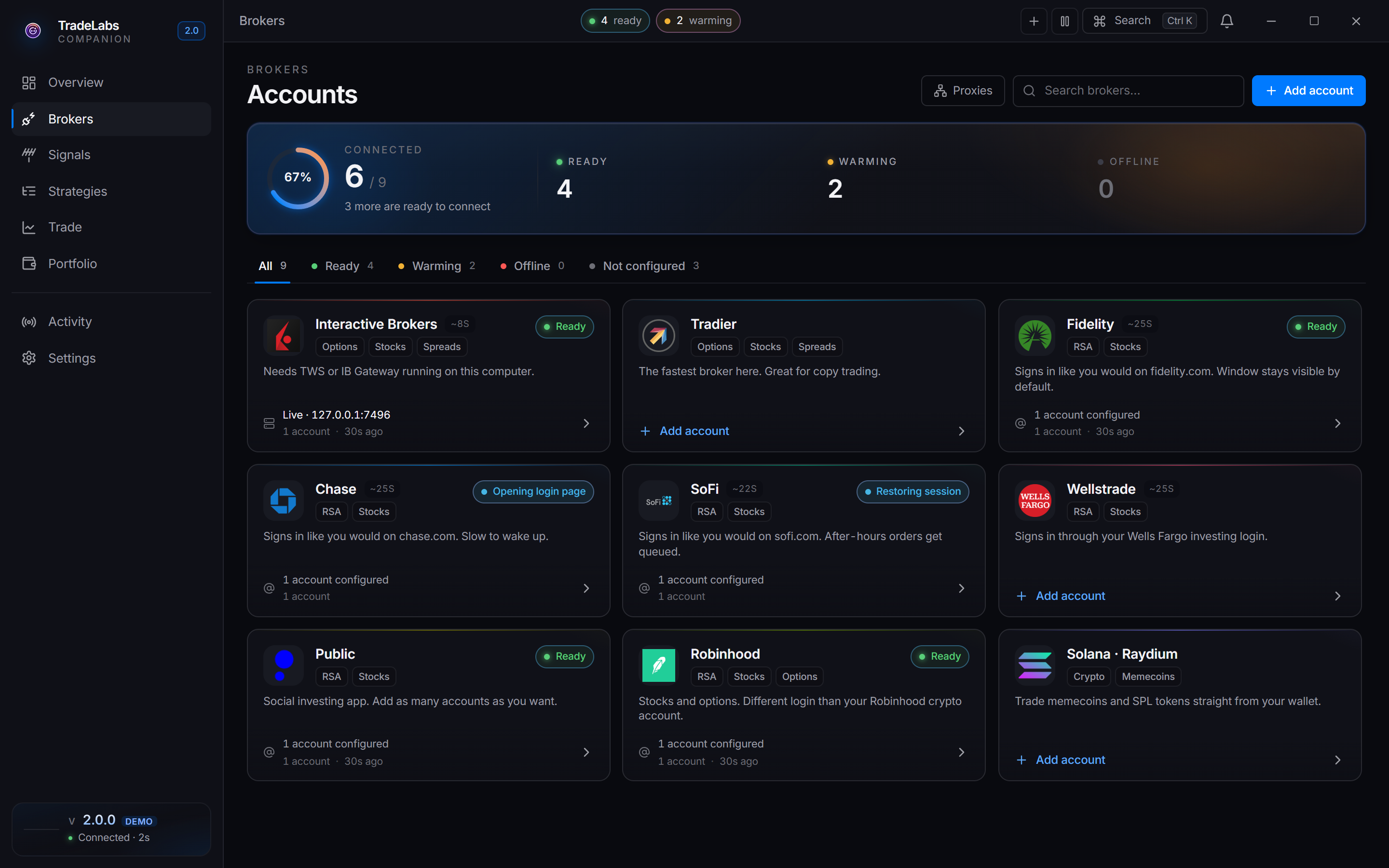
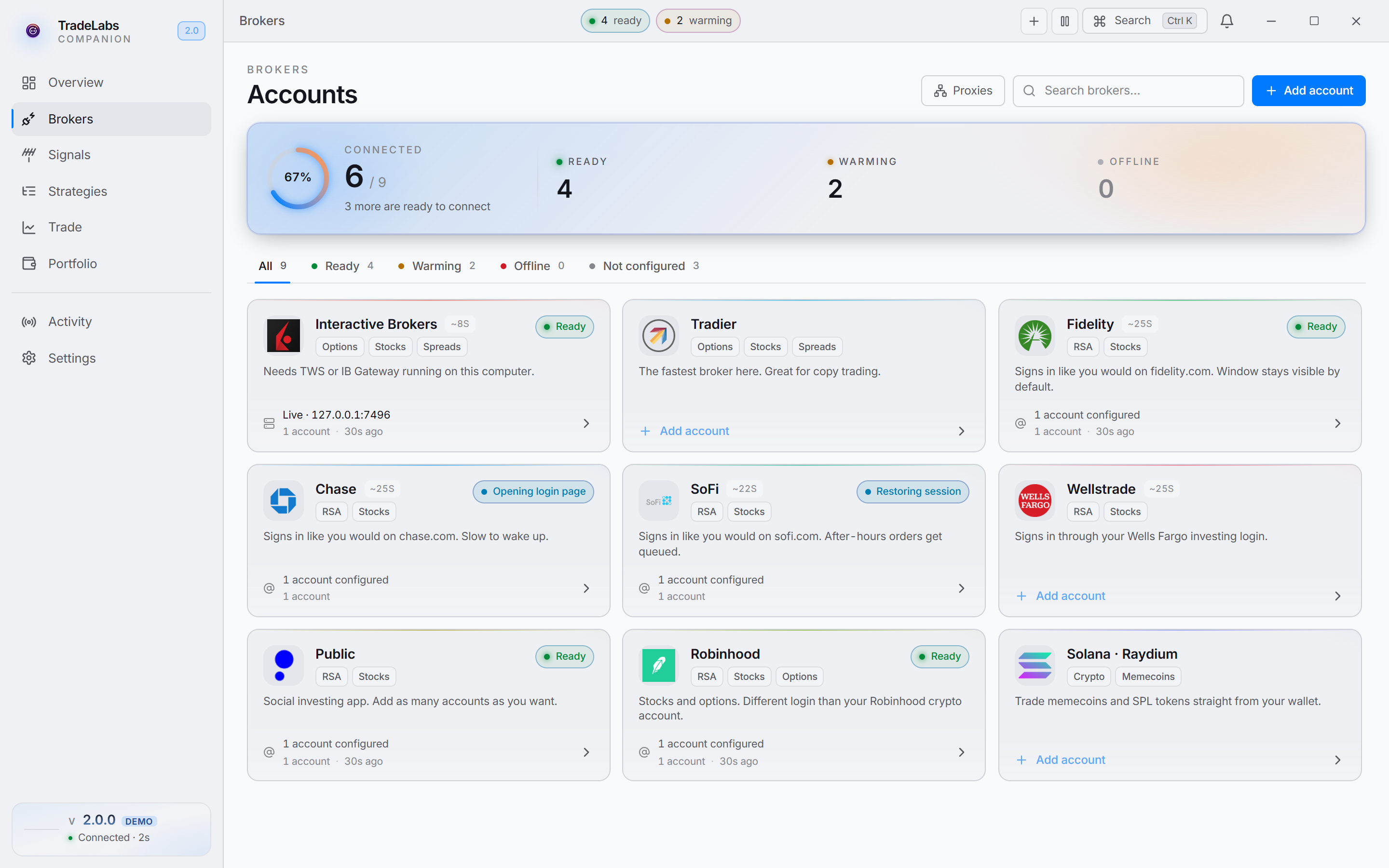 Click a broker card, then Add account, to open the connect form
Is my broker login secure?
Yes. Broker credentials are stored on your own computer, encrypted, and are never uploaded to our servers. Some brokers connect with an API key or token (Tradier, Robinhood Crypto, Webull), and Charles Schwab uses your own developer app plus a browser sign-in. Others sign in with your username and password (Chase, Fidelity, SoFi, WellsTrade, Public, and more). Either way the credentials stay on your machine.
Can I connect more than one account at the same broker?
Yes, for most brokers. Click Add account on the broker’s card again for each login. Interactive Brokers, Robinhood Crypto, Solana and Polymarket take a single account each.
Strategies
How do I build my first strategy?
Build a strategy in the Companion App on the Strategies page, or in the Cloud Dashboard. They stay in sync. The steps are:
- Choose a signal source (Discord, TradingView, Telegram, or serverside).
- Pick your instrument and the broker or brokers to trade in.
- Set your size and trade parameters (take profit, stop loss, and so on).
- Try it with the Simulate button, then turn the strategy on.
See the Strategy editor for a full walkthrough of every field.
Can I run more than one signal source?
Yes. Create a strategy per source. They all run at once as long as the Companion App is running.
What can I trade?
Stocks, options, option spreads, futures, crypto, memecoins, prediction markets, and reverse split arbitrage — each on the brokers that support it. Futures run on Interactive Brokers, crypto on Robinhood Crypto, memecoins on Solana and Robinhood Chain, prediction markets on Polymarket, and RSA fans out across eleven smaller brokers. See the brokers reference for the grid.
RSA trading
What is Reverse Split Arbitrage (RSA)?
RSA is a strategy that acts on the price inefficiency around a stock’s reverse split. The RSA+ plan adds automated detection and execution of these opportunities.
Which brokers work for RSA?
Twelve brokers fan out RSA trades: Fennel, BBAE, Public, SoFi, DSPAC, Fidelity, WellsTrade, Robinhood (stocks), Chase, Firstrade, Webull, and Schwab. Interactive Brokers and Tradier are not RSA-compatible. See Broker Limits & Signup for the current list and per-broker account limits.
How profitable is RSA?
It varies with market conditions and how many splits are available. Past results do not predict future ones.
Troubleshooting
My trades are not executing. What do I check?
- Is the Companion App running? Nothing trades unless it is.
- Is the strategy on? It should show Running, not Paused.
- Is your signal source connected, and for Discord or Telegram, is your parser key set under Settings → Signal Parser?
- Is the broker connected? Idle is a healthy state, not an error.
- Are there enough funds in the account?
- Is the strategy set up for the signals coming in (right channel, right instrument, filters not blocking)?
- Check the Activity page for error messages.
A broker shows Idle or Warming. Is something wrong?
No. Broker health has four states: Active, Idle, Warming, Offline.
- Active means it was verified in the last minute or so.
- Idle means it is logged in with a valid session, just not re-checked recently. This is the normal state overnight and between trades.
- Warming means a browser-based broker (Chase, Fidelity, SoFi, WellsTrade) is still starting up.
- Offline is the only state that means an actual problem.
How do I update the Companion App?
The app checks for updates on its own. With Automatic updates on (Settings → General → Updates), new versions download in the background, then install and restart once no trades are running. To check right now, click the version widget at the bottom of the left rail. It kicks off an update check.
My Charles Schwab account stopped trading after about a week.
That is Schwab’s design, not a fault. The Schwab link expires every 7 days and has to be re-authorized.
Open the Brokers page, find the Schwab account, and click Sign in again. Your Client ID and Secret stay saved, so you only repeat the browser step. See Charles Schwab for the full flow.
I am getting an authentication error. What do I do?
An auth error usually means a session expired.
- For your TradeLabs account, sign out and back in from Settings → Account.
- For a broker, open its card on the Brokers page. Use the account row’s Sign in button, or the row’s menu (Sign in by hand, Check connection, Edit credentials). Re-enter credentials if needed. The app verifies the connection itself once you save.
- For Charles Schwab, see the question above. An expired Schwab link is not a credential problem, so re-entering your Client ID and Secret will not fix it.
- If you changed computers and cannot sign in at all, reset your hardware binding from the dashboard Profile at dashboard.tradelabs.org.
A signal source stopped picking up messages.
- Open the Signals page and check the source still shows as connected. Reconnect it if not.
- For Discord and Telegram, check your AI key still works: open Settings → Signal Parser and use Test.
- Use the Channel tester on the source’s page to pull recent messages from the channel. If nothing comes back, your account has lost access to that channel.
I get errors from OpenAI or Gemini.
Discord and Telegram signals are read by your own AI key, so its errors show up in TradeLabs.
| Error | What to do |
|---|---|
| Quota, “exceeded quota” or out of credit | Add funds to your OpenAI or Gemini account. |
| ”Incorrect key” or invalid key | Create a new key with your provider and paste it into Settings → Signal Parser. |
| Rate limited | Too many messages are being read at once. Check whether a channel you follow is flooding, and stop following channels you do not trade. |
See Create an AI key for setup.
Contacting support
If these pages do not solve it, reach the team on Discord (how to join and open a ticket) or through the Support section in the app. Include:
- a short description of the problem
- what you already tried
- a screenshot of the error, or the reason shown on the Activity page
- your Hardware ID from Settings → Account, if it is a license or sign-in problem