Brokers
Charles Schwab
Connect a Charles Schwab account: registering a Schwab Developer app, the browser sign-in flow, the weekly re-authorisation Schwab requires, and how to fix common problems.
Schwab connects through its official Trader API. You register your own app on the Schwab Developer Portal, then sign in once in your browser to link your brokerage account. It trades stocks and options. It also works as an RSA broker.
| What it trades | Supported |
|---|---|
| Stocks | Yes |
| Options | Yes |
| Spreads | Not yet — see below |
| Futures | No |
| RSA | Yes, with the RSA+ plan. See below |
| Crypto, memecoins | No |
Schwab makes you sign in again every 7 days. The clock starts when you first authorise and it does not reset when the app renews itself in the background. This is Schwab’s design, not a limit in TradeLabs, and it applies to every app built on their API. Plan on a one-minute reconnect once a week.
Before you start
- A funded Schwab brokerage account.
- A Schwab Developer Portal account at developer.schwab.com. This is separate from your brokerage login.
- An app registered on that portal, approved and showing Ready For Use. Approval is not instant — Schwab reviews new apps, and this can take a few days.
- The TradeLabs Companion installed and running.
Schwab has no paper trading through the API. The developer sandbox returns synthetic data and cannot place orders, and thinkorswim paperMoney is not reachable from the API. Every Schwab order the app places is real. If you want to rehearse a strategy first, use Tradier paper mode.
Register your Schwab app
-
Sign in at developer.schwab.com and open Dashboard → My Apps.
-
Click Create App. Give it any name you like — this is only for your own reference.
-
For the API product, select both Accounts and Trading Production and Market Data Production. Trading alone is not enough; the app needs quotes and option chains to size and price orders.
-
Set the Callback URL to
https://127.0.0.1. This is the portal’s own suggested value and it is the simplest choice. -
Submit the app and wait for its status to reach Ready For Use. An app that is still pending will not let you sign in.
-
Open the finished app and copy its App Key and Secret. The App Key is what TradeLabs calls the Client ID.
Schwab compares the Callback URL character for character, including whether it ends in a slash. Whatever you enter on the portal must be typed into TradeLabs exactly the same way. A trailing slash on one side and not the other is the single most common reason sign-in fails.
Connect it in the app
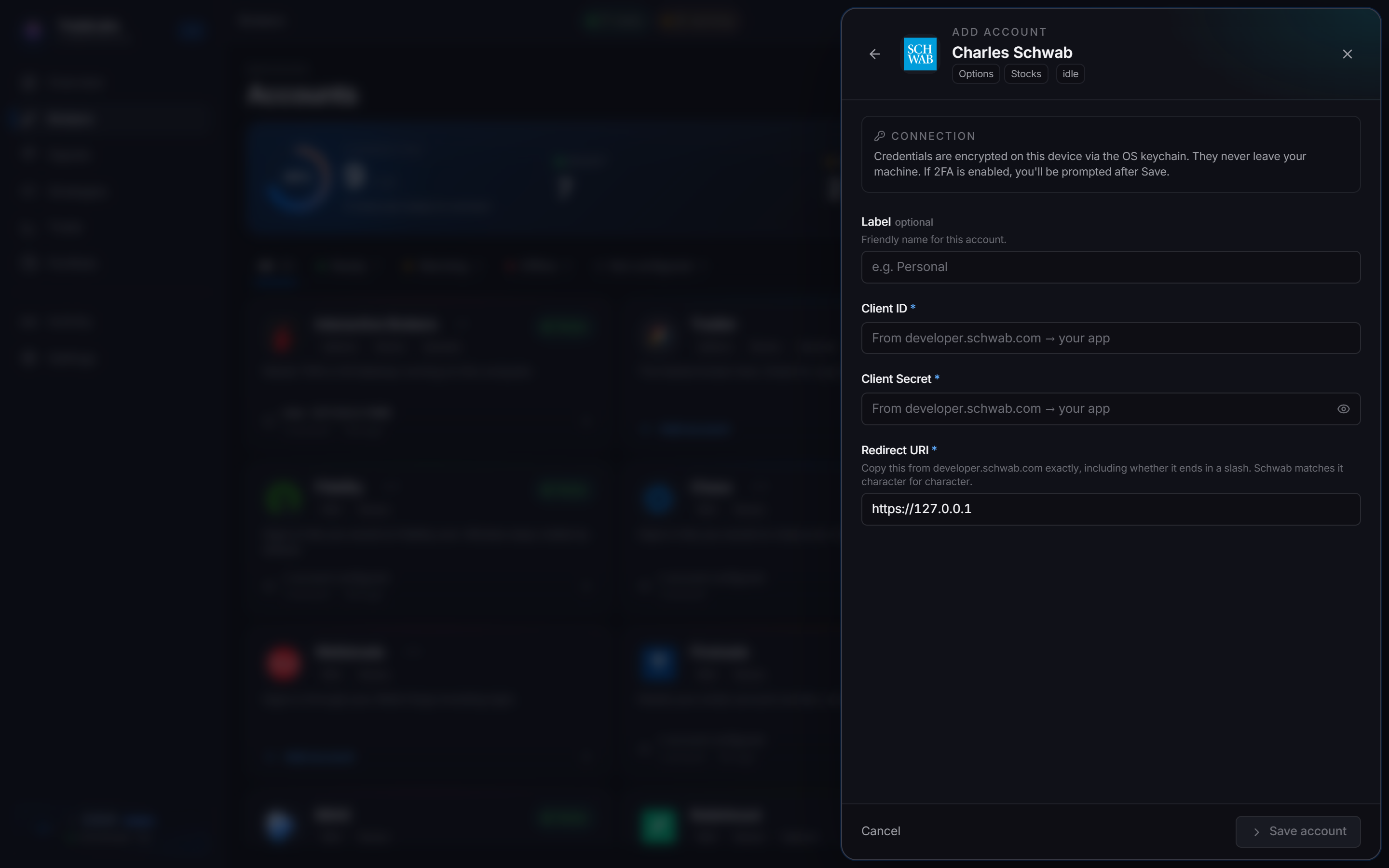
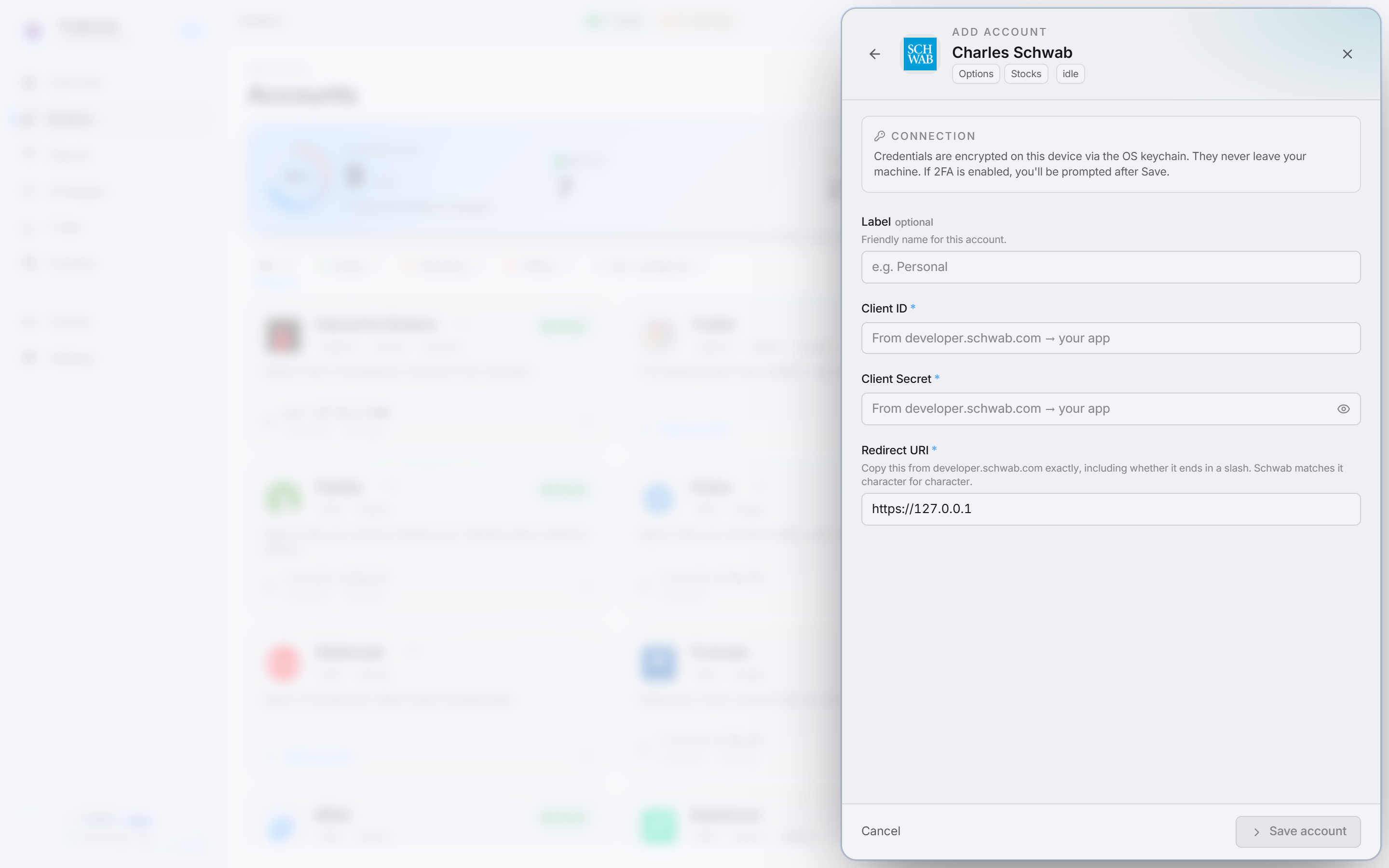 The three values come from your own app on developer.schwab.com. The Redirect URI defaults to
 https://127.0.0.1.
-
Open the Brokers page, find the Charles Schwab card, and click Add account.
-
Paste your Client ID (the portal’s App Key) and Client Secret.
-
Check the Redirect URI matches your app’s Callback URL exactly. It defaults to
https://127.0.0.1. -
Click Save account. Your credentials are encrypted on your device.
-
On the saved account, click Sign in with your browser. This opens your normal browser, where your Schwab session and password manager already are.
-
Sign in to Schwab and approve the app.
-
Schwab sends you to your callback address, and the page will not load. That is expected and correct — nothing is listening there. Copy the whole address out of the address bar.
-
Back in TradeLabs, paste it into Paste the address you landed on and press Enter.
The card shows Connected to Schwab once it works, along with the date you will need to sign in again.
The page that fails to load is the point of the flow, not a bug. Schwab puts a one-time code in that address, and pasting the address back is how TradeLabs receives it. There is nothing to fix on that screen — just copy the URL.
Signing in again each week
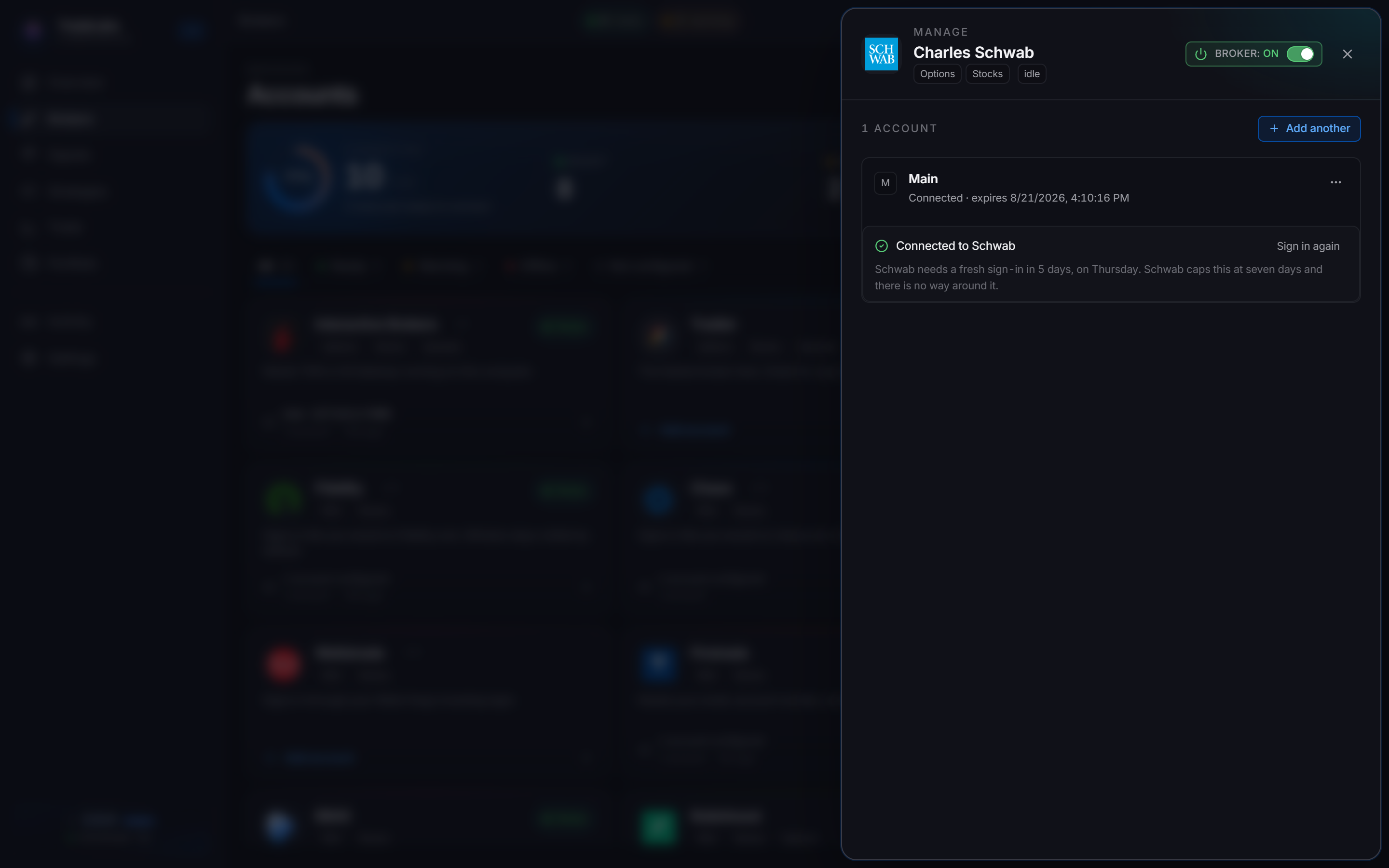
 The panel counts down the days to your next sign-in, and turns amber when it is close.
When the 7 days are up the account shows that it needs signing in again. Click Sign in again and repeat the browser step. Your Client ID and Secret stay saved; you only redo the sign-in.
Strategies pointed at Schwab stop trading while the connection is expired, so it is worth reconnecting before a session you care about rather than after a missed signal.
What a Schwab strategy can do
Schwab is a full API broker, so most of the strategy editor’s controls are real on it rather than hidden.
| Control | On Schwab |
|---|---|
| Entry and exit type | Market or Limit |
| Limit price side | Bid, Mid, or Ask, with its own offset, set separately for entries and exits |
| From alert pricing | Yes, on Discord and Telegram options signals |
| Allow extended hours | Yes, on both stocks and options |
| Stop loss and take profit | Yes, as a percent or a dollar offset from your entry |
| Trailing stop | Yes, and it rests at Schwab rather than being watched by the app |
| Take-profit stages and trims | Yes |
| Break-even stop | Yes. Read the stop-distance rule below before you set the trigger |
| Smart expiration detection | Yes |
| Smart price override | Yes |
| Route to account | Yes |
A stop loss, a take profit, and a trailing stop are all placed at Schwab. They keep working when TradeLabs is closed. Take-profit stages are the exception: TradeLabs runs those, so leave the app open while a staged exit is live.
What Schwab costs, and the limits it enforces
These are Schwab’s own rules, measured against the live API. They apply to any app on their platform, not only TradeLabs.
| Rule | What it means |
|---|---|
| Stock commission | $0 |
| Options commission | $0.65 per contract on each side. A round trip on 2 contracts costs $2.60 |
| Minimum stop distance | About 0.5% away from the market. Schwab refuses a stop at 0.2% |
| Extended hours | Limit orders only. Schwab rejects a market order outside regular hours |
| Buying power | Schwab reserves the full cost of the order up front, and option commission comes out of the same balance |
Set a break-even trigger of at least 0.5%. Break-even moves your stop to the entry price, so the gain that arms it is also the distance between the stop and the market. Set it lower than about 0.5% and the stop is placed and refused every time, which leaves the position running with no protection. The symptom looks like a broken feature, but it is a number that is too small.
Multiple accounts and logins
Schwab returns every brokerage account linked to the login you signed in with.
- One account: point a Stocks or Options strategy at it with the Route to account picker in the strategy editor. If you leave the picker empty, orders go to the first account of your first login.
- More than one login: click Add account on the Charles Schwab card for each extra login, and sign in to each one. A strategy that routes to an account uses the login that owns that account.
- Each login signs in again every 7 days. The weekly rule applies to every login on its own.
Schwab with RSA
Schwab is also an RSA broker. Select it on an RSA strategy together with your other RSA brokers. RSA needs the RSA+ plan.
One RSA alert places one share in every account on every Schwab login you connected. Schwab has these rules:
- IRAs trade too. The Schwab API does not label an IRA, so TradeLabs trades every account it can see on the login.
- A buy skips an account that already holds the stock. If the account owns any amount of the ticker, TradeLabs does not buy it again.
- A sell skips an account that does not hold the stock. Each account sells only the shares it holds. TradeLabs never sells short.
- Half a share or more rounds up to one share. Schwab places whole shares only. If an account holds 0.5 to 0.99 of a share, TradeLabs tries to sell 1 share. Schwab can refuse that order. Then only that account shows a failure.
- Regular hours only. An RSA alert is a market order, and Schwab takes market orders in regular hours only. Outside those hours the order is refused.
- One Discord message for each alert. With webhooks on, you get one summary for all accounts, not one for each. A real failure is reported once, with the account number.
- No limit from TradeLabs. Schwab sets how many accounts you can open. TradeLabs trades every account the login shows.
The Activity page lists every account for the alert, with the result and the reason for each skip or failure.
Spreads are turned off for now
Schwab is not offered as a broker for Spreads strategies. Single-leg options are unaffected.
Multi-leg orders need Level 2 options approval, because a spread contains a short leg. Without it Schwab refuses the order and says so plainly:
Establishing a naked option requires $5000 in equity value.; The account is not approved for this level of options trading
Rather than let you build a strategy that hits that refusal in the middle of a live signal, the option is hidden until the path has been tested end to end. Use Tradier or Interactive Brokers for spreads today.
Fixing common problems
- Sign-in fails or the code is rejected: the Redirect URI in TradeLabs does not match the Callback URL on the portal. Compare them character for character, including any trailing slash.
- “The account is not approved for this level of options trading”: Schwab is refusing a multi-leg order. Spreads are turned off for Schwab, so this should not come from a strategy — check whether the order was placed by hand.
- Strategies stopped trading overnight: check whether the 7-day window has lapsed. Reconnect from the Schwab card.
- The callback page shows an error in the browser: that page is never meant to load. Copy the address anyway — the code is in it.
- An RSA alert did nothing on Schwab: open the Activity page. “Already holds” on a buy means the account owns the stock. “Did not hold it” on a sell means the account owns none. Outside regular hours, Schwab refuses the market order.
- Only some accounts traded on an RSA alert: each account is separate. Read the reason for the other accounts in Activity. A failed account does not stop the others.
- “Opening transactions for this security must be placed with a broker”: Schwab sends this for some low-priced or restricted stocks. It is a Schwab rule. TradeLabs cannot place those orders through the API.
- An order is refused for buying power on a small account: Schwab reserves the full cost up front, and options add $0.65 per contract on each side. Both come out of the same balance.
- Schwab refused the stop on an otherwise good entry: the stop sat too close to the market. Schwab needs roughly 0.5% of distance. This most often comes from a break-even trigger set below that.
- An extended-hours order was rejected: Schwab only takes Limit orders outside regular hours. Set Entry (and Exit) to Limit on that strategy.
A trade opened on one device can only be managed from that same device. If you open a trade on your desktop and later switch to a laptop, the bot cannot update or close it from the laptop.